 Alisha Zulfiqar
Have you ever wondered how the Facebook Pixel Helper can make your ad tracking easier and more reliable? Running Facebook ads without proper tracking is like sailing without a compass; you’re spending money but don’t really know which direction you’re headed.
This guide will walk you through how to set up and use the Facebook Pixel Helper so you can track conversions accurately, fix pixel issues, and make smarter decisions with your ad budget.
Quick Summary
The Facebook Pixel Helper is a free Chrome extension that acts as a diagnostic tool for your Facebook Pixel. It helps you verify that your pixel is working correctly, troubleshoot errors in real-time, and confirm that standard and custom events are firing as expected. This guide provides a step-by-step walkthrough on how to install and use the extension, interpret its feedback, and resolve common issues to optimize your ad campaigns.
Your Essential Tool for Facebook Pixel Success
Running a successful advertising campaign on Facebook requires data. Without it, you’re essentially guessing what works. You need to know which ads are driving sales, which audiences are converting, and what user activity is taking place on your website. This is where the Facebook Pixel comes in, but even the pixel itself needs a check-up now and then.
The Challenge of Untracked Conversions
Imagine you’ve launched a new ad campaign. People are clicking, but your Facebook Ads Manager shows zero conversions. This gap in data can be incredibly frustrating and costly. It leaves you unable to measure ROI, optimize your ads, or build effective remarketing lists, making your entire Facebook marketing plan less effective.
Introducing the Facebook Pixel Helper
The Facebook or Meta Pixel Helper is a simple yet powerful Chrome extension that gives you real-time feedback on your Facebook Pixel implementation. Think of it as a detective for your website, instantly telling you if your tracking pixels are set up correctly, what events are firing, and what errors need your attention. It’s an indispensable tool for marketers and developers alike.
Why is Accurate Pixel Tracking Non-Negotiable?
Accurate conversion tracking is the backbone of any successful Facebook advertising strategy. It allows you to:
- Measure the direct impact of your ads on business goals.
- Optimize ad delivery to people more likely to take a specific action.
- Create highly targeted custom and lookalike audiences.
- Retarget users who have previously interacted with your website.
Without precise tracking, your ad campaigns are built on shaky ground. The Pixel Helper ensures your foundation is solid.
What is the Facebook Pixel Helper?
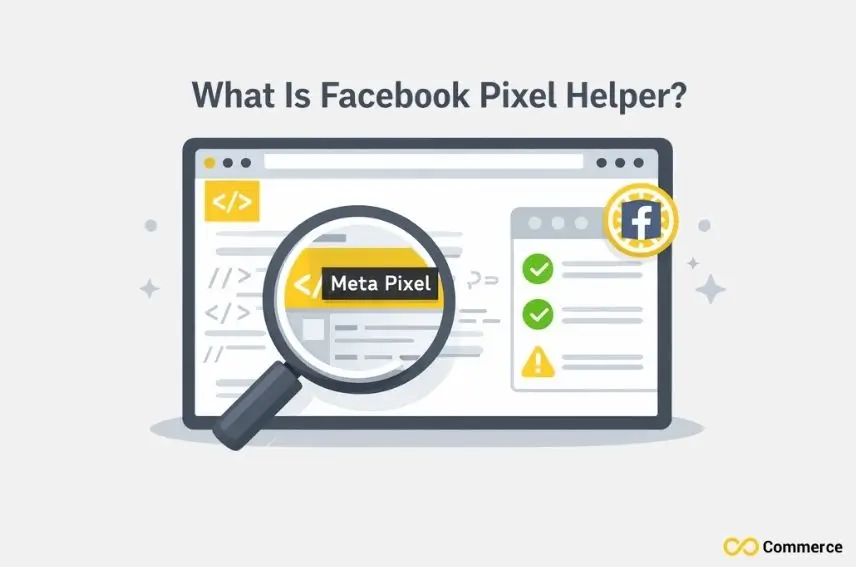
Before we dive into the setup, let’s clarify what this tool is and why it’s a must-have for anyone running Facebook Ads.
A Browser Extension for Real-Time Diagnostics
The Facebook (Meta) Pixel Helper is a free browser extension for Google Chrome. Once installed, it works in the background as you browse a website. The Pixel Helper icon in your toolbar will show you if a Facebook Pixel is installed on the page and whether it’s working correctly. It provides detailed information about pixel events, errors, and warnings.
Core Benefits of Using the Pixel Helper
- Verification: Instantly confirm that your Facebook pixel code is installed and firing on your website pages.
- Troubleshooting: Quickly identify and get guidance on fixing common errors, such as an Invalid Pixel ID or a pixel that did not load.
- Event Validation: Check that standard events (like AddToCart or Purchase) and custom events are triggering correctly with the right parameters.
- Optimization: Use the insights to fine-tune your event tracking setup, ensuring your data in Facebook Events Manager is accurate for better ad campaign performance.
Pre-Installation Checklist
Before you install the Facebook Pixel Extension, there are a couple of things you’ll need to have in place.
Ensure You Have Google Chrome Installed
This tool is a Chrome extension, so you must be using the Google Chrome browser. If you don’t have it, you can download it for free from Google’s official website. It’s the essential first step to getting this tool up and running on your machine.
Basic Understanding of the Facebook Pixel
You should have a basic understanding of the Facebook Pixel. This includes knowing where to find your Pixel ID in the Facebook Business Manager and understanding the difference between the base code (the main snippet of code installed on every page) and event code (snippets that track specific actions).
Step-by-Step Installation Guide for the Chrome Extension
Installing the meta pixel helper extension is straightforward. Just follow these simple steps:
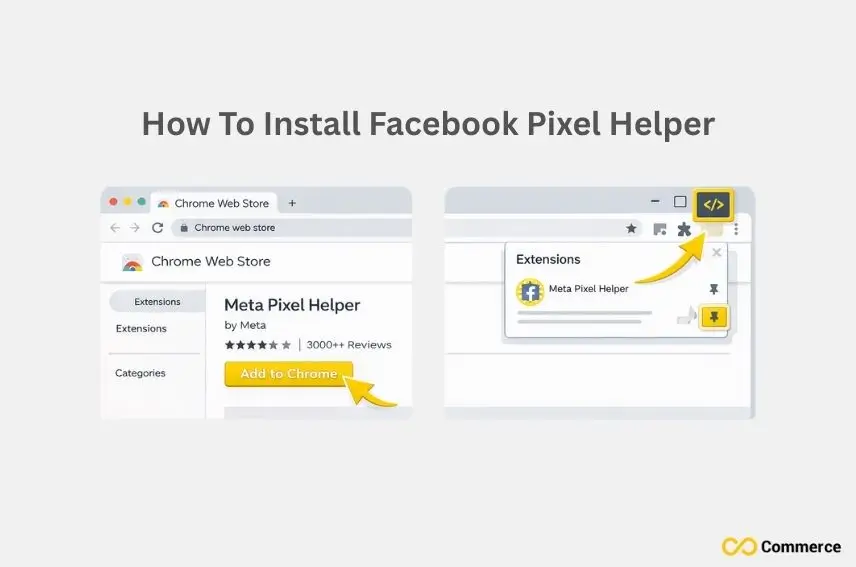
- Navigate to the Chrome Web Store: Open your Chrome browser and go directly to the Chrome Web Store. You can simply search “Chrome Web Store” on Google to find it. This is the official marketplace for all Chrome add-ons.
- Search for “Facebook Pixel Helper”: In the search bar of the web store, type “Facebook Pixel Helper.” The official extension, offered by “Facebook,” should appear at the top of the results.
- Add the Extension to Your Chrome Browser: Click the “Add to Chrome” button next to the extension’s listing. A pop-up will ask for confirmation; click “Add extension” to proceed. The installation process takes only a few seconds.
- Pin the Pixel Helper Icon for Easy Access: After installation, click the puzzle piece icon (Extensions) in the top-right corner of your Chrome browser. Find the Facebook Pixel Helper in the list and click the pin icon next to it. This will keep the Pixel Helper icon visible in your toolbar for easy access.
How Do I Use the Facebook Pixel Helper?
With the extension installed, you can now start verifying your pixel. It’s an intuitive process.
- Recognizing the Pixel Helper Icon Status: The icon’s appearance tells you what’s happening. A grey icon means no pixel is found. A blue icon with a green number indicates the pixel is active and firing correctly. A red number signals an error.
- Accessing the Pixel Helper Dashboard: Navigate to any webpage on your site and click the Pixel Helper icon. A small dropdown window will appear, showing you the diagnostic information for that specific page.
- Interpreting Basic Information: At a minimum, the dashboard will show you the Pixel ID found on the page and should detect a PageView event. This confirms your base code is installed and working.
Standard and Custom Events
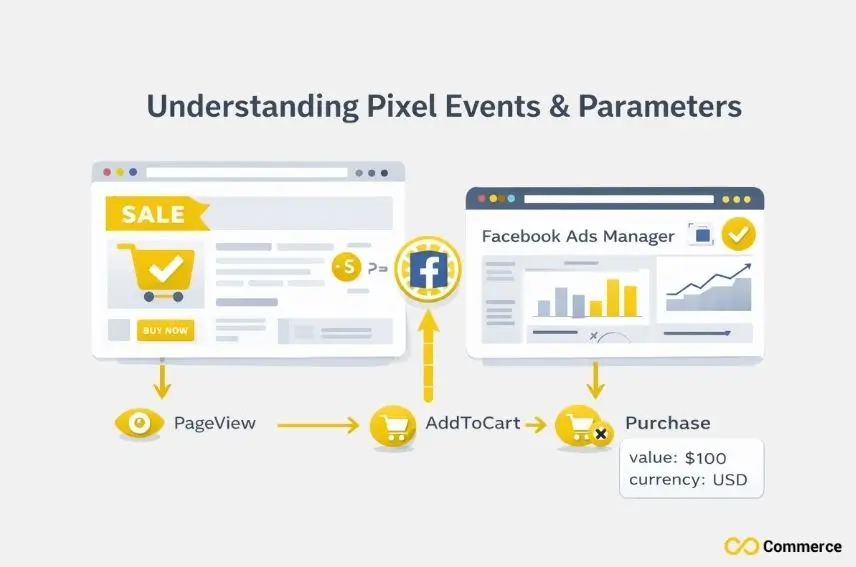
The true power of the tool comes from its ability to validate your event tracking.
- Verifying Standard Events: When you perform an action tied to a standard event, like clicking an “Add to Cart” button, the Pixel Helper should show that the AddToCart event fired. A green checkmark next to the event means it’s working perfectly.
- Interpreting Custom Events: If you’ve set up custom events to track unique user activity, the Pixel Helper will display these as well. This is crucial for verifying that your more advanced conversion tracking is functioning as intended.
- Understanding Event Parameters: The tool also shows the parameters sent with each pixel event, such as value and currency for a purchase event. This allows you to confirm that dynamic data is being captured correctly for accurate reporting.
What Are Common Pixel Helper Issues?
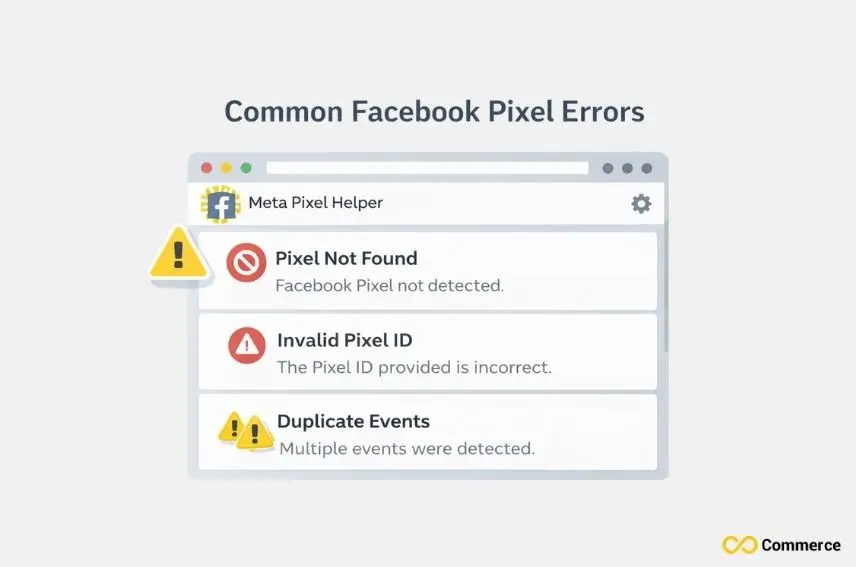
The Pixel Helper is your first line of defense for troubleshooting. Here are some common errors you might encounter.
- “No Pixels Found on Page”: This means the pixel helper did not find any Facebook pixel code on the current page. Check if the base code was correctly added to your website’s header.
- “Pixel Did Not Load” or “Pixel Took Too Long to Load”: This error, sometimes shown as “Pixel loaded far too slowly,” suggests a problem with where the code is placed or a conflict with other scripts. The pixel code should be placed just before the closing </head> tag.
- “Invalid Pixel ID”: The Pixel ID in your website’s code doesn’t match any valid Pixel ID in the Facebook system. Double-check the ID you copied from your Facebook Business Manager.
- “Pixel Activated Multiple Times”: The same pixel event has been sent to Facebook multiple times. This can inflate your data and is often caused by having the same code installed more than once on a single page.
- “Not a Standard Event”: The tool detected an event that isn’t one of Facebook’s predefined standard events. If this was intentional (a custom event), you can ignore this. If not, check for typos in your event name.
- “Product Catalog Not Paired”: This warning appears on dynamic ads if the product ID sent by the pixel doesn’t match an ID in your uploaded product catalog.
Advanced Debugging & Verification with the Pixel Helper
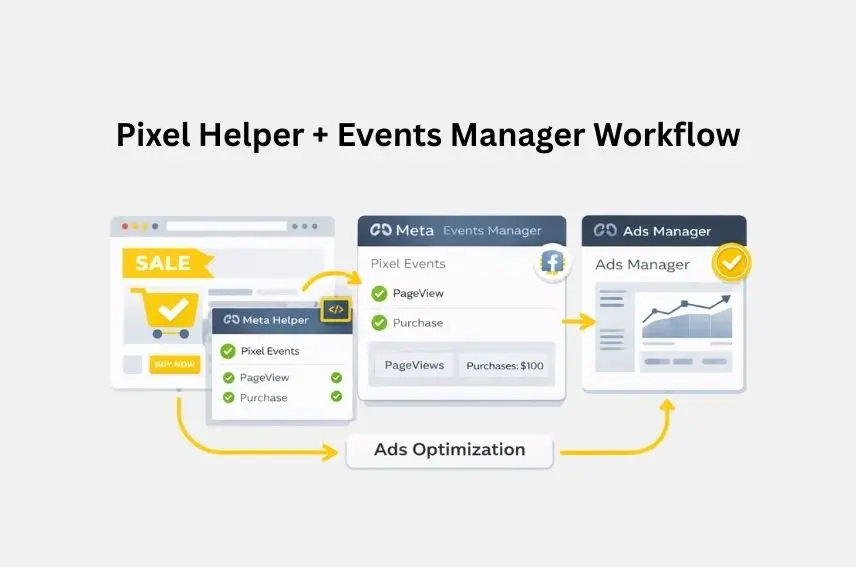
For more complex setups, the helper offers deeper insights. You can verify that advanced matching parameters are being sent, confirm data processing options are correctly configured for privacy compliance, and check that custom conversions are firing based on their defined rules. When using Google Tag Manager, the Pixel Helper is an excellent companion for debugging your tags and triggers in real-time.
Integrating Helper Insights with Facebook Business Tools
The Pixel Helper works best when used alongside other Facebook tools. You can cross-reference the data you see in the extension with what’s reported in Facebook Events Manager to ensure consistency. If the helper shows an error, Events Manager is where you’ll find more detailed diagnostics. Accurate data verified by the helper directly translates to better optimization capabilities in Facebook Ads Manager.
Final Thoughts
Using the Facebook Pixel Helper extension is a small-time investment that brings huge rewards for your advertising campaigns. It simplifies pixel tracking, helps you fix issues on your own, and gives you confidence that your data is accurate and reliable. Whether you’re using a Shopify store or a custom website, the Meta Pixel Helper is your key to unlocking the full potential of your Facebook marketing strategy.
Don’t let tracking issues undermine your efforts. Install the Fb Pixel Helper today, follow the steps in this guide, and take control of your conversion tracking. Your future ad campaigns will thank you for it.
FAQs
The Meta Pixel Helper Extension is a free Chrome tool that checks if your Facebook Pixel is installed and working properly. It helps detect events, spot errors, and ensure accurate tracking for better ad results.
Go to Meta Events Manager > Data Sources > Set Up > Install code manually to copy your Pixel code.
The Meta Pixel Helper verifies if your Pixel is firing correctly and highlights any setup errors. It gives real-time feedback so your ad tracking stays accurate and reliable.
Yes, the Facebook Pixel is 100% free; you only pay for ads, not the tool itself. Use Infinite Facebook & TikTok Pixels to manage Pixels easily on Shopify.
You can confirm your Facebook Pixel is active by using the Meta Pixel Helper browser extension. You can also test actions directly inside Facebook Events Manager and watch events fire in real time. For a broader overview, the Data Sources section shows all recorded activity so you can verify accurate tracking.

