 Alisha Zulfiqar
Wondering where to locate your Facebook Pixel ID and why it’s crucial for your Shopify store? As a store owner, you wear many hats. You’ll be working with inventory, helping customers, and looking at marketing data. The Facebook Pixel, one of the most critical tools that will alter how you track, target, and enhance your advertisements, all boils down to your Pixel ID. If you’ve ever been perplexed by Meta’s design or your Shopify dashboard, you’re not alone. We have a simple five-step how-to guide to show you how to locate your Facebook Pixel ID.
Quick Summary
Your Facebook Pixel ID is a special number. It links your Shopify store to Facebook Ads Manager. This helps with tracking conversions and targeting ads. You can find it in three main ways: through Meta Events Manager (the primary method), within your Shopify Admin if already connected, or by using the Facebook Pixel Helper Chrome extension. Once you find the ID, use it to check tracking. You can also run targeted campaigns and improve your ads on Facebook and Instagram.
What Exactly is a Facebook Pixel ID and Why Is It Crucial?
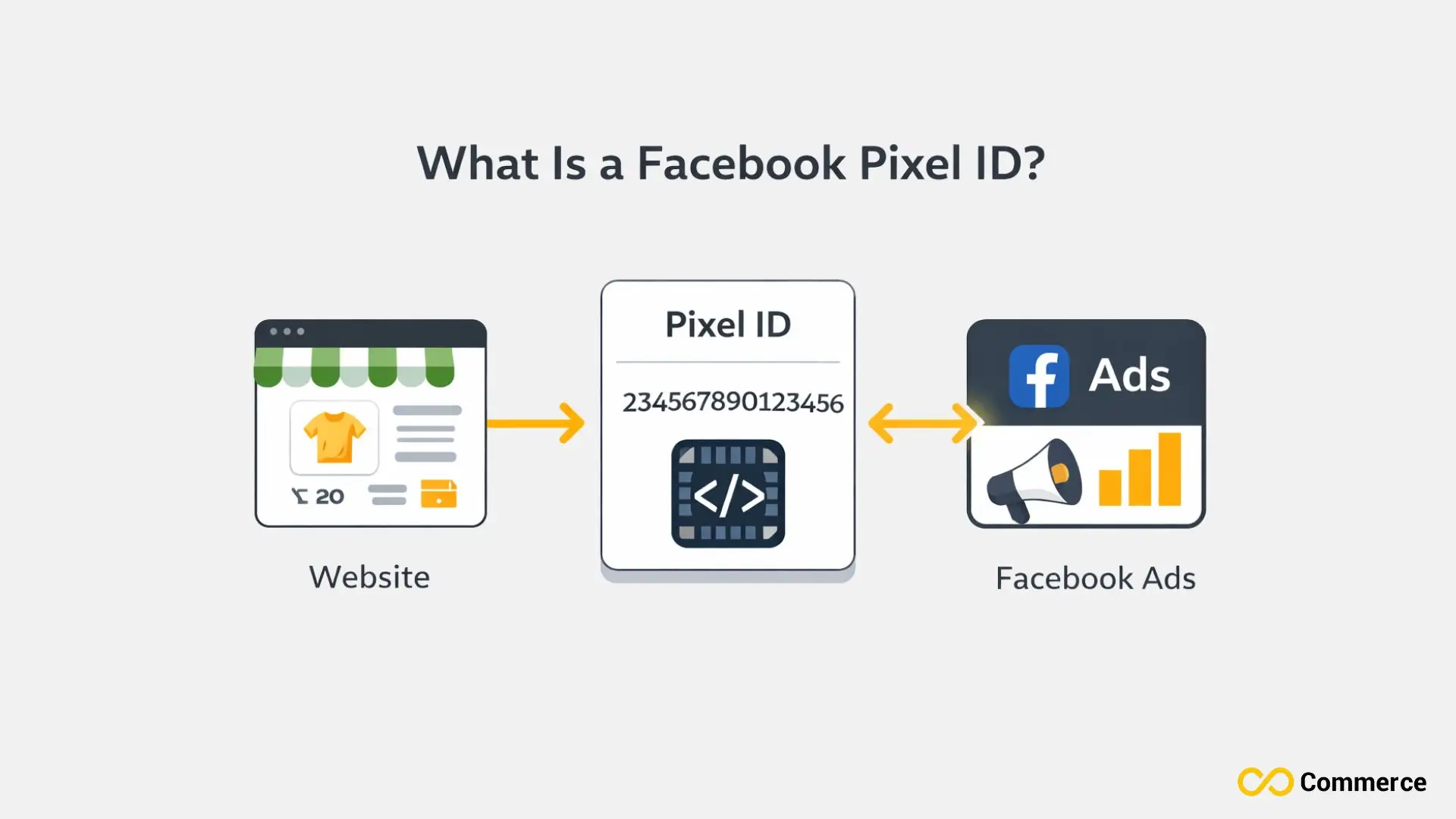
A Facebook Pixel ID is a unique ID for your Meta (Facebook) Pixel. This tool tracks how users interact with your website. It’s important. It lets you measure ad performance and optimize campaigns. You can also retarget visitors accurately. This all leads to better marketing ROI.
Your Store’s Unique Digital Fingerprint
Think of your Facebook Pixel ID as your store’s social media passport. This 15-16 digit number uniquely identifies the tracking code installed on your Shopify store. Without it, Facebook has no way to know which data belongs to your business.
I’ve seen store owners skip this step, assuming their ads will “just work.” They don’t. The Pixel ID is what ties everything together, from customer views and Add to Cart actions to actual purchases. It’s the foundation of your entire Facebook advertising strategy.
The Bridge Between Shopify and Facebook Ads Manager
Your Pixel ID acts as the communication channel between your online store and Meta’s advertising platform. When someone visits your site, the pixel code fires, sending data back to Facebook. Data sharing helps you see customer behavior, track user interactions, and measure conversion rates accurately.
Without proper pixel integration, you’re essentially flying blind. You won’t know which ads drove sales, which audiences engaged most, or how to improve your advertising campaigns.
Enabling Powerful Marketing Strategies
Here’s where things get exciting. Once your Facebook Pixel is properly connected using the correct Pixel ID, you unlock powerful features:
- Custom Audiences: Retarget visitors who viewed specific products but didn’t purchase
- Lookalike Audiences: Find new customers similar to your best buyers
- Dynamic ads: Automatically show people the exact products they browsed
- Conversion tracking: Measure the true ROI of every dollar spent on Meta Ads
In my experience with Shopify campaigns, stores with well-set pixels perform 2-3 times better in ads. This is much better than those lacking accurate tracking.
Finding Your Pixel ID in Meta Events Manager
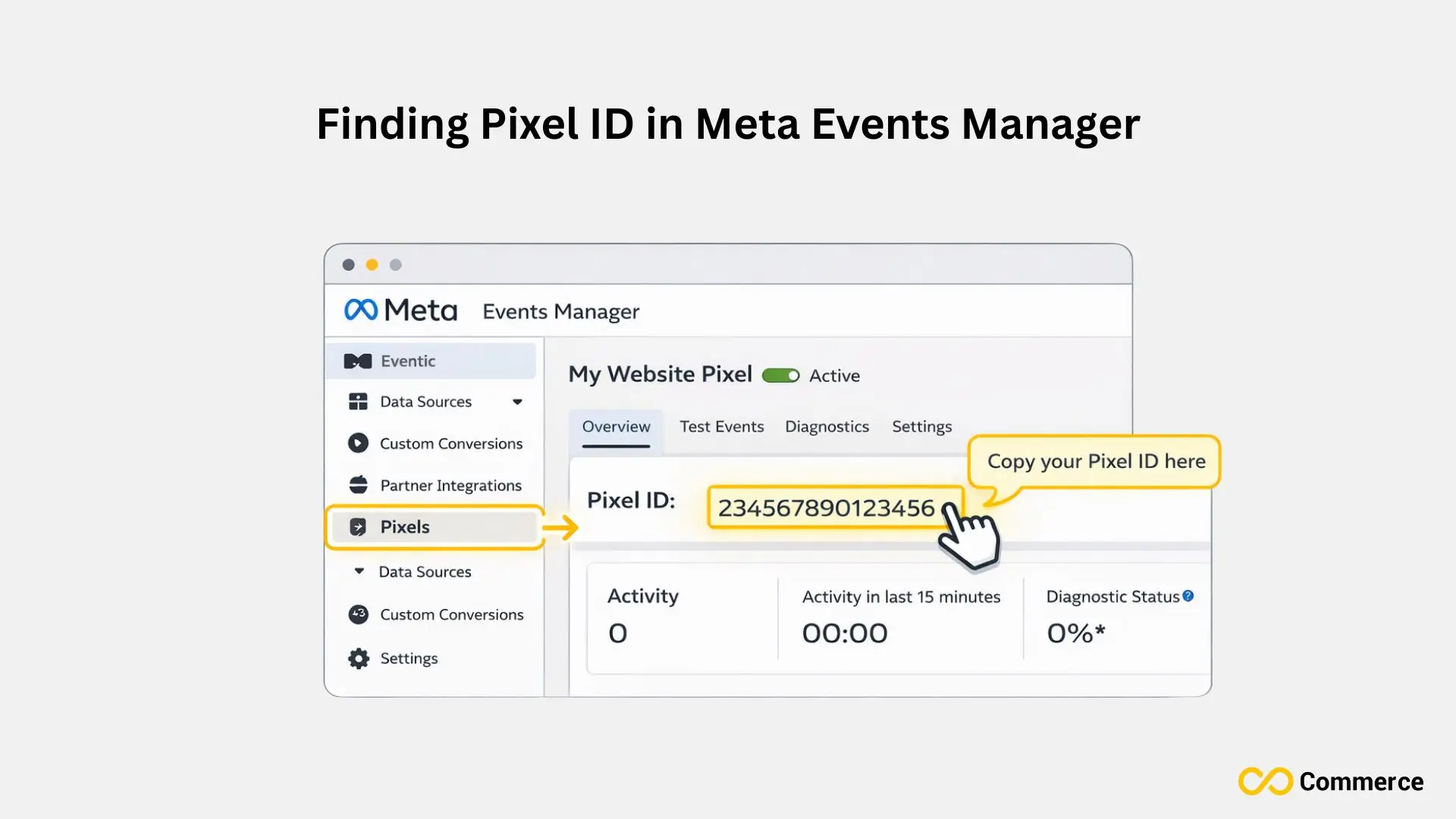
The Meta Events Manager is the primary place to locate your Facebook Pixel ID, offering a clear view of your pixels, events, and tracking data all in one dashboard.
Step-by-Step Navigation to Your Pixel Settings
This is the most reliable method and where you should start. Here’s exactly what to do:
- Go to business.facebook.com and log into your Facebook Business Manager.
- Click the menu icon (three horizontal lines) in the top left corner.
- Under “Measure & Report,” select Events Manager.
- You’ll see a list of all data sources connected to your business.
If you lack Business Manager access, you can still contact Events Manager through your Facebook ad account settings.
Identifying Your Pixel and Copying the ID
Once you’re in Events Manager, look at the left sidebar. You’ll see your pixel listed under “Data Sources” with a green dot if it’s active.
Click on your pixel name. At the top of the screen, you’ll see “Pixel ID” followed by a long number (usually 15-16 digits). This is your Facebook Pixel ID.
Pro tip: Click the copy icon next to the number rather than manually typing it. One wrong digit means your tracking won’t work, and you’ll waste time troubleshooting later.
Key Information Displayed Alongside Your Pixel ID
While you’re here, take note of other valuable information:
- Event activity: Shows recent standard events like PageView, AddToCart, and purchase event data
- Last activity: Indicates when your pixel last sent data (helpful for verification)
- Status: Confirms whether your pixel is active, needs attention, or has errors
I recommend bookmarking this page. You’ll return here often to monitor conversion API setup, check custom events, and optimize tracking codes.
Finding Your Pixel ID Within Your Shopify Admin (If Already Connected)
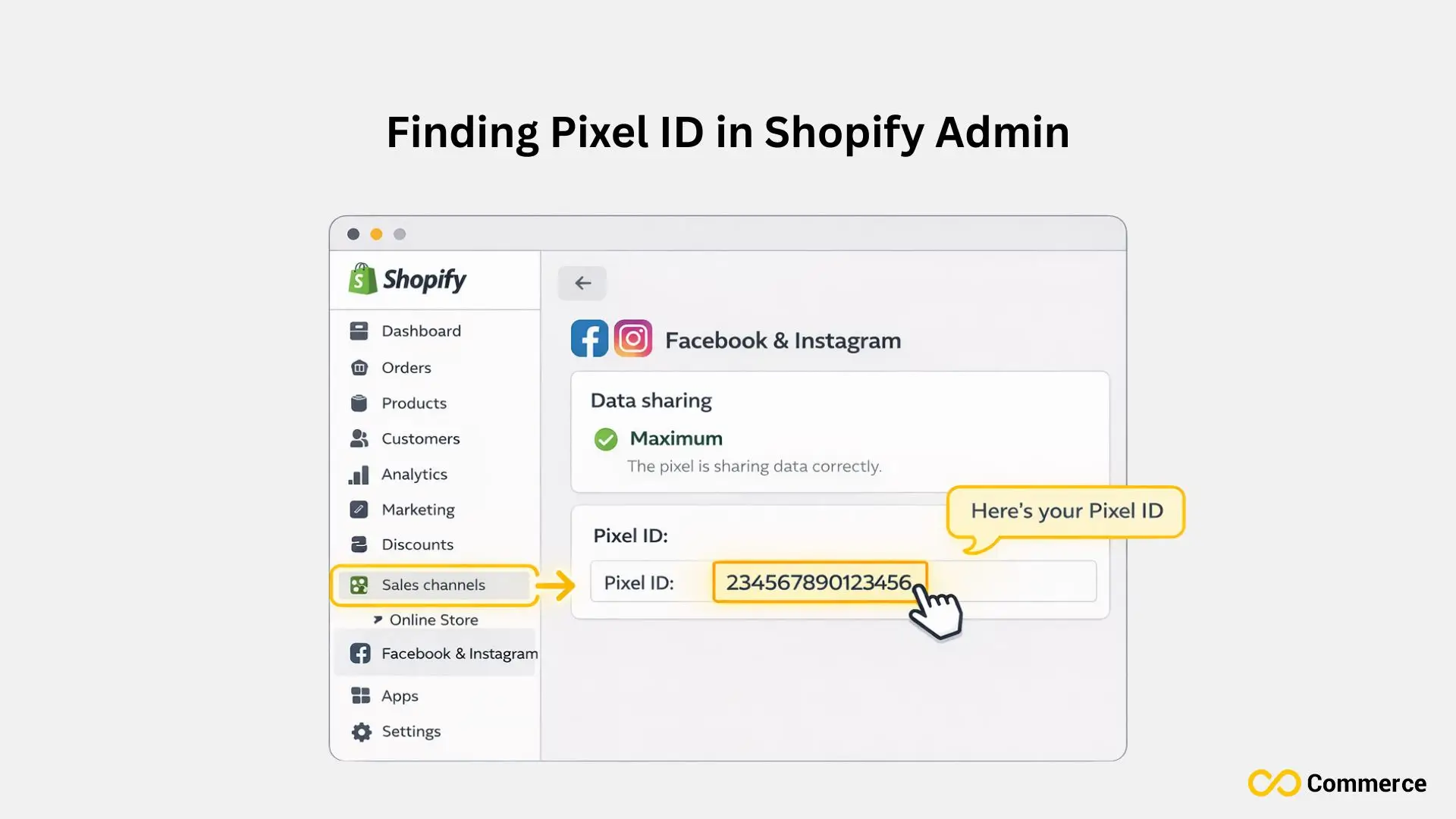
If your Facebook Pixel is linked to your Shopify store, finding your Pixel ID is easy. Just go to your Shopify admin and check the Facebook sales channel settings.
Via the Facebook & Instagram Sales Channel App
If you’ve already installed the Facebook channel in your Shopify store, finding your Pixel ID is even easier:
- Log into your Shopify admin panel.
- Click Sales channels in the left menu.
- Select Facebook & Instagram.
- Navigate to Settings within the app.
- Scroll to Data Sharing Settings.
- Your Pixel ID appears under “Customer data-sharing” or “Pixel event” section.
This method confirms that your pixel integration is properly connected. If you see a Pixel ID here, it means Shopify is successfully sending data to Facebook.
Inspecting Your Store’s Code for Manual Installations
For those comfortable with code, you can verify your pixel code directly in your theme:
- From Shopify Admin, go to Online Store > Themes.
- Click Actions > Edit code on your active theme.
- Open the theme.liquid file in the code editor.
- Search (Ctrl+F or Cmd+F) for “fbq” or “facebook pixel.”
- Look for a line like: fbq(‘init’, ‘YOUR_PIXEL_ID_HERE’);
The number in quotes after ‘init’ is your Facebook Pixel ID. This method is useful if you’ve manually added the pixel code to your header section or if you’re using Google Tag Manager for pixel management.
Warning: Only edit your theme code if you’re confident. Always duplicate your theme before making changes, or better yet, work with a developer.
Using the Facebook Pixel Helper Chrome Extension
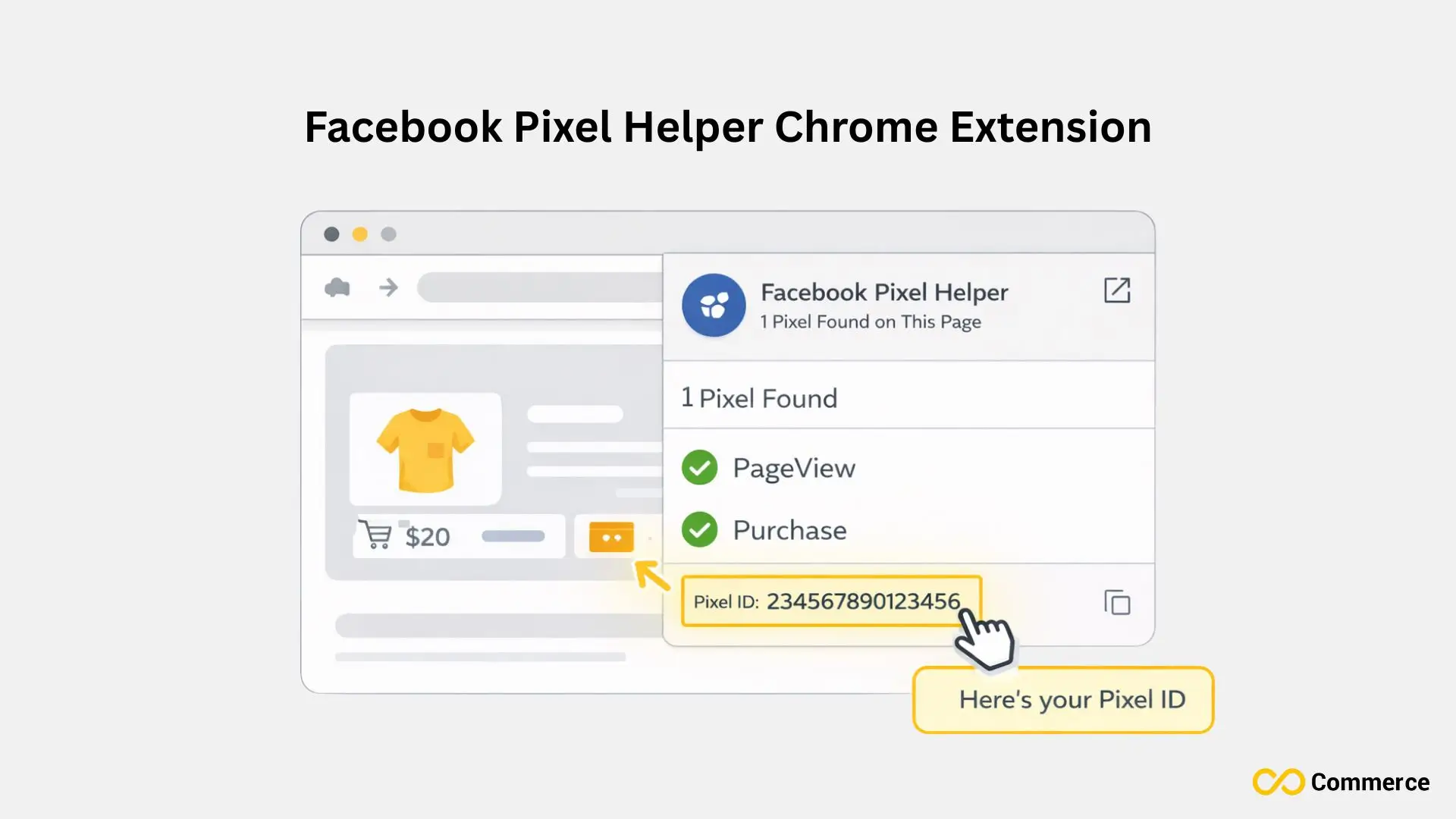
The Facebook Pixel Helper Chrome extension is a useful tool. It helps you check if your Pixel is installed correctly. You can also see if it tracks events on your website in real time.
Installing and Activating the Pixel Helper
The Facebook Pixel Helper is a free Chrome extension that’s invaluable for troubleshooting. Here’s how to use it:
- Visit the Chrome Web Store.
- Search for “Facebook Pixel Helper.”
- Click Add to Chrome and confirm installation.
- The pixel icon will appear in your browser toolbar.
This tool works passively in the background, detecting any Facebook pixels on pages you visit.
How to Use It to Identify Your Pixel ID
Once installed, browse to your Shopify store’s homepage or any product page:
- Click the Pixel Helper icon in your browser toolbar.
- A popup will show all pixels detected on the page.
- Your Pixel ID appears at the top of the pixel information.
- Green checkmarks indicate the pixel is firing correctly.
- Yellow or red warnings highlight potential issues.
I use this extension daily when auditing client stores. It’s useful if you think there are tracking issues. It also helps to check if custom conversions are working after a purchase.
Bonus: The Pixel Helper works on competitor stores too. You can check if they use Facebook ads and see which events they track.
What Should Facebook Have Found?
After finding your Facebook Pixel ID, use it to link your website or other platforms to Meta’s ad tools. This helps track accurately, gain better audience insights, and improve ad targeting.
Connecting Your Pixel to Shopify
If you haven’t connected your pixel yet, here’s what to do with your newly found Pixel ID:
Using the Facebook & Instagram app (recommended):
- Install the Facebook channel from Shopify’s app store.
- During setup, you’ll be prompted to connect an existing pixel.
- Paste your Pixel ID when requested.
- Grant data sharing permissions.
Manual installation (if you prefer control):
- Copy your full pixel code from Meta Events Manager.
- Go to Shopify Admin > Online Store > Themes > Edit code.
- Paste the code in the <head> section of theme.liquid.
- Save and test.
The Facebook and Instagram app method is easier. It includes automatic Conversions API setup. I recommend this for better iOS 14 tracking.
Verifying Your Pixel’s Data Flow
After connecting your pixel:
- Return to Meta Events Manager.
- Check that events are appearing in the Event Section.
- Test by making a test purchase (you can cancel it afterward).
- Verify that standard events like ViewContent, AddToCart, and Purchase are firing.
Common issue I see: The pixel fires on most pages but not the checkout. This usually means your pixel isn’t installed on Shopify’s checkout pages. The Facebook channel app solves this automatically.
Launching Targeted Facebook and Instagram Ad Campaigns
With your Pixel ID properly connected, you can now:
Create Custom Audiences:
- Visitors who viewed products in the last 30 days.
- People who added to cart but didn’t purchase.
- Recent purchasers (for upsell campaigns).
Build Lookalike Audiences:
- Based on your best customers.
- Targeting people similar to those who made multiple purchases.
- Scaling your reach while maintaining quality.
Run Dynamic Product Ads:
- Automatically show customers the exact products they viewed.
- Create compelling retargeting campaigns using your product catalog.
- Reduce cart abandonment at your local area stores and online.
I’ve seen conversion campaigns boost by 150-200% when audience targeting improves with accurate pixel tracking.
Pixel ID and Conversions API (CAPI)
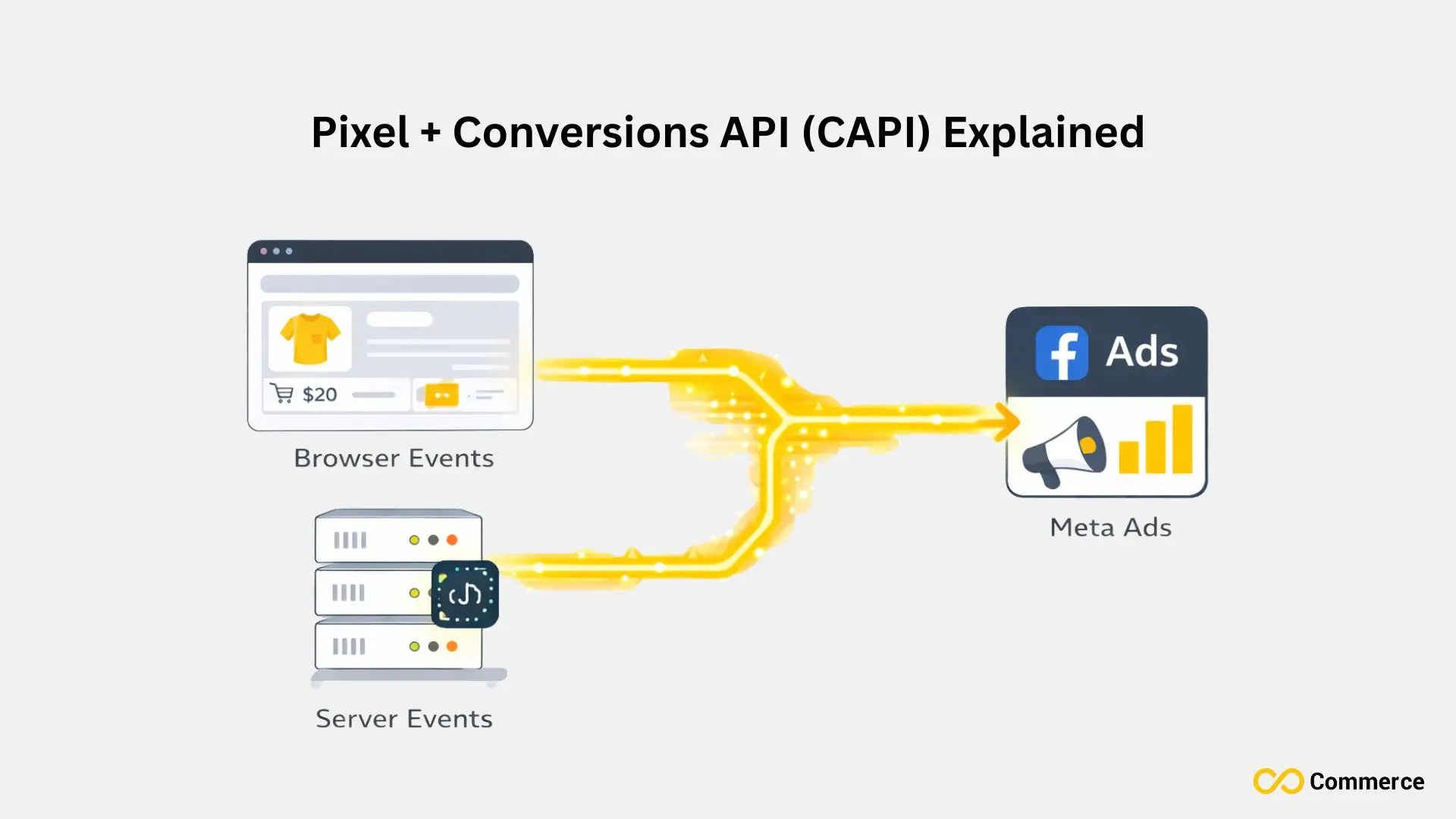
Here’s something crucial: the Facebook Pixel alone isn’t enough anymore. Apple’s iOS 14 privacy updates significantly reduced pixel accuracy. That’s where Conversions API (also called Meta CAPI) comes in.
The Conversions API works alongside your pixel, sending data directly from your Shopify server to Meta. This server-side tracking is more reliable and privacy-compliant than browser-based pixels alone.
The good news? If you’re using Shopify’s Facebook & Instagram app, Meta CAPI is included automatically. Your Pixel ID remains the same, but you get enhanced tracking capabilities without extra work.
Action step: Check your Meta Events Manager for “Server” events alongside “Browser” events. If you only see browser events, you’re missing out on critical data.
How Do You Find Your Facebook Pixel ID?
To find your Facebook Pixel ID, just check your Meta Events Manager. You can also look in the platform where your Pixel is set up, like Shopify, WordPress, or directly in your website’s code.
“I Can’t Find Any Pixel ID in My Events Manager.”
This usually means you haven’t created a pixel yet. Here’s the fix:
- Go to Meta Events Manager.
- Click the green Connect Data Sources button.
- Select Web > Facebook Pixel.
- Name your pixel (use your store name for clarity).
- Your new Pixel ID will be generated automatically.
If you have a Meta pixel but truly can’t see it, verify you’re logged into the correct ad account. Many business owners have personal and business accounts, which causes confusion.
“My Pixel ID Doesn’t Look Right or is Missing.”
Pixel IDs should be 15-16 digits, all numbers. If you see letters or special characters, you’re looking at something else (possibly a Facebook page ID or ad account ID).
Double-check you’re in the correct section:
- Correct: Events Manager > Data Sources > Pixel > Pixel ID
- Incorrect: Business Settings > Pages (this shows Page IDs instead)
I once spent an hour helping a client who was using their Facebook Business Manager ID instead of their Pixel ID. Easy mistake, frustrating result.
“My Pixel Helper Shows a Different ID Than I Expect.”
There are a few possible explanations:
Multiple pixels installed: If you’ve worked with different agencies or developers, you might have multiple pixel codes on your site. The Pixel Helper will show all of them. Remove old, unused pixels to avoid data contamination.
External script interference: Apps like the Kit app, Shogun Page Builder, or Google Analytics might inject tracking codes that the Pixel Helper detects. These aren’t necessarily problems unless they’re conflicting with your main pixel.
Third-party checkout: If you use Shopify Point of Sale or external landing pages, they might have different pixels installed. Make sure your main store and all conversion points use the same Pixel ID.
Quick fix: Check the pixel settings in your Shopify admin panel and Meta Events Manager. The Pixel ID should match across both platforms. If it doesn’t, reconnect your pixel using Method 2 above.
Conclusion
Your Facebook Pixel ID is key for tracking and advertising success in your Shopify store. Use it to track customer behavior, improve campaigns, and retarget effectively. This way, you transform data into valuable results. Keep your tracking updated. Verify it often. This helps your marketing decisions stay data-driven and profitable.
FAQs
You can find your Facebook Pixel ID in Shopify by opening Facebook & Instagram > Settings > Data Sharing in your Shopify admin. The Pixel ID appears under “Customer data sharing.”
A Facebook Pixel ID is a unique number linking your Shopify store to Meta Ads Manager. It tracks user behavior, measures conversions, and helps you optimize ad targeting and retargeting.
Infinite Facebook TikTok Pixels is one of the best-rated apps for Shopify. It supports multiple pixels, Conversion API integration, and automatic event syncing, ideal for accurate tracking.
Use the Meta Pixel Helper Chrome extension to confirm your Pixel is firing correctly. You’ll see green checkmarks for active events like PageView or Purchase when installed properly.
Yes, with tools like Infinite Facebook TikTok Pixels, you can manage and assign multiple Facebook Pixels across products or pages. It’s perfect for advanced tracking or multiple ad accounts.

