 Alisha Zulfiqar
Have you ever wondered how to test and fix your Facebook Pixel on Shopify to ensure your tracking is accurate and reliable? Running a Shopify store without proper data is like driving blind, you’re moving forward but have no idea where you’re going. This guide shows you how to troubleshoot, test, and optimize your Facebook Pixel for clearer insights and better ad performance.
Quick Summary
A working Facebook Pixel on Shopify is key. It tracks customer behavior, boosts ad campaigns, and helps maximize your return on ad spend (ROAS). This guide offers a step-by-step way to diagnose issues. Start with the Meta Pixel Helper for initial checks. Then, troubleshoot common problems, like missing events or data differences. We’ll discuss client-side and server-side tracking (Conversions API). This helps make your data accurate and reliable, even with browser privacy settings and ad blockers.
Why Your Facebook Pixel on Shopify Matters
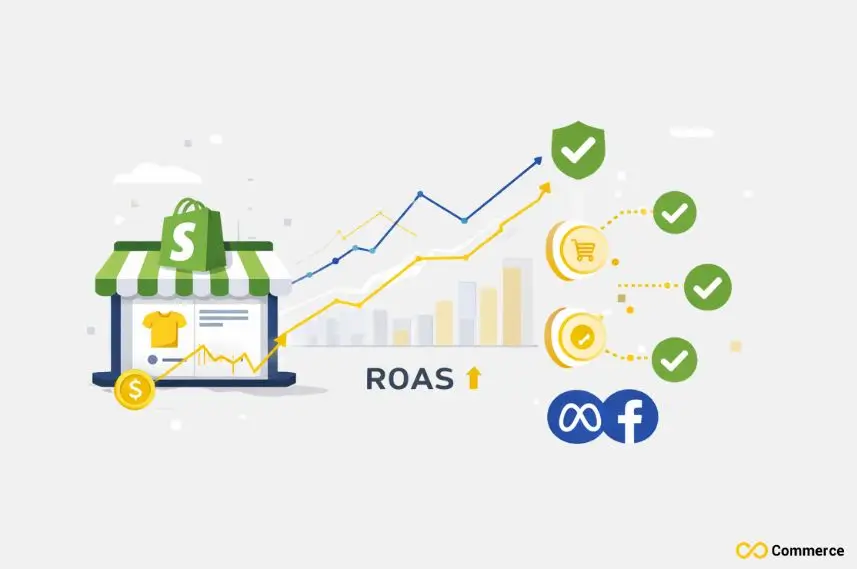
Facebook Pixel is a powerful snippet of code that acts as a bridge between your Shopify store and your Meta ad campaigns. Understanding its function is the first step toward leveraging its full potential.
The Core Purpose of the Meta Pixel
At its heart, the Meta Pixel is an analytics tool. It collects data about the actions visitors take on your online store, such as viewing a product, adding an item to their cart, or completing a purchase. Event tracking helps you see how well your ads work. You can understand how they affect customer behavior.
The Impact of a Malfunctioning Pixel on Ad Campaigns
When your Pixel malfunctions, the consequences can be severe. A broken Pixel can lead to:
- Inaccurate Reporting: You won’t know which ads are driving sales, leading to wasted ad spend on underperforming campaigns.
- Poor Ad Targeting: Retargeting efforts fail because the Pixel isn’t correctly identifying users who have shown interest in your products.
- Flawed Optimization: Meta’s algorithm can’t optimize for conversions if it isn’t receiving accurate purchase event data.
- Unreliable Lookalike Audiences: If the source audience data is flawed, your lookalike audiences will be ineffective.
What This Guide Covers: A Diagnostic Approach
Think of this guide as your go-to manual for pixel health. We’ll start with basic checks, move to common problems, and then explore advanced debugging techniques. My goal is to equip you with the knowledge I’ve gained from years of debugging these exact issues, so you can confidently manage your own tracking.
Understanding the Meta Pixel on Shopify
Before diving into troubleshooting, it’s important to understand how the Pixel works within the Shopify ecosystem. This knowledge forms the foundation for effective debugging.
How the Meta Pixel Collects Data
The Pixel works by placing and triggering small script files (cookies) in a user’s web browser. When a user takes an action on your site (like a page view), the Pixel fires and sends this information back to your Meta Events Manager. This provides a detailed log of customer interactions.
Key Events Tracked by the Pixel
Shopify’s native integration is designed to track several standard events automatically. The most critical ones for e-commerce include:
- Page Views: Fires when a user lands on any page of your online store.
- ViewContent: Fires when a user views a specific product page.
- Add to Cart: Fires when a user adds a product to their shopping cart.
- InitiateCheckout: Fires when a user begins the checkout process.
- Purchase: The most important event, firing when a user completes a transaction on the thank you page.
Native vs. Manual Installation
- Native Shopify Integration: Shopify’s Facebook & Instagram app is the easiest method. You simply connect your Meta Business Manager and paste your Pixel ID into the designated field in your Shopify admin. It automatically adds the Pixel code to your store and tracks standard events.
- Manual Installation: This involves manually adding custom scripts to your theme’s Liquid files (e.g., theme.liquid). This method offers more customization but is prone to errors if not done correctly and can be broken by theme updates. For most users, the native integration is the recommended and more reliable choice.
The Role of Data Sharing Settings in Shopify
Within the Facebook & Instagram sales channel app, Shopify provides Customer data-sharing settings (Standard, Enhanced, Maximum). These settings control how much data you send to Meta via the Conversions API (server-side tracking). The “Maximum” setting sends the most comprehensive data, which can improve Event Match Quality and ad campaign performance, but you must ensure your privacy policy aligns with these data privacy regulations.
Initial Verification and Basic Checks
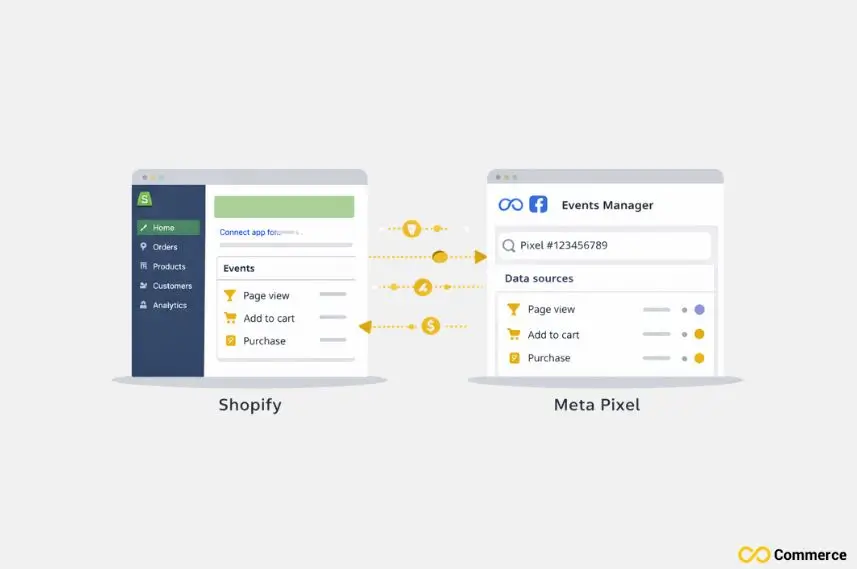
Before you assume something is broken, perform these initial checks. Often, the solution is simpler than you think. I always start here before going down a rabbit hole of complex debugging.
Step 1: Confirm Pixel Installation and ID in Shopify Admin
- Navigate to your Shopify admin, go to Online Store > Preferences.
- Scroll down to the “Meta Pixel” section. Confirm that there is a Pixel ID entered and that it exactly matches the Pixel ID from your Meta Events Manager. A simple typo is a common source of error.
Step 2: Utilizing the Meta Pixel Helper Extension
- Install the Meta Pixel Helper extension for Google Chrome. It’s an indispensable tool for any marketer.
- Visit your Shopify store and browse a few pages, including a product page. Click the Pixel Helper icon in your browser’s toolbar. It should show that your Pixel was found and which events fired on that page. Green checkmarks are good; yellow or red icons indicate a problem.
Step 3: Real-Time Event Testing with Meta Events Manager
While the Pixel Helper shows what the browser sees, Events Manager shows what Meta receives.
- In your Meta Events Manager, navigate to the “Test Events” tab.
- Enter your Shopify store’s URL and click “Open Website.”
- As you navigate your site in the new window, you should see events appear in real-time in the Test Events view. Add a product to your cart and complete a test purchase to ensure the entire funnel is tracked.
How Do I Troubleshoot Common Pixel Issues?
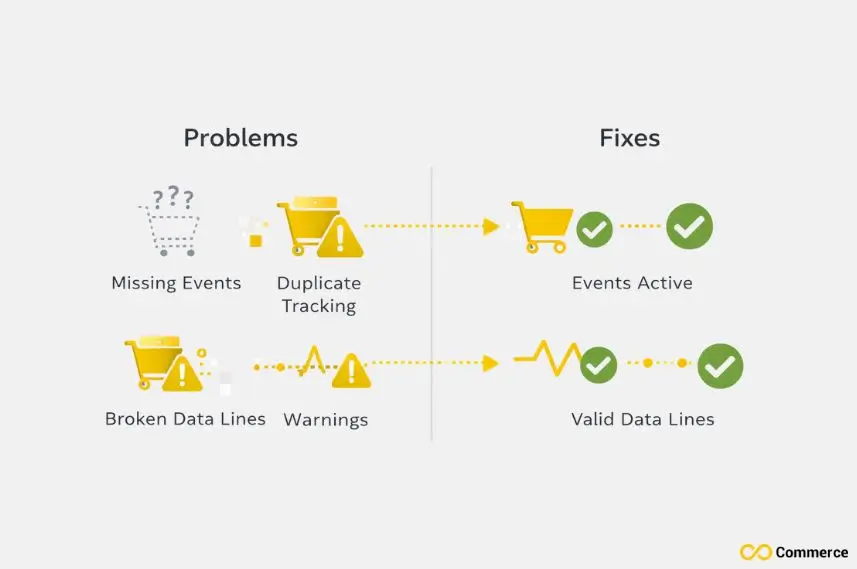
If your basic checks reveal problems, it’s time to troubleshoot. Here are the most common symptoms I’ve encountered and how to fix them.
Symptom 1: Pixel Not Firing at All or Missing Key Events
- Cause: This often happens if the Pixel ID is incorrect or if a theme customization or third-party app is interfering with the Pixel script.
- Solution: Double-check the Pixel ID in your Shopify admin. If it’s correct, temporarily disable recently installed Shopify apps to see if one is causing a conflict. Also, inspect your theme to ensure no old or manual pixel code is interfering with the native integration.
Symptom 2: Purchase Events Not Firing or Reporting Inaccurately
This is a critical issue that directly impacts your ad campaign performance.
- Cause: Often, a third-party payment gateway redirects the user away from Shopify’s native thank you page, preventing the purchase event from firing. Checkout customizations or custom scripts can also break this functionality.
- Solution: Ensure you are using Shopify Payments or a compatible gateway that correctly redirects back to the Shopify thank you page. Disable any scripts on your checkout pages and re-test. Using server-side tracking via the Conversions API can also serve as a reliable backup.
Symptom 3: Duplicate Events Being Reported
- Cause: This is almost always caused by having the Pixel code installed twice, once through the native Shopify integration and again through a manual code injection in the theme’s theme.liquid file or via Google Tag Manager.
- Solution: You need to find and remove the extra Pixel code. Carefully inspect your theme.liquid file for any manual fbq(‘init’) scripts. If you’re using Google Tag Manager, ensure you are not firing the Meta Pixel from there if you’re also using the native integration.
Symptom 4: Data Discrepancy Between Shopify and Meta Ads Manager
- Cause: Discrepancies are normal to an extent due to factors like ad blockers, browser privacy settings (especially after iOS 14+), and different attribution windows. However, large discrepancies can signal a problem.
- Solution: Implement the Meta Conversions API through Shopify’s sales channel app. This server-side tracking method sends data directly from Shopify’s servers to Meta’s, bypassing many browser-level restrictions and providing more accurate data.
Advanced Debugging and Deeper Dives
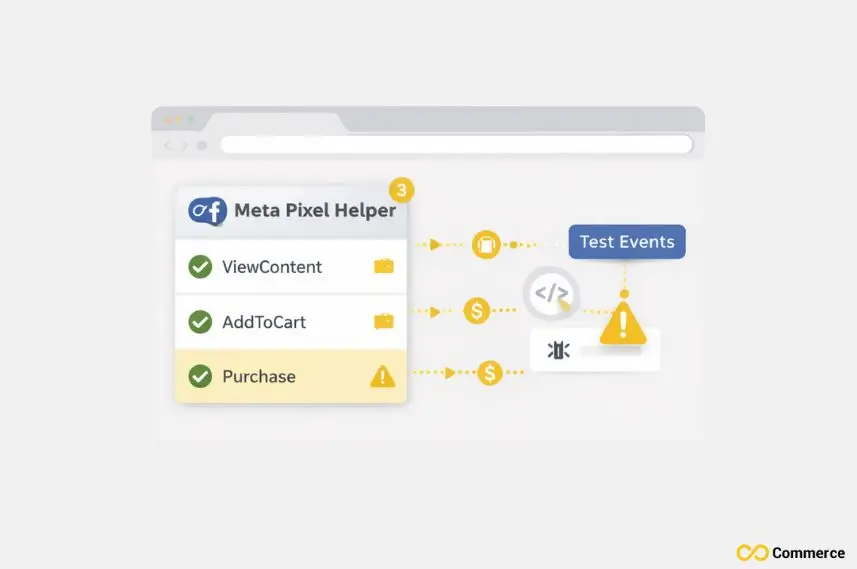
If the common fixes don’t work, you may need to dig a little deeper.
Diagnosing JavaScript Errors and Theme Customizations
- Right-click on your site, select “Inspect,” and open the “Console” tab in your browser’s developer tools. Look for red text indicating JavaScript errors. These errors can halt script execution, preventing the Pixel from firing. The error message often points to the conflicting script or file.
How Can I Troubleshoot Third-Party App Conflicts?
- A common problem I’ve seen is when a Shopify app injects its own scripts that conflict with the Meta Pixel. This is especially true for apps that modify the cart or checkout.
- To diagnose this, create a duplicate of your live theme. In the duplicate theme, remove third-party apps one by one, testing your Pixel after each removal until you find the culprit.
Addressing Ad Blockers and Browser Privacy Settings
- Unfortunately, you can’t force users to disable ad blockers. However, implementing server-side tracking (Conversions API) is the most effective way to mitigate data loss from ad blockers and strict browser privacy settings, as the data is sent server-to-server, not from the user’s web browser.
Mastering Event Data with Server-Side Tracking
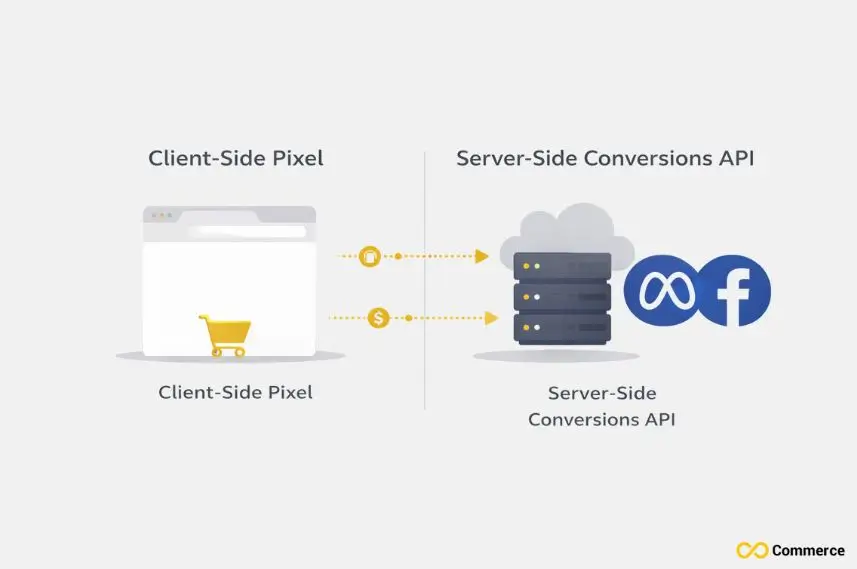
To build a resilient tracking setup, you need to combine browser-side and server-side tracking.
The Need for Server-Side Tracking (Facebook Conversion API)
The Facebook Conversion API (CAPI) was developed to address the growing limitations of browser-based tracking. It creates a more reliable data connection between your Shopify store and Meta, leading to better ad campaign performance.
Setting Up CAPI through Shopify’s Facebook Sales Channel App
- This is surprisingly straightforward. In the Facebook Sales Channel app in your Shopify admin, go to the Data Sharing Settings.
- Choose the “Maximum” setting. This automatically enables and configures the Conversions API. Shopify handles the technical setup, sending key event data from its servers directly to Meta.
Testing and Validating Server-Side and Client-Side Events Together
- In Meta Events Manager, you will see events coming from both “Browser” and “Server.” Meta automatically de-duplicates these events, using the server event as the priority source if both are received for the same action.
- This creates a robust system where if the browser Pixel is blocked, the server event still gets through, ensuring you have the most complete event data possible.
Safety Advice
- Establish a Regular Pixel Audit Routine: Once a month, run through the Phase 1 basic checks to ensure everything is still working as expected. This is especially important after installing new apps or changing your theme.
- Understand and Respect Customer Privacy Settings: Ensure your store’s privacy policy and cookie banner are compliant with privacy laws like GDPR. Transparency builds trust with your customers.
- Test Thoroughly After Any Shopify Store Changes: Any change, no matter how small, has the potential to break your tracking. Always test your key funnels (Add to Cart, Purchase) after updates.
- Keep Shopify and Facebook Integrations Updated: Both platforms regularly release updates. Keeping the Facebook & Instagram app updated ensures you have the latest features and bug fixes for your Pixel integration.
Final Thoughts
Troubleshooting the Facebook Pixel on Shopify setup can feel daunting, but it’s a skill every store owner or marketer needs. By following a structured, diagnostic approach, you can systematically identify and fix almost any issue you encounter. Taking control of your data is the first step toward building more effective ad campaigns and achieving sustainable growth for your online store. Don’t be afraid to get your hands dirty, the rewards of accurate tracking are well worth the effort.
FAQs
Go to Shopify Admin > Sales Channels > Facebook & Instagram, connect your Meta Business Manager, and select your Pixel ID to auto-install tracking. Use Infinite Facebook & TikTok Pixels to manage multiple Pixels and ensure accurate event tracking.
Copy your Pixel base code from Meta Events Manager and paste it into Online Store > Themes > Edit Code > theme.liquid above the </head> tag.
Install the Meta Pixel Helper Chrome extension and test actions like viewing a product or checkout to see which events fire. You can also use Meta Events Manager > Test Events to verify real-time data; if no events appear, check your Pixel ID or theme/app conflicts.
Go to Shopify Admin > Facebook & Instagram > Settings >Data Sharing, click Disconnect to remove, then Connect your new Pixel ID. If added manually, delete the Pixel script from theme.liquid to avoid duplicates and test with Meta Pixel Helper afterward.
Verify your Pixel ID, use Meta Pixel Helper for checks, enable Conversions API, and avoid duplicate installs from code or GTM.

