 Amber Naz
Maybe sales have slowed. Maybe you’re moving to another platform, or the bill just landed and you’re not sure what you’re paying for. Whatever the reason, deciding to cancel subscription Shopify steps can mean several different things, and picking the wrong one can cost you money, data, or your customers’ trust.
This guide walks through every real option: pausing your store, downgrading your plan, closing the store entirely, and cancelling the apps billed on top of your plan. You’ll also get a checklist of what to do first, the refund rules, and the “why am I still being charged?” fixes. Every step and policy below comes from Shopify’s own Help Center, with the menu paths you’ll use in the admin.
Which Option Should You Choose?
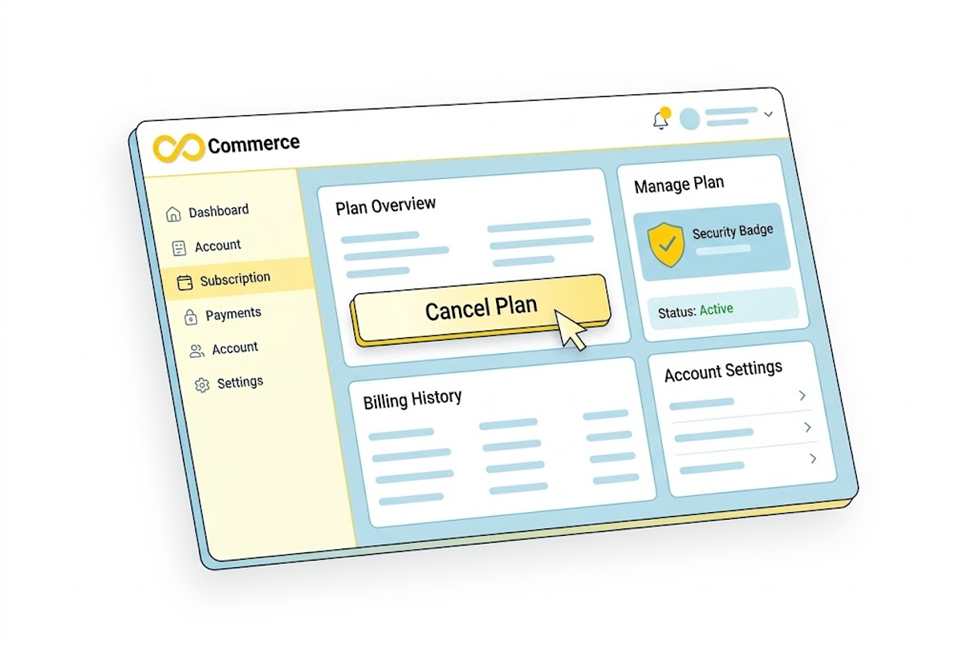
Start by deciding what you actually want to stop. Shopify gives you four levers:
| Option | What it does | Best for | Billing effect |
| Pause (Pause and Build) | Stops checkout on all sales channels but keeps your store, admin and apps | Seasonal breaks, rebuilds, taking time off | You pay a reduced subscription fee |
| Downgrade | Moves you to a cheaper plan and keeps selling | Stores that are live but don’t need top-tier features | Mid-cycle downgrades give account credits, not refunds |
| Close (deactivate) | Cancels the plan, uninstalls apps and takes the store offline | Permanently shutting down or moving platforms | Subscription ends at the end of your billing cycle |
| Cancel apps | Stops recurring app charges while keeping the store | Cutting costs without touching your plan | Future recurring charges stop; the current cycle may still bill |
If you’re unsure, Shopify’s own deactivation guide suggests considering a pause first, since it avoids deactivation altogether. Shopify’s pricing FAQ describes a pause as a way to temporarily stop selling and pay a reduced fee while keeping your account.
Before You Cancel: A Checklist That Prevents Regret
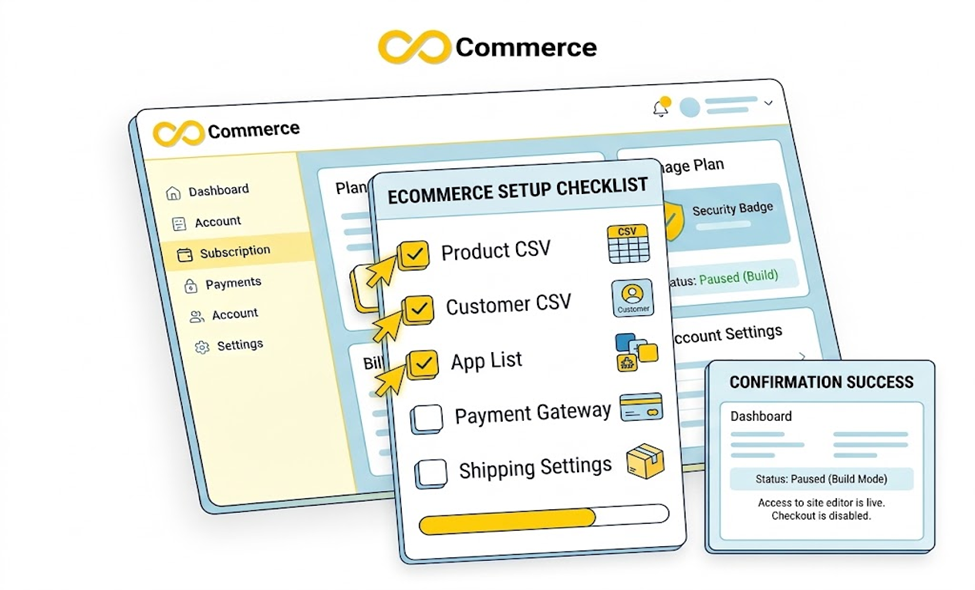
Run through this list before you click anything. Most of it is hard or impossible to undo afterward.
- Confirm you’re the store owner. Only the owner can deactivate a store, and Shopify says Support can’t deactivate it for you. You’ll also need to pass any two-step authentication challenge. Shopify Plus stores must go through Plus Support.
- Export your data as CSV files. Products, customers and orders. Shopify’s deactivation guide specifically tells you to export CSVs before you start.
- Download purchased themes. A theme you bought is licensed only to the original store, so download it before closing.
- List every app and how it’s billed. Open Settings > Apps. Note which ones bill through Shopify and which bill you directly.
- Check your domains. Know whether each domain is managed by Shopify or a third party, and when it renews.
- Review pending money. Look for unfulfilled orders, pending Shopify Payments, open chargebacks and outstanding invoices.
- Tell your customers. If you’re closing or pausing, post a notice and handle open orders, returns and subscriptions first.
- Check your bill date. Cancellation takes effect at the end of the current billing cycle. Knowing the date helps you plan your last sales window.
How to Pause Your Shopify Store (Pause and Build)
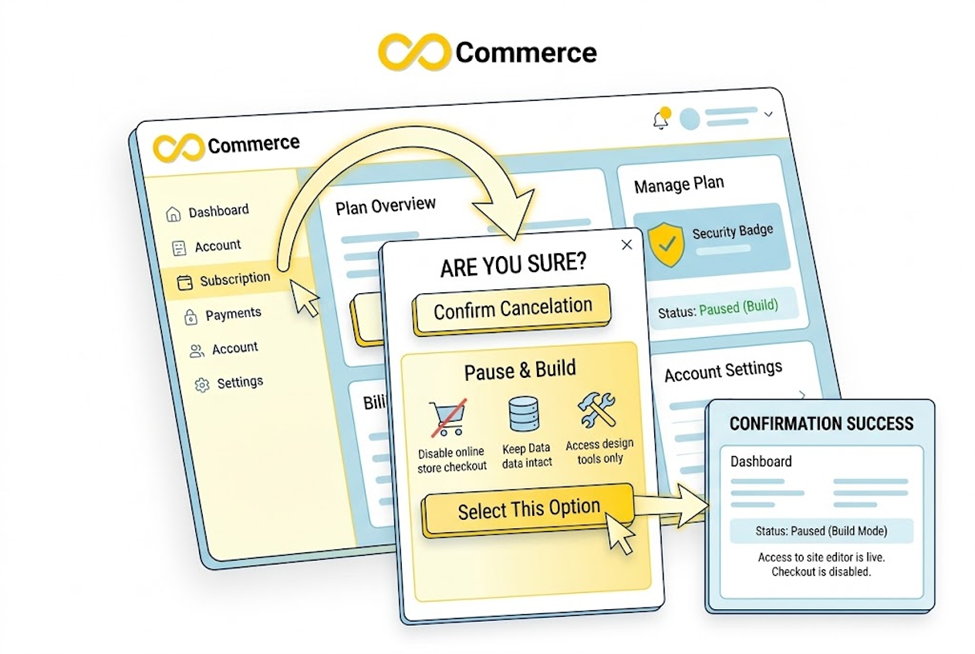
Pausing is the gentlest option. Your admin, products and apps stay put, but nobody can buy.
Who can pause: You must be the store owner, your free trial must be over, and you must be on a paid plan. Shopify Plus stores aren’t eligible.
Steps on desktop:
- In your Shopify admin, go to Settings > Plan.
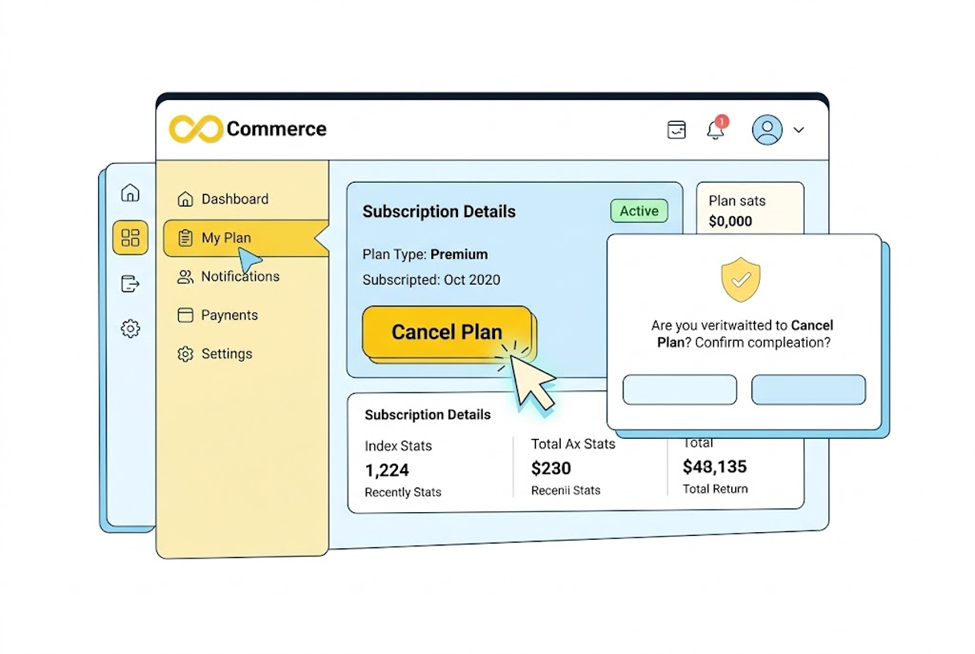
- Click Cancel plan, enter your password, and click Cancel plan again.
- Select Pause and build, review the details, and click Switch to Pause and build.
The mobile app follows the same path under Settings > Plan.
What happens during a pause:
- Checkout is deactivated on all sales channels, including Point of Sale.
- Discounts, abandoned checkout recovery, gift cards and third-party publishing integrations stop working.
- You can still use the admin, edit products and send draft order invoices (though orders can’t be completed).
- Customers can still view products unless you turn on private mode.
- You keep paying a reduced subscription fee. Shopify’s pages don’t state a specific amount, so check your own billing page.
Two timing traps: The pause takes effect at the end of your current billing cycle, so your store can keep taking orders until then. If you want orders to stop sooner, turn on private mode. And all apps stay active during a pause, so apps with recurring charges keep billing unless you uninstall them.
To reopen: Go to Settings > Plan, click Pick a plan, choose a plan and click Subscribe. Your old plan no longer applies, so you must choose a new one. If you set an online store password while paused, you can remove it.
How to Downgrade Your Shopify Plan
If you’re still selling but want a lower bill, downgrading beats closing. Shopify’s cancellation flow shows downgrade and Pause and Build options when you start cancelling under Settings > Plan, and you can also change plans from your Shopify admin’s plan settings. Menu labels change occasionally, so follow the on-screen prompts and confirm the new price before you approve.
Here’s what Shopify’s refund policy says about downgrades:
- A mid-cycle downgrade doesn’t trigger a refund. Instead you receive account credits that are applied to future invoices.
- Your current plan’s features stay active until the billing cycle ends.
Before downgrading, compare the features you rely on (staff accounts, reporting, shipping rates, third-party transaction fees) against the cheaper plan. Shopify’s pricing FAQ notes that third-party transaction fees can make a higher plan worth it when those fees exceed the price difference, so check your last few bills first.
How to Close (Deactivate) Your Shopify Store
Closing ends your subscription and takes the store offline. Do this only when you’re sure.
Steps on desktop:
- Go to Settings > Plan.
- Click Cancel trial or Cancel plan.
- Review the downgrade or Pause and Build options shown.
- Check your Shopify-managed domains and pending charges, then select Cancel my plan and uninstall all apps and click Continue.
- Choose a reason, optionally add a comment, and click Continue.
- Optionally save your payment details, enter your password and confirm.
What happens next:
- Your subscription ends at the end of the current billing cycle. For example, Shopify notes that a cycle ending November 25 means deactivation on that date.
- All apps are uninstalled at cancellation.
- Pending charges, such as app usage, transaction fees and shipping labels, are billed at cancellation. If nothing is outstanding, no final invoice is issued.
- You may still receive invoices after deactivation, for example for external app or domain charges, chargebacks on past transactions, or charges from other Shopify stores you own.
- Pending Shopify Payments still process, but you lose admin access to resolve issues.
- Chargebacks can still be filed, and you can’t submit evidence through the admin unless you reactivate.
- Shopify Credit cards are locked while the store is deactivated.
What About Refunds?
Shopify’s rule is blunt: subscription plans are generally non-refundable under section 5.10 of its Terms of Service. Support does review eligible requests case by case, within these windows measured from the invoice date:
| Billing type | Refund review window |
| Monthly subscription | 7 days |
| First invoice after a trial | 30 days |
| Annual subscription | 30 days |
| SEPA Direct Debit payments | 14 days |
| Merchants located in Brazil | 90 days |
Not eligible: Cancellation refunds for the remaining period, mid-cycle downgrades (credits instead), unused time, third-party app charges (dispute those with the developer) and purchased themes.
How to request a review: Make sure you’re the owner or a staff member with billing permissions, gather your store URL, account email, invoice number and date, plus your cancellation or downgrade date. Write a short explanation, attach screenshots or a cancellation confirmation, then contact Shopify Support. Raise a duplicate store or billing error immediately instead of waiting.
Account credits: Credits remain available for 60 days after deactivation, then expire, so use them before closing.
How to Cancel Shopify App Subscriptions
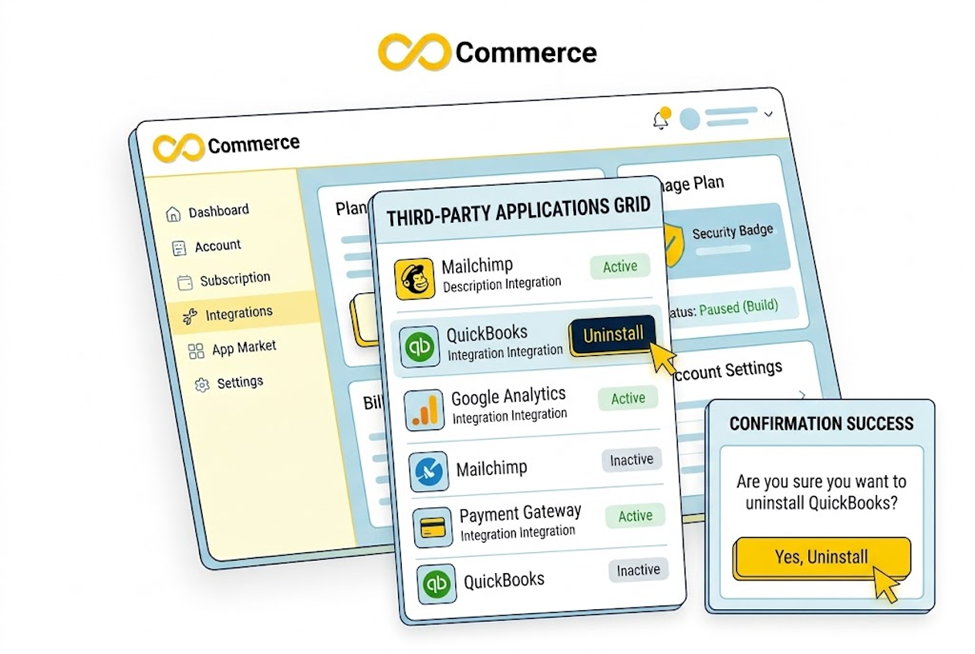
This is where most surprise charges come from. Closing a store uninstalls apps, but pausing doesn’t, and some apps bill outside Shopify entirely.
Steps:
- Go to Settings > Apps in your Shopify admin.
- Click the menu icon (⋯) next to the app and choose Uninstall.
- Optionally select a reason and confirm.
What to know:
- Uninstalling cancels future recurring charges, but you may still be billed for the current billing cycle.
- For a refund, contact the app developer before you uninstall. Shopify can’t refund third-party app charges.
- Apps that bill outside Shopify, such as directly by credit card, keep charging until you cancel with the developer.
- Some apps store data you can’t recover after uninstalling, so export it first.
- Some apps leave code in your theme. Check the app’s listing or ask the developer about cleanup.
- Fulfillment apps holding inventory must have that inventory transferred or deleted first.
- To contact the developer, go to Settings > Apps > Get support or use the app’s listing in the Shopify App Store.
App charges follow a different billing cycle from your plan, so they may not renew on the same date. Check each one.
Don’t Forget Tracking Pixels and Ad Connections
If you’re pausing or closing, your ad platforms won’t know. Pixels, tags and catalog connections can keep pointing at a store that no longer converts, and old pixel code can linger in a theme. If you plan to hand a theme to a new developer or move platforms, clean up first.
Our guide on how to delete or reset a Facebook Pixel in Shopify walks through removing a pixel safely, including the manual theme code method. If you run Google Ads, check that conversion tags and Tag Manager containers are also disconnected or repointed, and review any tracking app, such as our Google Ads Tracking & GTM app, under Settings > Apps so you know whether it bills through Shopify.
What Happens to Your Domain and Data?
Domains. Domain renewals aren’t cancelled when you close the store. A Shopify-managed domain that renews before your close date may still charge a renewal fee, so turn off auto-renewal if you don’t want to keep it. Third-party domains are disconnected, and you can remove them in the admin, but keep auto-renewal settings with your registrar in mind. Shopify also notes that HSTS stays on your domain for 90 days after deactivation, which can cause browser certificate errors if you move the domain to a non-HTTPS platform.
Store data. Per Shopify’s deactivation guide, store data is kept for 2 years, and you can request earlier deletion of customers’ personal data. Once data is deleted, the store can’t be reactivated. Treat that retention window as a safety net, not a plan, and export what you need now.
Cancelling During a Free Trial
Trials work differently. Shopify’s pricing FAQ says that if you pick a monthly plan during your trial, you aren’t charged subscription fees until the trial ends. If you don’t choose a plan, your account is frozen when the trial ends and you aren’t charged. But if you choose a plan before the trial ends and then change your mind, you have to manually pause or deactivate your store. In the deactivation flow, the button is labeled Cancel trial instead of Cancel plan.
How to Reopen a Paused or Closed Store
- Changed your mind within the billing cycle? Go to Settings > Plan and click Reactivate plan to undo the cancellation. If you’re on an annual plan, Shopify says reactivating during the prepaid period resumes the original cycle and you aren’t charged until renewal.
- After deactivation: Log in as the owner, click Re-open <your-store>.myshopify.com, choose a plan and subscribe.
- After a pause: Settings > Plan > Pick a plan > Subscribe.
- Frozen or paused stores may need to resolve billing issues first.
- Reconnect custom domains after reactivating, and reinstall any apps you removed.
Why Is Shopify Still Charging Me?
If you’ve cancelled and still see charges, work through these causes:
- Your billing cycle hasn’t ended. Cancellation takes effect at the end of the current cycle, so the final subscription charge may already be billed.
- Pending usage fees. App usage, transaction fees and shipping labels are billed at cancellation.
- Apps billed outside Shopify. Uninstalling in Shopify doesn’t cancel them. Check the app’s own billing settings.
- Domain renewals. These continue unless you turn off auto-renewal.
- A paused store. Pause and Build charges a reduced fee, and apps keep billing.
- Another store on your account. Shopify notes you may receive invoices for other stores you own.
- An unfamiliar charge. Shopify bills show on statements as “SHOPIFY * ” followed by a 9-digit bill number. Match that number to your Past bills list in the admin to identify the source.
Still stuck? Contact Shopify Support with your store URL, account email, invoice numbers and dates.
If You’re a Customer Cancelling a Subscription From a Shopify Store
Maybe you landed here because you bought a subscription (coffee, supplements, a box) from a store that runs on Shopify. In that case, you don’t cancel with Shopify itself. According to Shopify’s Help Center, customers can cancel through their customer account or on shop.com if they paid with Shop Pay. Note that deleting a saved card from Shop Pay doesn’t cancel active subscriptions, which keep billing until you cancel them separately. If you can’t find the option, contact the store directly.
Conclusion: Cancel on Your Terms
Cancelling a Shopify subscription is easy to start and easy to get wrong. The safest path is simple: decide whether you need a pause, a downgrade or a full close, export your data, uninstall or cancel your apps, check your domains and pending charges, and know that nothing changes until your billing cycle ends. Remember that refunds are limited, so timing matters.
Planning to pause or close your store, or just trimming costs? Make sure your tracking doesn’t keep running in the background. Start with our guide to deleting a Facebook Pixel in Shopify, and if you want a second pair of eyes on your ad tracking before you switch anything off, contact the Infinite Commerce team.
FAQs
Go to Settings > Plan in your Shopify admin and click Cancel plan (or Cancel trial). You’ll be offered a downgrade or Pause and Build first. To close the store, choose “Cancel my plan and uninstall all apps,” pick a reason and confirm with your password.
Generally no. Shopify’s plans are non-refundable under its Terms of Service, although Support reviews eligible requests within set windows (for example 7 days for a monthly plan or 30 days for an annual plan). Cancelling doesn’t refund the remaining period.
No. Your subscription ends at the end of the current billing cycle, and the store stays active until then.
Yes, if you’re the owner on a paid plan after your trial and not on Shopify Plus. Pause and Build stops checkout and charges a reduced fee. Apps stay active, so uninstall any you don’t need.
Shopify says store data is kept for 2 years, but once it’s deleted the store can’t be reactivated. Export your products, customers and orders as CSV files before closing.
Closing the store uninstalls all apps. For a paused store, apps stay active until you uninstall them, and apps billed outside Shopify must be cancelled with the developer.
No. Shopify states Support can’t deactivate your store for you. The owner must do it from the admin, and Shopify Plus stores go through Plus Support.
