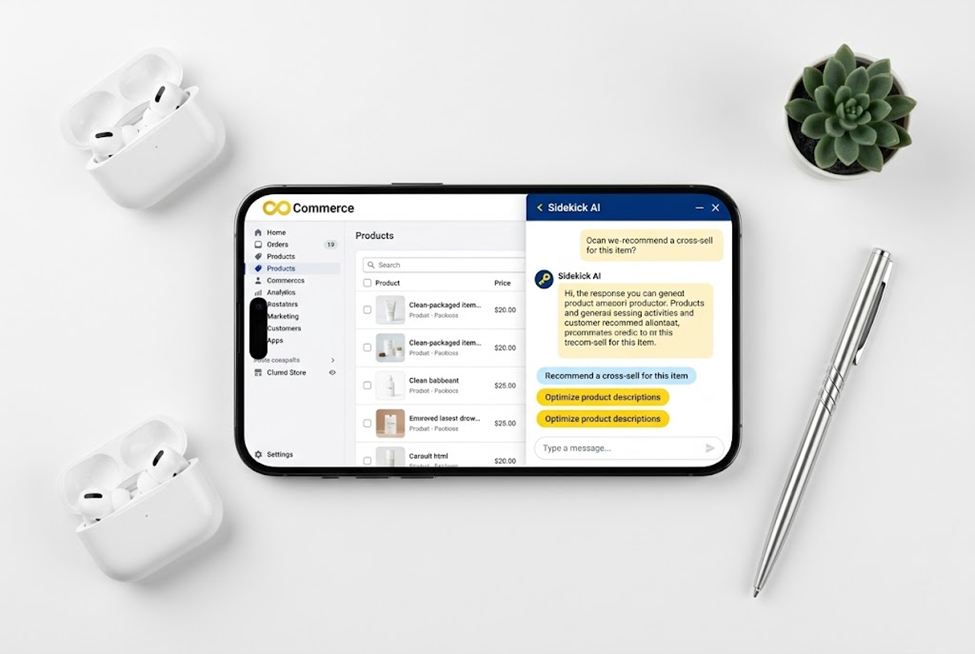
 Amber Naz
Quick Summary
Shopify Sidekick is the AI assistant built into the Shopify admin. Merchants hear about it constantly, and the claims range from “it runs your store for you” to “it is just a chatbot.” The truth sits in the middle, and the most useful way to find it is to separate what Shopify itself documents from what is assumption or hype.
This guide explains what Sidekick is, how you open it, what Shopify says it can do, how memory, skills and Pulse work, where you should be cautious, and how to get better answers from it. Everything about the product comes from Shopify’s own help pages and its Sidekick page, as read on 2026-10-14. Sidekick changes quickly, so check those pages again before relying on any detail. This article does not quote time-saved, accuracy or revenue figures, because none were verified, and it does not state which plans include which features, because Shopify’s pages do not list that.
Quick answer
- What it is: Shopify describes Sidekick as “an AI-enabled commerce assistant in your Shopify admin” that helps with guidance, content, apps and tasks using everyday language.
- How you use it: chat from any admin page on desktop or mobile, with text, voice mode or screen sharing.
- What it can do, per Shopify: analyze data, manage orders, edit products, work with third-party apps, write blog posts and product descriptions, create images and generate custom apps.
- Safety net: Shopify says Sidekick presents changes for your review before applying them.
- Cost: Shopify’s Sidekick page says it is included with your Shopify plan and costs nothing extra, and that features and usage limits vary by plan.
- Biggest caution: treat its output as a draft. You are still the one responsible for what goes live in your store.
What is Shopify Sidekick?
Sidekick is a conversational assistant that lives inside your Shopify admin. Instead of clicking through menus, you type or say what you want in plain language, and Sidekick responds with answers, drafts or proposed changes.
Two details from Shopify’s pages matter here.
First, Sidekick works with your store’s context. Shopify’s Sidekick page says it has direct access to your Shopify data and takes action in your admin. That is what separates it from a general-purpose chatbot in another browser tab, which knows nothing about your products or orders.
Second, access follows admin permissions. Shopify’s page says team members only use data and features they are authorized for. So a staff member with limited permissions should not be able to use Sidekick to reach things they could not reach normally.
How to open and use Sidekick
According to Shopify’s help documentation:
- You can chat with Sidekick from any page in your Shopify admin on desktop or mobile.
- Input options include text chat, voice mode and screen sharing.
- On Apple Watch, you can ask questions by voice.
- Shopify’s Sidekick page describes opening it from a purple glasses icon in the admin and says there is no setup or configuration. Icon placement and wording can change, so look for the Sidekick entry point in your own admin.
Shopify also says Sidekick adapts to your store’s language settings and can respond in multiple languages. The pages do not list which languages are supported, so check in your own store before promising anything to a multilingual team.
What Sidekick can do, according to Shopify
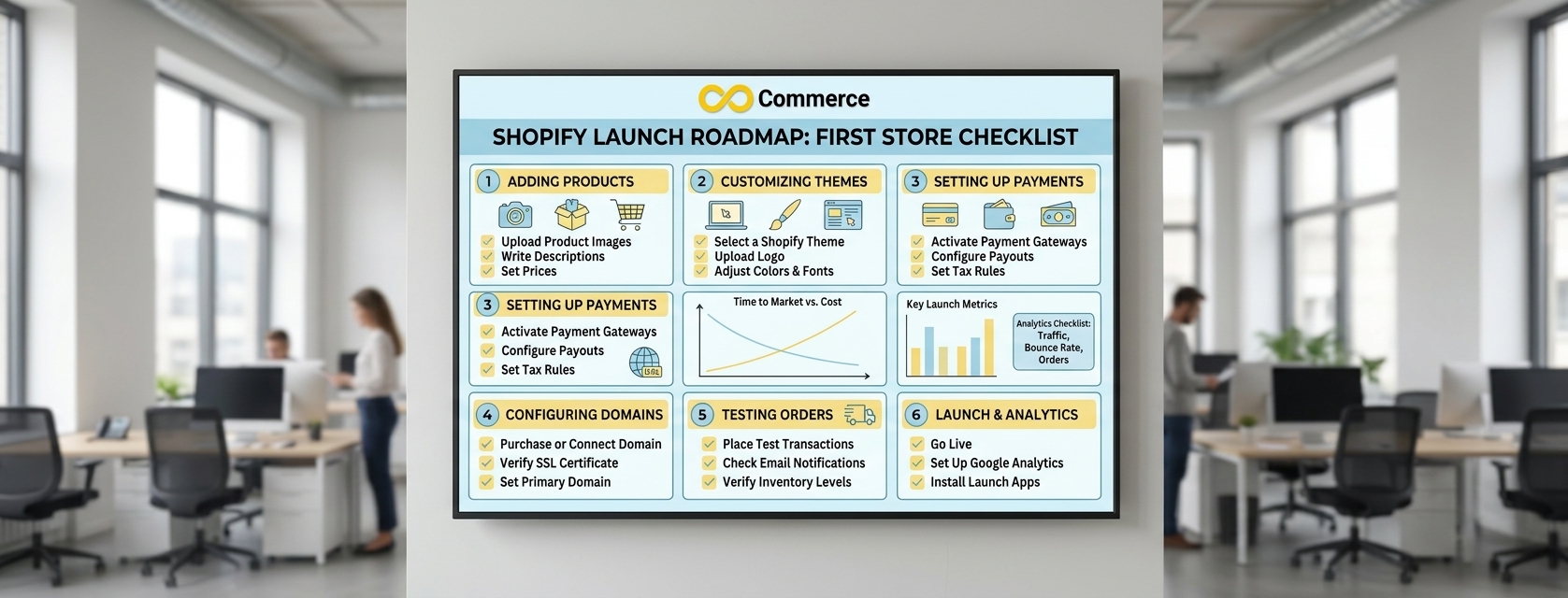
Shopify’s help page lists these examples:
- Analyze data. Ask questions about your store’s performance.
- Manage orders.
- Edit products.
- Work with third-party apps, answering questions and completing tasks with them.
- Run longer tasks in the background, continue after you close the chat or leave the page, then notify you when results are ready for review.
- Create content, including blog posts, product descriptions and images.
- Generate custom apps to help manage your store.
Shopify’s Sidekick page adds role-based personas, Designer, Photo editor, Writer, Tech support and Marketer, and preset commands such as /pricing-strategy, /low-stock-alert, /shipping-audit and /email-campaign. It also lists recent changelog items: help customizing checkout and customer accounts, creating customers and companies from a description, and writing ShopifyQL queries for data such as web performance, payments, fulfillments and payouts. Because these come from a page that is updated often, treat the exact list as a snapshot.
Practical examples of where it fits
These are suggested uses based on the capabilities Shopify lists, not claims about results.
| Job | How Sidekick could help | What you still need to do |
| Product descriptions | Draft copy from product details | Check facts, claims, tone and spelling |
| Product edits | Propose changes to titles, tags or details | Review each change before it applies |
| Store questions | Answer questions about orders or sales data | Sanity-check numbers against reports you trust |
| Blog content | Create a first draft | Fact-check, add real expertise, edit for your brand |
| Repetitive tasks | Run a saved skill | Confirm the output matches what you meant |
| Marketing ideas | Suggest campaign angles | Judge them against your own margins and audience |
Memory and personalization
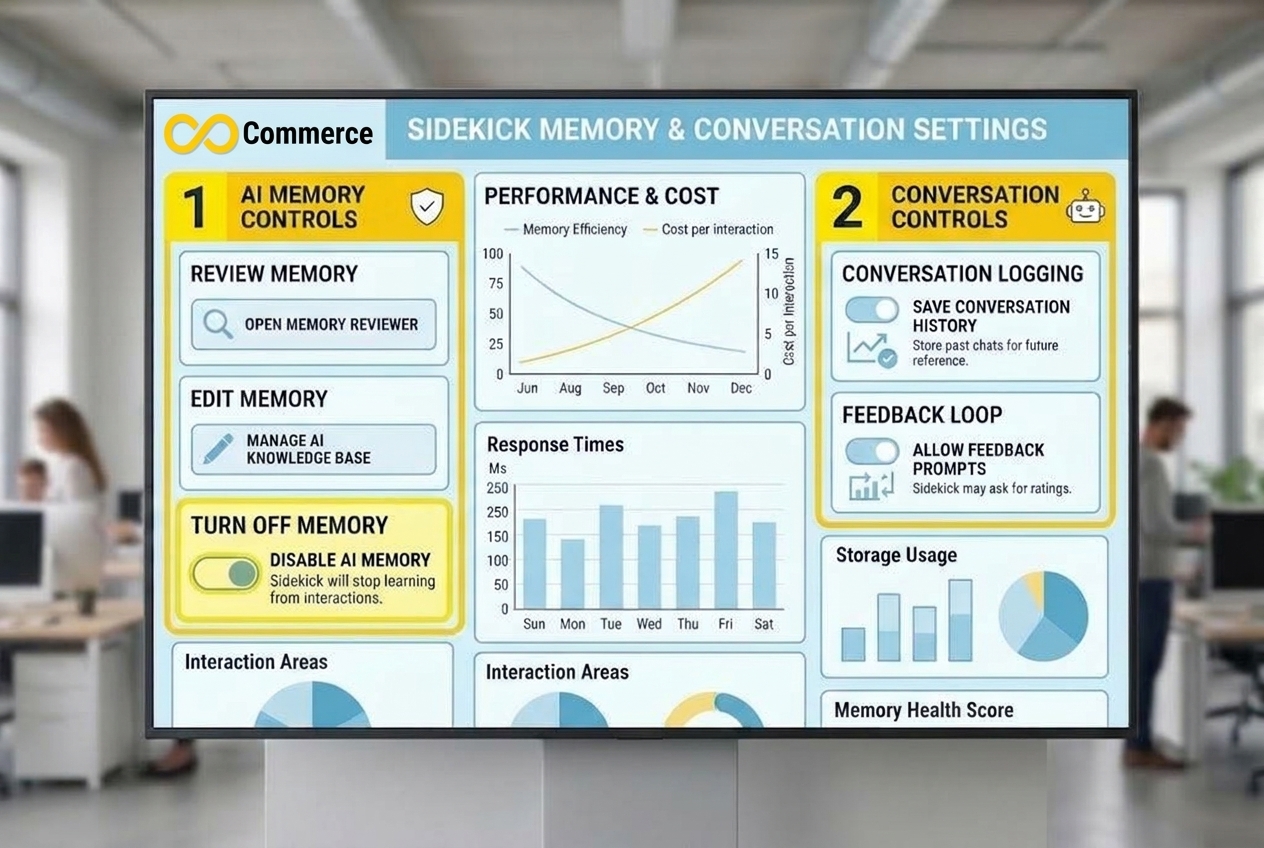
Shopify’s help page on memory says Sidekick uses information from your chats to personalize responses. According to that page:
- It learns explicit preferences you state, past conversations, implicit preferences based on your interactions and recent admin activity.
- It remembers past conversations for about 3 months and can use recent admin activity from roughly the last 12 hours.
- Conversations in the theme editor are not saved to its memory.
- Recent admin activity is not part of saved memory and does not appear in summaries.
You have controls:
- Review: ask Sidekick for a summary of what it remembers, or open your conversations from the Sidekick chat selector or the Sidekick Conversations page.
- Edit: ask Sidekick to update or forget specific details, and it confirms the changes.
- Delete: deleting a conversation removes it from chat history and from Sidekick’s memory of past interactions, though Shopify says your saved preferences are not changed.
- Turn memory off: it stops Sidekick from using stored information or recent activity and from saving new details in that conversation. Shopify notes that once you turn memory off for a conversation you cannot turn it back on for that same conversation.
If several people share a store login or work on sensitive customer data, decide as a team how you will use memory.
Skills: saving prompts you repeat
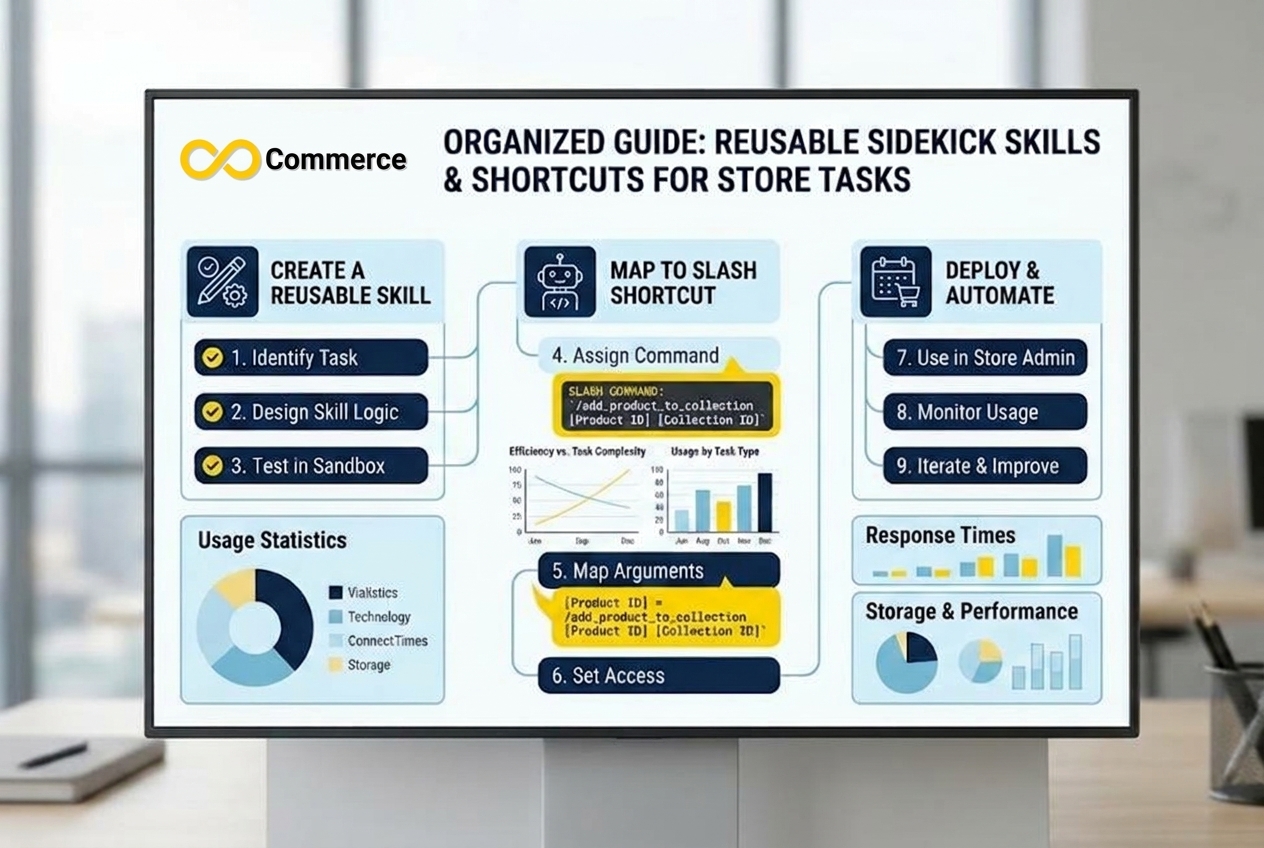
Shopify describes skills as reusable instructions for tasks you do often. A skill’s shortcut is a slash followed by the skill’s name.
Per Shopify’s skills page:
- Create: open Sidekick’s chat, click the plus icon, choose Skills, then New Skill, and answer Sidekick’s questions. You can also type a slash and use the Create Skill option.
- Run: select it from the Skills list or type its shortcut. In some stores a skill runs only when you select it or enter its shortcut.
- Edit or delete: from the Skills list, using the edit or delete icons.
- Limits: the page says you can create up to 50 skills, or 25 in some stores.
- Share: sharing is available only in some stores, through a shareable URL.
Good candidates for skills are tasks with a stable recipe: your standard product description format, a weekly low-stock check or a checklist for new product listings. Write the instructions as if briefing a new team member, with the format, tone, length and things to avoid.
Sidekick Pulse: proactive recommendations
Shopify’s page describes Sidekick Pulse as an early-access feature in which Sidekick proactively researches your store’s data and generates personalized recommendations. According to that page:
- Pulse cards appear on the Home page of your admin, up to 5 at a time, each suggesting an action.
- Selecting an action opens a Sidekick conversation that builds a to-do list.
- You can dismiss a card with the X icon and optionally explain why it was not relevant.
- Availability is limited: certain merchants during early access, stores with recent sales activity, store owners or staff with admin access, and stores with Shopify Network Intelligence activated.
- Shopify says Sidekick never makes changes to your store without your approval.
Because Pulse is early access, you may not see it at all. Do not build a workflow around it until it is available to you.
Where Sidekick can fall short
Here is the honest part. Shopify’s help pages do not publish a list of things Sidekick cannot do, and they do not describe accuracy limits. That is a documentation gap, not proof that there are none. Sidekick is an AI system, and AI systems can misread a request, produce wrong or generic text, or sound confident when they are not. The cautions below are general good practice for any AI assistant, not statements about specific Sidekick failures.
- It can be wrong. Numbers, claims and summaries can contain mistakes. Compare any figure that matters with the report it came from.
- Generated content can be generic. AI copy tends to sound alike across stores. Add your real product details, your customers’ words and your brand voice.
- It does not know your unspoken rules. It cannot know your margin targets, legal obligations or brand promises unless you tell it. Product claims, such as health or safety statements, are your responsibility.
- Plan and usage limits apply. Shopify says features and usage limits vary by plan, but does not list them. If a feature is missing, check your plan and Shopify’s current documentation.
- Early-access and changing features. Features such as Pulse are limited. What works today may change.
- Permissions matter. Shopify says access follows admin permissions. If Sidekick cannot do something, a permission may be the reason.
- It does not replace judgment or specialists. Tax, legal, accounting and complex technical work still need a qualified person.
- It is not a tracking specialist. Shopify’s pages do not describe Sidekick as setting up or auditing third-party tracking such as ad pixels, tag managers or conversion events. Verify tracking changes yourself in the platform where the data is used.
A review checklist before you approve anything
Shopify says Sidekick presents changes for review before applying them, so use that step properly.
- Read the whole change, not just the first line.
- Check facts: sizes, materials, prices, shipping and return statements.
- Check scope: is it changing one product or many?
- Check customer-facing text for tone, spelling and claims you cannot support.
- Make a copy or note of what the original looked like for anything important.
- Spot-check after publishing, on mobile and desktop.
- For bulk changes, try one item first.
How to get better answers from Sidekick
Shopify’s pages do not give prompt-writing advice, so these tips are practical suggestions, not Shopify guidance.
- Be specific about the goal. “Write a product description” is vague. “Write a 90-word description for this product, for first-time buyers, friendly tone, no discount language” is better.
- Give context. Say who the customer is, what matters to them and what to avoid.
- Ask for options. Request three versions, then pick and edit.
- Break big tasks into steps. Ask for an outline, then sections.
- State the format. Bullets, table, word count, reading level.
- Ask it to show its reasoning on data questions, so you can check where numbers came from.
- Iterate. Reply with “shorter,” “more formal” or “remove the second paragraph.”
- Save what works as a skill.
Example prompts to adapt
- “Look at my product descriptions for [collection]. Which ones are missing key details like size or material? List them.”
- “Draft a product description for [product] in our brand voice: [two sentences describing your voice]. Do not make claims about [topic].”
- “Summarize my orders from the last 30 days and show the top five products. Tell me how you calculated it.”
- “Suggest five blog topics for [customer type] about [category]. Include a one-line angle for each.”
Edit these to match your store. They are starting points, not tested formulas.
Using Sidekick alongside the rest of your stack
Sidekick helps inside the admin, but your store runs on more than the admin. Your ad platforms, analytics, feeds and tracking live elsewhere and need their own care. If you are using Sidekick to speed up content and operations, keep your measurement setup separate and verified: Sidekick may help you work faster, but it should not be the only check on whether your pixels and conversions are recording correctly.
For deeper guides on tracking and ad measurement on Shopify, browse the Infinite Commerce blog.
Common mistakes
- Approving changes without reading them.
- Publishing AI copy unedited.
- Treating its numbers as final without a cross-check.
- Giving broad access to team members who should not see certain data.
- Forgetting memory is on when working with sensitive information.
- Expecting a feature your plan may not include.
- Building a workflow on an early-access feature.
- Ignoring the review step on bulk edits.
Final thoughts
Sidekick is best understood as a fast, store-aware assistant that drafts, analyzes and proposes, while you decide. Use it for first drafts, repetitive tasks and quick questions about your own data, save good prompts as skills and keep a tight review habit. Be honest about what is documented and what is not, and treat every output as a draft until you have checked it.
Need help with the rest of your Shopify setup?
Sidekick can speed up your admin work, but accurate tracking and ad data still need proper setup. Read more on the Infinite Commerce blog, or contact our team for help with tracking, pixel and feed apps.
FAQs
Shopify describes it as an AI-enabled commerce assistant in your Shopify admin. You ask for help in everyday language, and it can answer questions, draft content and propose changes for your review.
Shopify’s Sidekick page says it is included with your Shopify plan and costs nothing extra, and that features and usage limits vary by plan. The page does not list the limits, so check your own plan.
Shopify lists analyzing data, managing orders, editing products, working with third-party apps, creating blog posts, product descriptions and images, running longer tasks in the background and generating custom apps.
Shopify says it presents changes for your review before applying them, and its Pulse page says it never makes changes without your approval. Always read each change before you confirm.
Shopify says it remembers past conversations for about 3 months and can use recent admin activity from roughly the last 12 hours. You can ask it to forget details, delete conversations or turn memory off for a conversation.
Skills are reusable instructions for tasks you do often, run with a slash shortcut. Shopify says you can create up to 50, or 25 in some stores.
Shopify’s pages do not describe tracking setup as a Sidekick capability. Verify any tracking in the platform that uses the data.
