 Amber Naz
Quick Summary
TikTok Catalog Manager is the area of TikTok’s ad tools where you store, review and fix your product data. For Shopify sellers, it is where products synced from your store become usable in TikTok catalog ads. After you connect the TikTok app on Shopify and link a Business Center, TikTok starts creating a marketing catalog for you. You then check product status (approved, pending or disapproved) from Shopify and use the catalog’s diagnostics to fix errors. This guide explains what it does, how setup works and how to keep your catalog healthy.
What Is TikTok Catalog Manager?
TikTok describes a catalog as an asset in TikTok Ads Manager that stores and manages information about your products. Catalog Manager is the workspace for that asset. It is where a TikTok product catalog gets created, filled with products, checked for problems and connected to your tracking.
In TikTok’s own help documentation, the work done there includes:
- creating a catalog
- uploading products
- managing the catalog and its products
- connecting event sources such as a pixel or app
- generating video packages for ads
When you create a catalog by hand, TikTok asks for a catalog name, the Business Center account, an industry, a targeting location and a default currency. The more detail you add about each product, the easier the catalog is to manage and the better TikTok can personalize product recommendations.
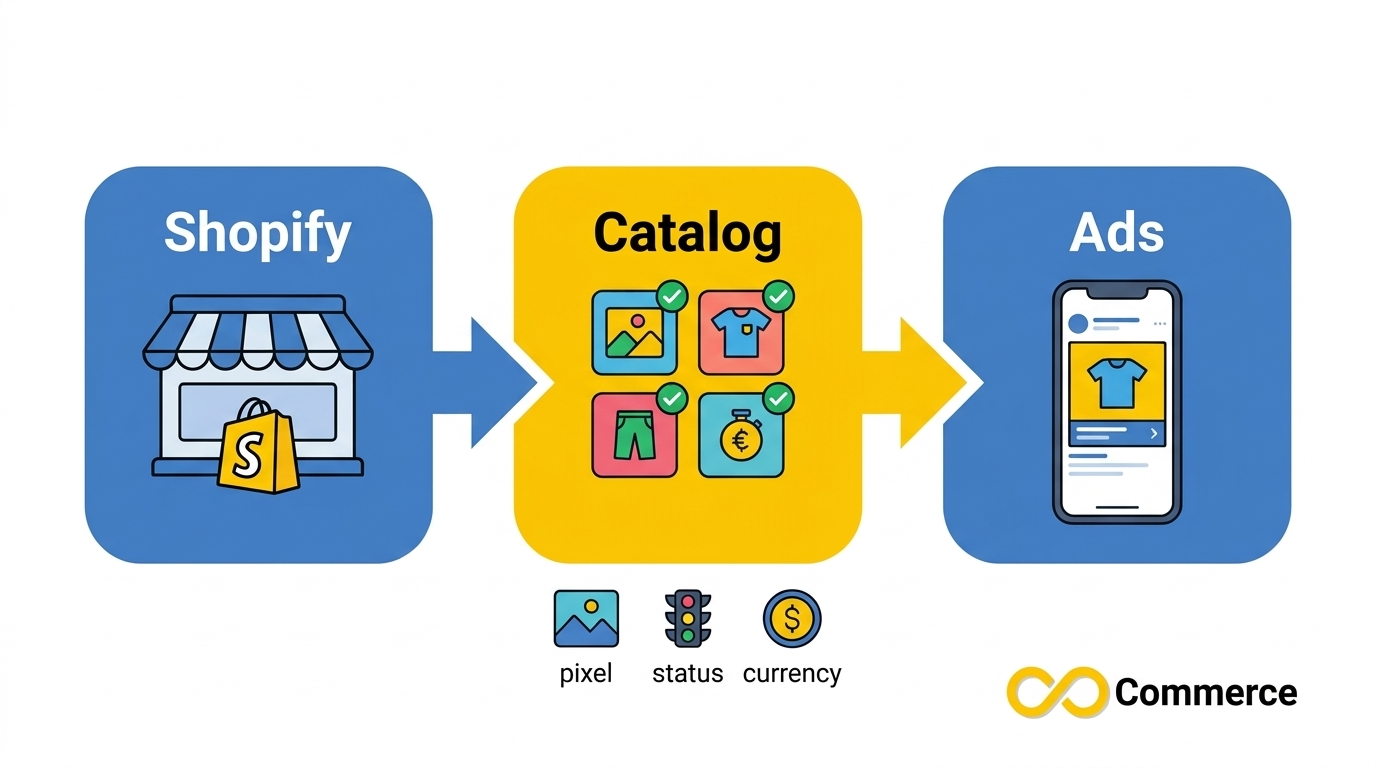
The key point for Shopify sellers is that this catalog is not your Shopify product list. It is a synced copy that TikTok reads, reviews and uses for ads. Shopify stays the source of truth, and the catalog follows it. TikTok also notes that it creates separate catalogs for each country your Shopify store supports, based on the markets set in your Shopify store settings, so a multi-market store may end up with more than one catalog.
That is why understanding Catalog Manager matters even if the TikTok app on Shopify does most of the setup for you. When products are rejected or ads will not run, this is where the answer usually sits.
How Catalog Manager Fits With Business Center and TikTok Commerce Manager
TikTok’s product tools overlap, and the names are used loosely. Sorting them out early saves confusion during setup.
What Business Center Controls
Business Center is the account layer that owns your catalog. According to TikTok’s help center, the owner of a Business Center has full control of its catalogs and can share them with members and partners, or use one catalog across several ad accounts. Two rules matter in practice:
- To use a catalog when creating ads, the ad account and the catalog must be linked to the same Business Center.
- Only Business Center admins can assign catalog permissions, and each catalog can be assigned to up to 100 Business Center users.
When you share a catalog, you choose between catalog management (members can edit products and catalogs) and ad promotion (members can only create ads from it). That split is useful if an agency runs your ads but should not touch product data.
Is TikTok Catalog Manager the Same as TikTok Commerce Manager?
Not exactly, but the terms overlap. TikTok’s current help articles refer to Catalog Manager inside Ads Manager and Business Center. Shopify app listings, including ours, list TikTok Commerce Manager among the tools they work with, and some third-party guides use the two names for the same catalog workspace.
For a Shopify seller, the practical takeaway is simple: if a guide mentions Commerce Manager in the context of product feeds, it is almost always talking about where your catalog and its products are managed. TikTok Shop is a separate setup with its own requirements, so treat it as a different project from running catalog ads.
How a TikTok Product Catalog Powers TikTok Ads Catalog Campaigns
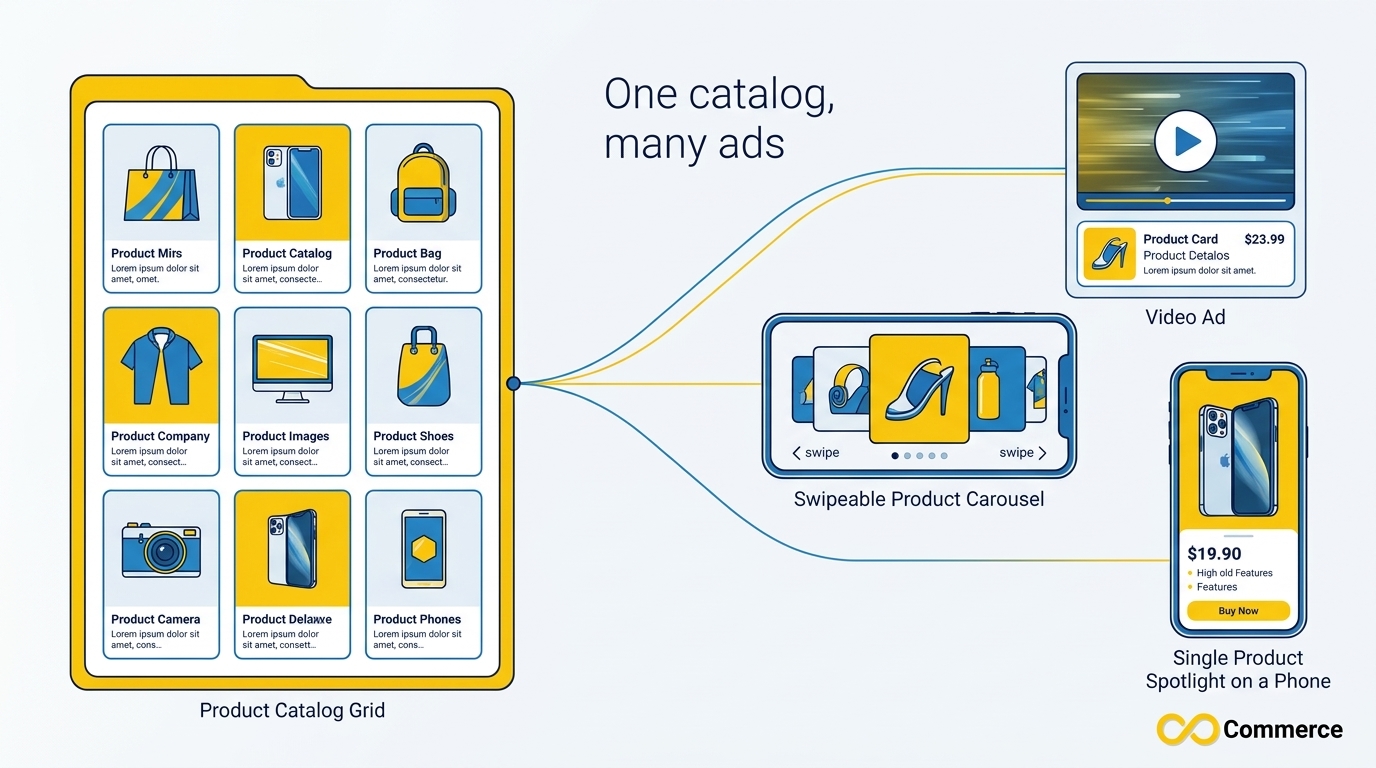
A TikTok product catalog is the raw material for catalog-based ads. TikTok’s help center says a catalog lets you store product information and auto-generate different kinds of ads from it, so you do not build a separate ad for every item.
Which Ad Formats Use the Catalog
You will still see older names in guides. TikTok began phasing out Dynamic Showcase Ads and Collection Ads in February 2023 and folded their core functions into Video Shopping Ads under the Product Sales objective. Many articles continue to call catalog ads “Dynamic Showcase Ads,” so expect both terms when you research. TikTok also documents Smart+ Catalog Ads in its help center for sellers who want more automated campaign setup.
The shared point is that every one of these TikTok ads catalog formats reads the same product data: titles, images, prices and availability. If the catalog is wrong, the ad is wrong.
Why Event Sources Matter
A catalog works best when it is connected to your tracking. In Catalog Manager you link an event source, meaning a pixel or app, so TikTok can match catalog items to what shoppers do on your store. TikTok’s own diagnostics list a warning for catalogs that are not bound to a pixel or app and tell you to connect one on the event source page.
If you are new to this side, our Facebook and TikTok Pixel app page covers our pixel app for Shopify, and our guide to what a tracking pixel is and how it works explains the basics. TikTok’s catalog guidance for event setups also advises keeping item IDs in the catalog consistent with the content IDs your events use, so check that match whenever products do not connect to events.
Before You Start: What Shopify Sellers Need in Place
The setup is quick when the accounts already exist. Gather these first:
- Shopify admin access. You install and connect the TikTok sales channel from your Shopify admin. Unlinking later also needs Shopify account access.
- A TikTok for Business account. TikTok says this gives you access to all your business accounts in one place.
- A Business Center account. This manages non-ad assets such as your pixel and catalog, plus permissions and payments.
- A TikTok Ads Manager account. This is the advertising account where campaigns are created.
- A pixel decision. You can create a new pixel during setup or connect an existing one.
- A data-sharing level. TikTok offers Standard, Enhanced and Maximum.
You can connect existing accounts or create new ones during setup. Do not skip the Marketing Settings step. TikTok warns that without it you cannot use some features in the TikTok app on Shopify, such as creating Conversion Ads.
It also helps to decide your goal up front. If you only want catalog ads that send shoppers to your own checkout, this guide covers you. If you want in-app selling through TikTok Shop, that is a separate onboarding with its own eligibility rules, so check Shopify’s TikTok Shop help page before you start.
TikTok Catalog Manager Setup on Shopify
Shopify sellers rarely build the catalog by hand. The TikTok app on Shopify does it after you connect your accounts. These steps follow TikTok’s official set-up guide for Shopify, last updated by TikTok in February 2025, so check it for any interface changes.
- Log in to your Shopify admin.
- Click TikTok under Sales channels.
- Connect or create your TikTok for Business account, Business Center account and TikTok Ads Manager account.
- Choose your data-sharing level: Standard, Enhanced or Maximum.
- Click Create Pixel to install a new pixel, or select an existing pixel from the dropdown.
- Click Set Up and enter your business location in the Company Information section.
- Click Confirm.
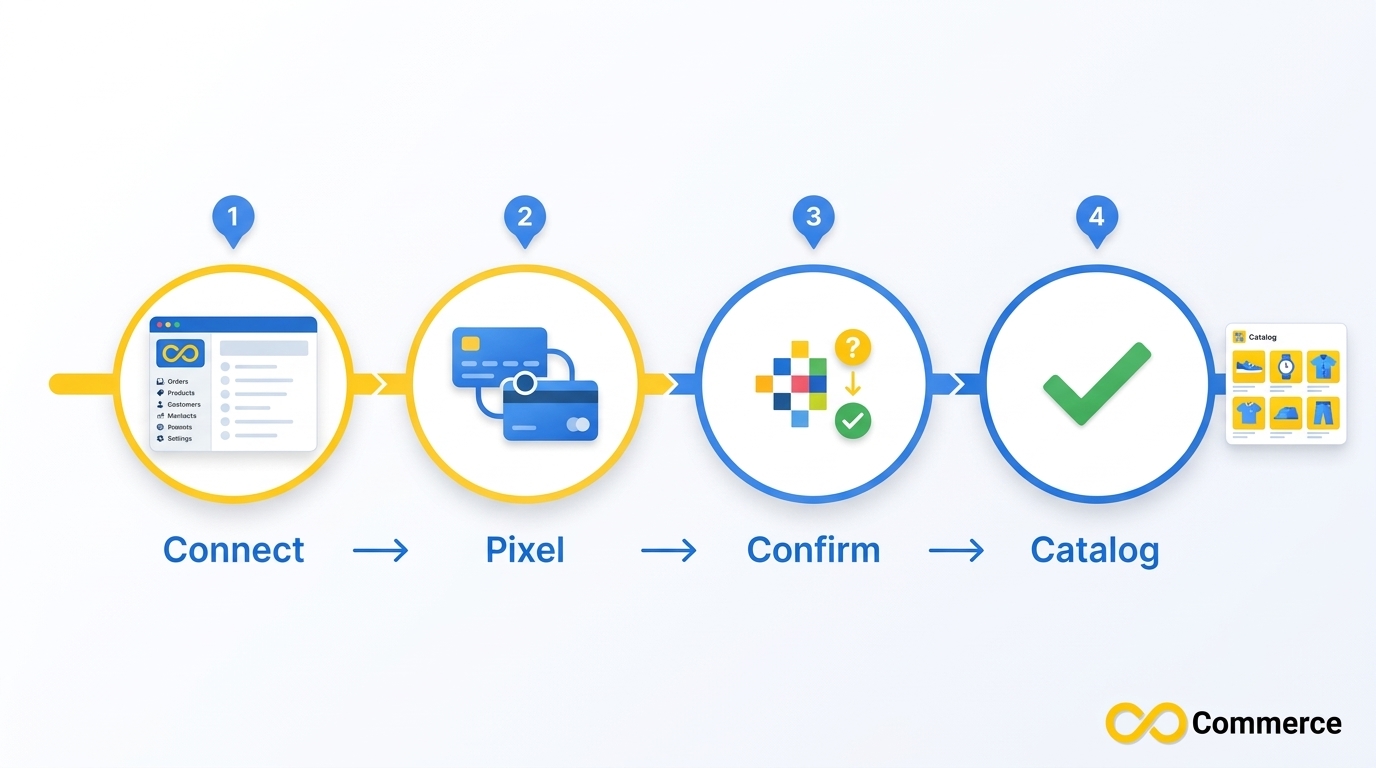
Once Business Center is connected, catalog setup starts automatically. TikTok creates a marketing catalog using the primary market defined in your Shopify store settings, and the catalog is owned by and accessible through your connected Business Center.
How the TikTok Catalog Manager Shopify Connection Works
Think of the connection as a one-way pipeline. Your Shopify products flow into the catalog, TikTok reviews them, and the review result flows back to you as a status. You do not re-enter product data in TikTok. You fix it in Shopify and let the sync carry the change across.
To check where things stand:
- Open the TikTok app in Shopify.
- Go to Settings.
- Click Product Catalog.
There you can see each product’s status: approved, pending or disapproved. Approved products can be used in catalog ads. Pending products are still in review. Disapproved products need attention before they can run.
Creating a Catalog Manually
If you manage a catalog outside the Shopify app, or need an extra one, you can create it in TikTok. Log in to Ads Manager or Business Center, open Assets, choose Catalog, then click Add catalog. Enter the catalog name, Business Center account, industry, targeting location and default currency, then click Create. After that you add products by one of the methods TikTok offers, such as a partner integration or a feed file.
How to Manage Products and Fix Errors in Catalog Manager
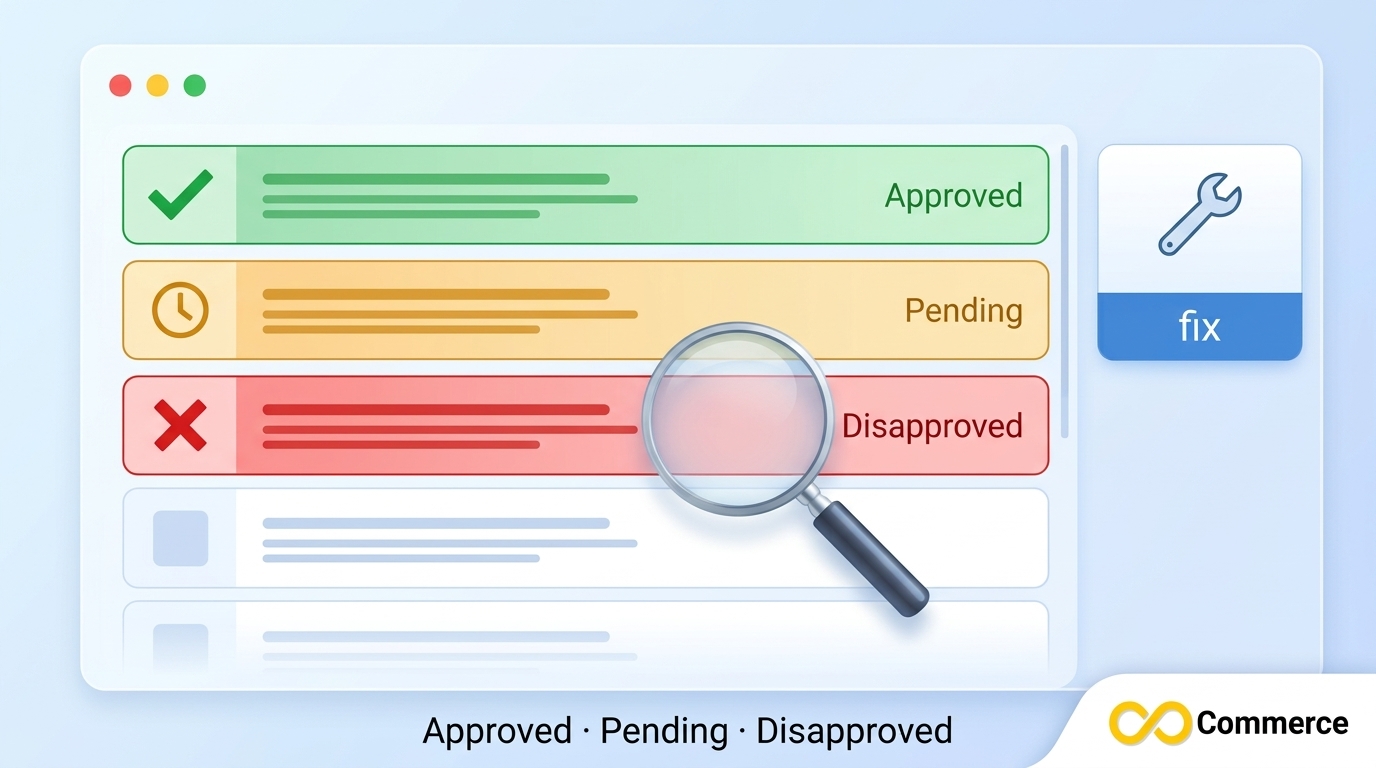
When something goes wrong, open TikTok Catalog Manager and start with the Diagnostics Dashboard. TikTok publishes a list of catalog product issues and suggested actions that maps to what the dashboard reports. The most common ones for Shopify sellers are below.
| Issue | What it means | Suggested fix |
| Image download failed | TikTok could not fetch a product image from your server | Re-upload the image or update the image link |
| Wrong feed file format | The feed link or file is not in a supported format | Use CSV, XML, TSV or GZIP and check the feed link |
| No permission to access data | TikTok cannot reach images or product data hosted on your server | Make sure the URL points to a downloadable file TikTok can access |
| Empty file or missing fields | The feed has no data or lacks required information | Confirm the required fields are present and valid |
| Wrong number of columns | A row has more or fewer columns than the header | Match every item’s columns to the required set |
| Prohibited content | The product was disapproved in review | Follow TikTok’s guidelines, or appeal if you believe it is a mistake |
| Feed not updated in 7 days | The catalog data has gone stale | Update the feed manually or schedule regular updates |
| Catalog not bound to pixel or app | No event source is connected | Connect your pixel or app on the event source page |
For Shopify stores using the TikTok app, most of these problems start in your store data, not in TikTok. A broken image link, a missing price or a restricted product description will fail wherever it is synced. Fix the source in Shopify, wait for the next sync, then confirm the product status has changed.
If a rejection looks wrong, use the appeal option TikTok provides for disapproved products. Keep your notes about what you changed so a second review has context.
Native TikTok App vs a Catalog Feed App
The official TikTok app on Shopify is the default route, and for many stores it is enough. It sets up the pixel, creates the marketing catalog and shows product status in one place. A dedicated feed app earns its place when you want more control over what goes into the catalog than the default sync gives you.
Infinite TikTok Catalog Feed is our Shopify app for that job. According to its Shopify App Store listing, it works with the TikTok Catalog API, Business Center and Commerce Manager, and it has a free plan. Our app page lists these features:
- automatic product sync from Shopify to TikTok
- instant feed updates
- multi-currency and multi-language support
- TikTok Pixel integration
- scheduled bulk operations
- AI-powered suggestions for improving product data
On the app page, bulk editing and custom labels appear on paid plans, and filters on the top plan. Check the page for current plan limits before you choose.
| Your situation | Likely better fit |
| Small store, one market, standard product data | Native TikTok app |
| Need bulk edits or custom labels on product data | Feed app |
| Several currencies or languages | Compare both options for market support |
| Want pixel and catalog set up together | Either, depending on how much control you need |
Whichever you pick, avoid running two sync routes into the same catalog at once. Two sources writing to one catalog can leave you with conflicting product data that is hard to trace.
Best Practices for a Healthy TikTok Product Catalog
A TikTok product catalog does not need daily attention, but it does need a routine. A short weekly check catches most problems before they cost you ad delivery.
- Check product status. In the TikTok app on Shopify, open Settings, then Product Catalog, and look for disapproved or long-pending items.
- Fix problems at the source. Correct images, titles, prices and descriptions in Shopify, then let the sync carry the change into the catalog.
- Keep the feed fresh. TikTok flags feeds that have not updated in seven days, so schedule regular updates if you use a feed file or feed app.
- Confirm the event source. Make sure a pixel or app is still connected to the catalog, especially after a theme change or a pixel reset.
- Review markets. TikTok creates separate catalogs per country based on your Shopify markets. Confirm each one has the right currency and location before you run ads against it.
- Limit access. Use Business Center roles so agencies and freelancers get ad promotion access unless they genuinely need to edit products.
- Keep a change log. A short note of what you edited and when makes appeals and troubleshooting much faster.
If you want more practical Shopify marketing guides alongside this one, the Infinite Commerce blog covers pixels, tracking and store growth topics.
Conclusion
TikTok Catalog Manager is the control room behind your TikTok catalog ads. Shopify sellers can connect the TikTok app, let it create the catalog, then use Shopify and the catalog diagnostics to keep products approved and up to date. Most problems trace back to product data, event sources or stale feeds, and all three are fixable with a simple weekly check.
If you want more control over what syncs, explore the apps from Infinite Commerce, including Infinite TikTok Catalog Feed, available from the Shopify App Store. Start with the free plan, review your product statuses and build from there.
FAQs
It is where you create a product catalog, add products, check product status, fix errors and connect event sources. The catalog then feeds ads that TikTok generates from your product data, such as Video Shopping Ads.
Yes. A catalog is an asset in TikTok Ads Manager, and the Shopify setup asks you to connect or create an Ads Manager account along with a TikTok for Business account and a Business Center account.
Open the TikTok app in Shopify, go to Settings and click Product Catalog. Each product shows as approved, pending or disapproved.
One reason TikTok lists is prohibited content under its guidelines. Other causes are data problems such as broken image links or missing fields. Check the diagnostics, fix the source in Shopify and appeal if you believe the decision is wrong.
Yes. TikTok creates separate catalogs for each country your Shopify store supports, based on your Shopify markets, and you can also create catalogs manually in Business Center or Ads Manager.
No. A catalog stores product data used for ads. TikTok Shop is a separate selling setup with its own onboarding and requirements, which Shopify covers in a dedicated help article.
