
 Alisha Zulfiqar
Have you ever wondered how setting up the Meta Pixel for Shopify can improve your store’s tracking and marketing results? Running your business without proper data is like driving with your eyes closed, you’re moving forward but have no clear direction. This guide will walk you through how to create and install the Facebook Pixel for Shopify so you can track performance, understand customer behavior, and grow your store faster.
Quick Summary
This article provides a step-by-step guide on creating and installing the Meta Pixel for Shopify store. We cover the recommended app-based installation, a manual method for advanced users, and how to verify the setup. You’ll discover how to use pixel data for improved ad targeting and retargeting. Plus, you’ll learn to fix common issues to boost your advertising ROI.
Meta Pixel for Shopify
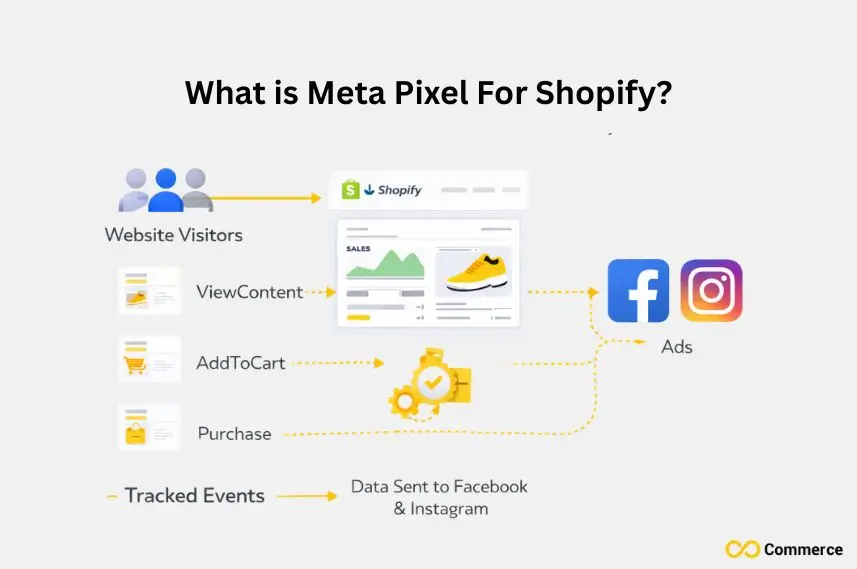
The Meta Pixel is a small piece of code you place on your website. It’s an analytics tool that helps you measure how effective your ads are. You can see what actions people take in your online store. It tracks user interactions, like when someone adds an item to their cart or makes a purchase, sending this information back to Meta.
This data is crucial for optimizing your Facebook and Instagram ads. Understanding customer behavior helps you create strong ads, retarget interested visitors, and boost sales. Essentially, it’s the bridge connecting your Facebook ads with your Shopify store activity.
Meta Pixel vs. Facebook Pixel
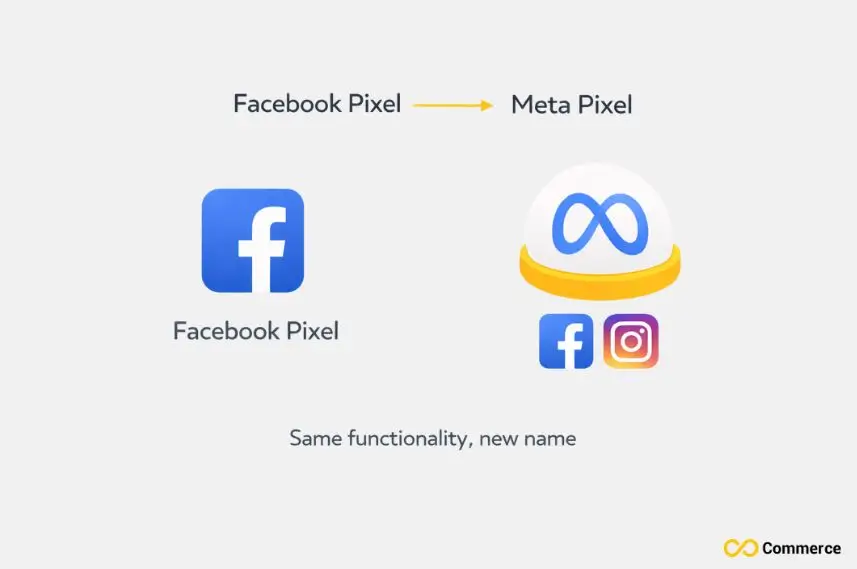
You might have heard the term “Facebook Pixel” used interchangeably with “Meta Pixel.” They are essentially the same thing. In 2021, Facebook rebranded its parent company to Meta, and many of its tools, including the pixel, were renamed to reflect this change.
So, if you see older tutorials referencing the Facebook Pixel, don’t worry. The functionality, purpose, and installation process remain the same. The change mainly involves the name. This aligns the tool with Meta’s bigger vision for its apps and services, like Facebook and Instagram.
What are the Benefits of Meta Pixel?
Connecting the Meta Pixel to your Shopify store offers key benefits for your marketing. It’s not just tracking. It’s about smart, data-driven growth. This can make a real impact, whether you’re a local shop or a global brand.
- Track Conversions Accurately: Find out which Facebook Ads drive actions on your site, like adding to cart or completing a purchase. This helps you understand your return on ad spend.
- Advanced Ad Targeting: Create custom audiences based on visitors who have taken specific actions on your site. You can also build lookalike audiences to find new customers who are similar to your best existing ones.
- Effective Retargeting Campaigns: Show ads to people who have visited your online store before. You can remind them about products they looked at or left in their cart. This can boost conversion rates a lot.
- Dynamic Ads: Show relevant products from your catalog to people who are interested. This personalized approach makes your advertising campaigns much more effective.
Creating Your Meta Pixel
Before you can install the pixel, you need to create it within your Meta Business Manager. This is the central hub for all your business activities on Meta’s platforms. The process is straightforward and sets the foundation for all your future tracking.
Accessing Meta Business Manager
First, log in to your Meta Business Manager account. If you don’t have one, you’ll need to create it. This tool is essential for managing your business pages, ad accounts, and, of course, your Meta/Facebook pixels.
Setting Up Your Business Account and Ad Account
Within the Business Manager, ensure you have a business account set up. You will also need an ad account from which you’ll run your Facebook advertising. Your pixel will be associated with this ad account, so all your campaign data flows to the right place.
Navigating to Events Manager to Create a New Pixel
- Once you’re in your Meta Business Manager, navigate to the “Events Manager” section. You can usually find this in the main menu under “All Tools.”
- In the Events Manager, click the green plus icon labeled “Connect Data Sources” and select “Web.” Then, click “Connect.”
Generating Your Meta Pixel ID
You’ll be prompted to name your pixel. Choose a name that clearly identifies your Shopify store, such as “[Infinite Facebook Pixel].” After naming it, Meta will generate a unique Meta Pixel ID for you. This ID is the key to linking your Shopify store with Meta’s tracking system.
Relationship Between Pixel, Ad Account, and Business Manager
Think of Meta Business Manager as your company’s headquarters. The ad account is like your marketing department’s budget, and the pixel is your data analyst. The pixel gathers data and sends it to your ad account. It works under your main business account. This helps you make smart choices.
Meta Pixel Installation on Shopify
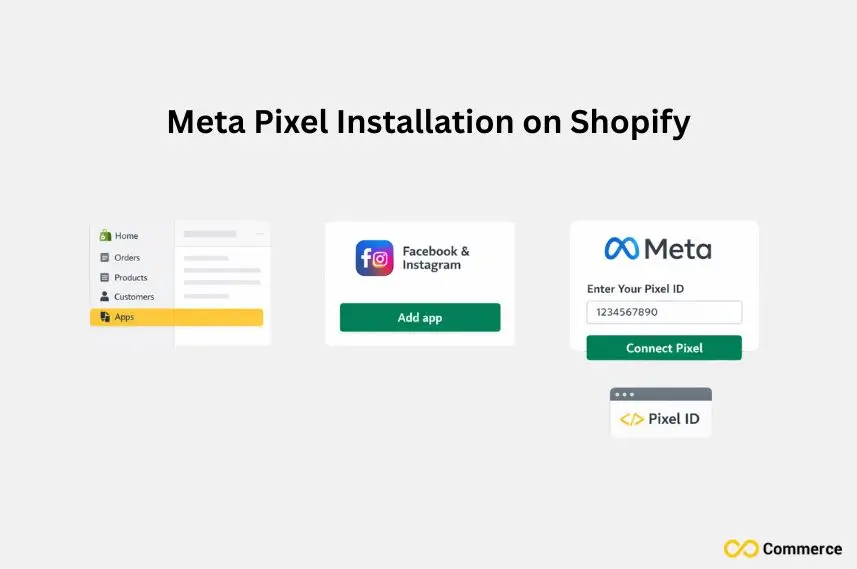
Shopify makes it incredibly easy to install the Meta Pixel using their dedicated app. This method is best. It’s simple and reliable. Plus, it automatically sets up key standard events without any code changes.
Connecting Via the Facebook & Instagram Sales Channel App
- From your Shopify admin panel, go to the “Sales channels” section and search for the “Facebook & Instagram” app. Install it if you haven’t already.
- Follow the setup prompts to connect your Facebook account, Business Manager, and the ad account associated with your pixel. During this process, you will be asked to select the Meta Pixel you created earlier. Simply choose it from the list. Shopify handles the rest, automatically adding the pixel code to your online store.
Installing Meta Pixel on Shopify
For advanced users or those with specific custom needs, a manual installation might be necessary. This method requires editing your Shopify theme’s code directly. Be careful! Mistakes can harm your site’s functionality.
When to Consider Manual Pixel Installation
Consider this method if you need unique custom events not included in the standard Shopify integration. It’s also useful for headless commerce setups. It offers more control but requires technical knowledge.
Accessing Your Shopify Theme Files
From your Shopify admin, go to “Online Store” > “Themes.” Find your current theme, click the “Actions” dropdown, and select “Edit code.” This will open your theme’s code editor.
Pasting the Meta Pixel Base Code
Locate the theme.liquid file in the code editor. Find the closing </head> tag. Paste the Meta Pixel base code you copied from Events Manager just above this tag. This ensures the pixel loads on every page of your store.
Adding Standard Event Codes Manually
If you install the base code manually, you must also add code snippets for standard events. These include ViewContent, AddToCart, and Purchase. You can do this on the right pages or through button clicks. This is a complex process and is generally not recommended unless you have development experience.
Why Choose the App for Installation?
The Shopify app integration is the superior choice for most merchants. It’s simpler and automatically sets up the Conversions API (CAPI). This means better data sharing and event tracking is done for you. Manual installation places the burden of maintenance and updates entirely on you.
How to Track Essential Events?
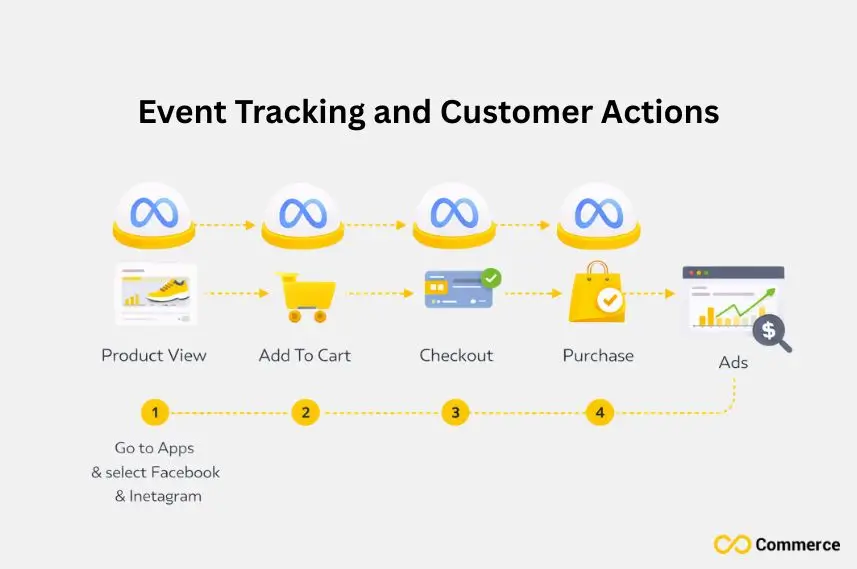
Tracking events is the core function of the Meta Pixel. It helps you understand exactly what users are doing on your site, from browsing products to completing a purchase. These actions are categorized as standard or custom events.
Understanding Standard Events Automatically Tracked by Shopify
When you use the Shopify integration, it automatically tracks several crucial standard events. This is a huge advantage, as it gives you rich data right out of the box.
- ViewContent: Fires when a user views a product page.
- AddToCart: Tracks when a product is added to the cart.
- InitiatedCheckout: Occurs when a user starts the checkout process.
- Purchase: Records a completed transaction on your online store.
Creating Custom Events for Unique Business Goals
Sometimes you need to track actions unique to your business, like a newsletter signup or a quiz completion. For these, you can create custom events. You usually need to add extra scripts to your site. Alternatively, you can use a tool like Google Tag Manager. This helps fire pixel events when users interact in specific ways.
How to Verify Your Meta Pixel?
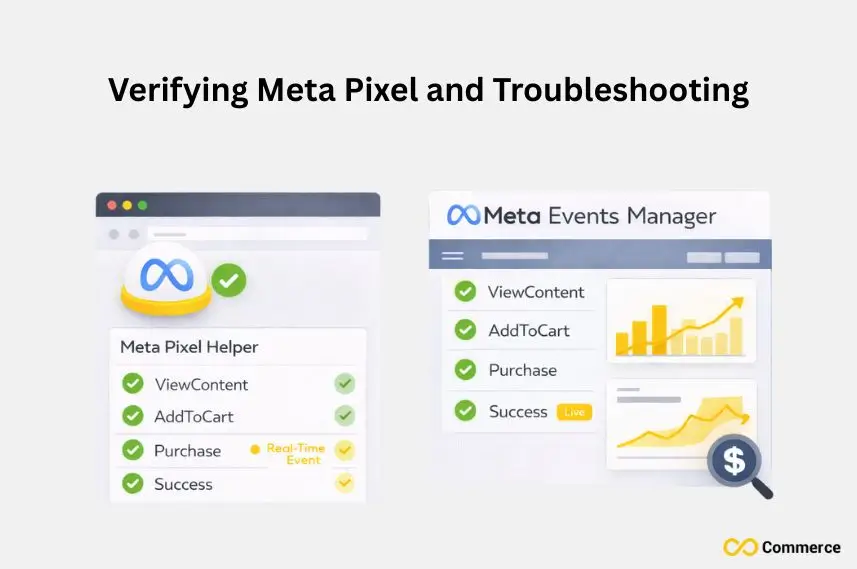
After installation, it’s vital to confirm that your pixel is working correctly. A non-firing pixel means you’re not collecting any data, rendering your ad campaigns ineffective. Luckily, there are simple tools to verify your setup.
Using the Meta Pixel Helper Chrome Extension
The easiest way to check your pixel is with the Meta Pixel Helper Chrome extension. Once installed, visit your Shopify store and click the extension icon. It will show you which pixels were found on the page and whether they are firing correctly. You can navigate through your site to test different events, like adding a product to your cart, to ensure each is tracked.
Checking Events Manager for Real-Time Activity
You can also check for activity directly in the Meta Events Manager. Under your pixel’s “Overview” tab, you should see data coming in as you and other visitors browse your site. The “Test Events” tool is also useful for debugging and ensuring server-side events from the Conversions API are being received.
Final Thoughts
Setting up the Meta Pixel for Shopify is a non-negotiable first step for any serious e-commerce entrepreneur. This powerful tool gives you data-driven insights. Use it to optimize your Facebook ads, understand your customers, and effectively scale your business.
You’ve laid the groundwork for advanced advertising strategies. Now, you can create custom audiences and start dynamic retargeting campaigns. Remember that the digital landscape is always changing. Keep an eye on your pixel’s performance. Stay updated on Meta’s policies. Always learn how to turn your data into insights for growth.
FAQs
The Meta Pixel is a tracking code. It connects your Shopify store to Facebook and Instagram. This helps you track sales, traffic, and customer actions.
Go to Meta Business Manager > Events Manager > Connect Data Sources > Web > Connect, name your pixel, and get your Pixel ID.
Yes, creating and using the Meta Pixel is 100% free. You only pay for your ad campaigns, not for the tracking tool.
Use the Meta Pixel Helper Chrome extension or the Test Events tool in Events Manager to confirm it’s tracking properly. Apps like Infinite FB & TikTok Pixels also show real-time tracking data.
You can use one or multiple pixels depending on your setup. For managing several pixels easily, use Infinite FB & TikTok Pixels; no coding required.

