 Amber Naz
Summary
Proper implementation of shopify schema markup is code that tells search engines what a page is about in a format they can read without guessing. On an online store, it is the difference between a search engine seeing a page with some text and a number, and understanding that this is a product, that the number is its price, and that it is in stock.
The good news is that most Shopify themes already add some of this for you. The harder questions are what your theme actually outputs, what is missing, and how to add the rest without breaking your store. This guide walks through each step: what structured data is, which schema types matter for a Shopify store, how to check what you already have, how to add what is missing, and how to test it.
The advice comes from Google’s structured data documentation and Shopify’s developer documentation, which are the primary sources for how Google reads markup and how Shopify generates it. Nothing here guarantees a rich result or a ranking improvement, and Google says as much.
Quick answer
- Check first. Most themes already output Product markup. View your page source and run your product page through Google’s Rich Results Test before you add anything.
- Fill the gaps. Common gaps are Organization markup for your store details and breadcrumbs.
- Avoid duplicates. If your theme and an app both output Product markup, you can end up with two conflicting versions.
- Keep it truthful. Markup must describe what shoppers can see on the page.
- Test and monitor. Use the Rich Results Test while building, then watch the Search Console reports after you publish.
What schema markup is, and what it does
Schema markup is a type of structured data. Google describes structured data as a standardized format for providing information about a page and classifying its content. Google supports three formats: JSON-LD, Microdata, and RDFa. Google recommends JSON-LD, calling it the easiest solution for website owners to implement and maintain at scale.
What it can do for you
Structured data can make a page eligible for rich results, which are search listings that show extra information such as price, availability, or ratings. Google also uses markup to understand a page’s content more precisely.
What it cannot do
Google’s guidelines state that it does not guarantee your structured data will show up in search results. Valid markup makes a page eligible, not entitled. Google also says that markup violating its guidelines can cost you rich result eligibility, although it does not affect how the page ranks in web search.
Treat schema as clear labeling, not a ranking trick.
Which schema types matter for a Shopify store
You do not need every type. Start with these.
| Type | Where it goes | What it describes |
| Product | Product pages | Name, image, price, currency, availability, and optionally reviews and ratings |
| Organization (or OnlineStore) | Home page or site-wide | Store name, URL, logo, contact details, social profiles |
| BreadcrumbList | Product and collection pages | The page’s position in your site hierarchy |
Product
Google offers two kinds of product markup. Product snippets are for pages where people cannot directly buy the product, such as editorial reviews. Merchant listings are for pages where customers can purchase from you, so they apply to a store. Merchant listings require a name, images, and an Offer with a price greater than zero and a currency. Google recommends putting Product markup in the initial HTML for best results, since JavaScript-generated markup can be crawled less often and less reliably.
Organization
Google’s Organization documentation lists properties such as name, url, logo, contactPoint, sameAs, and address. It says there are no required properties and recommends using the most specific subtype, such as OnlineStore for ecommerce sites. Its OnlineStore example also includes shipping and return policy information.
BreadcrumbList
Breadcrumb markup describes where a page sits in your site. Google’s guide says a BreadcrumbList needs at least two ListItem entries, each with a position and a name, and an item URL that can be omitted for the last item.
How Shopify generates structured data
Shopify provides a Liquid filter called structured_data that converts an object into schema.org structured data. According to Shopify’s documentation, product objects are output as a schema.org Product if they have no variants, and as a ProductGroup if they have one or more variants. Article objects are output as an Article. The documented usage is:
<script type=”application/ld+json”>
{{ product | structured_data }}
</script>
Shopify’s own free theme, Dawn, uses this approach. Its product section file (sections/main-product.liquid) contains a <script type=”application/ld+json”> block that outputs {{ product | structured_data }}, based on the source on GitHub when I checked. Its main layout file (layout/theme.liquid) does not contain structured data output. That means a standard Dawn store gets Product markup on product pages, but nothing like Organization markup from the layout.
Your own theme may differ. Themes are customized and updated, so the only reliable way to know is to check your live pages.
Step 1: Check what your theme already adds
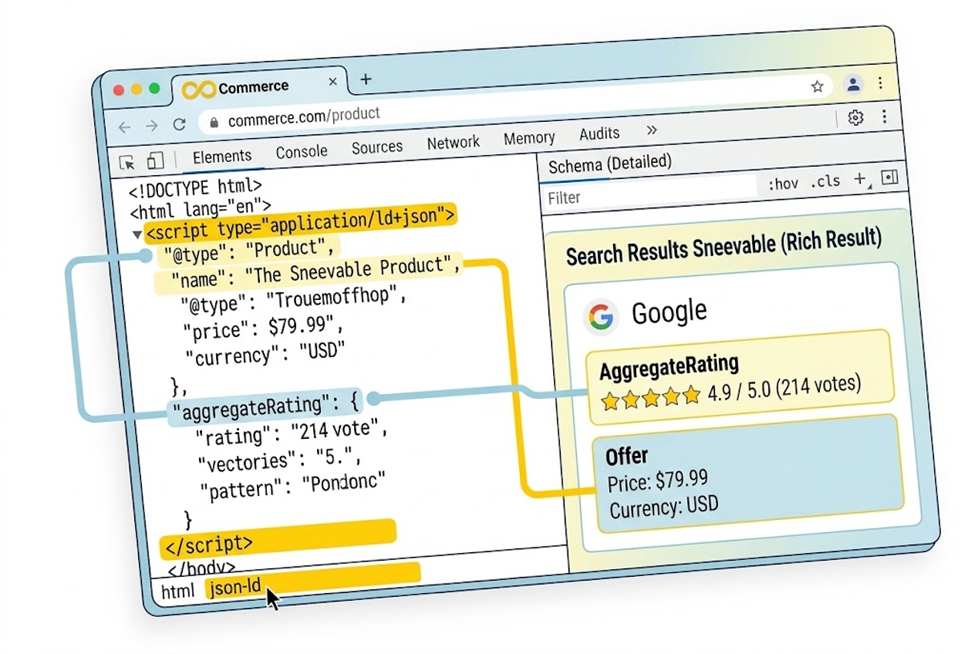
Do this before you change anything.
Option A: View the page source
- Open a product page in your browser.
- View the page source (right-click and choose View Page Source, or use your browser’s developer tools).
- Search for application/ld+json.
- Note how many blocks you find, what @type each one uses, and whether the details match the visible page.
If you find no JSON-LD, check for itemtype and itemprop attributes, which indicate Microdata, an older format some themes use.
Option B: Use the Rich Results Test
Google’s Rich Results Test lets you enter a public URL or paste code, and it shows which rich results the page’s structured data can generate. Test one product page, one collection page, your home page, and one blog post.
Option C: Check Search Console
If your store is verified in Google Search Console, the Shopping section includes Product snippets and Merchant listings reports. Google’s help page says each report charts valid and invalid items over time, counts items rather than pages, and lists the reasons items are invalid and issues that could improve item appearance.
Step 2: Decide what is missing
Compare what you found against this checklist.
- Product pages have Product markup with name, image, price, currency, and availability
- The price and availability in markup match what the shopper sees
- Your store has Organization or OnlineStore markup with name, URL, logo, and contact details
- Product and collection pages have breadcrumb markup, if your pages show breadcrumbs
- No page has two competing versions of the same markup
- Review and rating markup appears only if real, visible reviews exist on the page
Step 3: Choose how to add what is missing
You have three main routes.
Route 1: Theme settings or the theme editor
Check whether your theme has an option for structured data or SEO. Google’s documentation advises CMS users, including Shopify users, to look for a search settings page or a structured data plugin. This is the lowest-risk route.
Route 2: A Shopify app
An app can add or manage markup without you editing code. Be careful about overlap. If your theme already outputs Product markup and an app adds a second version, the two may conflict. Before you install one, ask whether it replaces the theme’s markup or adds to it, and check the result with the Rich Results Test afterward.
Route 3: Edit theme code
You can add JSON-LD directly in your theme. Shopify’s help center explains how to open the code editor from the Online Store menu. It also gives clear warnings:
- Duplicate your theme first. This makes it easy to discard your changes and start again.
- Theme updates can remove your changes. If your code conflicts with a theme update, your changes are removed in the updated copy.
- Deleted files cannot be recovered.
- Only edit code if you know HTML, CSS, and basic Liquid. Otherwise, Shopify suggests hiring a Shopify Partner.
If you are not comfortable with code, use Routes 1 or 2, or ask a developer.
Step 4: Add Organization markup
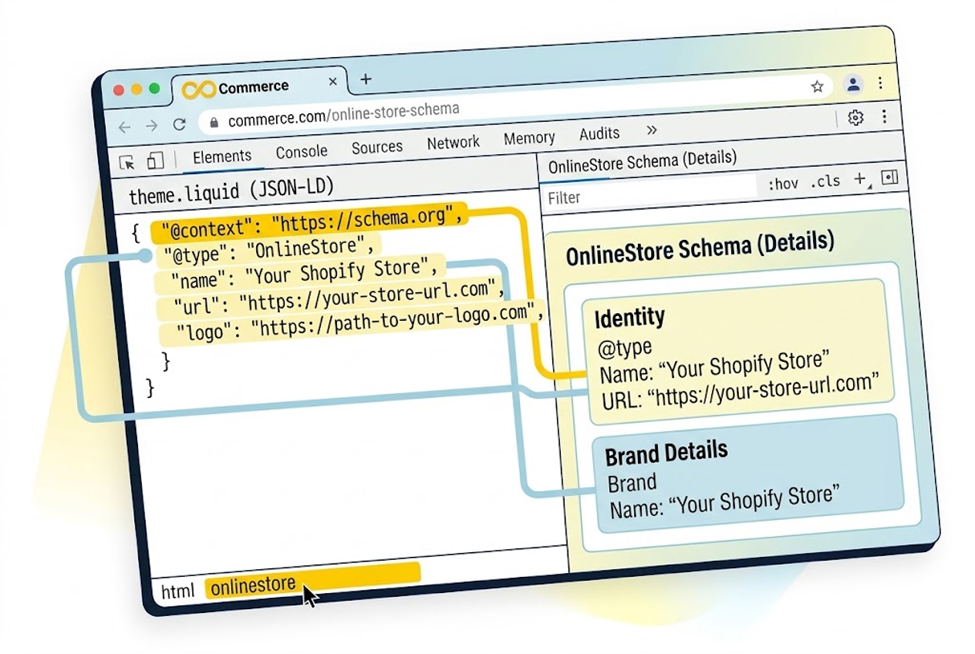
Organization markup tells search engines the basics about your store. Place it in the <head> of your layout file (layout/theme.liquid). The example limits it to the home page.
The example below uses Shopify’s shop object, which provides the store’s name and secure_url, and the json filter, which adds quotes and escapes characters for you. Replace the placeholder logo, social links, and email with your own real details.
{% if template.name == ‘index’ %}
<script type=”application/ld+json”>
{
“@context”: “https://schema.org”,
“@type”: “OnlineStore”,
“name”: {{ shop.name | json }},
“url”: {{ shop.secure_url | json }},
“logo”: “https://example.com/your-logo.png”,
“sameAs”: [
“https://www.instagram.com/your-store”,
“https://www.facebook.com/your-store”
],
“contactPoint”: {
“@type”: “ContactPoint”,
“contactType”: “Customer Service”,
“email”: “support@example.com”
}
}
</script>
{% endif %}
A few notes:
- Google says logo images must be at least 112×112 pixels, crawlable, and indexable.
- Only include contact details that you want to be public and that are shown on your site.
- Add hasMerchantReturnPolicy or hasShippingService only if you can describe your policies accurately. Google’s OnlineStore example shows both, and it recommends a global return policy under your organization markup.
Step 5: Add or fix Product markup
If your theme already includes {{ product | structured_data }}, you may not need to change anything. Check what it outputs.
Shopify’s example output shows that some fields, such as category and description, can be empty depending on your product data. That points to a better fix than editing code: complete your product data in the Shopify admin. Add a description, brand (vendor), images, and accurate prices, and the generated markup improves with it.
What a complete Product block looks like
For reference, Google’s product snippet documentation shows a block with these elements. The values below are placeholders.
{
“@context”: “https://schema.org/”,
“@type”: “Product”,
“name”: “Example Product”,
“image”: [“https://example.com/photos/product.jpg”],
“description”: “A short, accurate description.”,
“sku”: “SKU-001”,
“brand”: { “@type”: “Brand”, “name”: “Example Brand” },
“offers”: {
“@type”: “Offer”,
“url”: “https://example.com/products/example-product”,
“priceCurrency”: “USD”,
“price”: 119.99,
“availability”: “https://schema.org/InStock”
}
}
You usually will not write this by hand on Shopify, because the structured_data filter does it for you. Use it as a checklist of what to expect in your output.
Product markup rules to respect
- Match the visible page: Google’s guidelines say not to mark up content that is not visible to readers, and that markup must be a true representation of the page content.
- Single-product pages only: Google says product rich results only support pages that focus on a single product.
- Price above zero: Merchant listings require a price greater than zero.
- One currency per URL: If you sell in several currencies, Google recommends a distinct URL per currency.
- Keep priceValidUntil current: Google warns that a product snippet may not display if this property shows a past date.
Reviews and ratings
Add review or aggregateRating only when you have real reviews that shoppers can see on the page. Google’s guidelines prohibit marking up fake reviews or irrelevant content. Most review apps add their own rating markup, which is one common source of duplicate Product blocks. Check your page source to see how many Product blocks exist.
Step 6: Add breadcrumb markup
If your product pages show a breadcrumb trail, mark it up. The static example below shows the pattern, adapted from Google’s documentation. On a real store, each page needs its own trail, so use a theme or app that generates this dynamically, or ask a developer to build it in Liquid.
{
“@context”: “https://schema.org”,
“@type”: “BreadcrumbList”,
“itemListElement”: [
{ “@type”: “ListItem”, “position”: 1, “name”: “Home”, “item”: “https://example.com/” },
{ “@type”: “ListItem”, “position”: 2, “name”: “Backpacks”, “item”: “https://example.com/collections/backpacks” },
{ “@type”: “ListItem”, “position”: 3, “name”: “Blue Canvas Backpack” }
]
}
Google’s guide says that if the item URL is omitted for the last entry, Google uses the URL of the containing page. Make sure the trail matches the one shoppers see.
Step 7: Test your markup
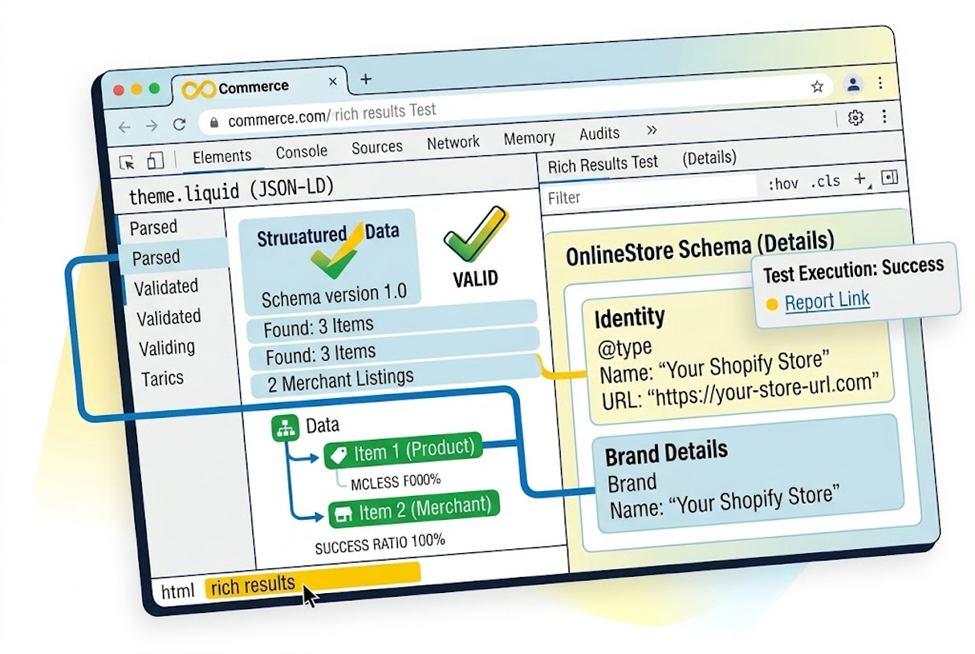
Test during development and again after publishing.
- Test the code before publishing. Paste your JSON-LD into the Rich Results Test’s code input, or test your duplicated theme’s preview URL if it is publicly accessible.
- Test live URLs. Run your product, collection, home, and blog pages through the Rich Results Test.
- Fix errors first, then warnings. Required properties missing is an error. Recommended properties missing is usually an improvement opportunity.
- Check for duplicates. View the source again and count the blocks.
- Inspect in Search Console. Google recommends the URL Inspection tool to confirm Google has found your structured data.
- Monitor the reports. After deployment, watch the Product snippets and Merchant listings reports under Shopping in Search Console. Google notes that templating or serving issues can break markup after launch, so keep checking.
Search Console has no “fix this” button. Google’s help page says fixes must be applied to your site’s source code, and issue pages let you inspect affected URLs.
FAQs
Yes, most modern Shopify themes (including the free Dawn theme) automatically generate Product structured data using Shopify’s built-in structured_data Liquid filter. However, themes typically do not cover site-wide elements like Organization or dynamic BreadcrumbList markup, which usually require custom code or an app.
You can check your schema in two ways: right-click a product page, select View Page Source, and search for application/ld+json; or paste your live URL directly into Google’s Rich Results Test tool to see which schema types and rich results are detected.
Having both your theme and an app output Product markup simultaneously creates duplicate, conflicting blocks. This redundancy can confuse search engines or cause validation errors in Google Search Console. It is best to check your page source, identify overlapping blocks, and disable the redundant markup in either the theme or the app.
Yes. If you are uncomfortable editing Liquid or JSON files, you can use Shopify apps designed for SEO and structured data management, or look for built-in SEO and metadata toggles within your theme customizer settings. Always run your pages through the Rich Results Test after making changes.
No. Google explicitly states that valid structured data makes a page eligible for rich results (such as price and availability displays), but it is not a direct ranking factor. Schema acts as clear labeling for search engines and AI models rather than a trick to boost keyword rankings.
