 Amber Naz
Quick Summary
Your products can appear in Google Shopping results without paid ads, but only if Google can read your product data. That’s what Google Merchant Center is for. It’s where your store and product information lives, and where Google decides which products it will show.
The easiest way to connect it to Shopify is Google’s own app, and most stores get through setup in under an hour. The harder part is what comes after: products stuck in review, disapprovals you don’t understand, or a feed that silently stops updating. This guide walks through setup step by step, then covers the most common errors and their fixes.
What Google Merchant Center does for a Shopify store
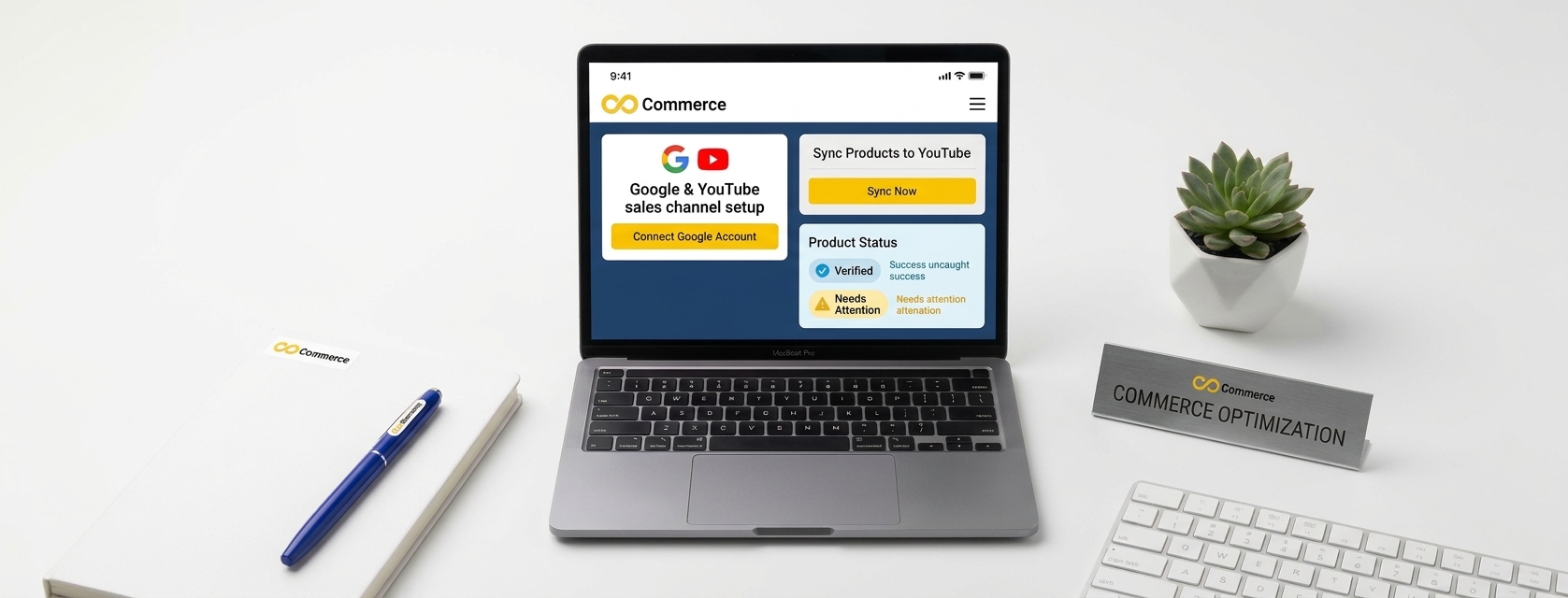
Google Merchant Center holds your product feed and store details. Shopify’s Google & YouTube channel syncs your products and relevant store information to it automatically, so you can update your Google product feed directly from Shopify. For eligible stores selling in the United States, synced products can show in Google Shopping tab listings for free. Your approved products may also appear across other Google surfaces, and you can use the same data for Performance Max campaigns.
You don’t have to connect everything. Shopify notes you can use Merchant Center only (to list products), Google Ads only (for conversion tracking), Google Analytics only, or all three.
Before you connect: your setup checklist
Most failed setups trace back to a missing store requirement. Shopify’s requirements page lists these. Go through them first.
Store requirements
- Your online store can’t be password protected (private mode).
- You need a valid payment provider. If you haven’t chosen one yet, our comparison of Shopify vs Stripe payments, fees and features can help.
- You need a Refund Policy and Terms of Service, linked in your footer menu.
- Your contact information must be visible, such as an email, phone number, mailing address or contact form.
- You must ship to a Google-supported country and sell in a currency that matches it.
Google account requirements
- A Google account, plus a Merchant Center account where you’re an administrator.
- A domain that isn’t claimed by a different Merchant Center account.
- Not a multi-client account, which can’t connect to Shopify. One Merchant Center account also connects to only one Shopify store.
Shipping
- Only rates in your General shipping profile sync. Custom shipping profiles can cause errors.
- Carrier-calculated rates are supported only for certain carriers in Australia, Germany and the United States. Everywhere else, use flat rates.
Product data
- Add a Google product category where you can.
- Every product needs a unique identifier. If it has a GTIN (barcode), add it. If it doesn’t, you need a brand and a Manufacturer Part Number (MPN).
- Product options, including variants, must be in English to sync.
- Apparel, media and book categories have extra requirements, such as age group, gender, color and size for apparel, and ISBN for books.
How to connect Google Merchant Center to Shopify
If you’re a staff member, you need permissions covering orders, products, marketing, discounts, navigation, pages, settings, and app management. Then follow these steps, based on Shopify’s setup guide:
- Install the app. Add the Google & YouTube channel from the Shopify App Store.
- Connect your Google account. In your Shopify admin, go to Sales channels > Google & YouTube and click Connect Google Account. Choose or create a Google account and allow access.
- Review the setup checklist. Shopify lists the requirements for your store. Fix anything flagged using the links beside each item.
- Select or create a Merchant Center account. Pick an existing account from the drop-down, or click Create new.
- Verify yourself. Enter your phone number, request a code, and enter the 6-digit code you receive.
- Choose countries and languages (optional). To pick them yourself, turn off Automatic sync and select the Shopify Markets countries and languages to sync.
- Set shipping (optional). If you plan paid marketing on Google, choose Automatically import shipping settings or set rates manually in Merchant Center.
- Set title and description preferences (optional) for how products appear on Google.
- Complete setup. Available products then sync automatically.
Two cautions from Shopify. If you connect an existing Merchant Center account that already has a product feed, that feed is overwritten to avoid conflicts, and changes you later make to your settings in Merchant Center could affect the sync. Also, don’t tick a checklist item you haven’t actually met, because Shopify warns that confirming unmet requirements can lead Google to suspend your account.
Submit and manage your product feed
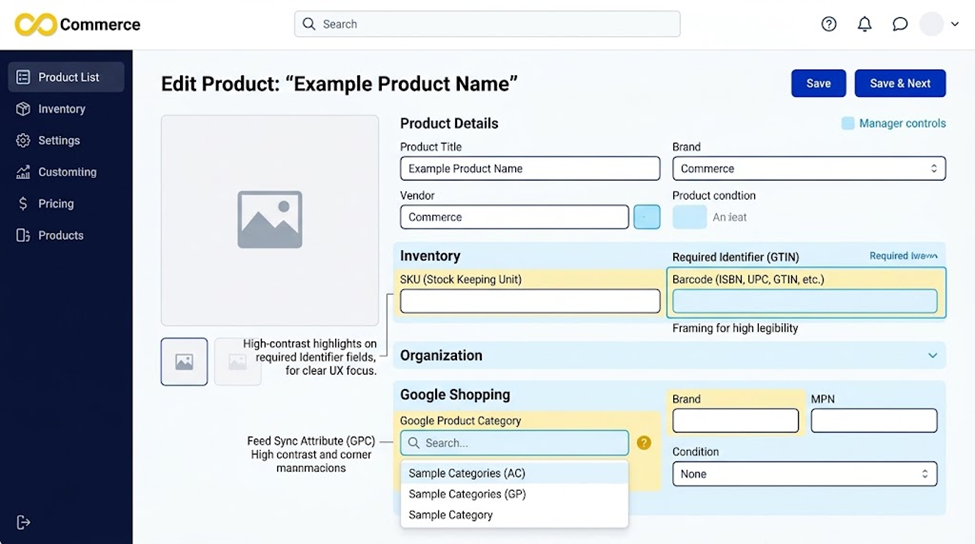
When you first connect, all products available to your Online Store sync automatically. To choose which ones, change a product’s availability to the Google & YouTube channel, one at a time or in bulk.
Then add what Shopify can’t fill in on its own:
- In Sales channels > Google & YouTube, open the Overview page.
- In the Product feed or Product status section, click Manage Products.
- Fill in missing fields, such as Google product category, brand and MPN, and click Save.
If you sell handmade or custom items without a GTIN, the bulk editor includes a Custom product column you can set to True.
How long does it take?
Shopify says the initial sync can take up to 24 hours, and later changes typically sync within a few hours. Google reviews new products within 3 to 5 business days. Google also expires synced product data after 30 days, so the channel refreshes your products automatically within that window. Shopify warns that editing product information can introduce errors into products that previously synced, so check the channel periodically.
Discounts appear in Merchant Center as promotions. Turn on the Google sales channel for discounts in your Shopify admin if you want them synced.
Common Google Merchant Center errors on Shopify and how to fix them
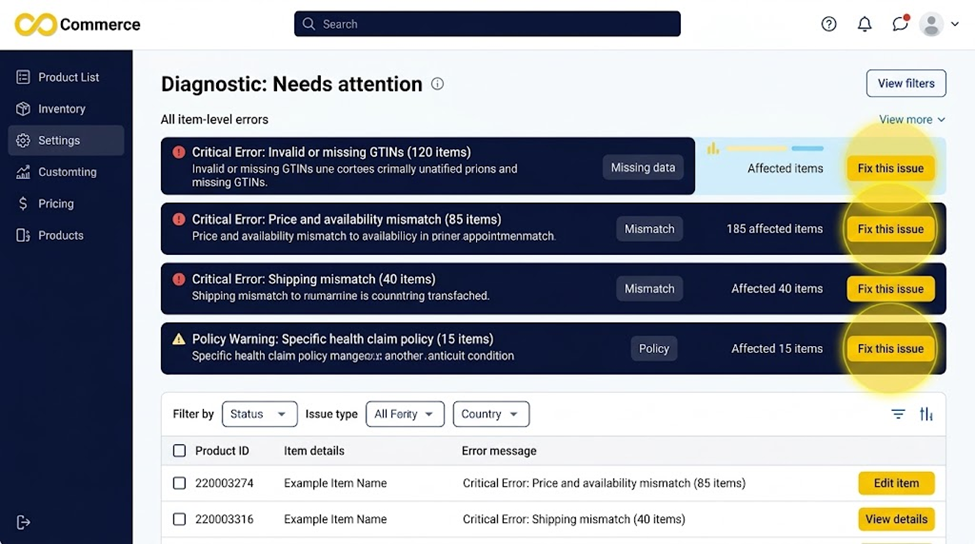
Separate setup problems from product problems. Setup problems block the connection. Product problems stop individual listings.
Setup and account problems
| Problem | Fix |
| Merchant Center account missing from the drop-down | Make sure the email connected in the app has Admin access in Merchant Center (Settings > Account access). Wait about 10 minutes, and check it isn’t a multi-client account. |
| Domain verification error | Confirm your primary domain (not a www subdomain) is added. If it isn’t verified, use the HTML tag method: paste the tag below the opening <head> in theme.liquid, verify in Merchant Center, then disconnect and reconnect. |
| Domain claimed by another account | Either transfer the domain claim, which can’t be undone and causes feeds linked to your domain on the original account to be disapproved, or connect the account that already holds it. |
| Phone verification fails | The number must match your Shopify store details. Verification allows 5 attempts in 4 hours, so wait or try another connection. |
| Policy checklist items won’t clear | Add policies under Settings > Policies (not as standalone pages) and link them in the footer menu with the Policies link type. |
| Shipping import fails | Check you have a zone for your target country and use only the General shipping profile. Otherwise set shipping manually in Merchant Center. |
Product disapprovals and warnings
| Error | Fix |
| Missing GTIN or MPN, or invalid identifier | Add the barcode in the product’s Inventory section, or add brand and MPN in the Google & YouTube channel. Google says products with a missing or incorrect GTIN aren’t synced and are disapproved. Make sure the GTIN matches the brand. |
| Missing brand | Fill the Vendor field. Don’t enter values like “N/A” or “Generic”. Use the manufacturer or supplier, or your store name if you make the product. |
| Invalid Google product category | Add a valid category in the Google & YouTube app, using the numeric ID or the full path. |
| Missing description or image | Add a description and at least one image in Shopify. |
| Unavailable landing page | Make the product available to both Online Store and Google & YouTube. |
| Promotional overlay on image | Replace images containing text, logos, watermarks or badges with clean product photos. |
| Excessive capitalization | Change “GREEN SHIRT” to “Green shirt”. Check which title the app sends in its Settings tab. |
| Image too small or generic | Use at least 100 × 100 pixels (250 × 250 for apparel), no placeholders or logos. |
| Missing gender, size, color or age group (apparel) | Add the attributes. Color should be a real color name, not “multicolor”. |
Price and availability mismatches
Google compares your feed with your landing page. If the price or availability differs between the feed and the page (or through checkout), Google can apply preemptive item disapproval. That counts as account-level enforcement, and it needs an account review to fully resolve. Check the price shown on your product page against your Shopify price, including any markets or currency differences and anything that changes the displayed price. Check that stock status matches too. Google says only price and availability mismatches trigger this particular action.
Policy problems
Missing refund policy, insufficient contact information and misrepresentation are common account-level triggers. Fix the first two in your Shopify admin using the steps above. For misrepresentation, follow Google’s guidance carefully, because some violations, such as counterfeit goods, can cause an immediate suspension without warning.
How to fix errors and get re-reviewed
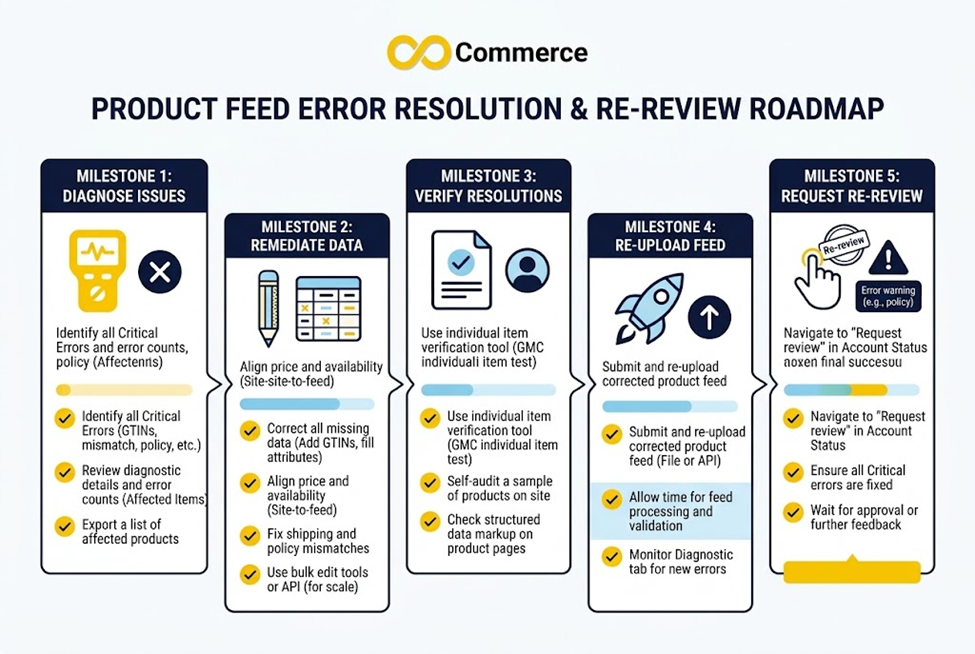
- Find the error. In Shopify, open a product and click Google under Sales channels to see its errors. In Merchant Center, open Products and the Needs attention tab.
- Fix it at the source. Update the product in Shopify, or the Google fields through Manage Products.
- Wait for the review. Google can take 3 to 5 business days to review updates.
- Request a review when required. For account-level problems, fixing the issue doesn’t trigger a re-review automatically. Use the Request review button in Merchant Center, or Request re-review in the Google & YouTube app settings. Reviews typically take up to 7 days.
- Mind the deadlines. Account warnings have a 28-day window, and Google grants one courtesy review during it. Shopify notes that deadline extensions aren’t granted. After a failed re-review a cool-down period applies, during which you can’t request another.
Who to contact: Shopify Support can help with installing the channel and setting up products. For Merchant Center accounts, Google Ads, suspensions and ad approvals, you need to contact Google directly.
Keep your feed healthy
- Check the channel after product changes. Price edits, new variants and image swaps can introduce new warnings.
- Fill identifiers when you add products. Add the barcode or brand and MPN at the time of creating the product, not months later.
- Keep clean images and sentence-case titles as a house rule for new listings.
- Don’t edit conflicting settings in Merchant Center without checking how they interact with the Shopify sync.
- Reuse the good data. Once your product data is clean for Google, the same discipline pays off on other channels. If you also want your catalog on Microsoft Shopping, the Infinite Microsoft Shopping Feed app syncs your Shopify catalog to Microsoft Merchant Center, which needs its own account.
Conclusion
Connecting Google Merchant Center to Shopify is mostly about preparation: policies in the footer, contact details, a clean General shipping profile, and product identifiers. Do that before you click Connect, and most errors never appear. When they do, the fix is almost always in the product data or a store requirement, and the steps above map each error to its cause.
Set aside a few minutes each month to check the Needs attention tab, and let your product data stay clean as you add products. If you also sell on Bing, you can extend your catalog to Microsoft Shopping. And if you run Google Ads, Infinite Commerce’s Google Ads Tracking & GTM app is worth a look for conversion tracking. Questions? Get in touch with the team.
FAQs
Install the Google & YouTube channel from the Shopify App Store, connect your Google account, choose or create a Merchant Center account, verify your phone number, and complete the setup checklist. Available products then sync automatically.
For eligible stores selling in the United States, products synced through the channel can display in Google Shopping tab listings for free. Paid campaigns, such as Performance Max, are separate and need a Google Ads account.
Check that the product is available to both Online Store and Google & YouTube, that it has a description and image, and that it has a barcode or brand and MPN. Then allow time: initial syncs can take up to 24 hours and review up to 3 to 5 business days. Also check your account for warnings.
Google requires a unique identifier. If a product has a GTIN, add it. If it doesn’t, add a brand and MPN. Custom-made products, such as handmade goods, can be marked as custom products and don’t need a GTIN.
No. One Merchant Center account can connect to only one Shopify store at a time, and multi-client accounts can’t connect directly to Shopify.
Your products stop showing on Google surfaces. Fix the cause, then request a review. Google sometimes emails at least seven days before a suspension, but serious violations can be suspended immediately.
