 Amber Naz
Quick Summary
TikTok catalog sync usually breaks on Shopify for one of five reasons: the connection or permissions broke, products are inactive or excluded from the channel, inventory or warehouse data is missing, product data breaks TikTok’s rules, or a scheduled feed is stale or misconfigured. Start by finding out whether you sync through the TikTok sales channel in Shopify or through a TikTok Ads Manager data feed, because the fixes differ. Then work through the ten checks below, and give each change several hours before you decide a sync is stuck.
You update a price in Shopify, add a new product, or correct a stock count. Hours later, TikTok still shows the old information, or the product never appears at all. Shopify Community threads are full of merchants describing the same frustration: empty catalogs, a “Shopify pause sync” message, imports that stall for hours, and “internal error” screens that offer no hint about what to do next.
The hard part is that two systems are involved, and each one can point at the other. This guide helps you break out of that loop. You will learn how the connection works, how to match your symptom to a likely cause, and how to run ten checks in the order that saves the most time. It is written for Shopify merchants, and the feed checks also apply if you run a TikTok Ads Manager catalog from a data feed.
What TikTok Catalog Sync Means on Shopify
When merchants say their catalog is not syncing, they can mean three different things. Shopify’s documentation describes the TikTok sales channel as the connection that syncs catalog, inventory, fulfillment and orders between Shopify and TikTok Shop. TikTok Ads Manager works differently: a catalog there can pull products from a data feed on a schedule, and TikTok lets you set that schedule to hourly or daily. Feed apps sit on top of either approach and automate the work.
| Method | What it handles | Where you manage it | Where it typically fails |
| TikTok sales channel in Shopify | Catalog, inventory, fulfillment and orders for TikTok Shop | Shopify admin and TikTok Seller Center | Product mapping, inventory, regional product rules |
| TikTok Ads Manager catalog with a data feed schedule | Product data fetched from a feed URL, hourly or daily | TikTok Ads Manager, under Assets and Catalog | Stale feeds, file format, server access, frozen catalogs |
| Third-party feed app | Automates product feeds and updates from Shopify | The app and TikTok Ads Manager | Depends on app setup and TikTok-side review |
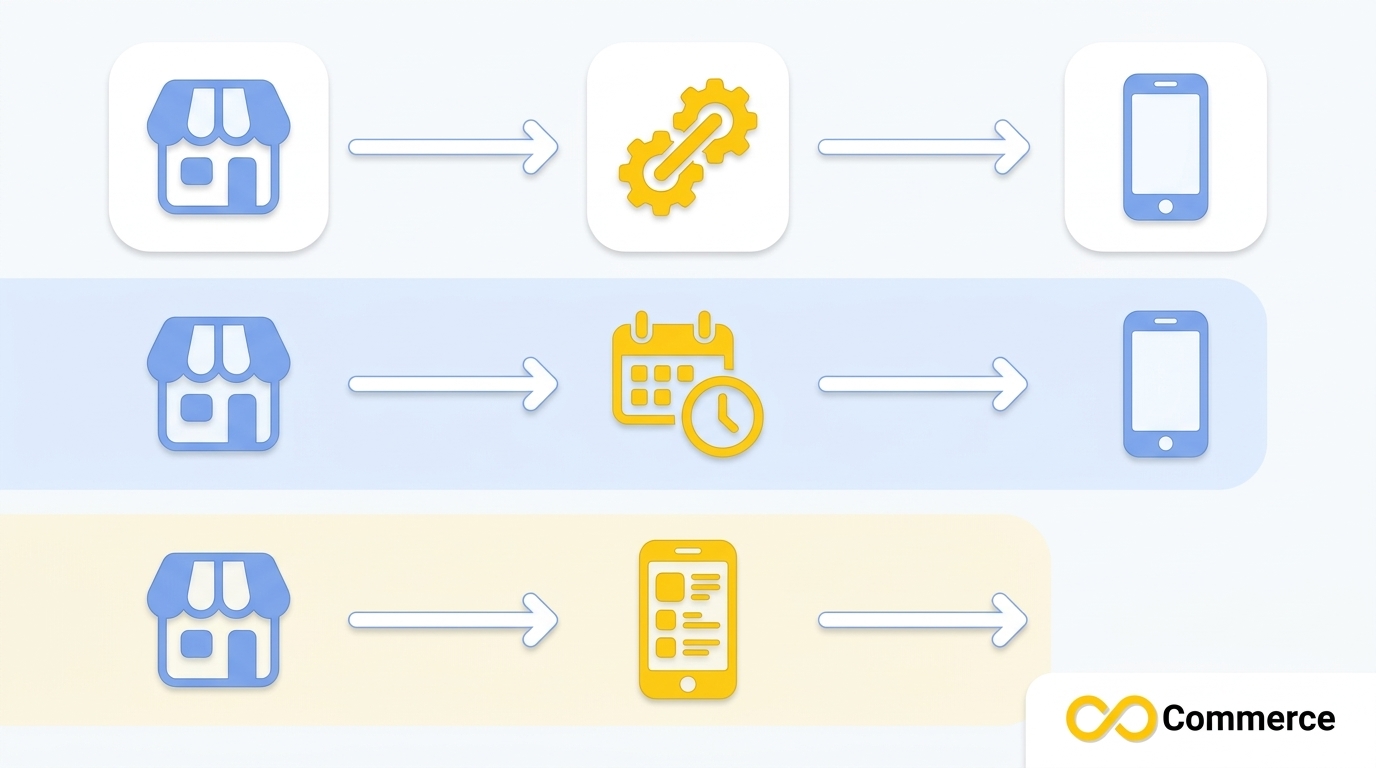
This matters because a fix for one pipeline does nothing for the other. Re-mapping products in the sales channel will not help if your real problem is a feed that TikTok has not fetched in a week. Before you change anything, decide which row of the table describes your store.
Why Your TikTok Catalog Is Not Updating: Symptoms and Likely Causes
Use this table to jump to the most likely fix. It combines patterns merchants report in the Shopify Community with the issue types TikTok lists in its own catalog diagnostics.
| What you see | Likely cause | Start with |
| Catalog looks empty, or a “pause sync” message appears | Broken connection, permissions or account link | Fix 10 |
| “Internal error” or a sync that stalls for hours | Temporary platform error | Fix 10 |
| “Inventory is empty” or a warehouse mapping error | Zero stock, untracked stock or unmapped location | Fix 3 |
| Products listed as not mapped, or a duplicate conflict | Mapping between Shopify and TikTok products is wrong | Fix 4 |
| Only one market or location shows | Shopify Markets or catalog location mismatch | Fix 5 |
| Errors such as “package size is invalid” | Product data fails TikTok requirements | Fix 6 |
| Prices or stock look old | Feed not fetched, or update method misconfigured | Fix 7 |
| Feed rejected or images fail to load | File format, column count or server access | Fix 8 |
| Warnings about a frozen catalog or missing pixel | Catalog-level flags in diagnostics | Fix 9 |
Treat these as leads, not guarantees. Always read the exact error text first, because it usually narrows the cause faster than any general advice.
Quick Checks Before You Troubleshoot
Spend five minutes on these before you change any settings:
- Note the exact message. Take a screenshot with the date and time. You will need it if you contact support.
- Check the product’s status. Draft or archived products are not available to sales channels.
- Confirm the product is available to TikTok. On the product page in Shopify, check that the TikTok channel is selected.
- Look at the connection. Open the TikTok channel in Shopify and confirm your TikTok Business and Shop accounts still show as connected.
- Check the time since your last change. A change made twenty minutes ago may simply not have been processed yet.
10 Fixes for TikTok Catalog Not Syncing on Shopify
1. Identify which sync is broken
Open the TikTok channel in Shopify and check whether the problem appears there, such as a failed product or order sync status. Then open TikTok Ads Manager, go to Assets, choose Catalog, and open Product Sources. If a data feed is listed there, that feed has its own schedule, its own errors and its own fixes. Many merchants run both, and one can fail while the other works. Write down which one shows the problem so you do not troubleshoot the wrong pipeline.
2. Make sure the product is available to the TikTok channel
Shopify lets you choose which products reach each sales channel, and it states that your products need to meet TikTok’s product guidelines for your region. Check three things: the product is Active, the TikTok channel is selected on the product page, and the product meets the guidelines for your selling region. If an entire collection is missing, look for a channel or collection filter that excludes it. This is the least exciting fix, and it explains a large share of “missing product” reports.
3. Fix inventory and location problems
Merchants in the Shopify Community report sync failures with messages such as “inventory is empty,” even when they believed stock was available, and one thread describes failures tied to warehouse mapping when Shopify showed zero inventory. The pattern is consistent: TikTok needs a usable stock quantity at a location it can map.
- Confirm inventory tracking is turned on for the product.
- Check that the quantity is above zero at the location Shopify uses for the TikTok channel.
- In TikTok Seller Center, confirm your warehouse or fulfillment settings are complete.
- Compare your regional settings in Shopify and TikTok to make sure they match.
4. Re-map or unlink mismatched products
If your products show as not mapped, or a product in TikTok Shop is already linked to a different Shopify product, syncing will fail for that item. Merchants have reported products that unmapped themselves, automap runs that finished but still threw errors, and difficulty finding the option to unlink a product.
- Open the product mapping or sync status area in the TikTok channel settings.
- Run the automatic mapping, and review any items it could not match.
- For duplicate conflicts, unlink the item and link it again to the correct Shopify product.
- Compare SKUs and variants on both sides. Duplicate or missing SKUs make mapping unreliable.
Menu labels change as the app updates, so use the in-app help if a button is named differently.
5. Match Shopify Markets, currency and catalog location
Two Shopify Community cases involve location settings. In one, the marketing catalog setup stalled at the catalog location step, and the merchant reported fixing it by creating a Shopify market that matched the store currency and setting it as the primary market. In another, a store with three active markets saw only one location in TikTok’s catalog locations.
Treat the first as something to test, not an official fix. Check that your store currency, primary market and TikTok catalog location agree. Then run a fresh sync and watch whether the missing market appears. If it does not, the integration may not support multiple markets the way you expect, and TikTok or Shopify support can confirm that.
6. Meet TikTok’s product data requirements
Some products fail because their data breaks TikTok’s rules, even though they are perfectly valid in Shopify. One merchant spent months on an error saying the product package size was invalid. That case shows why you should read the error on the specific product, not just the overall sync status.
- Open the failed product and read the error text.
- Fix the data in Shopify, so the correction flows down to TikTok.
- Avoid editing the same listing in both places. Two sources of truth is how stock and prices drift apart.
7. Check your feed schedule and update method
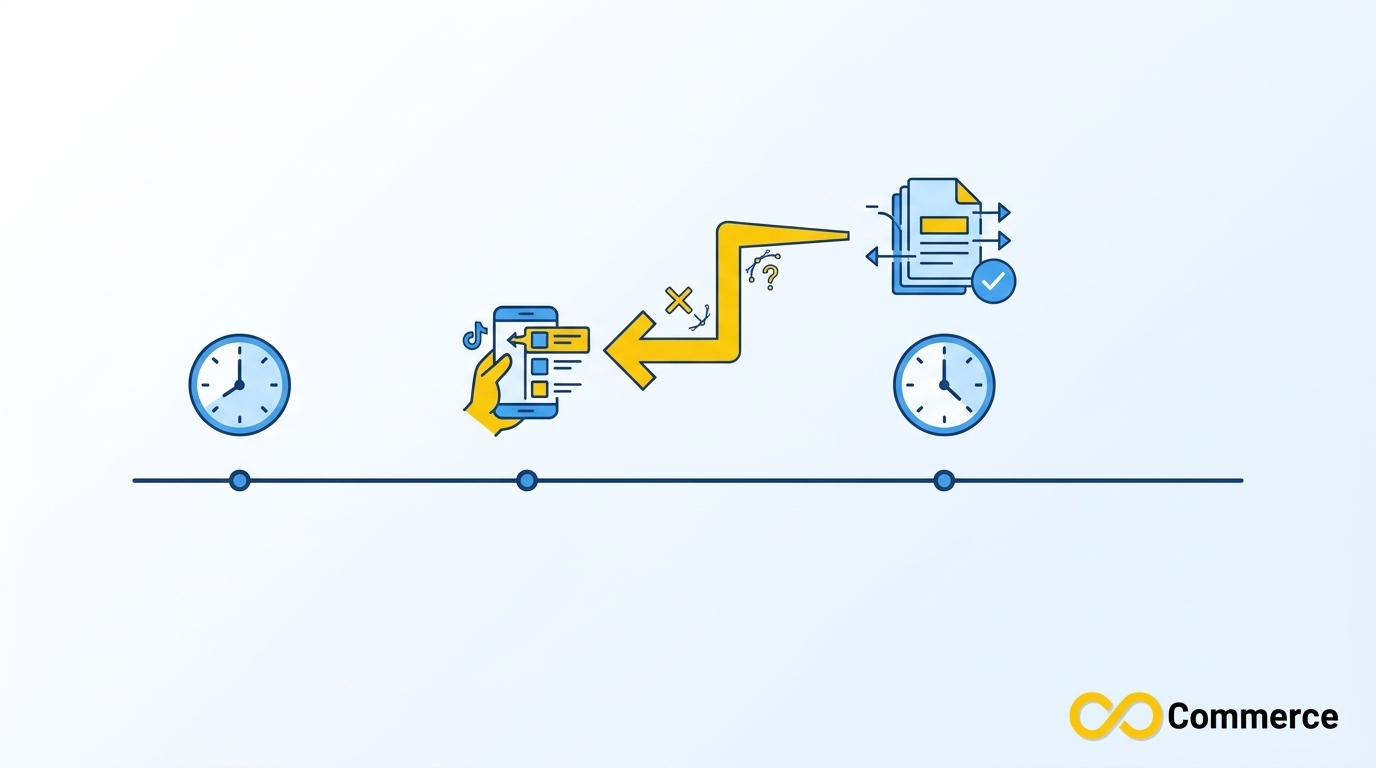
If your catalog uses a data feed, TikTok only knows what its last fetch collected. When you add a feed in Ads Manager, you choose a data feed schedule, an upload frequency of hourly or daily, and an update method. Those choices decide whether your catalog looks current.
- Update your data feed adds new items and changes existing ones. Items missing from the new file are not deleted.
- Replace your data feed swaps the entire source. Items missing from the new file are deleted.
If products vanish from your catalog after a feed change, the Replace option is the first thing to check. TikTok’s diagnostics also flag a feed that has not been updated in seven days. Make sure the fetch time comes after your feed finishes generating, or TikTok will keep collecting the previous version.
8. Fix file format, columns and server access
A feed can be scheduled correctly and still fail. TikTok’s list of catalog product issues names several causes, and you can read them on the TikTok catalog issues and suggested actions page:
- The feed uses the wrong file or link format. TikTok expects formats such as CSV, TSV, XML or GZIP.
- The file is empty or is missing required information.
- The number of columns does not match the header row.
- TikTok cannot access the images or product information hosted on your server.
For the last item, check whether a firewall, security plugin or password protection is blocking TikTok’s fetchers, and make sure the feed link opens as a downloadable file. If the link returns an error page when you open it in a private browser window, TikTok will probably get the same result.
9. Check catalog-level flags: frozen catalogs and pixel binding
Two flags in TikTok’s diagnostics have nothing to do with your product data. TikTok states that a catalog can be frozen after 28 days without advertising activity, which can slow and eventually halt product review. The suggested action is to create a new ad campaign. A separate warning appears when the catalog is not connected to a pixel or app, which you fix on the event source page.
If you need help with the second one, see our Facebook and TikTok Pixel app for a way to manage TikTok events on Shopify.
10. Reconnect, re-trigger the sync and escalate with evidence
If the earlier checks find nothing, the connection itself may be the problem. Merchants have reported sudden disconnections caused by an expired access token, plus stalls that ended without any change. In these cases:
- Disconnect and reconnect your TikTok Business and Shop accounts, following Shopify’s TikTok Shop setup guide.
- Trigger a manual sync, then wait several hours before judging the result.
- If it still fails, contact support with the screenshot, the exact error text, the product IDs affected and the time it happened.
Say which system shows the error. Some merchants report being passed between Shopify and TikTok support, and a precise description of where the error appears shortens that loop.
How Long Should a TikTok Catalog Update Take?
There is no single published number that fits every store. A small catalog may update quickly, while a large one can take hours, and a feed-based catalog refreshes only on the schedule you set. As a practical rule, wait several hours after a fix before concluding a sync is stuck. For feed-based catalogs, remember that a daily schedule means a change you made this morning may not appear until the next fetch.
Example: Why Prices Stayed Old After a Sale
Here is an illustrative scenario to show how the checks work together. A store updates 300 prices in Shopify for a weekend sale, but TikTok keeps showing the old prices a day later.
First, the owner identifies the sync type and finds a Data Feed Schedule in Ads Manager with a daily fetch (Fix 1). Next, the feed file itself shows the new prices, so the problem is not the product data. The fetch is scheduled for 1:00 a.m., but the feed only regenerates at 3:00 a.m., so TikTok always collects the previous day’s file (Fix 7). Moving the fetch time to after generation solves it, and the new prices appear after the next scheduled import. Nothing was broken. The timing was off.
How to Prevent Sync Problems
Most sync failures are easier to prevent than to repair. A short routine keeps small problems from becoming lost sales.
- Review diagnostics weekly. TikTok’s Catalog Manager includes a diagnostics report. Ten minutes a week catches stale feeds and rejected items early.
- Keep Shopify as your single source of truth. Make price, stock and description edits in Shopify and let them flow to TikTok.
- Test with one product. Before a large catalog change, update one product and confirm it reaches TikTok.
- Plan around peak dates. Add a catalog check to your Shopify Black Friday checklist so a stale catalog does not cost you your busiest weeks.
- Keep an error log. Record each error, date and fix. A pattern often points to the real cause.
When a Dedicated Feed App Makes Sense
Native connections are convenient, but they can be hard to see into when something fails. A feed app gives you a separate layer to manage product data, which helps when you have many products, several currencies or a catalog that needs regular bulk edits.
Infinite TikTok Catalog Feed is built for Shopify merchants who want to automate this work. According to the app page, it offers automatic product sync, multi-currency and multi-language support, scheduled bulk operations and TikTok Pixel integration. The paid plans add bulk edit and custom labels, and the app page lists a free plan for up to 100 products. Check the page or the Shopify App Store listing for current plans and sync frequency, since those details can change.
A feed app will not override TikTok’s own product review or policy decisions. It helps you keep a clean, current feed. If your tiktok catalog sync issue comes from product rules or account-level restrictions, you will still need to resolve those inside TikTok.
Conclusion
When TikTok catalog sync stops working on Shopify, the cause is usually something you can find in minutes: a product that is not available to the channel, a stock count TikTok cannot use, a mapping conflict, or a feed that is not being fetched at the right time. Work through the ten checks in order, change one thing at a time, and give TikTok several hours to process each change. If your tiktok catalog not updating problem keeps returning, a cleaner feed process is often the long-term fix.
At Infinite Commerce, we build Shopify apps that take the guesswork out of product feeds and tracking. If you want to keep your TikTok catalog current without the manual work, try Infinite TikTok Catalog Feed, and browse more practical guides on the Infinite Commerce blog.
FAQs
The most common causes are a broken account connection, inactive or excluded products, missing inventory or warehouse data, mismatched product mapping, and stale or misconfigured feeds. Identify whether you use the TikTok sales channel or a data feed, then check the error text and follow the matching fix above.
For feed-based catalogs, TikTok only updates when it fetches your feed on its schedule, which you can set to hourly or daily. If your tiktok feed not syncing problem appears after a price change, check that the fetch time falls after your feed regenerates, and confirm the new prices are in the feed file.
It depends on the update method. With “Update your data feed,” items missing from the new file are not deleted. With “Replace your data feed,” items not found in the new file are deleted. If products disappeared after a feed change, check which option you chose.
Start with the exact error message. Check product status, inventory at the mapped location, product mapping and regional settings. Then reconnect your TikTok accounts and trigger a manual sync. If the shopify tiktok sync error remains, contact support with screenshots, product IDs and timestamps.
TikTok’s catalog diagnostics flag a catalog that is not bound to a pixel or app. You connect one on the event source page. Without it, the catalog may show a warning in diagnostics, so it is worth connecting before you run catalog ads.
