 Amber Naz
Quick Summary
TikTok catalog ads are product-led ads built from the images, videos and details in your product catalog. To run them for a Shopify store, you need a catalog with at least four in-stock, approved products, a TikTok Pixel connected to that catalog, and a Sales campaign in Ads Manager with Website as the destination. Choose Smart+ campaign, turn on Use catalog, select all products, a product set or up to 20 specific products, add creatives (TikTok recommends at least six videos), then publish for review. You do not need TikTok Shop to send shoppers to your own site. This guide covers each step, how to structure product sets, and how to fix common approval and matching problems.
Your Shopify store already holds what TikTok ads need: titles, prices, photos and stock levels. The challenge is turning that data into ads without building a separate creative for every product. Searches such as “tiktok shopping ads shopify” return a confusing mix of TikTok Shop tutorials, catalog creation guides and general ad advice, and few walk through the campaign screens in detail.
This guide covers the campaign side. If you still need to create your catalog, read our guide to TikTok catalog setup for Shopify in Ads Manager first, then come back. The steps below follow TikTok’s Business Help Center article on Smart+ Catalog Ads, last updated in March 2026 and reviewed for this post in November 2026. TikTok changes its interface often, so if a button has moved, follow the same logic and check the help center.
What Are TikTok Catalog Ads and How Do They Work?
Catalog ads use images, videos and product information from your catalog to create personalized ads. TikTok says you can use them to reach new and existing engaged audiences and to personalize product recommendations based on interests and behaviors. In practice, you maintain one product catalog, and TikTok builds the ads from it instead of you building each one by hand.
Because the format has been renamed over time, you will meet several labels online:
| Term you may see | What it usually means |
| Catalog Ads / Smart+ Catalog Ads | The name TikTok’s Business Help Center uses today for ads built from a product catalog |
| TikTok dynamic product ads | A common marketer term, borrowed from Meta, for catalog-driven ads that change by shopper |
| Video Shopping Ads / Dynamic Showcase Ads | Older or alternative names that still appear in guides and in some TikTok help URLs |
| TikTok catalog sales | Shorthand for sales driven by catalog-based ads; in Ads Manager it now sits under the Sales objective |
| TikTok Shop ads | A separate setup for products sold inside TikTok |
Whichever name you search for, including TikTok dynamic product ads, the underlying setup is the same: a catalog, a pixel and a campaign.
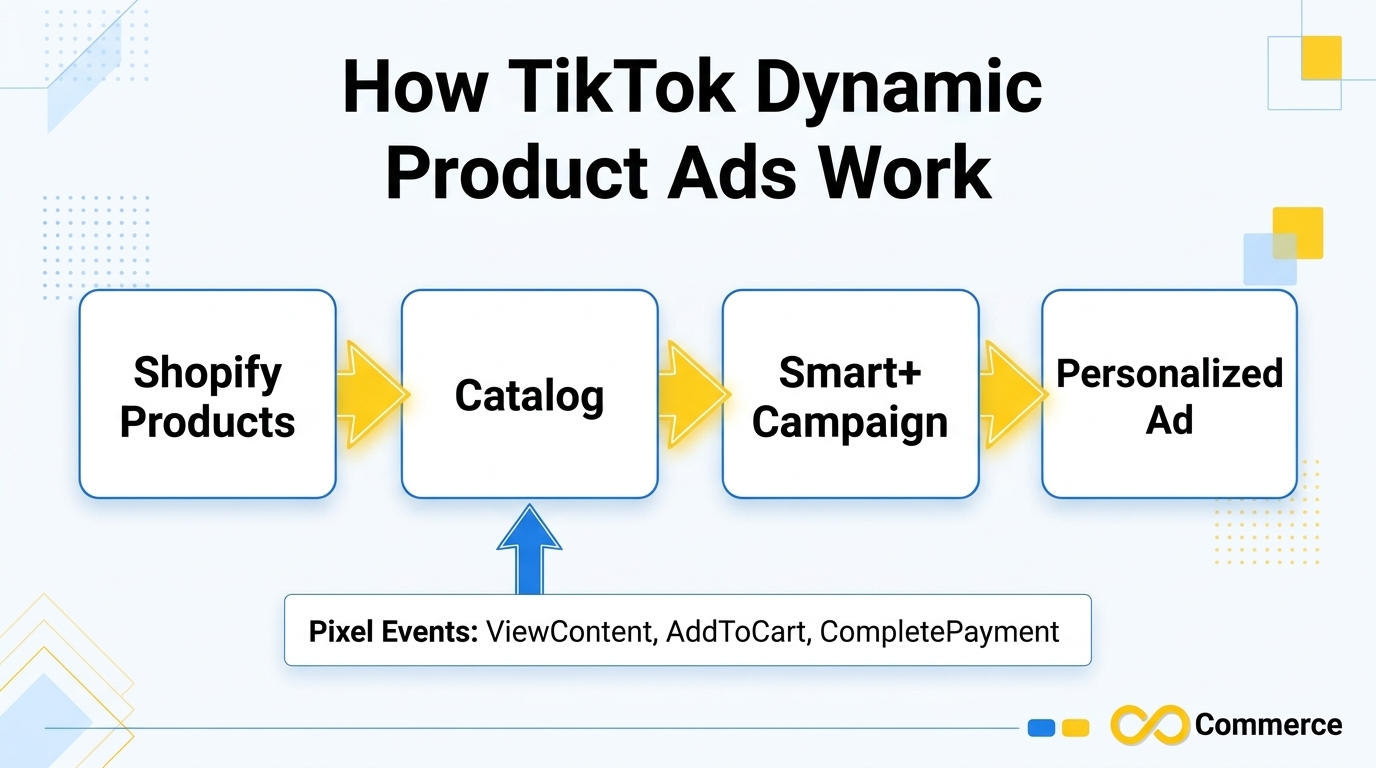
Here is the basic flow. Your catalog stores product data: titles, prices, availability, images and links. In the campaign, you tell TikTok which products to promote and which creatives to use. With Smart+, TikTok automates creative, interactive add-ons and budget settings. Meanwhile, website events such as ViewContent, AddToCart and CompletePayment can be matched to catalog products, which helps TikTok see which items shoppers interact with.
Do You Need TikTok Shop?
No. TikTok states that you do not need to set up TikTok Shop when you choose a catalog as your product source. Promoting products sold inside TikTok is a separate format, Video Shopping Ads for TikTok Shop. If you want to send shoppers to your Shopify storefront, the catalog route in this guide is the one to follow, and that distinction explains most of the confusion behind “tiktok shopping ads shopify” searches.
When Does This Format Make Sense?
Catalog-based ads tend to suit stores that:
- Sell enough products that building one ad per product is unrealistic
- Change prices or stock often and need ads to follow
- Want website sales rather than in-app checkout
- Already have product photos and some short video content
What You Need Before You Launch TikTok Catalog Ads
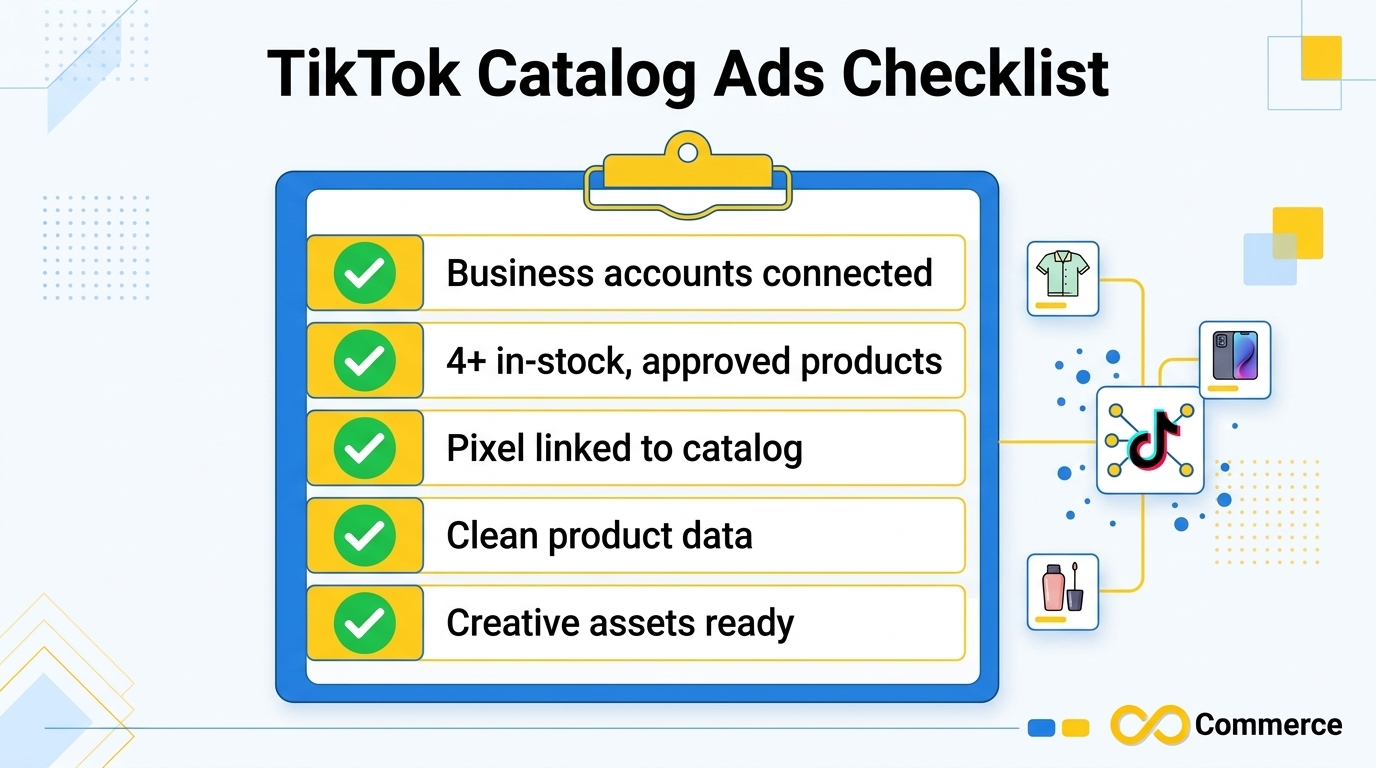
Most launch delays come from missing prerequisites, not from the campaign screens. Check these first:
- Accounts. A TikTok for Business account, Business Center and Ads Manager, connected to your Shopify store.
- A working catalog. TikTok requires at least four products that are in stock, approved and activated.
- A connected pixel. Your pixel should be installed and linked to the catalog as an event source.
- Clean product data. Images, titles and IDs that pass review.
- Creative assets. Product images and, ideally, several short videos.
Connect Your Pixel and Check Your Event Match Rate
Install your TikTok Pixel through the TikTok app in Shopify, or use our Facebook and TikTok Pixel app if you want a dedicated tracking tool. Then open Catalog Manager, select Event Sources and connect the pixel to your catalog.
TikTok measures the link between your events and your catalog with an event match rate: the percentage of events that can be matched to a SKU in your catalog using the content ID. TikTok advises working toward 100%, tracking the full funnel and keeping all products in a single catalog rather than splitting them. Catalog Manager currently supports ViewContent, AddToCart and CompletePayment events, and it can take several days after you connect a source for the match rate to stabilize. TikTok’s performance guidance also recommends using the Pixel and Events API together where possible. Read TikTok’s guide to increasing catalog event match rates for the full checklist.
If your rate is low, first confirm that the content ID your pixel sends matches the sku_id format in your catalog. If you sell in more than one country, remember that a catalog’s targeting location limits where its products can be advertised.
Prepare Product Data That Passes Review
TikTok’s catalog best practices set out the basics:
- Use sharp images of at least 500×500 pixels in JPEG or PNG format. Products that miss the minimum are not approved.
- TikTok suggests clean white backgrounds and advises against blurred images, placeholders, watermarks and distracting logos.
- Avoid spelling mistakes, exaggerated claims and symbols such as ®, ™ and ©, which can lead to disapproval.
- For variants, give every variant its own sku_id and share one item_group_id across the group.
- Refresh your catalog daily so prices and availability match your website.
If products are rejected, our guide to TikTok catalog feed errors explains the usual causes and fixes.
TikTok Catalog Ads Setup in Ads Manager, Step by Step
Once your catalog shows at least four approved products and your pixel is connected, you can build the campaign. This guide follows TikTok’s documented Smart+ Catalog Ads flow, which automates creative, add-ons and budget settings. If you prefer to set more options yourself, TikTok also offers a Manual campaign type; its steps differ, so check the help center for that flow.
Step 1: Start a Sales Campaign
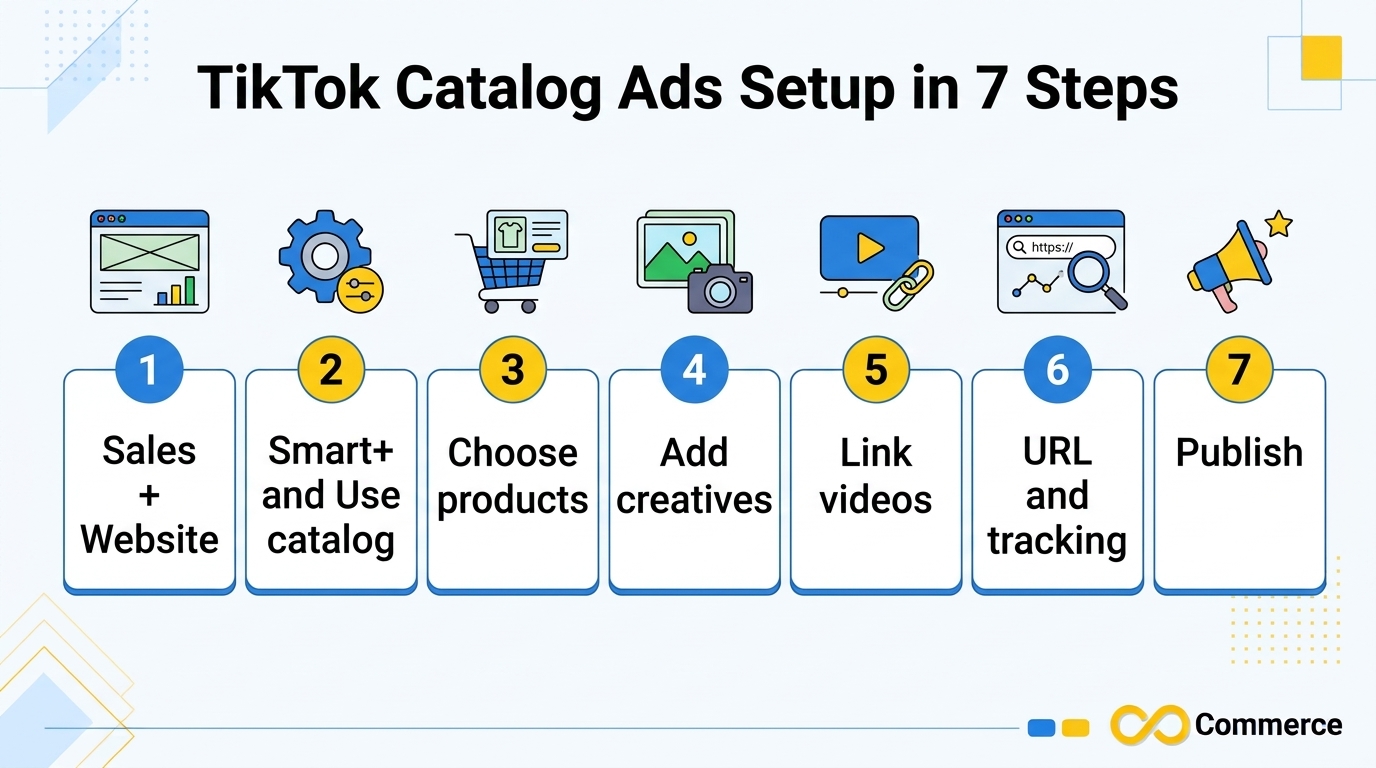
Log in to TikTok Ads Manager, click Campaign, then +Create. Select Sales as your objective and choose Website as the destination. Older tutorials call this TikTok catalog sales; in the current flow, catalog-based ads sit under Sales.
Step 2: Choose Smart+ and Turn On Use Catalog
Choose Smart+ campaign as the campaign type and click Continue. In the Catalog section, turn on Use catalog, then select your existing catalog or create a new one. Complete your ad group settings and click Continue.
Step 3: Choose Which Products Your TikTok Catalog Ads Promote
TikTok gives you three options:
- All products: features every product in your catalog.
- Product set: dynamically features products from the set you choose.
- Specific products: lets you pick up to 20 products from your catalog.
For a first launch, we suggest a product set rather than all products. It lets you judge one group, such as best sellers, and keeps weaker items out of the way. Use specific products when you are promoting a defined offer, such as a bundle or a launch.
Step 4: Add Creatives and Videos
In the Ads generation section, you can turn on Use TikTok account to deliver Spark Ads, which uses content from authorized posts or TikTok accounts. In the Creatives section, click Edit Creative Assets, select Catalog Creatives and click the pencil icon to choose images or videos from your catalog. Use Preview to check the result, or click Upload to add new files. TikTok recommends adding at least six videos to get the most from your campaign.
Our suggestion: show the product in use within the first two seconds, and keep one clear product per video so the product link in the next step stays accurate.
A quick creative checklist before you move on:
- Use vertical video, which is TikTok’s native format
- Make sure the product on screen matches the product you link
- Keep prices and offers out of the video if they change often, because the catalog already carries current price data
- Preview every catalog creative so nothing looks cropped or out of date
Step 5: Link Videos to Products
Turn on Add videos to catalog and link products to sync new videos to Catalog Manager, so you can reuse them, and their linked products, in future campaigns. If your campaign includes 20 or fewer products, all SKUs are mapped to each video automatically. With more than 20, Catalog Manager tries to match the most relevant products to each video. Click View linked products to confirm or edit the mapping before you publish.
Step 6: Add Your Website URL and Tracking
Enter the website URL people should visit. You can add URL parameters to see which ads sent traffic, so use a consistent naming pattern, such as campaign and product set names, that your analytics can read. In the Tracking section, click Edit to add any third-party tracking you have set up. Dynamic add-ons are selected automatically for catalog video and single video formats.
Step 7: Publish and Monitor Your TikTok Catalog Ads
Complete the remaining settings and click Publish. TikTok submits your ads and the products in your catalog for review, and once they are approved, the campaign begins optimizing toward the goal you chose. You can edit ads at any time in the Campaign tab. Do not judge results on day one: check review status, confirm your pixel is receiving events, and let the campaign gather data before changing its structure.
How to Structure a TikTok Catalog Campaign for a Shopify Store
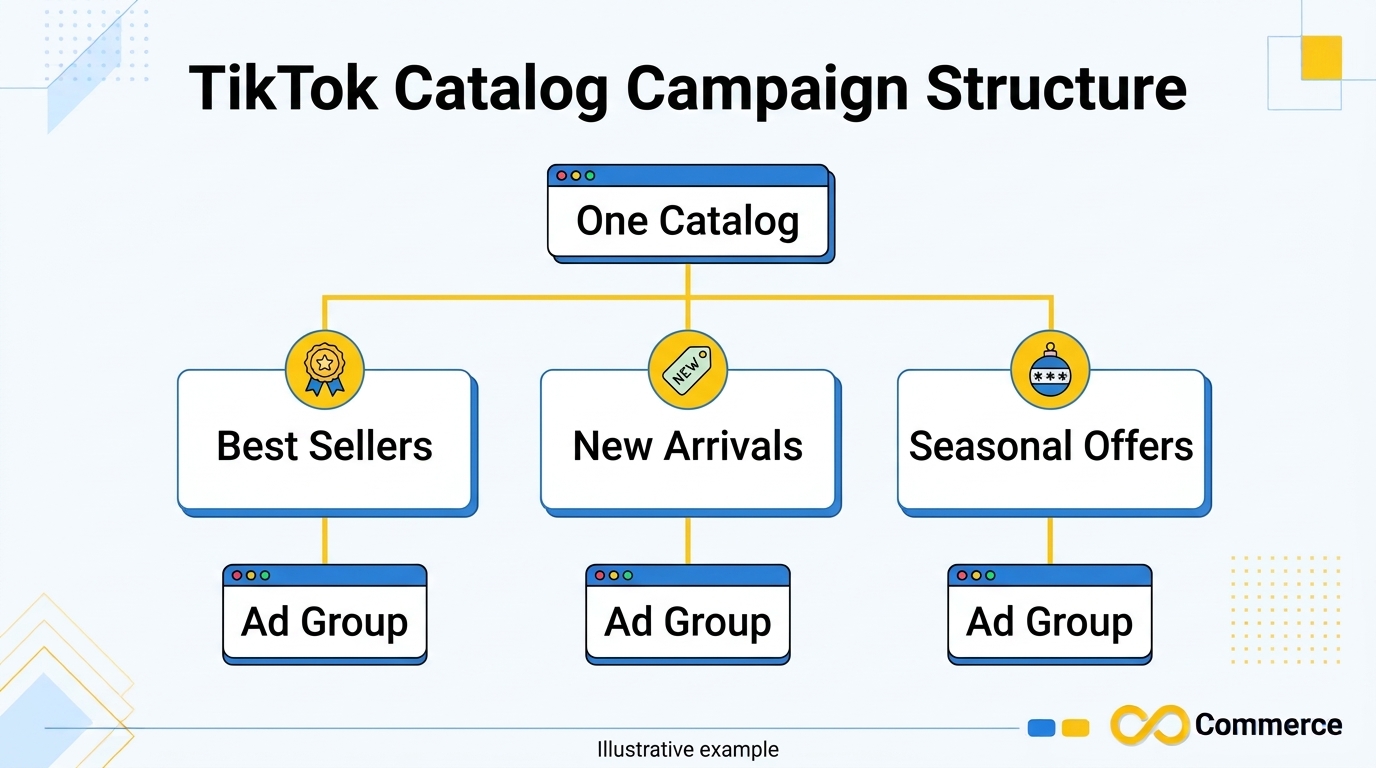
Structure matters because product sets decide what each ad can show. Here is an illustrative example for a store with a few hundred products. It is an example, not a TikTok benchmark:
| Product set | What it includes | Why it helps |
| Best sellers | Your top-selling products | A steady core to learn from |
| New arrivals | Products added recently | Keeps ads fresh when you launch |
| Seasonal offers | Products tied to a holiday or sale collection | Lets you start and stop timely promotions |
Build each set with filters or by selecting products manually, then run them in separate ad groups so you can pause or adjust one without touching the others. Keep prices and stock current by refreshing your catalog daily, whether through a scheduled feed or a sync app. Stale data creates mismatches between your ad and your product page.
A Worked Example
Imagine a skincare store with around 150 products (a hypothetical case for illustration). The owner creates one product set for the ten best sellers, one for products added in the last 30 days, and one for a holiday gift collection. Each set gets its own ad group and its own URL parameters, such as utm_campaign=tiktok_catalog plus the set name. After two weeks, the owner can see which set earned attention and which one needs better creative or cleaner data, instead of reading one blended number across the whole catalog.
How to Review Results and Grow TikTok Catalog Sales
Treat the first weeks as a learning period and check things in this order:
- Review status. Are your ads and products approved?
- Event match rate. Open Event Sources in Catalog Manager and look for issues lowering the rate.
- Diagnostics. TikTok points to the Diagnostic dashboard in Catalog Manager for troubleshooting catalog issues.
- Product performance. Look at the Catalog Product Performance report in Ads Manager, and check which metrics your account offers.
- Shopify data. Compare TikTok-reported orders with your store’s analytics, using the URL parameters from Step 6.
No outcome is guaranteed, because results depend on your product, price, creative and audience. To grow TikTok catalog sales steadily, change one variable at a time: add videos (TikTok recommends six or more), refine a product set, or fix the data issues that diagnostics surface. The same discipline applies to every TikTok catalog campaign you run after this one.
What to Change First
If match rate or approvals look weak, fix data before creative. If data is healthy but few products get attention, test a different product set. If one set performs well, add fresh videos to it before adding more products. Small, one-at-a-time changes make it clear what caused any shift.
Common Problems and How to Fix Them
| Problem | Likely cause | Fix |
| Catalog does not qualify for a campaign | Fewer than four in-stock, approved, activated products | Fix disapprovals, restock items and wait for review |
| Products disapproved | Low-resolution images, restricted symbols, missing data | Follow the image and title rules above |
| Low event match rate | Content ID does not match sku_id, or events are missing | Align the IDs, track the full funnel and allow several days |
| Out-of-date prices or stock | Catalog not refreshed | Refresh daily or use a scheduled feed |
| Cannot advertise in a market | Catalog targeting location is limited | Create a catalog for that market |
| Videos linked to the wrong products | Automatic matching with more than 20 products | Use View linked products and edit the mapping |
Conclusion
TikTok catalog ads work best when the groundwork is done before the campaign: an approved catalog with at least four products, a pixel matched to your SKUs, and product sets that let you test one group at a time. The campaign itself is then a short sequence: Sales, Website, Smart+, Use catalog, choose products, add creatives, link videos, add your URL and publish.
Start with one product set, keep your data fresh, and review match rate and diagnostics before changing budgets or creative. If you would rather not maintain feeds by hand, Infinite Commerce builds Shopify apps for tracking and product feeds, including a TikTok Catalog Feed app. Explore them on the Infinite Commerce homepage and browse more practical guides on our Shopify marketing blog.
FAQs
They are ads built from the images, videos and product details in your catalog, designed to personalize product recommendations based on shoppers’ interests and behaviors.
TikTok’s Smart+ Catalog Ads article says you need at least four products in your catalog that are in stock, approved and activated. Requirements can vary by objective and region, so confirm them in Ads Manager.
No. TikTok states that choosing a catalog as your product source does not require TikTok Shop. Promoting TikTok Shop products is a separate format.
Smart+ automates ad creative, interactive add-ons and budget settings. Manual is a separate campaign type with its own flow, so follow TikTok’s help center if you choose it.
Yes. TikTok’s guidance is to set up the pixel and connect it to your catalog so website events can be matched to products. Without it you lose that matching and much of your measurement.
The TikTok help article we reviewed does not state a fixed time. Your ads and catalog products are submitted for review when you publish, so build in buffer before any promotion date.
