 Amber Naz
Quick Summary
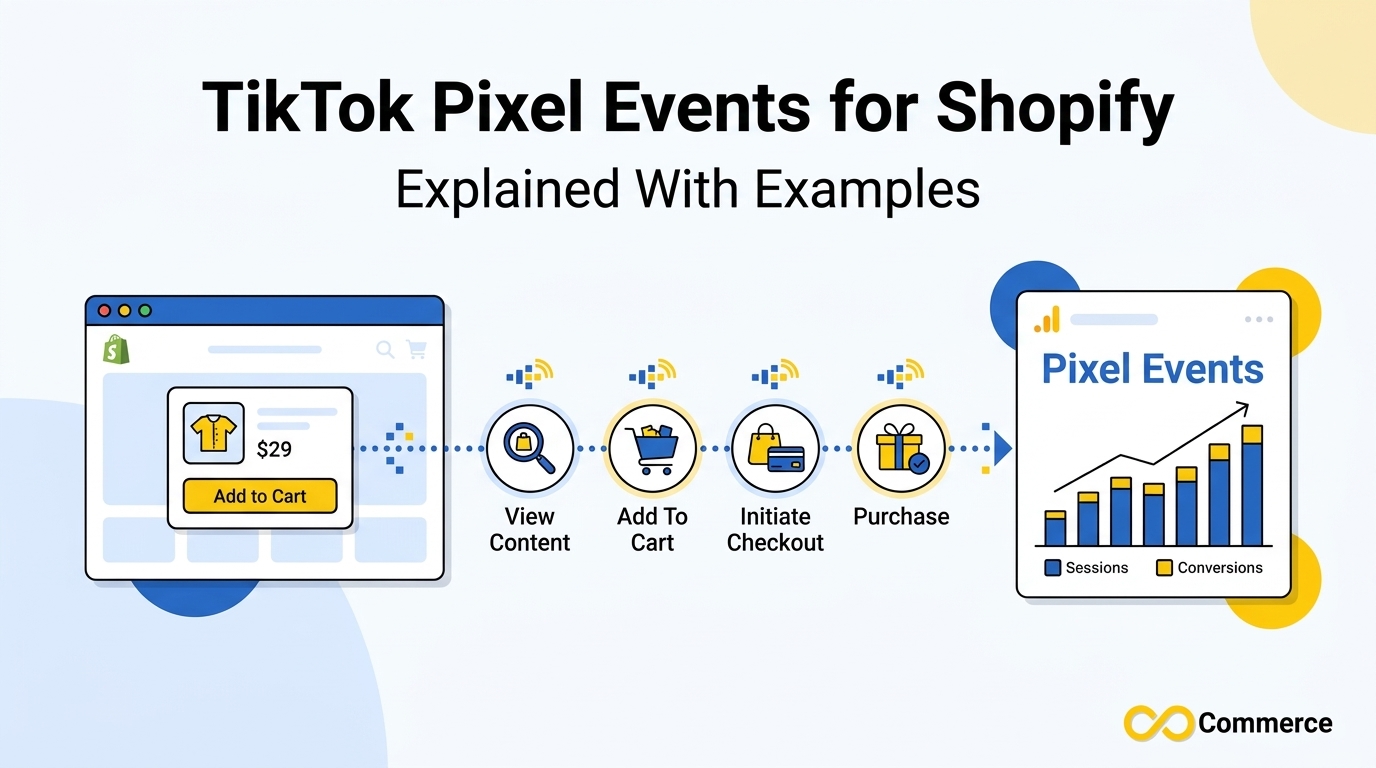
TikTok pixel events are the signals a Shopify store sends to TikTok whenever a shopper takes an action, such as viewing a product, adding it to the cart or completing a payment. TikTok’s Shopify help page lists nine standard events: View Content, Add to Cart, Complete Payment, Initiate Checkout, Add Payment Info, Search, Add to Wishlist, Complete Registration and Subscribe. Most stores should get four right first: the TikTok view content event, TikTok add to cart, Initiate Checkout and the TikTok purchase event, which TikTok’s Shopify list calls Complete Payment. This guide explains what each event means, which parameters to send with it, how to test it and which mistakes quietly break tracking.
You installed the pixel, the dashboard shows a few green ticks, and yet your campaign reports feel off. Most of the time the pixel itself is fine. What is unclear is which shopper actions it reports, under what names, and with what data attached.
This guide is for Shopify merchants who run, or plan to run, TikTok ads and want a plain explanation of the standard events before they change any settings. It comes from the team at Infinite Commerce, which builds Shopify tracking apps. It is an explainer rather than a troubleshooting manual. The goal is to help you understand each event well enough to spot a problem when you see one.
The facts below come from TikTok’s own help pages, partner documentation from companies that integrate with TikTok, and a few independent guides. TikTok updates its documentation, so confirm anything critical in Events Manager before you rely on it.
What Are TikTok Pixel Events and How Do They Work?
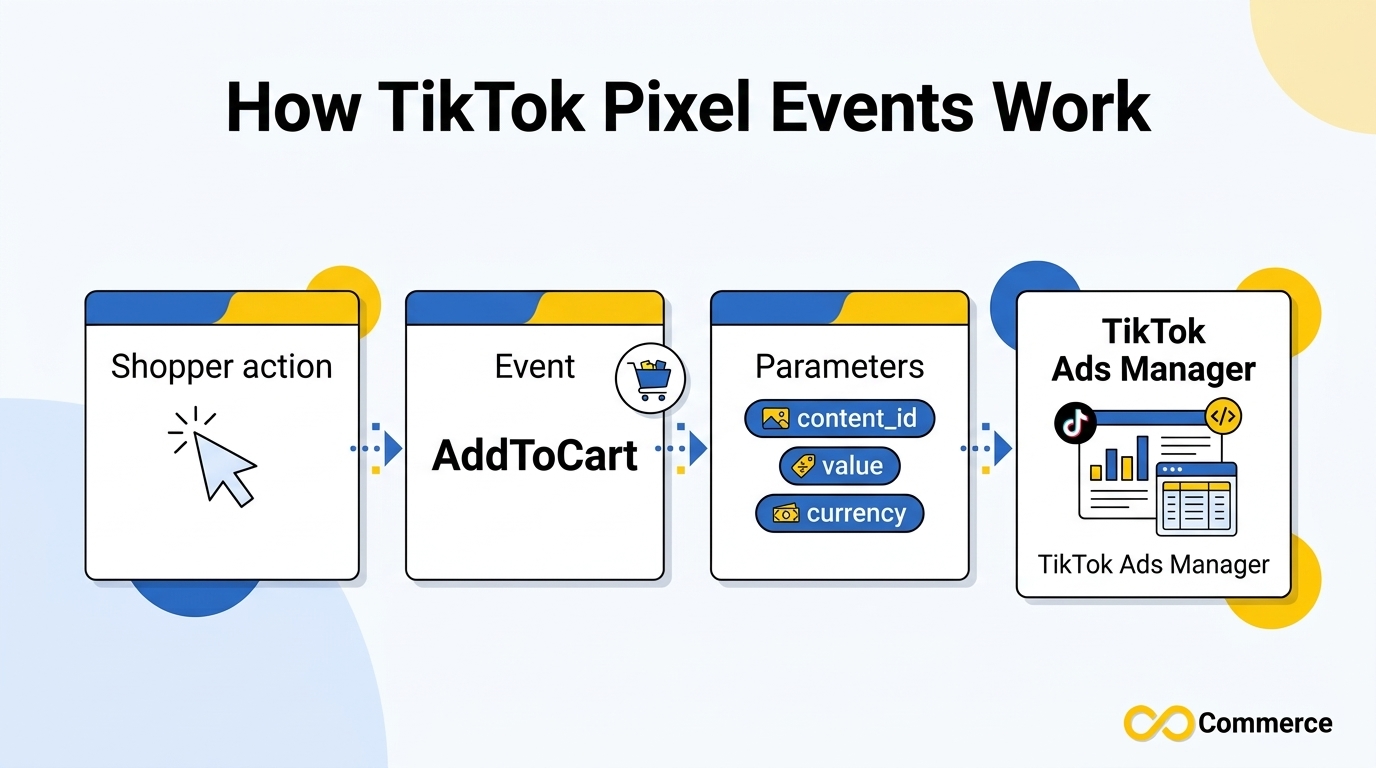
A TikTok Pixel is a small piece of tracking code tied to a pixel ID that you create in TikTok Ads Manager. When a shopper does something on your store, the pixel sends a named message to TikTok. That message is an event. Each event can carry parameters, which are extra details such as the product ID, the price, the currency and the order value.
Think of the event as the verb and the parameters as the details. “Add to cart” is the verb. “One linen overshirt, $48, USD” is the detail. If the underlying idea is new to you, our explainer on what tracking pixels are and how they work in e-commerce covers the basics before you go further here.
Standard events versus custom events
TikTok standard events are predefined names that TikTok’s reporting and ad optimization already understand. ViewContent, AddToCart and CompletePayment are examples. You can send custom event names, but documentation from a TikTok tag partner states that non-standard parameters are not processed by TikTok and that custom values need a custom report requested through your TikTok representative. For a Shopify store, the safe default is to stay with standard events and standard parameters.
What TikTok does with the data
TikTok’s help pages describe the pixel’s standard events as a way to measure ad performance and optimize campaigns. In practice the data does three jobs:
- Reporting: how many purchases, carts and product views your ads drove.
- Optimization: which action TikTok’s delivery system should aim for when it shows your ads.
- Audiences: who you can retarget, such as people who viewed a product but never paid.
A pixel that sends clean, complete events does all three jobs better than one that sends partial data. That is why the details of each event matter more than the fact that the pixel is installed.
TikTok Pixel Events List: The Standard Events Shopify Supports
TikTok’s published list of events supported by its Shopify integration names nine. The page shows a last-updated date of February 2025, so check TikTok’s supported events page for Shopify for any newer version. The table below keeps TikTok’s descriptions in short form and adds a typical Shopify moment so you can picture each one. The third column is our illustration, not TikTok’s wording.
| Event | What TikTok says it means | Typical Shopify moment |
| View Content | A user browses merchandise or a certain page | A shopper opens a product page |
| Add to Cart | A user adds an item to their shopping cart | A shopper taps Add to cart |
| Initiate Checkout | A user begins the checkout process | A shopper clicks Checkout from the cart |
| Add Payment Info | Payment information is added in the checkout flow | A shopper enters card details |
| Complete Payment | A user completes a purchase | The order confirmation step after payment |
| Search | A user makes a search | A shopper uses your store search |
| Add to Wishlist | A user adds an item to a wishlist | A shopper saves a product for later |
| Complete Registration | A user signs up, for example for an account | A shopper creates a customer account |
| Subscribe | A user subscribes, including follows, content or paid subscriptions | A shopper joins a subscription |
Names are not identical across every integration. TikTok’s partner pages for Adobe Commerce and Tray list Page View and Purchase, while the Shopify page lists Complete Payment. Developer documentation from partners also shows a separate Place an Order event. Because the labels vary, treat Events Manager as the final word on what your own store actually sends.
Which TikTok Pixel Events Matter Most for Shopify Stores
Not all nine events deserve equal attention. Most stores get the most value from the shopping funnel, in this order:
- View Content, because it shows interest in a specific product.
- Add to Cart, because it shows buying intent.
- Initiate Checkout, because it shows a shopper is close to paying.
- Complete Payment, because it is the revenue event.
The rest depend on what your store does. Search is useful if shoppers rely on your search bar. Add to Wishlist, Complete Registration and Subscribe only help if your store has those features. An event your store never produces adds noise, not insight.
Here is the funnel as one short, hypothetical story. Maya sees a TikTok ad for a linen overshirt and taps through. She opens the product page (View Content), adds the shirt in her size (Add to Cart), starts checkout (Initiate Checkout), enters her card (Add Payment Info) and pays (Complete Payment). If Maya stops after the cart, you now have a retargeting audience and a drop-off point to investigate. If she pays, TikTok learns which ad and which kind of shopper produced a sale.
TikTok View Content Event Explained With an Example
The TikTok view content event fires when a shopper browses merchandise or a specific page. On Shopify it is usually tied to the product page. TikTok’s partner documentation also suggests using it on other pages that matter to your business, such as comparison or announcement pages.
This is the top of your funnel data. It tells TikTok which products attract attention, and it lets you build an audience of people who looked but did not buy.
Here is an illustrative payload for Maya’s product view. It follows the structure shown in TikTok’s partner documentation. On Shopify your sales channel or tracking app sends this for you, so you do not paste it into your theme. The point is to see which details travel with the event.
ttq.track(‘ViewContent’, {
contents: [{
content_id: ‘SHIRT-001’,
content_name: ‘Linen Overshirt’,
content_category: ‘Apparel > Shirts’,
quantity: 1,
price: 48
}],
content_type: ‘product’,
value: 48,
currency: ‘USD’
});
The product identifier is the most important field here. If your content IDs are missing, inconsistent or different from how the same product is identified elsewhere, TikTok cannot reliably tell which product a shopper viewed. Product-level audiences and reporting depend on that field.
TikTok Add to Cart Event Explained With an Example
TikTok add to cart fires when a shopper adds an item to their cart. TikTok’s Shopify list describes it as a user selecting and adding an item to their shopping cart. It is the first strong buying signal in the funnel, which makes it useful both for reporting and for retargeting.
The payload looks like the View Content one, with the same product details. At least one vendor’s documentation for its TikTok integration marks the contents parameter as required for catalog ads on this event, which is a good reason to send it every time.
Two practical checks apply. First, the event should fire when the cart actually updates, not only when a button is clicked. Second, the quantity should match what the shopper added, so that value reflects the real cart contribution. A gap between View Content and Add to Cart is normal. A sudden drop to zero Add to Cart events after a theme or app change is a sign something broke.
TikTok Purchase Event: Complete Payment, Place an Order and Purchase
The TikTok purchase event is where naming gets confusing, so it helps to separate the labels:
- Complete Payment is the name on TikTok’s Shopify events page. It means a user completes a purchase.
- Purchase is the label used on some other TikTok partner pages, such as Adobe Commerce and Tray, for a completed purchase or checkout.
- Place an Order is a separate event. One TikTok partner page recommends it when placing an order and making a payment are not the same moment, which can happen with payment methods like cash on delivery.
For most Shopify stores that take payment at checkout, Complete Payment is the revenue event to care about. It is the event most closely tied to revenue, so its details need to be right.
ttq.track(‘CompletePayment’, {
contents: [
{ content_id: ‘SHIRT-001’, quantity: 1, price: 48 },
{ content_id: ‘TEE-014’, quantity: 1, price: 29 }
],
content_type: ‘product’,
value: 77,
currency: ‘USD’
});
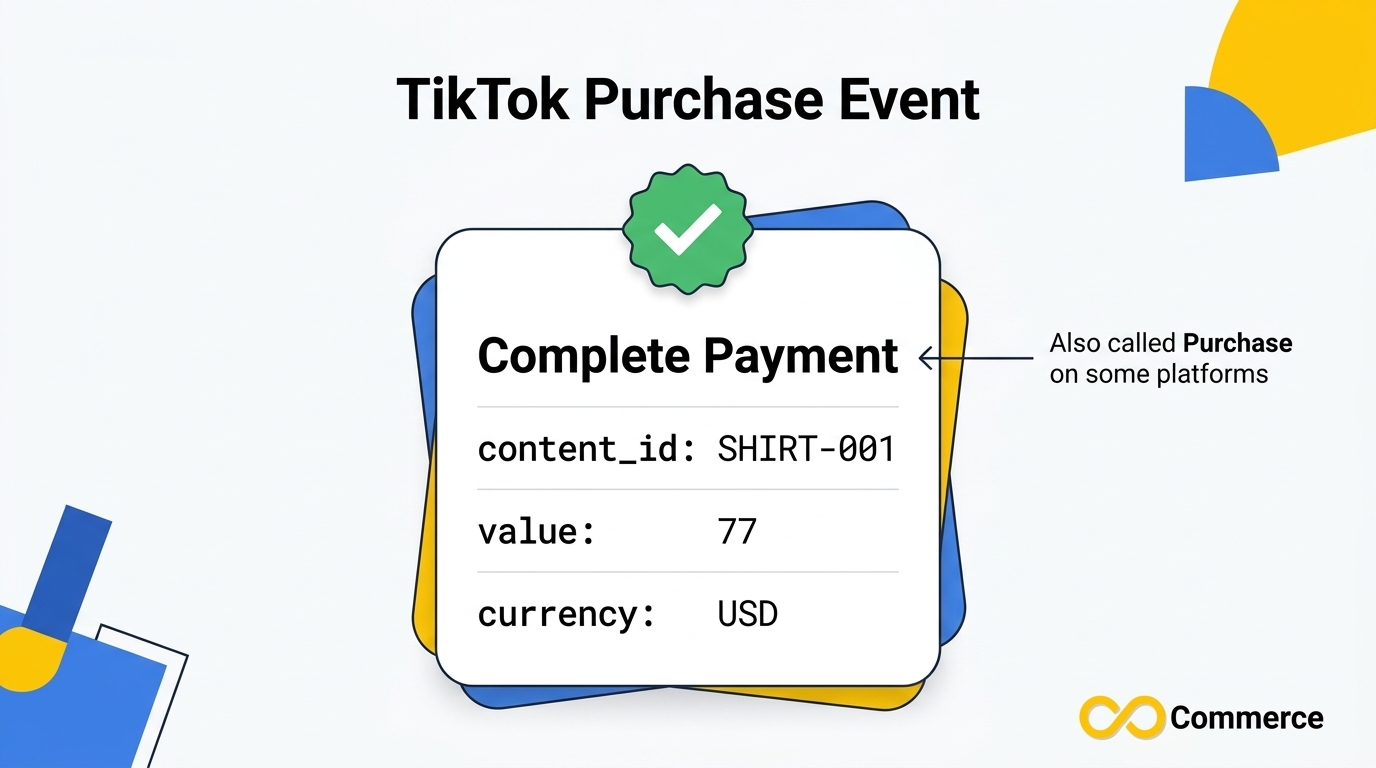
Pay close attention to the value. Decide whether the value you send includes shipping and tax, then keep that choice consistent with how you judge return on ad spend. Documentation from at least one TikTok integration vendor lists value and currency as required for the purchase event, so treat both as mandatory.
Parameters That Make Events Useful
Parameters are what turn TikTok pixel events from simple counters into useful optimization signals. The names below come from TikTok partner and vendor documentation. For TikTok’s own definitions, see its About parameters help article.
The core parameters
| Parameter | What it carries | Used mainly with |
| content_id | The product identifier, such as an SKU | View Content, Add to Cart, Initiate Checkout, Complete Payment |
| content_type | The kind of item, for example product | Most shopping events |
| content_name | The product name | Shopping events |
| content_category | The product category | Shopping events |
| contents | An array of items when there is more than one | Cart, checkout and purchase |
| quantity | How many units | Shopping events |
| price | The price of one unit | Shopping events |
| value | The total value of the event | Shopping events and Subscribe |
| currency | A three-letter ISO 4217 code such as USD | Anything with a value |
| query | The search term | Search |
The rule of thumb is simple. Product events need product details, and money events need a value and a currency. A single product can use the individual content fields, while a multi-item cart uses the contents array.
Event ID and deduplication
If you send the same event from the browser pixel and from the server through TikTok’s Events API, TikTok has to know it is one action, not two. TikTok’s Adobe implementation guide says deduplication relies on three matching values from both channels: the pixel code, the event name and the event ID. If any of the three differs, the same sale can be counted twice.
The event ID should be unique per action and identical across both channels. An order number is a common choice because it is already unique.
How to Test TikTok Pixel Events Before You Spend on Ads
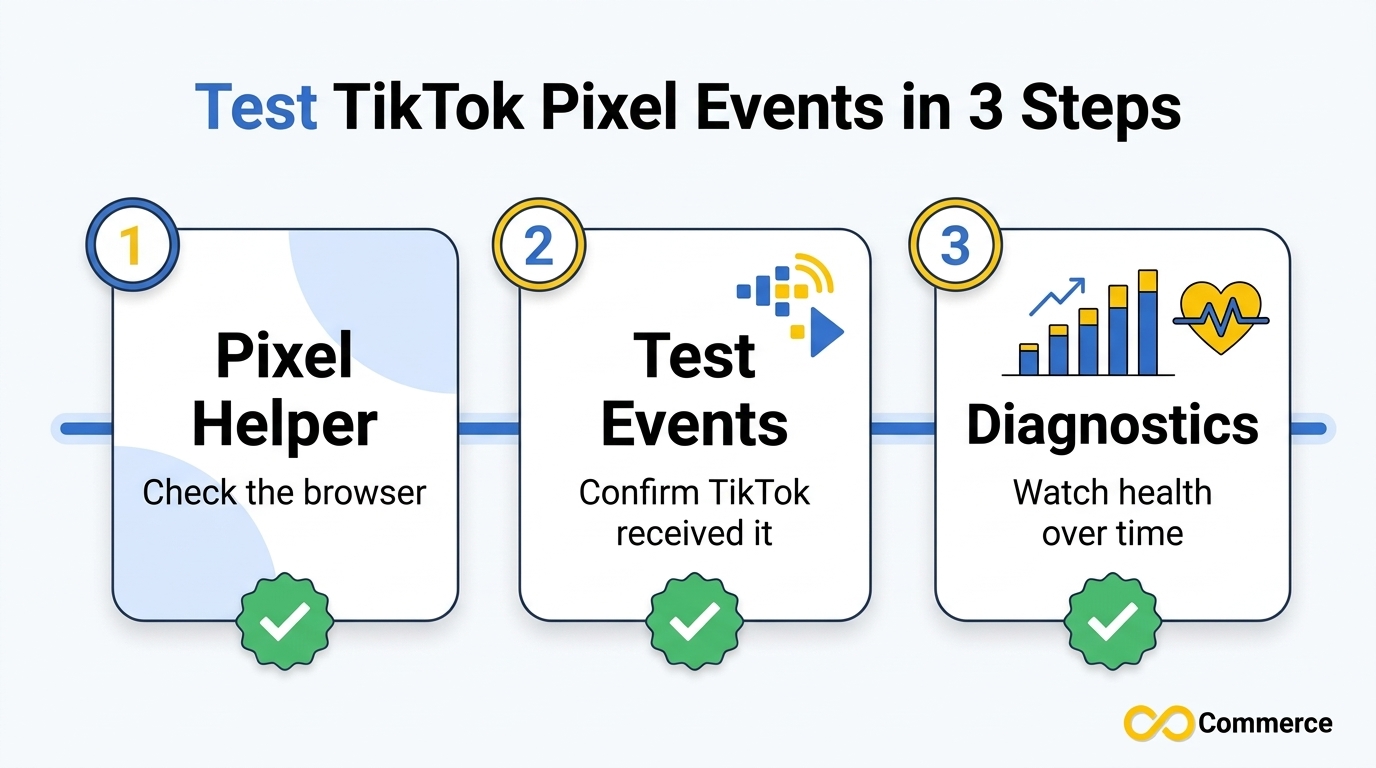
A pixel that should be working and a pixel that is confirmed working are not the same thing. TikTok gives you several ways to check, and each one answers a different question.
| Tool | What it answers | Blind spot |
| TikTok Pixel Helper (Chrome extension) | Is the pixel on this page, and do events fire in the browser with the right parameters? | It reads browser-side events only, so server events never appear |
| Test Events in Events Manager | Did TikTok actually receive the action I just triggered? | You have to trigger each action yourself |
| Diagnostics and Overview in Events Manager | Is the pixel healthy over time, and when was the last event received? | Not instant, so it suits ongoing checks |
- Open TikTok Ads Manager, go to Events Manager and select your pixel.
- Open the Test Events tab. TikTok asks for your website address and can generate a QR code you scan on a phone to test mobile browsing.
- Walk your own funnel: open a product, add it to the cart, start checkout and finish an order.
- Check that View Content, Add to Cart, Initiate Checkout and the purchase event each appear, with the right product, value and currency.
- Wait a few minutes and check the event counts and the last-received time under Overview or Diagnostics.
To trigger the full funnel without charging a customer, you can place a test order. Our guide on placing a test order on Shopify without paying walks through it. Test orders may not behave exactly like real ones, so confirm in Test Events whether your purchase event arrives. If it does not, a small real order is the cleaner check.
Browser Pixel vs Events API on Shopify
The browser pixel runs in the shopper’s browser, so ad blockers and privacy settings can stop it. The Events API sends the same kind of data from a server instead. TikTok describes using both together, with the pixel covering early-funnel signals and the API confirming later ones, as hybrid tracking.
Independent guides published in 2026 report that Shopify’s native TikTok integration installs the browser pixel only and does not send Events API calls from Shopify’s servers. TikTok does not confirm that on the pages reviewed for this guide, so check your own setup in Events Manager before you assume either way.
If you want server-side events on top of the browser pixel, the Infinite Facebook and TikTok Pixel app offers TikTok pixels with conversion and server-side API options. Its page describes unlimited pixels, a real-time dashboard and one-click setup, and plan details vary, so check the current listing before choosing a plan. Whatever you use, remember that Pixel Helper will not show server events, so verify those in Test Events. You can also browse more Shopify tracking guides on the Infinite Commerce blog.
Conclusion
TikTok pixel events are the language your store uses to tell TikTok what shoppers do. Four carry most of the weight: View Content, Add to Cart, Initiate Checkout and the purchase event. Each is only as useful as the product, value and currency details attached to it. Use standard names, send consistent parameters, test with both Pixel Helper and Test Events, and recheck after any theme or app change.
If you want TikTok pixels with server-side options on Shopify and no theme code to maintain, see how the Infinite Facebook and TikTok Pixel app fits your store, then run your own funnel through Test Events to confirm every event arrives.
FAQs
TikTok’s Shopify help page lists nine: View Content, Add to Cart, Complete Payment, Initiate Checkout, Add Payment Info, Search, Add to Wishlist, Complete Registration and Subscribe. The page shows a February 2025 update date, so check it for changes.
On TikTok’s Shopify page, a completed purchase is called Complete Payment. Other TikTok partner pages call the equivalent event Purchase. Labels vary by integration, so confirm in Events Manager which name your store sends.
Not to get started. The pixel works on its own, and the Events API adds a server-side signal that browser blockers cannot stop. One partner guide says TikTok’s setup flow defaults to using both. If you use both, match the pixel code, event name and event ID so purchases are not counted twice.
Pixel Helper only reads what fires in the browser, while Events Manager shows what TikTok received. Give new events a few minutes to arrive, then confirm the pixel ID matches the one in Events Manager.
Usually a few minutes. One guide mentions waiting up to ten minutes for counts to update. Test Events shows activity in near real time, so use it for quick checks.
You can, but TikTok’s reporting and optimization are built around standard events, and a partner’s documentation says non-standard parameters are not processed. Stay with standard events unless you have a clear reason and a plan for reporting.
