 Amber Naz
Quick Summary
You’ve changed your payment settings, edited your order emails, or installed a tracking app. The only way to know checkout still works is to buy something. But spending real money on your own store, then chasing a refund, isn’t ideal.
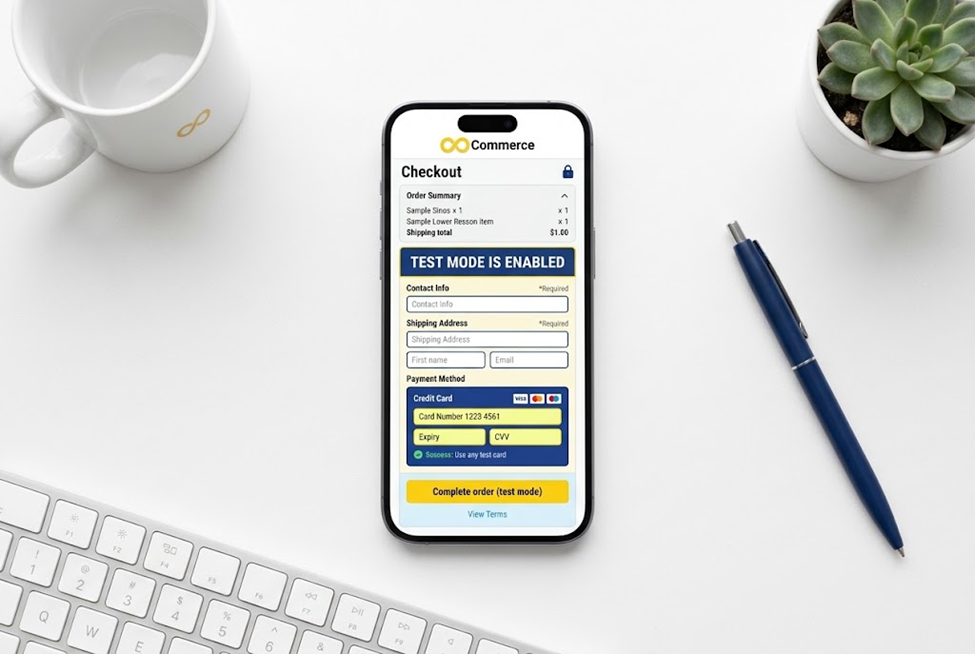
A Shopify test order solves this. It runs a simulated purchase through your real checkout, so you can check payments, emails, shipping, taxes and fulfillment without charging anyone. This guide shows the ways to place one, the exact test details to enter, what to verify afterwards, and how to clean up.
What is a Shopify test order, and which method should you use?
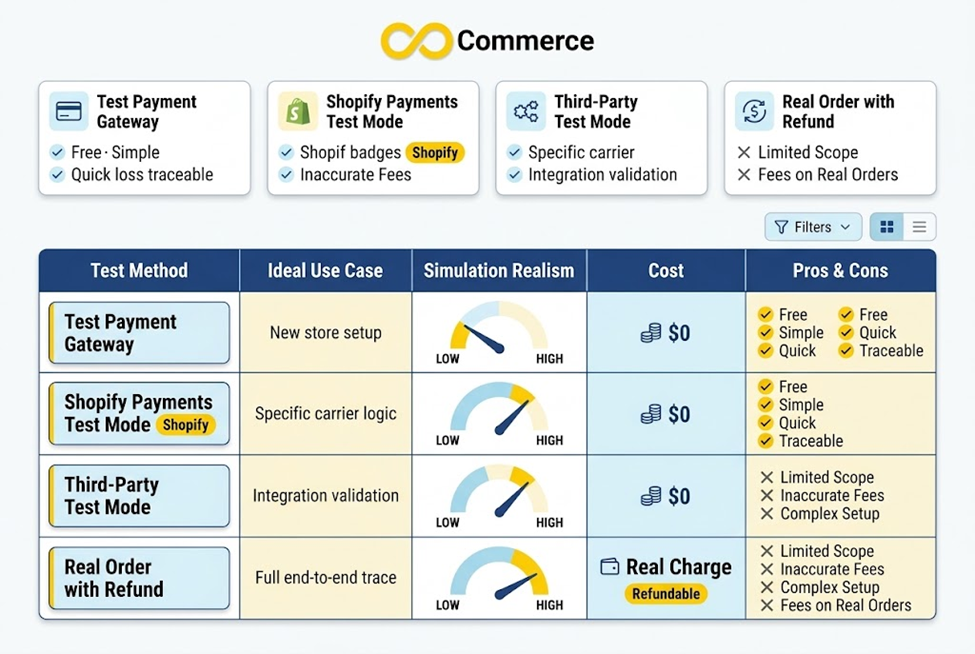
A test order is an order placed through checkout in a way that doesn’t take real payment. Shopify describes two main approaches: a payment gateway in test mode, or a real order that you immediately cancel and refund.
| Method | Best for | Charges you? |
| Test payment gateway | Any store, quick checks | No |
| Shopify Payments test mode | Stores using Shopify Payments, failed-payment scenarios | No |
| Third-party gateway test mode | Testing a specific provider’s setup | No |
| Real order, then refund | Manual payment methods, verifying real payments | Possibly fees |
If you’re unsure, start with the method that matches your payment setup. Stores on Shopify Payments should use its test mode. Everyone else can use the Test payment gateway.
Before you place a test order
A few points from Shopify’s documentation can save you money and lost sales:
- Live checkout pauses. Customers can’t place live orders with a credit card while your payment providers are in test mode. Keep tests short, or run them on a development store, and switch test mode off straight afterwards.
- You need a paid plan. Shopify says you can test a payment gateway only after choosing a paid plan.
- Use the right email address. Shopify recommends an address ending in @example.com for test orders, so they don’t trigger spam detection or fill your inbox. But if you want to receive the confirmation emails, use your own address, and keep it to fewer than 100 test orders at a time.
- Pause auto-fulfillment. If a fulfillment service or app fulfills orders automatically, deactivate it first so a test order doesn’t trigger a real shipment.
- Watch for fees. Real-transaction tests can incur provider fees that aren’t refunded. If you collect duties and import taxes at checkout, those transaction fees apply to test orders too.
- Dev stores have limits. On a development store you can use test modes, but you can’t test with real transactions.
- Manual payments can’t be simulated. Cash on delivery and bank transfers don’t support test mode, so you have to place a real order to test them.
Method 1: Use Shopify’s Test payment gateway
Older guides call this the Bogus Gateway. Shopify’s current Help Center calls it the Test payment gateway. It’s available to any store, and every order placed while it’s active is a test order.
Steps
- In your Shopify admin, go to Settings > Payments.
- If a credit card provider is active, deactivate it first. For Shopify Payments, open Manage > Manage payment methods, then choose Switch to a third-party provider.
- Open the list of other providers. Choose See all other providers (if Shopify Payments is available in your country) or Choose a provider.
- Select Test payment gateway, activate it, and click Save.
- Go to your storefront and check out as a customer would.
What to enter at checkout (this gateway doesn’t accept real card numbers):
| Field | Enter |
| Name on card | Test payment gateway |
| Card number | 1 for approved, 2 for declined, 3 for gateway failure |
| CVV | Any 3 digits, such as 111 |
| Expiry date | Any future date |
Two limits matter. The test purchase amount must be greater than the equivalent of $1 USD, and the gateway isn’t compatible with Shopify POS or subscription products. For subscriptions, use Shopify Payments in test mode instead.
Method 2: Use Shopify Payments test mode
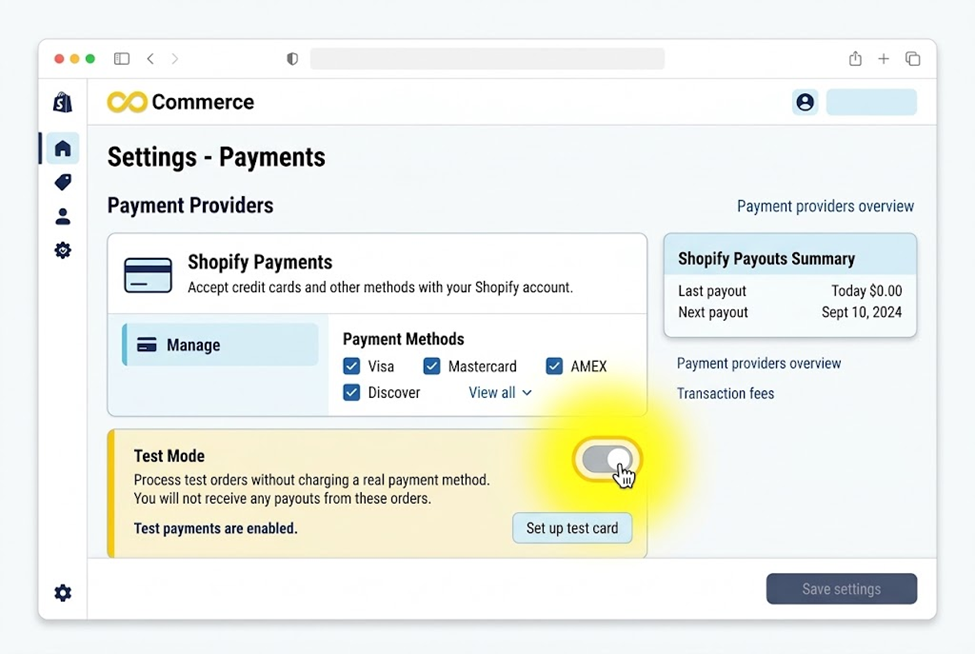
If you already use Shopify Payments, test mode lets you keep your setup and simulate payments with test cards.
Steps
- Go to Settings > Payments.
- In the Shopify Payments section, click Manage.
- Under Test mode, select Enable test mode and save.
Test mode is only available after you’ve finished Shopify Payments setup. It also has limits: some local payment methods aren’t available in checkout, and it isn’t available for Shopify POS card readers, Shop Pay Installments or PayPal Wallet. Shopify advises against leaving it on for a store in production.
To simulate a successful payment, enter at least two words as the name on the card, any future expiry date, and any 3-digit security code (4 digits for American Express). Then use a test card number:
| Card type | Test number |
| Visa | 4242424242424242 |
| Mastercard | 5555555555554444 |
| American Express | 378282246310005 |
| Discover | 6011111111111117 |
To see what customers see when payment fails, use these:
| Scenario | Test number |
| Generic card declined | 4000000000000002 |
| Insufficient funds | 4000000000009995 |
| Expired card | 4000000000000069 |
| Incorrect CVC | 4000000000000127 |
| Chargeback (disputed transaction) | 4000000000000259 |
Shopify’s test mode page lists more card types and failure cases. To test Shop Pay card payments, add a Shopify Payments test card to Shop Pay and type test_card at the start of the card’s nickname.
Method 3: Third-party gateway test mode
Some providers, such as Braintree, let you switch on test mode from the Shopify admin. Use that provider’s own documentation and test credentials, since you may need to change settings on their side too. If your provider doesn’t offer it, ask their support team or use the Test payment gateway instead. Because that gateway is separate from your provider, it may not behave exactly like your real one.
Method 4: Place a real order, then cancel and refund
Sometimes simulation isn’t enough, for example when you want to confirm real funds reach your provider, or when you use a manual payment method.
- Make sure the payment provider is set up.
- Buy from your store with genuine card details.
- If you use a third-party provider, log in there to confirm the payment came through.
- Cancel and refund the order as soon as possible.
Check your provider’s terms of service first. Third-party transaction fees charged on the payment aren’t refunded, so this is the most expensive way to test. If your provider only charges processing fees when it captures a payment, Shopify suggests turning on manual payment capture and leaving the payment uncaptured. Cancelling the order then releases the authorization.
How to place the test order: a customer-style walkthrough
With your chosen method active, place the order the way a real shopper would:
- Open your storefront in a private or incognito window.
- Add a product to the cart. Choose a product whose price clears the minimum if you’re using the Test payment gateway.
- Go to checkout and enter a shipping address and a test email address.
- Choose a shipping rate and continue to payment.
- Enter the test payment details for your gateway.
- Complete the order and note the order number.
Don’t stop at the thank-you page. The test only starts there.
What to verify after the test order
Shopify’s own checklist is a good base. Work through it in order.
- The order in your admin. Open Orders and check the line items, discounts, shipping, taxes, totals and payment status.
- Customer emails. Check that the order confirmation arrives and looks right. If you’ve customized a template, remember that Shopify’s preview and test-email options are useful, but a real test order is the true check. Merchants in Shopify’s community have reported previews that looked right while the actual order email didn’t.
- Fulfillment. Run your normal fulfillment flow, whether manual or through an app or ERP. Add tracking information to the order and check the shipping confirmation email. Try a partial fulfillment too.
- Refunds. Issue a full refund and a partial refund, and check how the refund email looks.
- Inventory. Confirm stock counts changed as expected, and correct them afterwards if the test affected a real product.
- Taxes and shipping. Place orders to different addresses and watch how tax is calculated and which shipping rates show.
Verify your tracking events
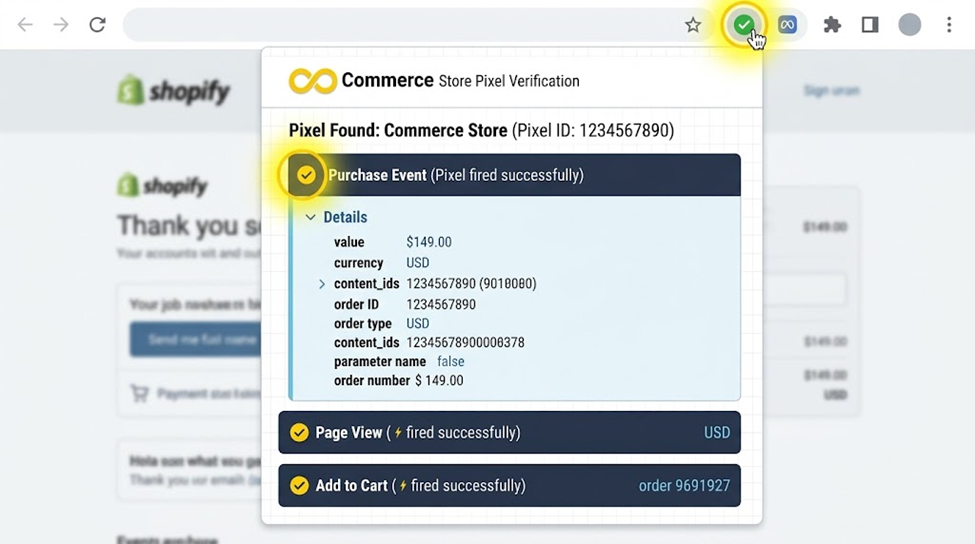
A test order is also the easiest way to check that analytics and ad pixels see a purchase. While the order is going through, watch for the purchase event on the thank-you page with a tool such as Meta Pixel Helper, and use the test-events view in your ad platform’s dashboard.
Two cautions. First, check how each platform treats your test orders, because they can pass through the same checkout flow as real ones. Note your test order numbers so you can exclude them from reporting later. Second, if a purchase event is missing or fires twice, don’t guess. Follow our guide to verifying, testing, and troubleshooting Facebook Pixel on Shopify, which walks through duplicate events, app conflicts and server-side tracking.
Scenarios worth testing
One happy-path order isn’t enough. Shopify suggests covering:
- A discount code applied at checkout
- Checking out logged in and logged out of a customer account
- Different payment methods
- Different shipping addresses, with attention to tax
- Desktop and mobile devices
- A failed transaction, using the decline cards above
Clean up after testing
- Deactivate test mode (or the Test payment gateway), and reactivate your live provider. Until you do, customers can’t pay by card.
- Re-enable any fulfillment service or app you paused.
- Cancel or archive the test orders. To archive, go to Orders > More actions > Archive. Shopify’s order cancellation page explains your options.
- Check deletion rules. Orders paid with the Test payment gateway or Shopify Payments test mode can be deleted. Orders placed through other gateways aren’t treated as test orders, even if the gateway was in test mode, and can’t be deleted.
- Check inventory and fix any counts the test changed.
Test orders and simulated transactions don’t appear in your payouts or reports, which keeps your finance numbers clean.
Common problems and fixes
- Customers say they can’t pay. Test mode is probably still on. Switch it off and confirm your live provider is active.
- A real card is rejected during testing. That’s expected. Gateways in test mode don’t accept real card information.
- The Test payment gateway won’t let you check out. Check that the order total is above the equivalent of $1 USD and that the product isn’t a subscription.
- No emails arrive. If you used an @example.com address, the message went nowhere. Repeat with your own email.
- Orders vanished from reports. That’s normal. Test orders don’t show in payouts or reports.
Conclusion
A Shopify test order takes a few minutes and protects you from the most expensive kind of bug: the one your customers find first. Pick the right method, use the exact test details, check emails, fulfillment, refunds and tracking, then turn test mode off and tidy up.
Run one every time you change payments, shipping, notifications or tracking. If you’d like help with the tracking side, explore the Infinite Commerce apps for Facebook and TikTok Pixel and Google Ads Tracking & GTM, or talk to the team about getting your purchase events verified.
FAQs
Yes, with the Test payment gateway or Shopify Payments test mode, which simulate payments without charging anyone. You need a paid plan to test a payment gateway. A real-transaction test can still cost you provider fees.
It depends on the gateway. For Shopify Payments test mode, a common choice is the Visa test number 4242424242424242. For the Test payment gateway, enter 1 as the card number for an approved transaction.
Use 2 with the Test payment gateway for a decline. In Shopify Payments test mode, use a failure card such as 4000000000000002 for a generic decline or 4000000000009995 for insufficient funds.
No. Customers can’t place live card orders while your payment providers are in test mode, so deactivate it as soon as you finish.
Orders paid with the Test payment gateway or Shopify Payments test mode can be deleted. Orders placed through other payment gateways can’t, even if that gateway was in test mode, so cancel and archive them instead.
Yes, using the test gateways. Shopify notes you can’t test real transactions on a dev store.

1 Comment
TikTok Pixel Not Working on Shopify and How to Fix It
November 21, 2026[…] The purchase event only fires when a checkout completes, so you need to place an order. Our guide on how to place a test order on Shopify without paying walks through doing that without spending money, so you can test the checkout and watch Test Events […]