 Amber Naz
Quick Summary
TikTok catalog setup is the process of creating a product catalog inside TikTok Business Center or Ads Manager, adding your Shopify products to it, and checking that those products are approved for ads. You can do it two ways: let the official TikTok app on Shopify create a marketing catalog for you automatically, or create the catalog yourself in Ads Manager and upload products by form, file or scheduled data feed. The manual route takes six steps: open Assets, select Catalog, enter the name, currency and targeting location, download the template, add your products, then review product statuses. Once at least a few products are approved, you can use the catalog in TikTok catalog ads.
If you sell on Shopify and want product-led TikTok ads, your results depend on the data behind them. TikTok needs to know what you sell, what it costs, whether it is in stock and which image to show. That information lives in a catalog, and getting it right the first time saves you from rejected products, wrong prices and stalled campaigns.
This guide covers both routes in plain steps, explains what to prepare beforehand, shows how to use your TikTok ads catalog once it exists, and lists the mistakes that most often slow merchants down. TikTok’s interface changes regularly, so the steps below follow TikTok’s own help pages (the catalog creation article was last updated in January 2026). If a button has moved in your account, the logic stays the same.
What Is TikTok Catalog Setup and Why Does It Matter?
A catalog is an asset in TikTok’s advertising tools that stores and manages information about the products you want to promote. You can add product names, descriptions, prices, images, videos and more, and TikTok uses that data to generate ads automatically.
In practice, a well-built catalog lets you:
- Create ads that show specific products with current price and availability
- Group products into product sets, so you promote a collection instead of everything
- Apply rules that clean up product data automatically
- Generate product videos from your catalog using TikTok’s video template tools
- Run catalog-based campaigns that show personalized product recommendations
Here is a point many guides skip: using a catalog as your product source does not require you to set up TikTok Shop. TikTok’s documentation says so directly for its website and app catalog ad formats. If your goal is to send traffic to your own Shopify store, a catalog is the asset you need.
Catalog, Product Feed and TikTok Shop: What Is the Difference?
These three terms are often mixed up, which causes people to follow the wrong tutorial.
| Term | What it is | When you need it |
|---|---|---|
| TikTok product catalog | The asset in Business Center or Ads Manager that stores your product data | Running catalog ads that drive traffic to your store |
| Product feed | The file or URL (CSV, XML and so on) that carries your product data into the catalog | Uploading or syncing many products on a schedule |
| TikTok Shop | TikTok’s in-app selling feature, with its own seller onboarding | Selling inside TikTok, not required for catalog ads to your website |
If you only remember one thing: the feed is the delivery truck, the catalog is the warehouse, and TikTok Shop is a separate store.
Two Ways to Create a TikTok Catalog for Shopify
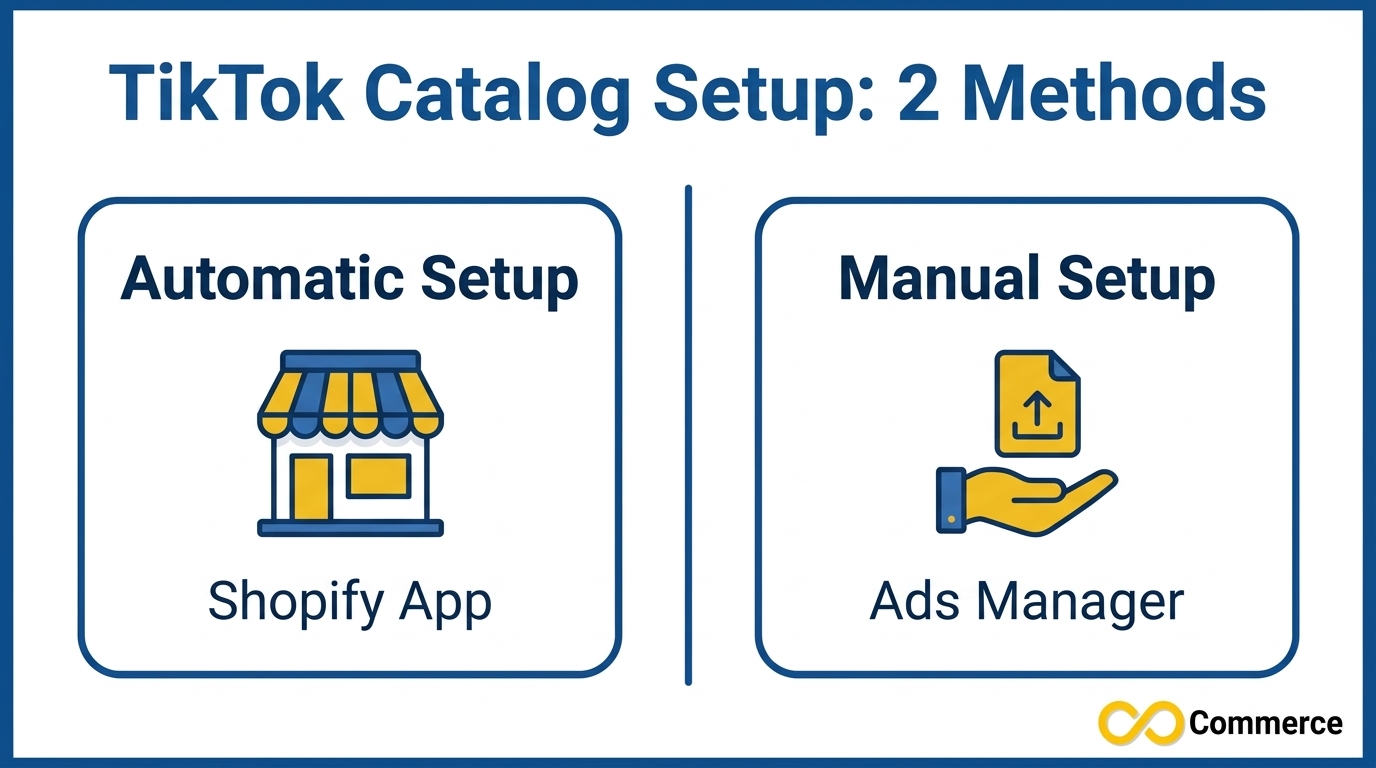
Before the steps, decide which route fits you.
| Features | Automatic (TikTok app on Shopify) | Manual (Ads Manager) |
|---|---|---|
| Who it suits | Most Shopify merchants starting out | Merchants who want control over market, currency or product sources |
| How products arrive | Synced from Shopify | Form, file upload or scheduled data feed |
| Setup effort | Low | Medium |
| Control over rules and sets | After the catalog exists | Full control from the start |
Many stores use the automatic route first and then manage the catalog in Ads Manager. Others create the catalog manually so they can pick the exact targeting location and upload method. Both are valid.
Before You Start: TikTok Catalog Setup Checklist
Spend ten minutes on this list and you will avoid most later errors.
- Accounts. To create a TikTok catalog you need a TikTok for Business account, a Business Center account and an Ads Manager account. Business Center is where catalogs, pixels and permissions live, so make sure you hold the right permissions to create and manage catalogs.
- Market availability. TikTok notes that catalog creation is only available in launched markets with Video Shopping Ads (Catalog) capabilities. If you cannot see the option, contact your TikTok sales representative or check with support.
- Currency. The default currency you pick must match the currency of your listed products. Decide this before you create anything.
- Targeting location. The location you choose when you create the catalog is the only location you can target with ads featuring those products. Pick it deliberately.
- Clean product data. Check that every Shopify product has a clear title, accurate price, availability status, a working image link and a product page URL. Missing or inconsistent data is the most common reason products are disapproved.
- Pixel. Connect your TikTok Pixel so you can measure what your catalog ads actually drive. If you need help, see our guide to the Facebook and TikTok Pixel app.
Method 1: Automatic TikTok Catalog Setup Through the Shopify App
This is the quickest way to create a TikTok catalog if your store runs on Shopify. The steps below follow TikTok’s Shopify set-up guide.
- Log in to your Shopify admin.
- Click TikTok under Sales Channels (install the TikTok app first if you do not see it).
- Connect or create your TikTok for Business account, your Business Center account and your TikTok Ads Manager account.
- Choose a data sharing level: Standard, Enhanced or Maximum.
- Click Create Pixel to create and install a new pixel, or select an existing pixel from the dropdown.
- Click Set Up and enter your business location details under Company Information.
- Click Confirm.
After you connect Business Center, the catalog process begins automatically. According to TikTok, it creates a marketing catalog using the primary market defined in your Shopify store settings, and that catalog is owned by and accessible through your connected Business Center. That detail matters: if your Shopify primary market is not the market you want to advertise in, the automatic catalog may not match your plan, and the manual method below gives you more control.
Check Your Catalog Status Inside Shopify
To see how the catalog is doing, open the TikTok app in Shopify, go to Settings, then click Product Catalog. You will see the product status, which tells you which products are approved, pending or disapproved. Check this page after setup and again after any large product update.
Method 2: Manual TikTok Catalog Setup in Ads Manager, Step by Step
Choose this route when you want to name the catalog yourself, set the currency and location deliberately, or bring in products from a file or feed. Here is the full TikTok catalog creation flow, based on TikTok’s catalog help article.
Step 1: Start TikTok Catalog Setup in Ads Manager
Log in to TikTok Ads Manager and click Assets. Select Catalog, then click Create. In some accounts the same action appears in Business Center under Assets, then Catalogs, then Add Catalog. The wording differs slightly between interfaces, but you are looking for the same create button.
Step 2: Enter Your Catalog Details
Fill in the form:
- Catalog name: Use something you will recognize later, such as “Store Name US Catalog”.
- Default currency: Pick from the dropdown. It must match the currency of your listed products.
- Targeting location: Choose the market where you plan to show ads. Remember that this is the only location you can target with ads from this catalog.
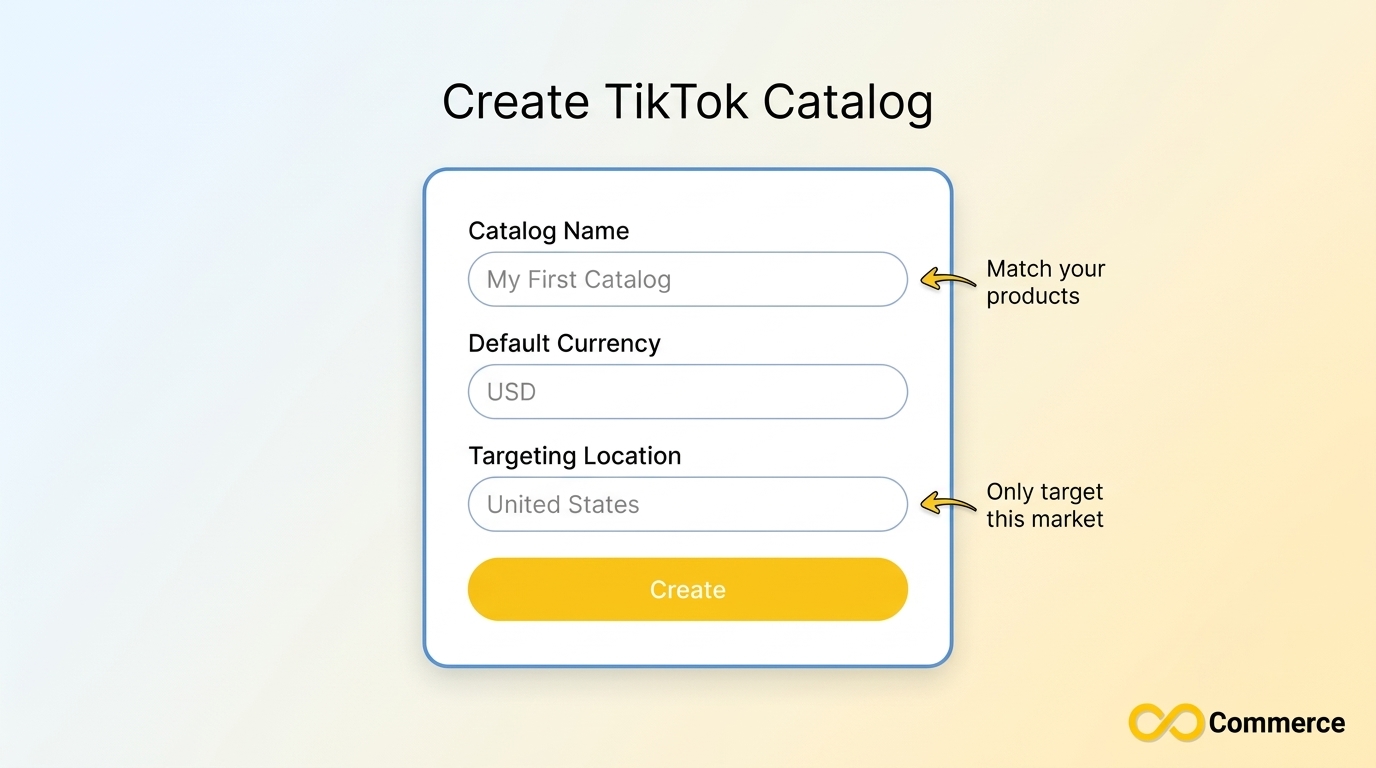
Click Create. In Business Center you may also be asked to choose the Business Center account and an industry, such as e-commerce.
Step 3: Review and Download the Catalog Template
Open your new catalog, click Manage, then Products, then Add Products, and click Download Template. TikTok states that there are 9 required and 27 optional product parameters. Fill in your product-level information in the template’s format. Required columns are not negotiable, and optional ones improve how your products can be organized and shown, so fill in as many as your Shopify data supports.
A practical tip: export your products from Shopify into a spreadsheet first, then map each Shopify column to the matching template column. Do this in one sitting so titles, prices and image URLs stay consistent.
Step 4: Upload TikTok Catalog Products
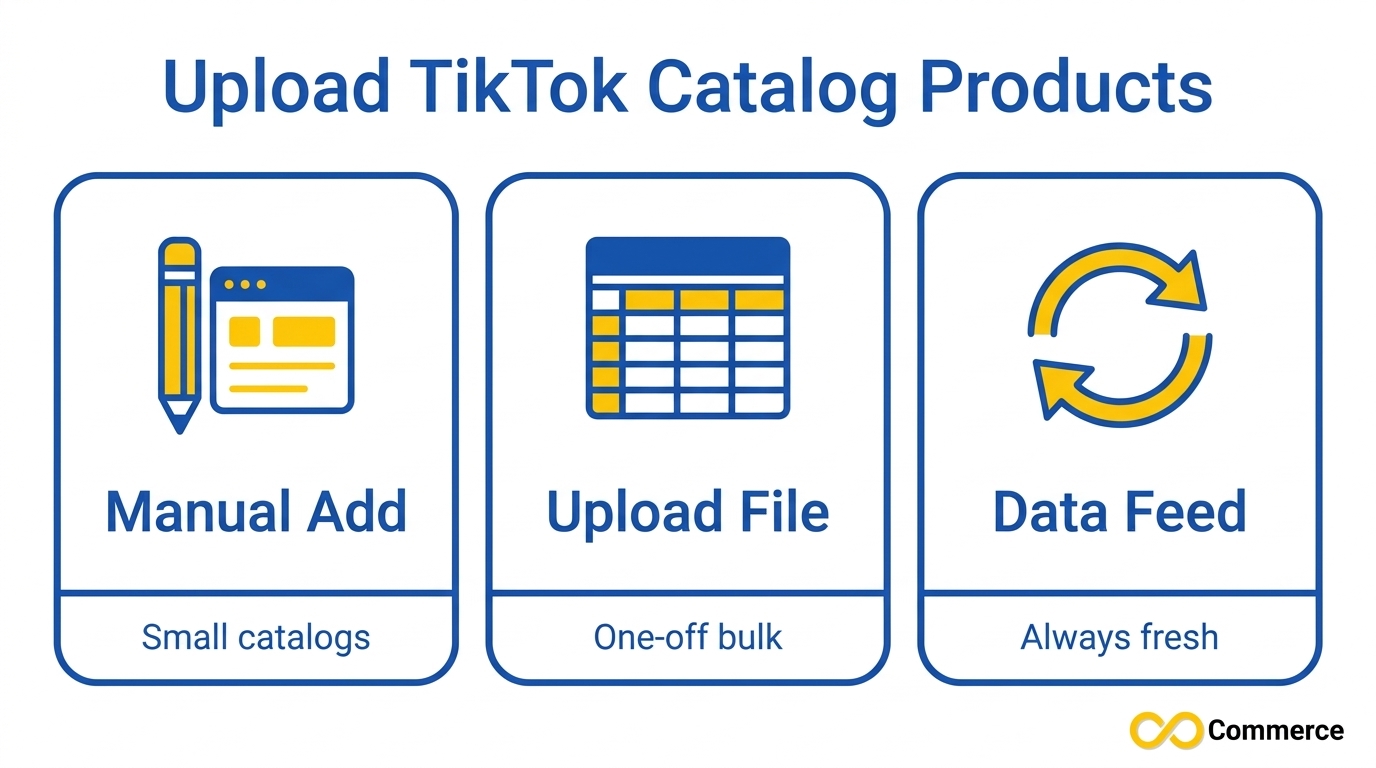
To upload TikTok catalog products, click Add Products and choose one of three methods:
| Method | How it works | Best for |
|---|---|---|
| Manually Add | Fill out a form for each product, then click Import. All fields are required except Video URL. | Very small catalogs or testing |
| Upload File | Upload a file built from the template, run Check files to catch formatting problems, then click Import. | One-off bulk uploads |
| Data Feed Schedule | Add a feed name and URL (with login details if password protected), choose an upload frequency and update method, then click Import. | Catalogs that change often |
TikTok lists the supported file formats as CSV, XML (RSS), XML (Atom), ZIP and GZ. GZ files compressed with the tar command are not supported. The file size must be under 50 GB and the product count under 20 million, limits most Shopify stores will never approach.
Always use Check files before importing a file. It is far quicker to fix a formatting error before the import than to hunt for it afterwards.
If you already maintain a product feed in Google Merchant Center, TikTok also documents an option to import that catalog from Google Merchant Center instead of building a new file.
Step 5: Create Product Sets and Catalog Rules
Once products are in, organize them. A product set groups products by shared characteristics so you can promote a specific group in a catalog sales campaign. You can build a set in two ways:
- Use Filters: Name the set and define how many rules a product must match, then add filter rules.
- Manually Select Products: Name the set, pick the products and click Confirm.
You can also add catalog rules that automatically update product information. In your catalog, open Product Sources, click the source name, then Settings, then Add Rules. TikTok offers these rule types:
- Value Replacement to replace a value in a specific column
- Set Default Value to fill an empty column
- Mapping to move a value from an unsupported column in your feed into a supported one
- Change Capitalization to standardize how text is capitalized
- Regex Replace to replace an existing value with a new one
When you apply rules, you choose whether to apply now to the latest update only, save and apply on every future update, or apply now and to future uploads. For most stores that update products regularly, applying to future uploads saves repeated manual cleanup.
Step 6: Check Product Status and Fix Problems
After the import, review the products view for approval status. Approved products can be used in ads. Pending products are still under review, and disapproved products need a fix before they can run. Open the affected items, correct the data (a mismatched currency, a broken image link and a missing required field are the usual causes), and re-upload.
Method 3: Keep Your Catalog in Sync With a Feed App
A catalog is only useful while its data is current. Prices change, sizes sell out and new products launch, and a catalog built from a one-time file drifts out of date quickly.
If you do not want to maintain spreadsheets, a feed app can keep the connection running. Our own Infinite TikTok Catalog Feed app is built for this. According to its Shopify App Store listing, it works with TikTok Business Center, the TikTok Catalog API, TikTok Commerce Manager and TikTok feeds, and it lists a free plan and a free trial. Its features page also lists bulk editing, custom labels and TikTok Pixel integration. Plan limits and pricing change over time, so check the app page for the current details before you decide.
Whichever tool you use, the principle is the same: choose the update method that matches how often your catalog changes.
How to Use Your TikTok Ads Catalog Once It Is Live
Creating the catalog is the foundation. The payoff comes when you attach it to a campaign.
TikTok’s help center describes Smart+ Catalog Ads as campaigns that use the images, videos and product information from your catalog to create ads, with automation for creative, add-ons and budget. In outline, the website flow looks like this:
- Log in to Ads Manager and click Campaign, then +Create.
- Select Sales as the objective.
- Choose Website as the destination.
- Pick your catalog and decide which products to feature: all products, a product set or specific products (TikTok allows up to 20 specific products in this flow).
- Choose any videos you want to add, review the ad generation options and publish.
Product requirements matter here. In its guide for catalog ads with the app sales objective, TikTok says you need at least four deliverable products, meaning in stock, approved and activated, to run catalog ads. Requirements can differ by objective and region, so confirm the current rule for the objective you pick.
A simple starting structure is one product set each for best sellers, new arrivals and seasonal offers, so you can see which group earns attention and pause one without touching the others. If you are preparing for holiday traffic, work backwards from your launch date and give yourself time for product review. Our Shopify Black Friday checklist can help you plan the rest of the store.
Common Mistakes When You Create a TikTok Catalog (and How to Avoid Them)
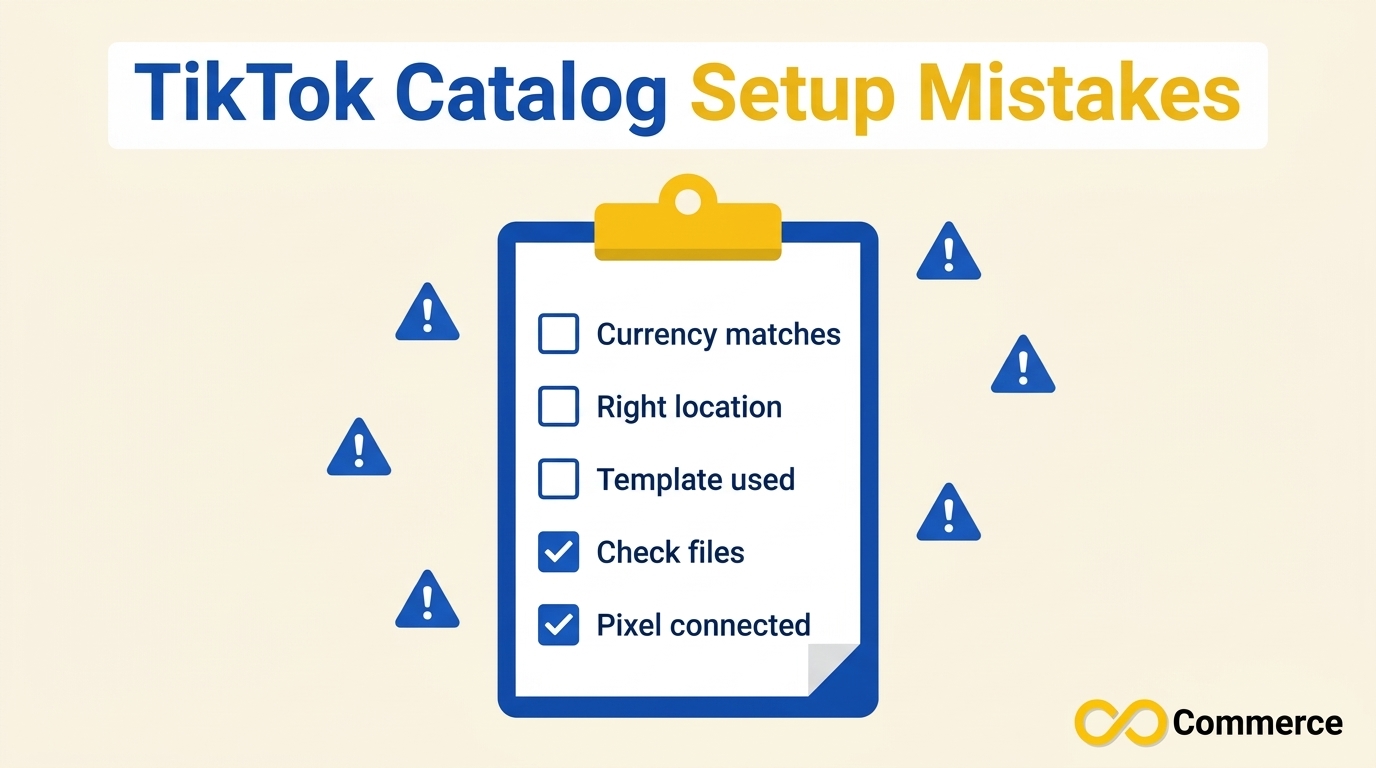
| Mistake | Why it hurts | What to do |
|---|---|---|
| Currency does not match the products | TikTok requires the default currency to match the currency of your listed products | Set the currency before creating the catalog, and keep feed prices in that currency |
| Wrong targeting location | You can only target the location you selected for that catalog | Create a separate catalog per market if you sell in several |
| Ignoring the template | Files that do not follow the template can be rejected | Download the template and map your columns to it |
| Skipping Check files | Formatting problems appear only after import | Run Check files before every upload |
| Compressing a feed with tar | GZ files compressed with the tar command are not supported | Use a plain GZ, ZIP, CSV or XML file |
| Launching on deadline day | Products may still be pending when your campaign is meant to start | Create and import at least a week early where possible |
| No pixel | You cannot see what your catalog ads drive | Connect and verify your TikTok Pixel before spending |
| Letting data go stale | Old prices or stock status create bad ad experiences | Use a scheduled data feed or sync app |
Conclusion
A reliable setup comes down to preparation and the right route. Use the Shopify app if you want the fastest start, create the catalog manually if you want control over market, currency and upload method, and add a feed app if you want your data to stay current without spreadsheets. Whichever path you choose, confirm your currency and targeting location first, run Check files before importing, group products into sets, and review product statuses before you plan any campaign around them.
Want the sync handled for you? Explore the Infinite TikTok Catalog Feed app or browse more practical Shopify marketing guides on the Infinite Commerce blog. You can also start from the Infinite Commerce homepage to see every Shopify app we build for tracking, feeds and analytics.
FAQs
The account connections and catalog creation steps themselves are quick, but the total time depends on your catalog size and how long product review takes. With the Shopify app route, the process starts automatically once Business Center is connected. Treat any launch date as provisional until your products show as approved.
No. TikTok states that choosing a catalog as your product source does not require setting up TikTok Shop. TikTok Shop is a separate selling feature. If you want to promote TikTok Shop products specifically, TikTok points to its Video Shopping Ads for TikTok Shop instead.
TikTok supports CSV, XML (RSS), XML (Atom), ZIP and GZ for data feeds and uploads. GZ files compressed with the tar command are not supported. Files must be under 50 GB, with fewer than 20 million products.
If you used the Shopify app, open the TikTok app in Shopify, go to Settings, then Product Catalog, where product status shows as approved, pending or disapproved. If you created the catalog manually, review product status in the catalog’s products view in Ads Manager or Business Center.
In its guide for catalog ads with the app sales objective, TikTok says you need at least four deliverable products, meaning in stock, approved and activated. Requirements can differ by objective and region, so confirm the current rule in Ads Manager before launch.
