 Amber Naz
Quick Summary
You can sync Shopify to TikTok without uploading products one by one. Connect your store through TikTok’s official Shopify integration (the TikTok sales channel) or a Shopify TikTok connector app, choose which products to share, and let automatic sync carry titles, prices, images and inventory changes across. The setup takes a few steps, but most sync problems start before you connect: messy product data, the wrong TikTok account type, or a catalog set to the wrong region.
In short:
- What it is: a live link between your Shopify catalog and TikTok, so edits in Shopify flow to TikTok without CSV files or re-entry.
- What you need: a Shopify store, a TikTok for Business account, and products that meet TikTok’s guidelines for your region.
- What to check afterward: product status in Shopify, approval status in TikTok, and a spot check of price and stock.
- Biggest trap: editing products inside TikTok. Shopify is the source of truth, and its data can overwrite your TikTok edits.
Why Manual Uploads Stop Working
Sending Shopify products to TikTok by hand feels fine when you only have ten of them. They fall apart quickly after that. Every price change, new variant, restock or sold-out item has to be repeated in a second place, and a single missed update means a shopper sees a price or an availability status that is wrong.
Most merchants hit the same pain points:
- Product data is typed twice, so it drifts apart.
- Inventory in TikTok lags behind Shopify, which risks overselling.
- Large catalogs take hours to upload and hours more to fix.
- Seasonal changes, like a sale, mean editing everything again.
Automatic sync removes the second copy. You edit once in Shopify and the change travels to TikTok. That is the idea behind every Shopify to TikTok sync option covered below, whether it is the free official channel or a dedicated connector app.
What Does It Mean to Sync Shopify to TikTok?
Syncing the two platforms means your Shopify product catalog is connected to a TikTok catalog or TikTok Shop listing, and updates to products, prices and inventory in Shopify are pushed to TikTok automatically. You stop uploading files. You manage products in one place.
According to Shopify’s Help Center, the TikTok sales channel can connect to TikTok Shop and sync catalog, inventory, fulfillment and orders between Shopify and TikTok Shop. TikTok’s own help documentation describes a one-click setup that links your TikTok for Business account, Ads Manager and Business Center, installs the TikTok Pixel and Events API, and syncs your product catalog.
What usually gets synced
The details vary by tool, but a typical TikTok product sync covers:
- Product titles and descriptions
- Images
- Prices
- Variants such as size and color
- Inventory levels
- Product availability or status
What usually does not sync perfectly
Do not assume every field makes the trip. Common gaps include TikTok-specific category attributes, custom product videos, and extra markets. One Shopify merchant reported that only their primary market showed up in the TikTok catalog even though several markets were active in Shopify. Plan to review the results rather than trust them blindly.
Two Different Syncs: TikTok Shop vs the Ads Catalog
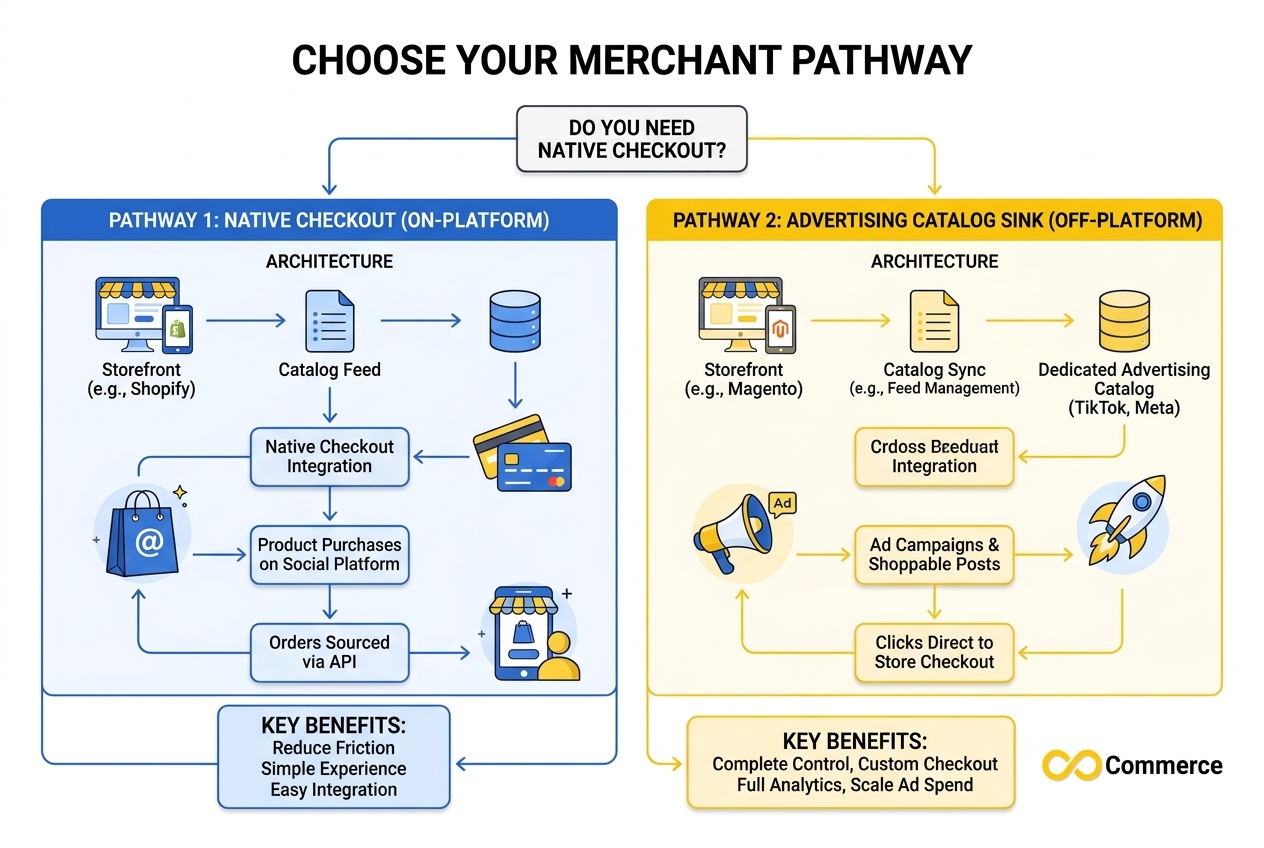
Before you start, decide what you are syncing to. “TikTok” covers two related but different destinations:
| Features | TikTok Shop | TikTok ads catalog |
| Main purpose | Let people buy inside TikTok | Power product-based ads |
| Where products live | TikTok Shop / Seller Center | TikTok Ads Manager, under Catalogs |
| Typical goal | Native TikTok checkout and orders | Send shoppers to your Shopify store |
| Account needed | TikTok Shop account (region dependent) | TikTok for Business, Ads Manager, Business Center |
Shopify’s integration can support either path, and many stores use both. If you only plan to run ads that send shoppers to your own checkout, the catalog path is usually what you need. If you want orders to happen inside TikTok, you need TikTok Shop. Mixing them up is one of the most common reasons merchants think sync is “broken” when it is simply pointed at the wrong place.
Before You Sync Shopify to TikTok: A Data Checklist
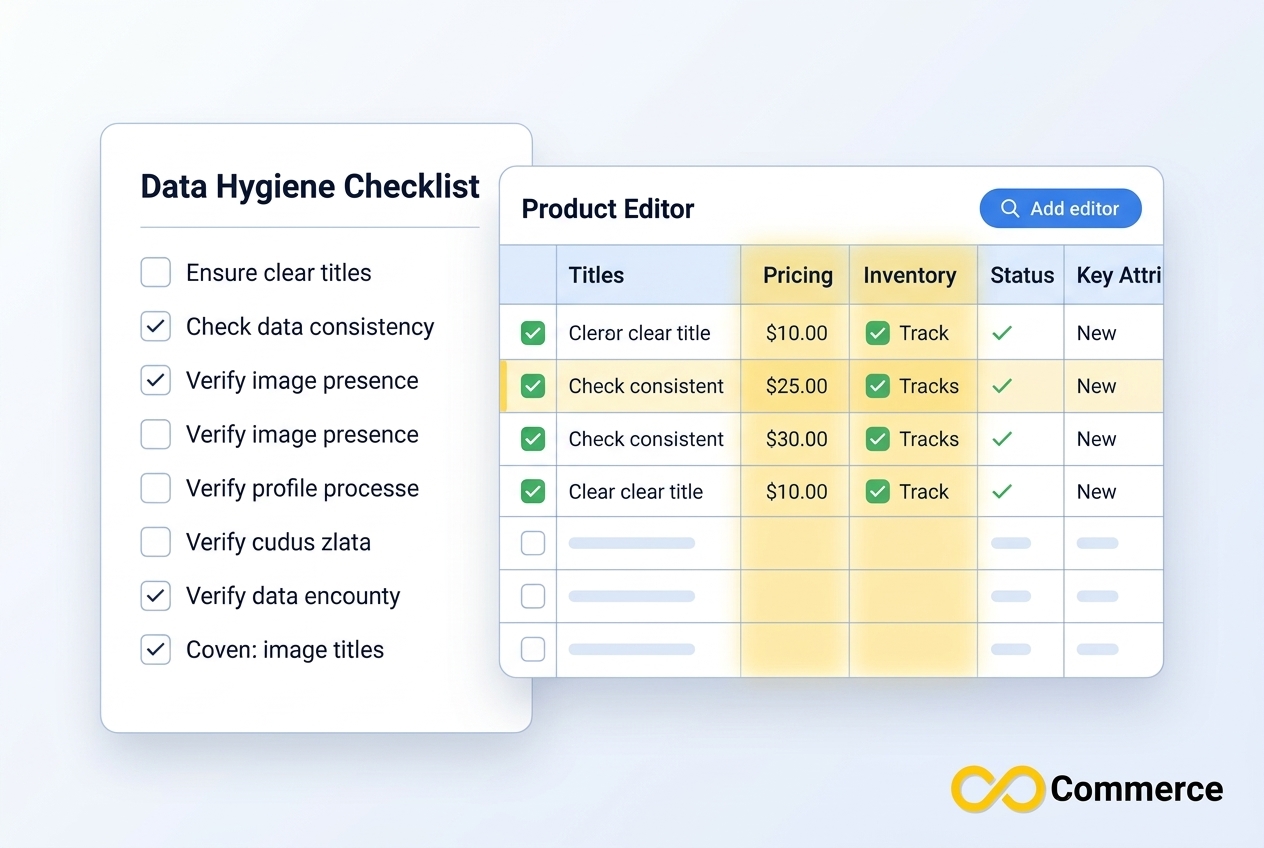
Sync copies whatever is in your catalog, good or bad. Ten minutes of cleanup now saves hours of rejected listings later. Work through this checklist in Shopify:
- Titles: write clear product names that describe the item. Avoid all caps and keyword stuffing.
- Descriptions: make sure every product has one, and that it matches what you actually sell.
- Images: use clean, high-quality photos without heavy watermarks or promotional text. One third-party guide that cites TikTok’s Business Help Center lists a minimum image size of 500 by 500 pixels, so confirm the current requirement in TikTok before relying on it.
- Prices and currency: confirm prices are correct and consistent, especially if you sell in more than one market.
- Inventory: make sure stock is tracked, since inventory is a core part of what sync keeps accurate.
- Variants: check that sizes, colors and SKUs are filled in and unique.
- Product eligibility: TikTok requires products to meet its product guidelines for your region, and Shopify’s TikTok Shop requirements link to them. Remove or exclude anything restricted.
- Collections: if you want to sync only part of your catalog, group those products into a collection first.
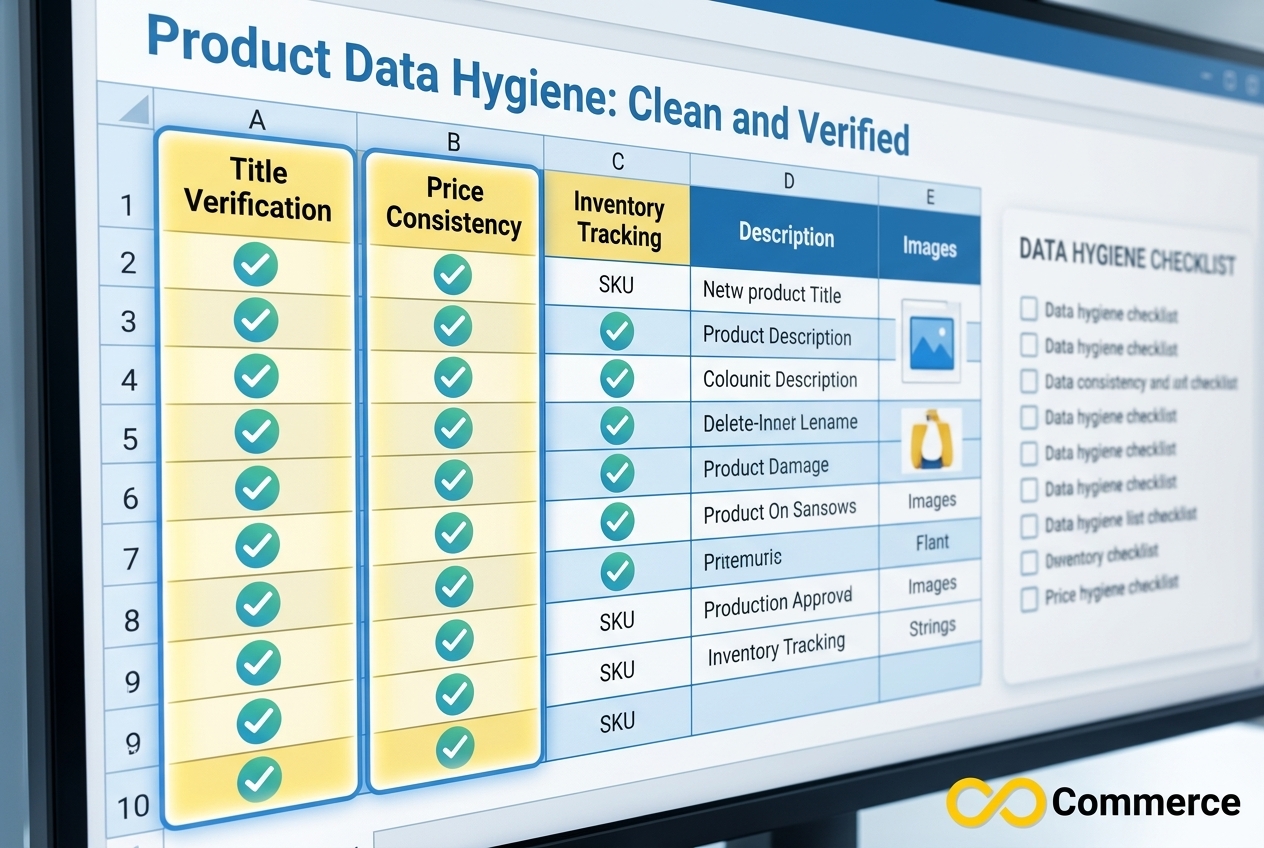
A tidy catalog also helps every other channel. If you want a broader store tune-up while you are at it, our Shopify Black Friday checklist covers the product and inventory prep that matters before peak season.
Know the overwrite rule
A Shopify Community response from a Shopify team member explains that connecting the TikTok sales channel can overwrite existing TikTok Shop product data, and that edits made on the TikTok side get replaced by Shopify data. The same thread notes that one Shopify store can connect to one TikTok account through the sales channel. If you already have listings in TikTok, take a backup or screenshots of anything you want to keep before you connect.
How to Sync Shopify to TikTok Step by Step
This walkthrough uses TikTok’s official integration, because it is the baseline every connector app is compared against. Screens change, so treat the labels as a guide.
Step 1: Install the TikTok sales channel
In your Shopify admin, open the Shopify App Store, search for TikTok, and click Add channel. Shopify’s setup guide for TikTok Shop starts the same way and then asks you to connect your TikTok Shop account from the setup page.
Step 2: Connect your TikTok accounts
Link your TikTok for Business account, plus your Business Center and Ads Manager account where the setup asks for them. If you are linking to an existing Business Center, you may need to give it admin access to your Ads Manager account. Approve the permissions requested so Shopify can share catalog and conversion data.
Pay attention to the data sharing level. Some third-party guides report that the lowest level limits automatic sync and some ad features. The safest habit is to open your TikTok settings after connecting and confirm the level supports what you want, rather than accepting a default.
Step 3: Pick the Products You Want to Sync Shopify to TikTok
Not every product belongs on TikTok. Open the product management area in the TikTok channel (often labeled Manage products) and choose what to include. You can usually send everything or limit sync to specific products or collections. Start with your best sellers, confirm they behave, then widen the selection. Shopify’s Help Center also points you to its general guide on including and excluding products from sales channels for this.
Step 4: Turn on automatic updates and set your catalog region
Make sure automatic sync is on so later price and stock changes follow without effort. Then check the catalog’s country or region. A Shopify Community answer attributed to TikTok support says the catalog’s country or region is controlled in TikTok, not through Shopify Locations. If it is wrong, create a catalog with the correct region in TikTok Ads Manager and link your products to it.
Step 5: Confirm the sync worked
Do not stop at “connected.” Verify in both places:
- In Shopify: open the TikTok channel overview. Shopify’s Help Center says the Product status section shows the status of products on TikTok Shop and flags errors.
- In TikTok Ads Manager: open Assets, then Catalogs, and select the catalog created from your store. Check that products appear and show an approved status.
- Spot check: compare the price, image and stock of three products on both sides, including one variant product.
Products can take a while to appear, so wait before you troubleshoot, but do not ignore products that stay missing for more than a day.
Native Sync vs a Shopify TikTok Connector: Which Should You Use?
The official channel works well for many stores, especially when you are starting out. A dedicated Shopify TikTok connector earns its place when your needs outgrow it. Here is a practical way to choose:
| Your situation | Likely best fit |
| Small catalog, one market, simple setup | Official TikTok channel |
| You want to edit product data for TikTok without changing your store | Connector with feed editing |
| Large catalog needing filters and bulk edits | Connector app |
| Multiple currencies or languages | Connector with multi-currency support |
| You want setup help and a human to ask | Connector with live support |
There are two other options you may run into. You can build a custom automation with a no-code platform that listens for Shopify product changes and pushes them to TikTok. That gives control but adds maintenance and cost. Or you can export a CSV and upload it yourself, which is exactly the manual process this guide helps you leave behind.
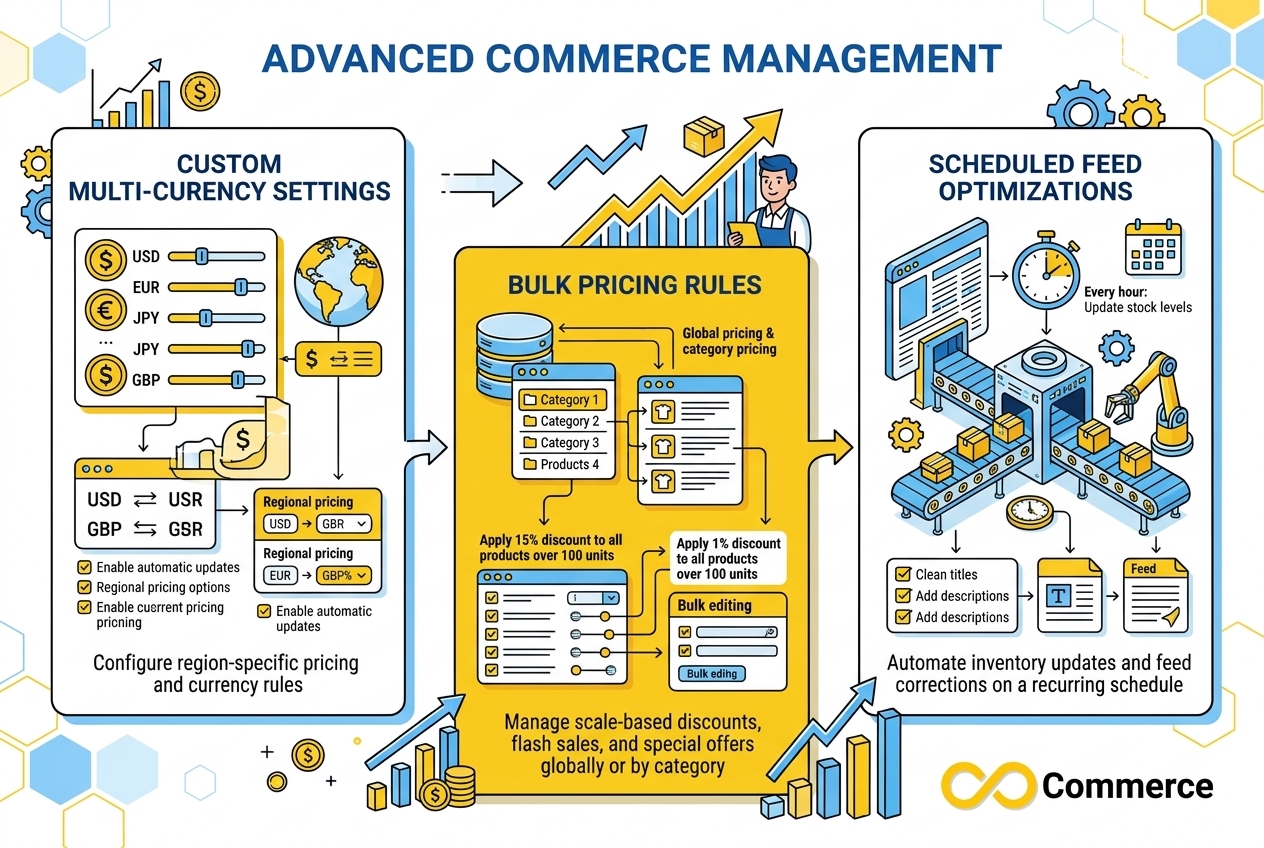
What to look for in a connector to auto sync Shopify TikTok catalogs
Whichever app you consider, compare these points:
- Sync method and frequency: is it automatic, and how quickly do changes arrive on your plan?
- Product controls: can you filter products, edit titles or add custom labels without touching your storefront?
- Bulk tools: can you update many products at once?
- Markets: does it handle multiple currencies and languages?
- Pixel support: does it help connect the TikTok Pixel so you can measure results?
- Support: can you reach a person when a listing is rejected?
- Pricing and limits: check product caps and current plan pricing in the app listing.
How Infinite TikTok Catalog Feed Helps You Sync Shopify to TikTok
Infinite TikTok Catalog Feed is our Shopify app for sending your catalog to TikTok. According to the app page, it offers:
- Automatic Product Sync to keep your Shopify catalog and TikTok aligned
- Instant Feed Updates that handle details like pricing and inventory
- Multi-Currency and Multi-Language support for selling in several markets
- TikTok Pixel Integration for tracking performance
- Scheduled Bulk Operations for bulk edits and scheduled updates
- Smart Product Optimization with AI-powered suggestions to improve product data
The app page lists a free plan and paid plans that differ by product limit, bulk edit, custom label and support level, and sync speed depends on your plan, so check the page for current details before you choose. If you also run TikTok ads, our Facebook and TikTok Pixel app covers the tracking side, so the products you sync are matched with the conversions they drive.
Fixing Common Sync Problems
Most issues fall into a handful of buckets. Start here before you contact support.
Products not showing up. Confirm TikTok is enabled as a sales channel, onboarding is finished, and the products are included in the channel. Then check the product status in Shopify and the catalog in TikTok Ads Manager. One Shopify Community thread describes merchants whose products did not appear after a sync attempt, so you are not alone.
Products show as drafts or disapproved. This usually means missing TikTok-specific information or a policy problem. Open the product status, read the reason, fix it in Shopify, and let sync carry the fix across. Because Shopify data overwrites TikTok edits, fix the source rather than editing inside TikTok.
Only one market appears. If you sell in several markets, check that the catalog region is set where TikTok expects it, as covered in Step 4.
Inventory looks wrong. Confirm inventory tracking is on in Shopify and the right location feeds the channel. Then trigger a manual re-sync from the TikTok channel and compare numbers again.
You edited a product in TikTok and it changed back. That is the overwrite rule at work. Make the change in Shopify.
Connection or permission errors. Reconnect the accounts and make sure the Business Center has the access it needs. Remember that one Shopify store links to one TikTok account through the official channel.
If a specific listing keeps getting rejected, read the reason shown in the product status and fix it in Shopify. The goal here is simply to keep the sync itself healthy.
Keep Your Sync Healthy: A Simple Routine
Automatic does not mean unattended. A short routine keeps problems small.
Weekly (5 minutes):
- Check the product status section in the TikTok channel for new errors.
- Spot check price and stock on a few top sellers.
Before a sale or launch:
- Update prices and compare-at prices in Shopify early, then confirm they arrived in TikTok.
- Check that sale items are in stock on both sides.
- Make sure new products meet TikTok’s guidelines before you add them to the sync.
Monthly:
- Review which products are excluded and whether they should be added.
- Review rejected or disapproved items and fix patterns, such as a recurring image or description problem.
- Check that the catalog region and currency still match your selling plan.
Conclusion
Manual uploads are slow, error-prone and impossible to keep current. A proper Shopify to TikTok sync fixes that by making your Shopify catalog the single source of truth. Clean your product data, decide whether you are feeding TikTok Shop or an ads catalog, connect your accounts, choose your products, and then verify the results on both sides. After that, a short weekly check is all the sync needs.
If you want more control than the default setup offers, such as bulk edits, multi-market support and a team to help when something breaks, explore Infinite TikTok Catalog Feed or browse more Shopify growth guides on the Infinite Commerce blog. You can also see everything we build for Shopify merchants at Infinite Commerce.
FAQs
Yes, in many cases. The official TikTok sales channel is available from the Shopify App Store, and Shopify’s documentation describes automatic product sync through it. Some connector apps also have free tiers with product limits. Check the current plan details in each app listing, since pricing changes.
Generally yes. Shopify’s Help Center states that your products sync automatically with TikTok Shop, and TikTok’s documentation describes automatic catalog sync from Shopify. Timing depends on the tool and, for connector apps, on your plan.
No. The reverse is the risk. According to a Shopify Community answer from a Shopify team member, syncing from Shopify overwrites products on TikTok, and edits made on TikTok are replaced by Shopify data. Treat Shopify as your source of truth.
Yes. You can generally select specific products or collections rather than your whole catalog. Starting with a small set of best sellers makes it easier to spot problems before you scale up.
The usual causes are an unfinished setup, products not included in the channel, policy or data problems, or a catalog set to the wrong region. Check product status in Shopify, then the catalog in TikTok Ads Manager under Assets and Catalogs.
Not always. The official TikTok channel handles automatic sync for many stores. A connector app helps if you need feed editing, filters, bulk tools, multiple currencies or languages, or hands-on support.
Not through the official sales channel, based on a Shopify Community answer that says one Shopify store connects to one TikTok account. If you run several stores, confirm what your chosen tool supports before you commit.
