 Amber Naz
Summary
Most Shopify stores do not rank poorly because they ignore SEO. They rank poorly because their product and collection pages use the words the store owner thinks in, not the words customers type into a search box. A supplier calls it a “dual-chamber hydration pack.” A customer searches “running water backpack.” If your page only says the first, you are invisible to the second.
This guide shows how to find the keywords your customers actually use, how to choose which ones to target, and exactly where to add them in your Shopify store: titles, meta descriptions, product and collection descriptions, image alt text and blog posts. It draws on Shopify’s help documentation and Google’s Search documentation. It does not quote search volumes or difficulty scores, because those come from tools you will run yourself and change over time. Where Shopify and Google give different advice, the article points that out.
Quick answer
- Start with your customers’ words, not your supplier’s.
- Collect ideas from Google suggestions, Search Console, your own store search and customer questions.
- Check demand with a keyword tool such as Google Keyword Planner.
- Map one main keyword to each page, so your pages do not compete with each other.
- Place keywords naturally in the page title, meta description, headings, body copy and image alt text.
- Measure with Google Search Console and adjust.
Keywords help search engines and shoppers understand a page. They do not replace good product information, clear photos and a trustworthy store, and no keyword placement can guarantee a ranking.
What “Shopify keywords” actually means
When people search for “shopify keywords,” they usually mean one of two things: which words to target for their Shopify store, and where in the Shopify admin to put them. This guide covers both.
A keyword is simply a word or phrase that someone types into a search engine. Two kinds matter for a store:
- Short, broad terms such as “running shoes.” These are competitive and the searcher’s intent is vague.
- Longer, specific phrases such as “lightweight running shoes for wide feet.” These usually have fewer searches each, but the shopper knows what they want.
Small stores often do better building pages around specific phrases first, because a precise page can be a better match than a general one. That is a strategy judgment, not a guarantee, so test it on your own pages.
Understand search intent first
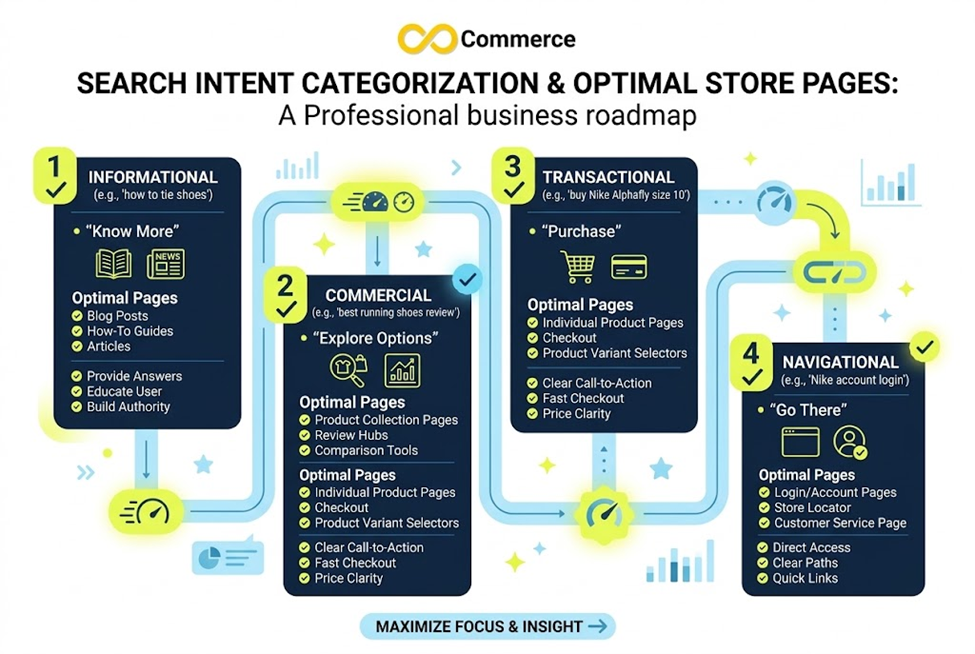
A keyword is only useful if the page matches what the searcher wants. Group keywords by intent:
| Intent | What the searcher wants | Best page type |
| Informational | An answer or advice (“how to choose a yoga mat”) | Blog post or guide |
| Commercial | To compare before buying (“best yoga mats for beginners”) | Collection page or comparison post |
| Transactional | To buy now (“buy cork yoga mat”) | Product page |
| Navigational | A specific brand or store | Homepage or brand page |
Before you commit to a keyword, search for it yourself and look at the results. If the first page is full of product pages, a blog post is a poor match. If it is full of guides, a product page will struggle. Google’s results vary by location, device and the searcher’s history, so treat what you see as a guide, not a fixed answer.
Step 1: Find keyword ideas
Start with your own words and your customers’ words
List your products and categories, then write down how a customer would describe each one to a friend. Read your customer emails, reviews, chat logs and returns notes. The phrases people use there, including their mistakes and nicknames, are real language.
Use Google’s own suggestions
Type a seed term into Google and note the suggestions that appear as you type, and the related searches and questions shown on the results page. These suggestions reflect what people actually search. Record them in a spreadsheet and group them by product or topic.
Google’s SEO guidance also notes that varying your wording naturally can give you more keyword coverage, and that Google’s language matching can connect a page to queries even when the exact terms do not appear. You do not need every variant on the page.
Use Google Search Console
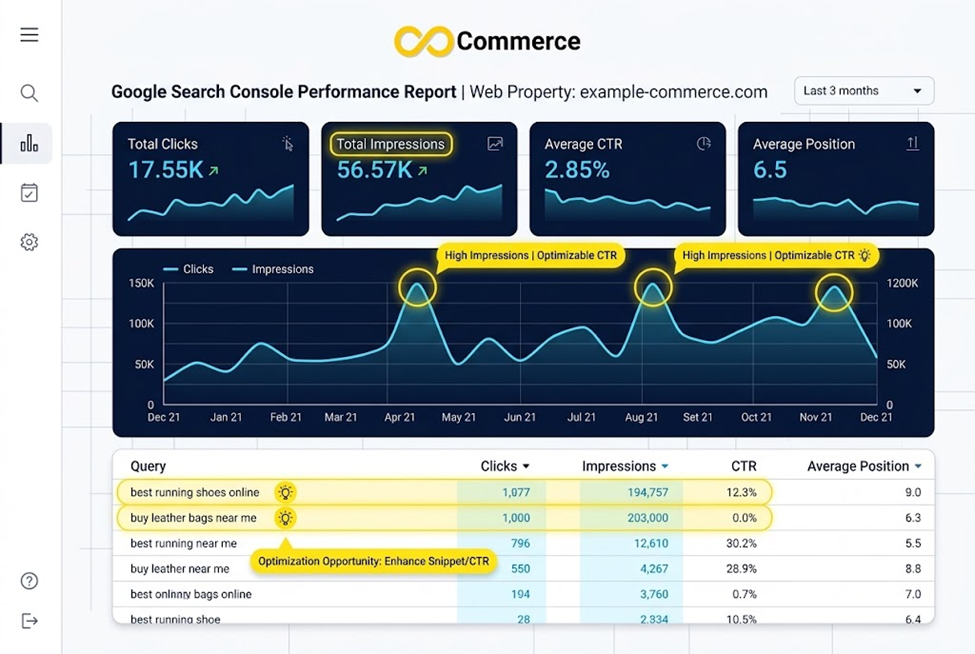
If your store is already live and verified in Search Console, its Performance report is the best free source of ideas. According to Google’s documentation, it reports clicks, impressions, click-through rate and average position, and you can group the table by queries, pages, countries or devices. By default it shows the last three months.
Look for queries where you have impressions but a low click rate, or a position just off the first page. These are existing opportunities, and improving the matching page’s title and content is often faster than starting from scratch. Remember that the numbers vary and that a query in the report may not show your site when you search it yourself.
Use a keyword research tool
Google Keyword Planner is a Google Ads tool that provides keyword ideas and monthly search estimates. Google states that you must complete account setup, including entering billing information, to access basic features such as getting new keyword ideas. It is built for advertisers, so treat its figures as estimates and a way to compare terms with each other, not as exact counts. Paid SEO tools offer other data, and the same caution applies to their volume and difficulty scores.
Look at your store’s search data
If your store offers on-site search and you can see the terms shoppers type, review them. Searches that return nothing show products or words you are missing. Check what your theme and apps provide, since this varies.
Step 2: Choose the keywords worth targeting
You will end up with more ideas than pages. Narrow them by asking:
- Relevance: Does the page truly offer what the searcher wants?
- Intent: Does the keyword suggest someone close to buying, or only browsing?
- Competition: Look at who ranks. If the results are dominated by very large retailers, a narrower phrase may be more realistic.
- Demand: Is there evidence people search for it? A rough comparison between terms is enough.
- Fit with your catalog: Do not target a term for a product you do not sell.
Pick one primary keyword per page and a few close secondary phrases. This is the single most useful discipline in SEO for stores.
Step 3: Map keywords to pages
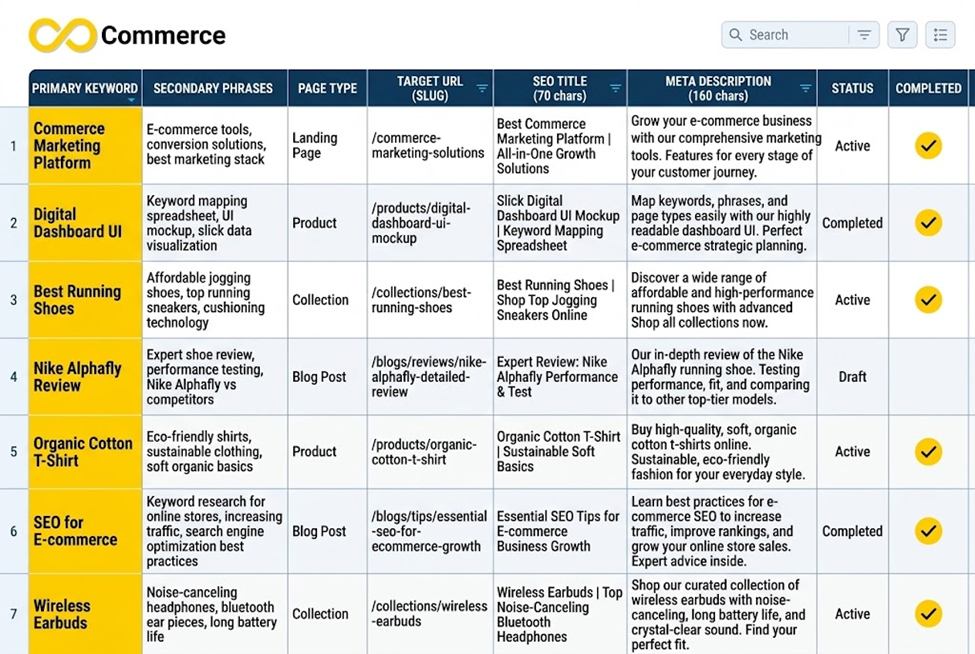
Build a simple spreadsheet with one row per page and these columns: URL, page type, primary keyword, secondary keywords, intent, and status.
An illustrative example for a fictional store selling yoga gear:
| Page | Primary keyword | Secondary keywords |
| Collection: Yoga mats | yoga mats | non-slip yoga mats, thick yoga mats |
| Product: Cork Yoga Mat 5mm | cork yoga mat | eco friendly yoga mat |
| Blog: How to choose a yoga mat | how to choose a yoga mat | yoga mat thickness |
The mapping prevents keyword cannibalization, where two of your pages target the same phrase and compete with each other. If you find two pages with the same primary keyword, decide which one should win and either differentiate the other or merge them.
As a rule, broader terms usually belong on collection pages, specific product terms on product pages, and questions and comparisons on blog posts.
Step 4: Add keywords in the right places in Shopify
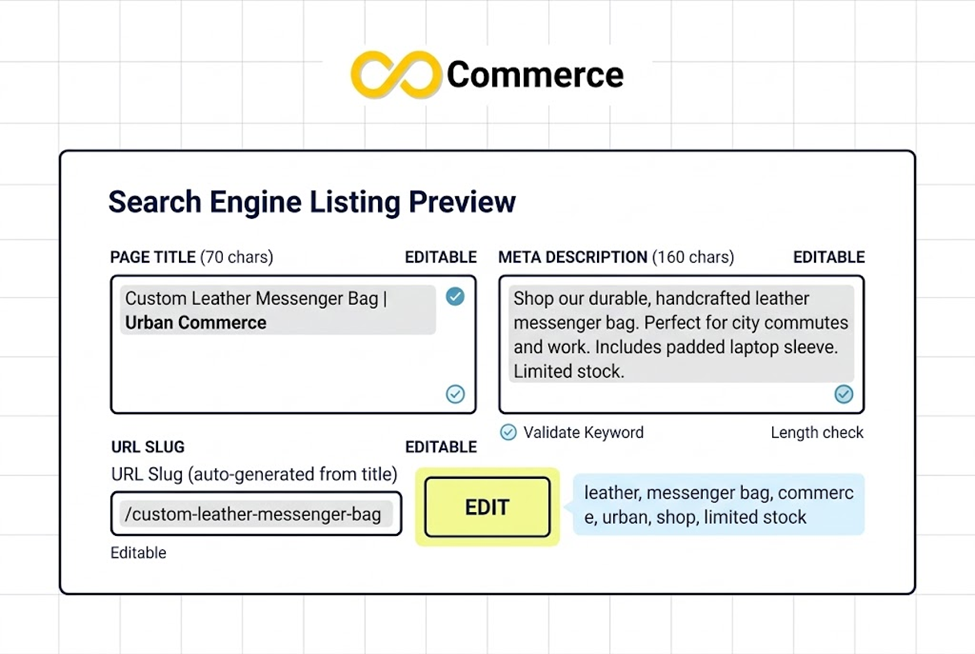
Shopify’s guidance on adding keywords names four places: page titles, meta descriptions, image alt text and body content. Here is how to handle each.
Page titles
Shopify says to put your most important target keywords near the beginning of the page title, and to keep titles to 60 characters or fewer so search engines do not shorten them, although the admin field allows up to 70. Google’s guidance on title links agrees on the principle: a good title is unique to the page, clear and concise, and accurately describes the page.
Practical tips:
- Write for a person first. “Cork Yoga Mat, 5mm Non-Slip” reads better than “Yoga Mat Cork Mat Buy Yoga Mat.”
- Make every title unique. Google says identical or boilerplate titles make pages hard to tell apart and can lead it to rewrite them.
- Consider adding your store name at the end.
- Do not repeat the keyword. Google says a few descriptive terms are fine, but repeating the same words can make results look spammy.
To edit the title and description for a Shopify page, go to Online Store, then Pages, click the page, and in the Search engine listing preview section click Edit website SEO, then fill in the Page title and Description fields and save. For your homepage, go to Online Store, then Preferences, and use the Social sharing image and SEO section. Shopify’s page spelled out these two sets of steps. Products, collections and blog posts also let you set a meta description, but check your own admin for the exact fields, because layouts change.
Shopify also notes that the title you enter generates the page’s H1 header, so keywords in the title carry into the H1.
Meta descriptions
Shopify recommends a unique description for each page, around 160 characters, with relevant keywords in natural phrasing, and says to avoid lists of keywords. Google’s snippet documentation adds that a meta description has no set length limit but is truncated to fit the device width, that Google may use text from the page instead if it describes the page better, and that site owners cannot edit individual snippets.
So write the description as a short, accurate summary that makes the right shopper want to click. A keyword in it helps the reader see the match; it is not a ranking trick.
Google’s SEO Starter Guide also states that Google Search does not use the keywords meta tag, so there is no benefit in filling one in.
Product descriptions
Write product descriptions in your own words. Shopify specifically says to avoid directly copying text that is provided by a manufacturer, since other websites may already use it. Include the words customers use, along with real details: materials, sizes, uses, who it is for and what it comes with.
Shopify’s guidance suggests at least 250 words on descriptive pages and at least 500 on informational pages and blog posts. Google, by contrast, says there is no word-count target. Use Shopify’s numbers as a prompt to be thorough, not as a rule, and never pad a page to reach a number.
Collection pages
Collections are often your best chance to rank for broader terms, because they group related products. Shopify describes collections as a way to group products into categories, themes or customer intent. For each important collection:
- Use the primary keyword in the collection title.
- Add a short, useful introduction above or below the product grid that explains what is in the collection and who it suits.
- Link to related collections and helpful guides.
- Keep titles and descriptions unique, so two collections do not look the same to a search engine.
Automated collections can create many similar pages quickly. Check that each one has a purpose and a distinct title.
Image alt text
Per Shopify, alt text should describe what the image shows, using keywords from the page where it appears, and should not describe what you want people to think of the image. Google describes alt text as a short, descriptive explanation of how an image relates to the page’s content, and says it helps search engines understand the image. For example, “Green cork yoga mat rolled up beside a water bottle” is better than “yoga mat yoga mat cork mat cheap.”
Shopify’s help pages consulted for this article did not give exact steps for editing alt text on product media, so look for the alt text option on each media item in your product page in the admin.
Headings and body copy
Use a clear main heading and meaningful subheadings that reflect how people ask questions. Google says heading order does not matter to Google Search and there is no ideal number of headings, so organize for the reader. Use natural phrases, not lists of keywords. Shopify warns that placing keywords randomly can make customers less likely to click and may cause search engines to ignore pages that lack readable phrases.
URLs
Words in a URL can help users, and they can appear as breadcrumbs in results. Google also says keywords in a URL path have hardly any effect on ranking beyond that. So keep URLs short and readable, but do not rewrite old URLs for keywords alone. Changing a live URL creates a redirect task, and the risk usually outweighs the benefit.
Blog posts
Informational keywords belong in blog posts and guides. Write each post for one question, answer it completely, and link to the relevant collection or product page so a shopper has a next step. Add a unique title and meta description for each post.
Step 5: Avoid keyword stuffing
Google’s spam policies define keyword stuffing as filling a web page with keywords or numbers in an attempt to manipulate rankings. Its examples include overusing the same terms until the text feels artificial and dense passages naming locations the page hopes to rank for.
Warning signs on your own pages:
- The same phrase appears in nearly every sentence.
- Descriptions end with a block of keywords.
- Alt text is a string of search terms.
- You read the paragraph aloud and it sounds like a robot.
If it reads naturally to a customer, it is probably fine.
Step 6: Measure and improve
After you update a page, give it time. Google says title changes can take days to weeks to show, because the page must be recrawled and reprocessed. In Search Console, watch the page’s impressions, clicks, click-through rate and average position, and compare against the previous period.
A simple review routine:
- Once a month, open the Performance report and sort by impressions.
- Find pages where impressions are high and the click rate is low. Rewrite the title and description.
- Find queries you did not target, and decide if they deserve their own page or a section.
- Note changes in a log so you can connect cause and effect.
Do not change everything at once, or you will not know what worked.
Connect keywords to tracking
Keywords bring visitors. Tracking tells you whether those visitors buy. If you also run paid search, the same keyword research feeds your ad groups, and conversion tracking shows which terms lead to orders. Visitors who arrive from search can also be retargeted on social platforms, and our guide to Meta Pixel setup and best practices for Shopify stores explains how to measure that side. Infinite Commerce’s Google Ads Tracking and GTM app connects a Shopify store to Google Ads and Tag Manager, so you can see which campaigns convert. Check its current plans and trial on the app page before installing.
A keyword checklist for each Shopify page
- One primary keyword chosen, matched to the page’s intent
- Primary keyword near the start of the page title (60 characters or fewer)
- Unique, readable meta description
- Original body copy with natural phrases, not copied manufacturer text
- Image alt text that describes each image
- No other page targeting the same primary keyword
- Internal links to related pages
- Page added to your tracking sheet for review
Final thoughts
Good keyword work on Shopify is mostly listening and organizing. Find the words your customers use, give each page one clear job, and place those words where a reader would expect to see them: the title, the description, the headings, the body and the alt text. Write for people first, avoid stuffing, and let Search Console tell you what to improve next.
Make sure your traffic turns into measurable sales
Ranking is only half the picture. Infinite Commerce’s Google Ads Tracking and GTM app helps you connect your Shopify store to Google Ads and Tag Manager, with a 7-day trial on each plan. If you want help planning your tracking or checking what your store sends, contact our team.
FAQs
The best keywords are the ones your customers use, that match what a page offers and that you have a realistic chance of ranking for. Start with specific phrases tied to your products, and check intent by looking at the search results.
Shopify names page titles, meta descriptions, image alt text and body content, including product, collection, page and blog descriptions. Titles also generate the page H1.
One primary keyword and a few close variations, used naturally. Google has no keyword count target and treats excessive repetition as keyword stuffing.
Google says it does not use the keywords meta tag, so it does not help your ranking in Google Search. Spend the time on titles, descriptions and content.
Not very. Google says they have hardly any effect on ranking beyond appearing as breadcrumbs. Keep URLs clear, but do not change existing ones just for keywords.
It varies. Google says title changes can take days to weeks to appear because pages must be recrawled. Rankings depend on many factors, and no one can promise a result.
