 Amber Naz
Quick Summary
TikTok pixel not working on Shopify almost always traces back to a short list of causes. The pixel was never fully connected, two integrations are competing for the same pixel, a cookie banner is holding tracking back until a visitor consents, an ad blocker or cached page is hiding the signal, or the purchase event does not match what TikTok expects. The fastest way to find out which one applies is to run TikTok Pixel Helper on your key pages, trigger the event yourself, and compare the result with the Test Events tab in TikTok Events Manager. Fix the connection first, remove duplicates second, then add server-side tracking so browser blockers matter less.
You launched a TikTok campaign, sent traffic to your Shopify store, and then opened Events Manager to find nothing. Or maybe page views show up but Add to Cart is blank, or the purchase event never arrives even though orders are landing in your Shopify admin. Without those signals, TikTok cannot optimize toward buyers, your reporting stops matching your sales, and your ad budget ends up guessing.
This guide walks through the problem the way a technician would. First you confirm what is actually broken. Then you work through the causes in order of how often merchants run into them. Finally you apply the fix and verify it. It is written for Shopify store owners and marketers, so you will not need to edit theme code unless a step says otherwise. If you manage tracking across several ad channels, the team at Infinite Commerce builds Shopify apps for exactly this kind of work, and we point to the relevant tool where it fits.
What “TikTok Pixel Not Working” Really Means
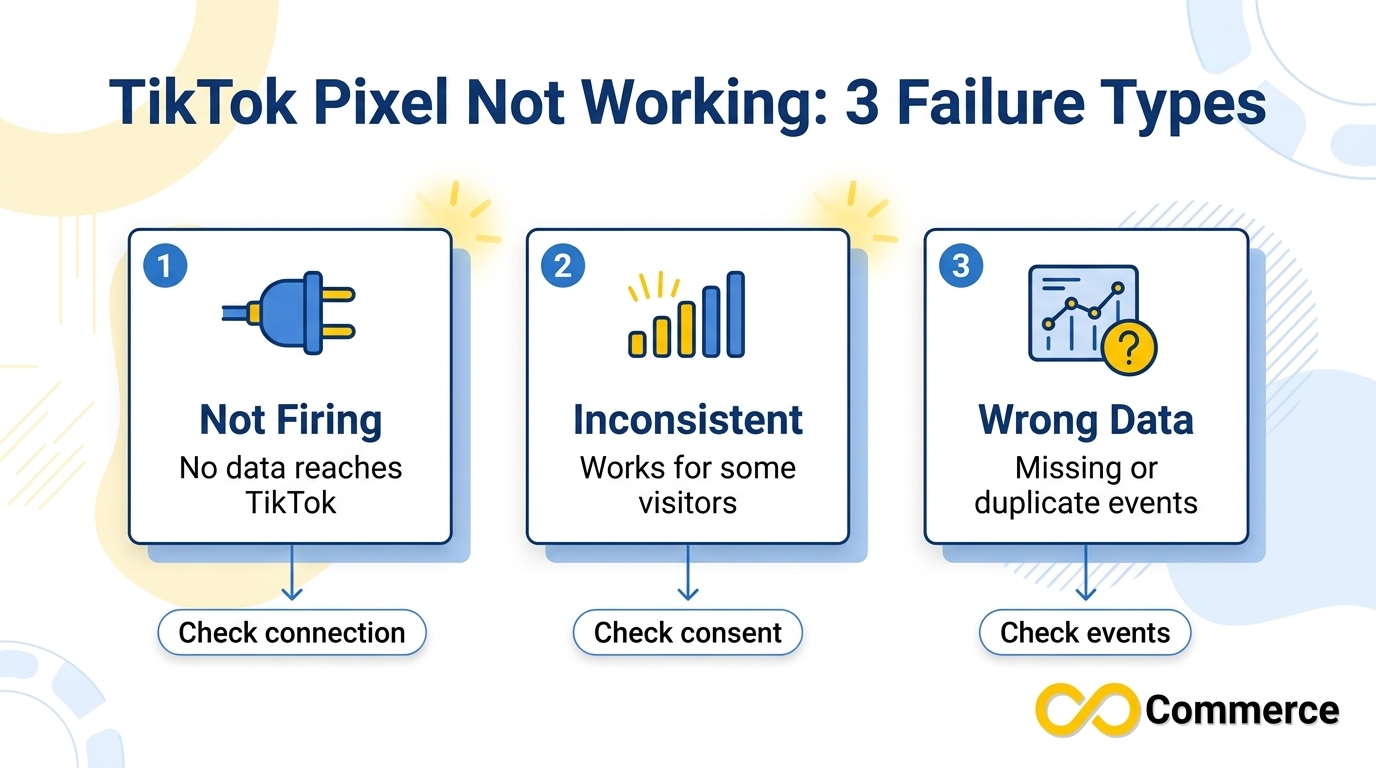
“Not working” is three different failures wearing the same label, and each one points to a different fix.
- Not firing. No request reaches TikTok at all. Pixel Helper detects nothing and Events Manager shows no activity. This is usually a connection, installation or consent problem.
- Firing inconsistently. The pixel appears in one browser, session or country but not another. This often points to consent settings, caching, ad blockers or duplicate installs.
- Firing with wrong or incomplete data. Events arrive, but some are missing, duplicated or lack useful details such as order value. This usually points to event setup, deduplication or checkout tracking.
One timing note before you start. TikTok’s own troubleshooting guidance says it can take up to 24 hours for event data to appear in Events Manager after an event is triggered, and that you need to trigger the event yourself (for example by completing a purchase) before it can show as active. So a quiet dashboard five minutes after setup is not proof that anything is broken. Use the live tools in the next section for faster answers.
How to Diagnose a TikTok Pixel Not Working Problem in 10 Minutes
Do these three checks before you reinstall anything. Reinstalling without a diagnosis often just resets the clue you needed.
Step 1: Run TikTok Pixel Helper on Key Pages
TikTok Pixel Helper is a Chrome extension that checks your pixel installation for errors and gives implementation recommendations. According to the TikTok Business Help Center, it provides diagnostics at the pixel, event and parameter level.
- Install the latest version of the extension from the Chrome Web Store.
- Open your store’s home page in a normal browser window and click the extension icon. You should see your pixel ID listed.
- Visit a product page, add the item to your cart and begin checkout, checking the icon on each step.
- Write down which pages and events were detected and which were not.
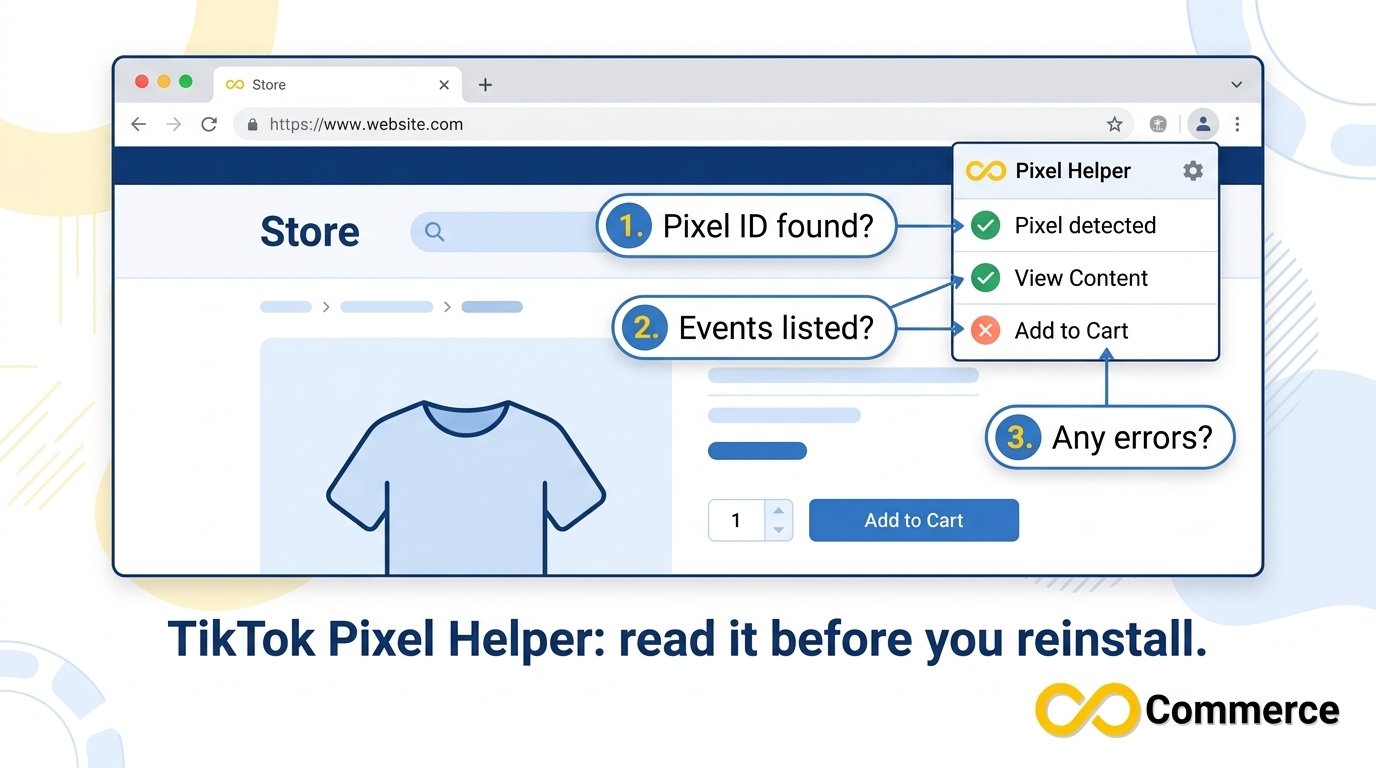
If the helper shows an error, read it carefully. It often names the exact level where the problem sits, such as a pixel that is not installed in the page header or an event missing a parameter.
Step 2: Confirm With Test Events in Events Manager
Pixel Helper only shows what your browser sees. Test Events shows what TikTok actually receives.
- In TikTok Ads Manager, open Events Manager and select your pixel.
- Open the Test Events tab and enter your store URL.
- Browse your store in the window it opens, add a product to the cart and start checkout.
- Watch whether the matching events appear in the Test Events list.
Events that appear here but not in your main dashboard are usually just waiting on processing time. Events that never appear here are the real problem.
Step 3: Decide Whether You Have a TikTok Pixel Not Working Problem or a Helper Problem
The extension is useful, but it is not infallible. Shopify merchants regularly report that the helper shows no pixel while Events Manager is clearly receiving data, and the extension’s Chrome Web Store ratings are mixed. Treat it as one signal, not a verdict.
- Helper shows nothing, Test Events shows events: the pixel is working. Try an incognito window with other extensions disabled, and clear your cache.
- Neither shows anything: you have a real tracking problem. Continue to the causes below.
- You want a third check: open your browser’s developer tools, go to the Network tab, reload the page and filter for analytics.tiktok.com. A successful request there means the browser sent data to TikTok.
Common Causes of TikTok Pixel Not Working on Shopify
Work through these roughly in order. The first three account for most of the cases merchants describe in Shopify community threads.
The Pixel Was Never Fully Connected
The TikTok sales channel needs three things linked: your TikTok business account, your ad account and a specific pixel. Merchants regularly report a state where Shopify says the app is installed but TikTok shows it as not connected, and the helper finds no pixel. Open the TikTok channel in Shopify, review the connected accounts and pixel, and reconnect anything that looks stale.
Also check availability. Some merchants report that the TikTok app is not offered in their country. If that is your situation, the official channel cannot install the pixel for you, and you will need another route, such as a third-party pixel app or a manual installation.
Data Sharing Is Set Too Low
TikTok’s Shopify app has three data sharing levels: Standard, Enhanced and Maximum. According to TikTok, Enhanced uses the pixel, the Events API and Advanced Matching, while Maximum combines all the available options and is currently available only to Shopify merchants. Lower levels share less, so fewer events reach TikTok.
In Shopify, open the TikTok channel, go to Settings, then Data sharing, and confirm the level matches what you intend. Because these levels control how much customer data TikTok collects, make sure your privacy policy and consent setup are in line with whichever level you choose.
Duplicate Installs Fight Each Other
It is common for a store to end up with the pixel in several places at once: the TikTok sales channel, a snippet pasted into the theme, a separate pixel app and a Google Tag Manager tag. Documentation from tracking vendors notes that duplicate events typically come from multiple TikTok pixel integrations running together.
Pick one path. If you move to another pixel app, disconnect the sales channel’s data sharing first. In Shopify, go to Sales channels, then TikTok, then Settings, then Data sharing, and disconnect the pixel. After that, load your store with Pixel Helper and confirm only one pixel ID appears per page.
Consent Settings That Cause TikTok Pixel Not Working
This is the cause most store owners miss, because it can make the pixel look broken only for some visitors. According to the Shopify Help Center, the customer privacy settings govern Shopify-specific trackers, including Shopify Pixels, and where a cookie banner is active, data is collected only after a visitor gives consent.
That has practical consequences:
- If you test from a region where the banner applies and you never accept it, your own test will show nothing.
- Visitors who decline cookies will not generate events, so the volume in Events Manager can be lower than your traffic suggests.
- If you use a third-party consent app, confirm it passes visitors’ choices to Shopify, because a mismatch can block tracking for everyone or for no one.
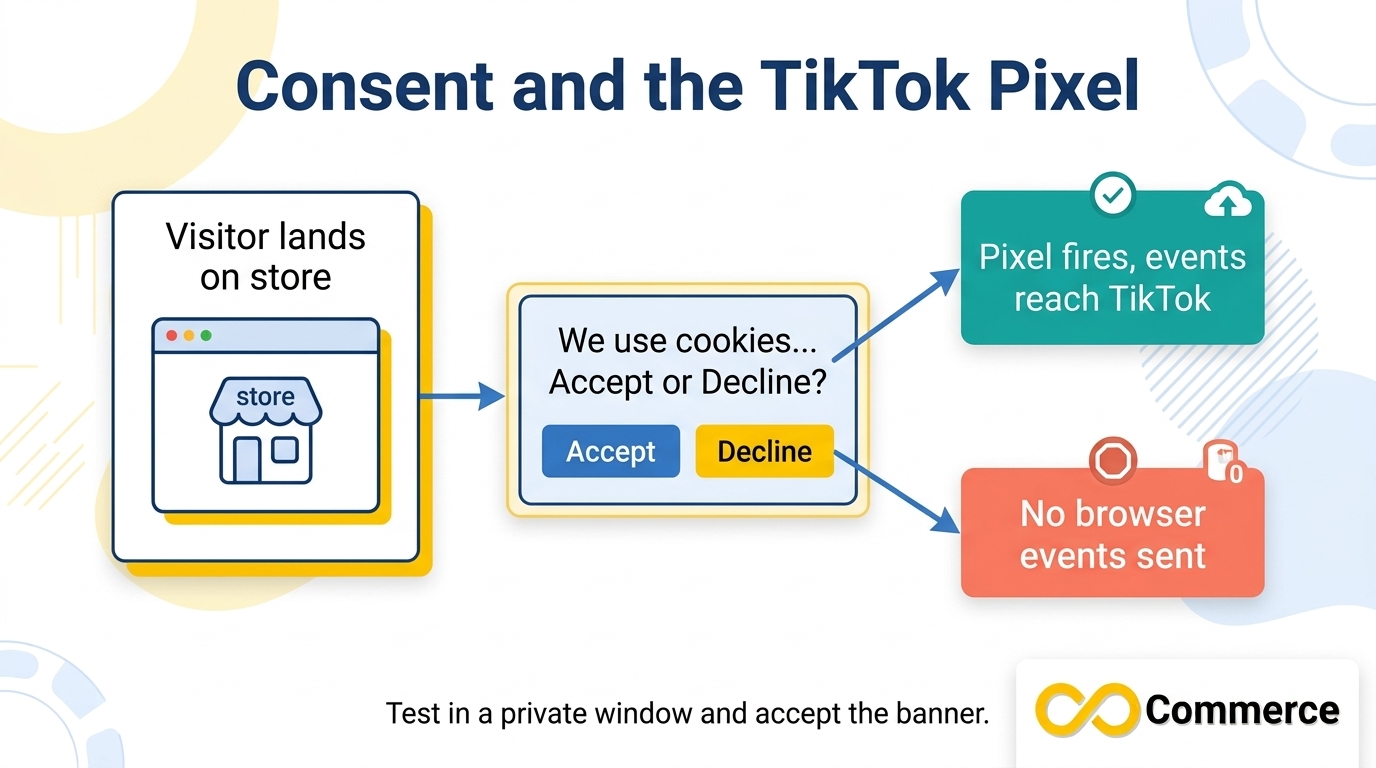
To test properly, open your store in a private window, accept tracking on the banner, reload the page and run Pixel Helper again. Shopify’s Customer events settings also include a test option for app pixels, and the pixel may report that it is awaiting consent until you accept the banner.
Ad Blockers, Browsers and Cached Pages
TikTok notes that browser-based ad blockers can prevent the pixel from collecting data. If you or your team test with a blocker installed, you can easily conclude the pixel is dead when it is working for most visitors. Test in a clean browser profile with extensions off, and clear the cache if a recent change was made.
Theme Code and Third-Party Scripts
If you added the pixel manually, confirm it still sits in your theme’s head section, since theme updates can remove custom snippets. If the pixel exists in both theme code and an app, remove one.
How to Fix TikTok Pixel Not Firing at All
If Pixel Helper and Test Events both come up empty, use this sequence. It starts with the least disruptive steps.
- Check accounts and permissions. Make sure the TikTok account you connected has access to the right business account, ad account and pixel. A pixel created under a different business account will not appear where you expect it.
- Reconnect the sales channel. In Shopify, open the TikTok channel, review Settings, and reconnect your accounts. Select the correct existing pixel instead of creating a new one each time, since repeated new pixels split your data.
- Set the data sharing level. Confirm the level under Data sharing and save it.
- Remove duplicates. Delete manual snippets and extra pixel apps so only one integration remains.
- Test in a clean browser. Use a private window, accept the cookie banner and disable extensions.
- Reinstall only as a last step. Community answers often suggest uninstalling and reinstalling the TikTok app. It can work, but note your settings first so you can restore them.
- Retest and wait. Trigger an event, check Test Events, and allow time for the main dashboard to catch up before judging the result.
If nothing works, send screenshots of Pixel Helper, Data sharing and Test Events to TikTok or Shopify support.
TikTok Pixel Not Tracking Events Correctly
Sometimes the pixel loads and page views arrive, but the events that matter do not. TikTok’s documentation lists the events its Shopify integration supports, and it helps to know exactly what you should see.
| Event | When it should fire | How to test it |
| View Content | A visitor views a product or specific page | Open a product page |
| Add to Cart | An item is added to the cart | Add a product to the cart |
| Initiate Checkout | The checkout process begins | Click through to checkout |
| Add Payment Info | Payment information enters the checkout flow | Reach the payment step |
| Complete Payment | A purchase is completed | Place a test order |
Three points help with a TikTok pixel not tracking correctly:
- Trigger each event deliberately. An event that no one has triggered cannot be active. Walk through the funnel step by step instead of waiting for natural traffic.
- Check the funnel order. In a healthy store, cart events should outnumber checkout events, and checkout events should outnumber payments. If payments appear without the earlier steps, part of your tracking is missing.
- Confirm the optimization event. In Ads Manager, open your ad group settings, choose the data connection, and check that your optimization event shows as active. If the event you want is not selectable, it has not been triggered yet.
TikTok Purchase Event Missing: What to Check
A TikTok purchase event missing from your data is the most expensive version of this problem, because the platform optimizes toward the event you tell it to. Here is what to check in order.
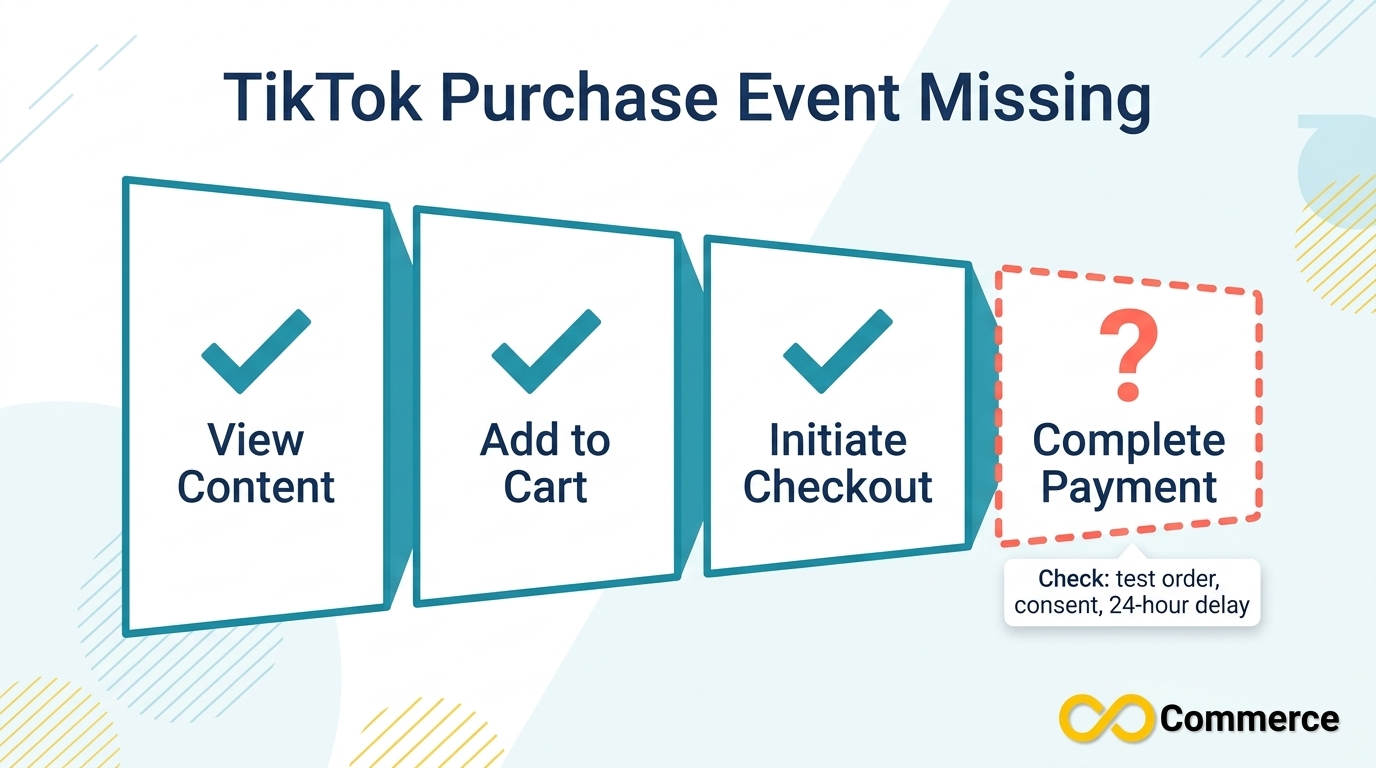
- Use the right event name. TikTok’s Shopify integration calls the purchase event Complete Payment, not Purchase as Meta does. If you are setting up a campaign or a custom setup, make sure you select the event TikTok actually receives.
- Trigger it with a real test. The purchase event only fires when a checkout completes, so you need to place an order. Our guide on how to place a test order on Shopify without paying walks through doing that without spending money, so you can test the checkout and watch Test Events at the same time.
- Give it time. TikTok states that event data can take up to 24 hours to populate in Events Manager. Check the event’s last fired time on the pixel details page instead of refreshing the dashboard repeatedly.
- Check consent and blockers. Visitors who decline cookies or use blockers will not send browser events. If your Shopify order count is higher than TikTok’s purchase count, this gap is normal to a degree, and it is the main reason to add server-side tracking.
- Review the event details. Confirm the event includes the order value and currency. Without them, TikTok may count that an order happened without knowing what it was worth, which weakens value-based optimization.
Server-Side Tracking and Event Deduplication
Browser pixels depend on the visitor’s browser cooperating. Ad blockers, strict privacy settings and consent choices all reduce what the pixel can send. TikTok’s Events API sends events from the server instead, and running it alongside the pixel fills gaps the browser leaves behind.
There is one rule you must get right. According to TikTok’s help center on event deduplication, you must send the same event ID (event_id) through both the pixel and the Events API, and the events must share the same event name. TikTok merges events that arrive within five minutes of each other, and it deduplicates overlapping events that arrive after five minutes and within a 48-hour window of the first one. It records the first event it receives for measurement and reporting.
In plain terms:
- Send the same purchase through both channels with matching names and IDs, and TikTok counts it once.
- Send the same purchase through both channels with different IDs, and you risk double counting.
- Send different events through each channel, such as cart events through the pixel and purchases through the API, and deduplication is not needed.
On Shopify, TikTok’s Maximum data sharing level uses server-side connections in addition to the pixel, so a correctly configured sales channel may already handle this. If you want more control, the Infinite Facebook TikTok Pixel app supports TikTok pixels with server-side tracking and a one-step setup where you add your pixel ID. According to the app page, it also lets you run more than one pixel, and TikTok pixel support is included in its paid plans, so check current plan details in the Shopify App Store before you install.
Server-side tracking improves coverage, but it cannot rescue a pixel that was never connected, so get the basic connection right first.
Pixel Problems Versus Catalog Problems
The pixel tracks visitor actions; the catalog tells TikTok which products you sell. If Test Events looks healthy but product ads are not updating, the problem is the catalog. Our guide on TikTok catalog sync not working on Shopify covers that side.
Conclusion
When your TikTok pixel stops reporting, the answer is rarely mysterious. Confirm what is broken with Pixel Helper and Test Events, reconnect the sales channel, keep only one integration, test with consent accepted, and check your purchase event with a real test order. Then add server-side tracking so blockers and privacy settings hurt your data less.
If you would rather spend your time on creative and budgets than on debugging tags, the Infinite Facebook TikTok Pixel app described above is built to handle multi-pixel and server-side tracking for Shopify stores. For more practical guides on pixels, catalogs and store performance, browse the Infinite Commerce blog and keep your tracking in good shape ahead of your next campaign.
Sources: TikTok Business Help Center, Troubleshoot with Pixel Helper; Shopify Help Center, Configuring customer privacy settings. Additional facts about event deduplication, data sharing levels, supported Shopify events and troubleshooting timing come from TikTok Business Help Center articles reviewed in the research for this draft.
FAQs
The most common reasons are an incomplete connection between your TikTok accounts and Shopify, a data sharing level that shares too little, a duplicate pixel from another app or theme code, and a cookie banner that blocks tracking until consent is given. Reconnect the sales channel, confirm one pixel only, accept the banner in a private window and test again with Pixel Helper and Test Events.
Use two tools together. TikTok Pixel Helper shows whether your browser detects the pixel and its events, and the Test Events tab in Events Manager shows what TikTok receives. If both show your events, the pixel is firing.
The extension can miss a working pixel because of browser extensions, caching or how the page loads. If Test Events shows your actions, the pixel is working. Try a private window with extensions disabled, and check the Network tab for requests to analytics.tiktok.com.
Check that a real order has completed, that you selected Complete Payment instead of a Meta-style Purchase name, that you waited up to 24 hours, and that consent settings and ad blockers are not suppressing events. Then confirm the optimization event shows as active in the ad group.
