 Alisha Zulfiqar
Having trouble with your Facebook Pixel Shopify setup and not seeing any conversions from your ads? If people are reaching your checkout page but their actions aren’t appearing in Facebook Events Manager, it can make your ad spend feel useless. Don’t worry, this easy guide will show you how to fix common Facebook Pixel issues, restore accurate tracking, and improve your overall ad performance.
Quick Summary
Your Facebook Pixel issues on Shopify often come from three main sources: wrong pixel installation, duplicate tracking codes, or conflicts with apps. Use the Facebook Pixel Helper to check if your pixel is firing correctly. Also, review your Shopify Admin data sharing settings. Finally, confirm your integration with the Facebook and Instagram sales channels. For ongoing issues, use the Conversion API. It helps track on the server side, so it avoids ad blockers and browser limits.
Unraveling Your Facebook Pixel Shopify Problems
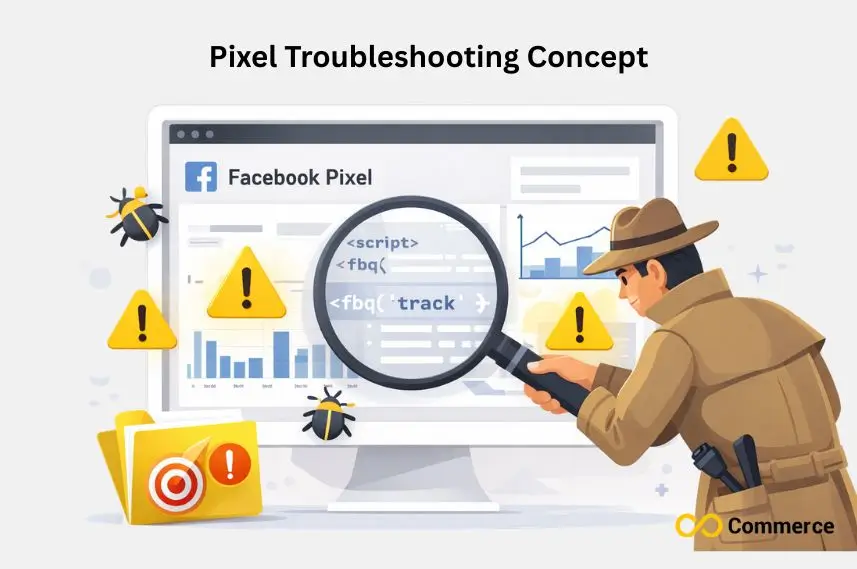
Think of troubleshooting your Facebook Pixel as being a detective at a crime scene. Each clue leads you closer to the culprit behind your tracking failures.
Understanding the Meta Pixel’s Role
Your Meta pixel connects your Shopify store to Facebook ads. This small piece of code tracks customer interactions. It covers everything from page views to purchase events. This lets you:
- Measure conversion rates accurately across your sales funnel.
- Build custom audiences based on website behavior.
- Create Lookalike Audiences to find similar high-value customers.
- Optimize ad targeting using real customer data.
Without proper pixel functionality, your Facebook Ads Manager can’t see clearly. This makes optimization very hard.
Verifying Basic Pixel Setup and Health
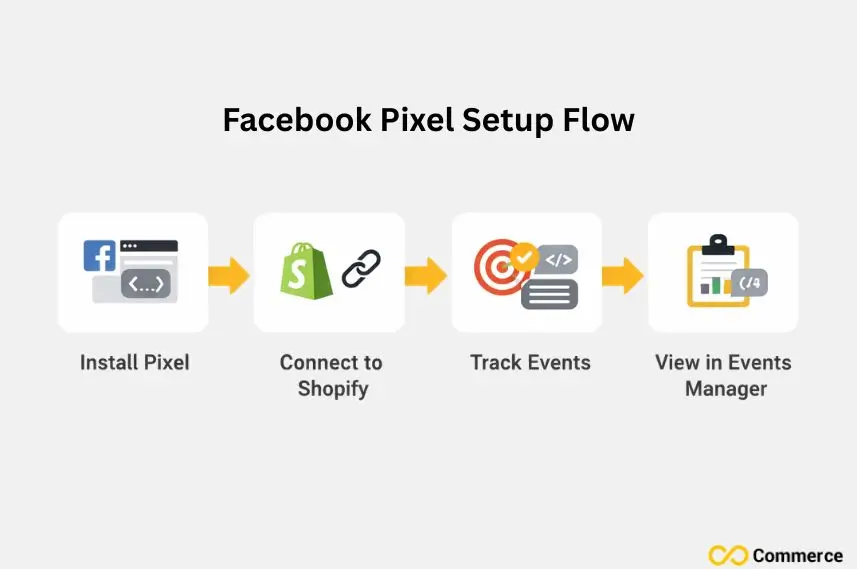
Start your troubleshooting journey by checking the fundamentals. Many pixel problems resolve with basic verification steps.
Using the Facebook Pixel Helper Chrome Extension
Download Facebook Pixel Helper from the Chrome Web Store immediately. This free extension becomes your best friend during pixel troubleshooting.
Navigate to your Shopify store’s homepage and activate the extension. A healthy pixel shows:
- Green checkmark indicating successful pixel firing.
- Correct Pixel ID matching your Facebook Business Manager.
- Proper event tracking on relevant pages.
Red warnings or missing pixels signal immediate attention needed.
Checking Shopify’s Core Data Sharing Settings
- Access your Shopify Admin panel.
- Navigate to Settings → Privacy and compliance.
- Verify customer data sharing permissions are enabled.
- Confirm analytics tracking settings allow Facebook integration.
These privacy settings affect how pixels work, especially after recent changes in data privacy rules.
Inspecting Your Facebook & Instagram Sales Channel App Integration
Your Facebook Sales Channel App connects Shopify to Meta’s advertising platform.
- Open your Shopify Admin and check installed sales channels.
- Verify your Facebook & Instagram app shows “Connected” status.
- Confirm your pixel ID matches across both platforms.
- Test the connection by triggering a test event.
Disconnected or misconfigured apps cause widespread tracking failures.
Confirming Event Reception in Facebook Events Manager
Log into your Facebook Business Manager and access Events Manager. Check recent activity for:
- Standard events like PageView, AddToCart, InitiateCheckout.
- Purchase events with accurate revenue data.
- Event parameters containing product information.
- Real-time activity matching your store traffic.
Missing or delayed events indicate server-side problems requiring deeper investigation.
Why Your Pixel Isn’t Firing or Tracking Accurately
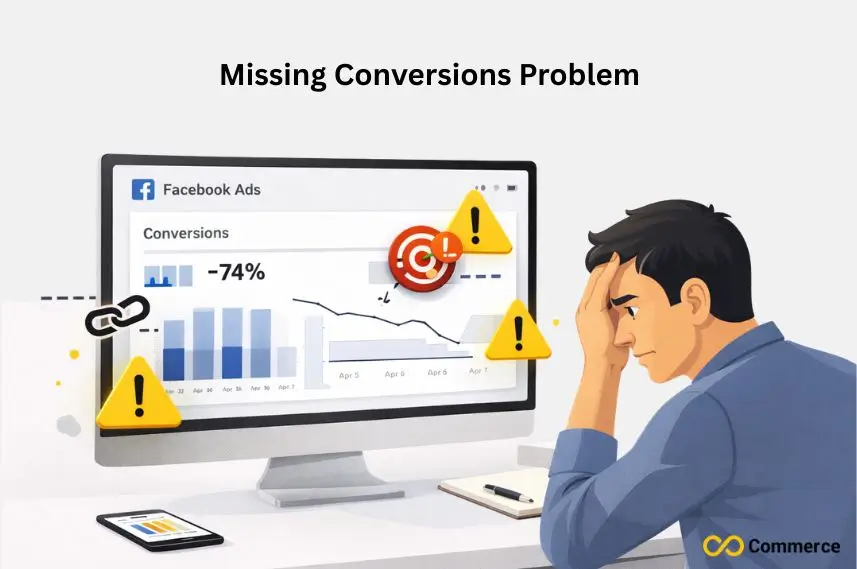
Most Facebook Pixel Shopify issues fall into predictable categories. Identifying your specific problem type accelerates the solution process.
Incorrect or Missing Pixel ID
Double-check your pixel code contains the correct ID. A single digit error renders your entire tracking system useless.
Check the Pixel ID in your Shopify theme code. Then, compare it to the settings in your Facebook Business Manager. They must match exactly.
Accidental Duplicate Pixel Installations
Multiple pixel installations create data conflicts and inaccurate reporting. This commonly happens when:
- Theme updates don’t remove old pixel code.
- Third-party apps install additional pixels.
- Manual installations overlap with automatic ones.
Use Facebook Pixel Helper to identify duplicate pixels across your site pages.
Theme-Related Issues and Manual Code Placement Errors
Custom themes or manual pixel installations often contain coding errors. Check your theme’s:
- Header.liquid file for proper pixel placement.
- Checkout.liquid customizations affecting purchase tracking.
- JavaScript errors preventing pixel execution.
Consider reverting to Shopify’s built-in pixel integration through the Facebook Sales Channel app.
Conflicts with Third-Party Shopify Apps or Custom Code
Popular apps sometimes interfere with pixel functionality by:
- Modifying checkout processes before pixel fires.
- Loading conflicting JavaScript that blocks pixel execution.
- Overriding standard events with incompatible code.
Temporarily disable recent app installations to isolate conflicts.
Browser Cache, Ad Blockers, and User Privacy Settings
Modern browsers and ad blockers increasingly block client-side tracking. While you can’t control user settings, understanding these limitations helps explain data gaps.
Consider implementing server-side tracking through Conversion API to bypass browser-based blocking.
Troubleshooting Specific Event Tracking Failures
Different events require unique troubleshooting approaches. Focus your efforts on the specific tracking problems affecting your store.
Purchase Events Not Firing on Checkout
Purchase event failures devastate conversion tracking and ROAS calculations. Common causes include:
- Checkout page modifications preventing pixel execution.
- Missing event parameters like value and currency.
- Third-party payment gateways bypassing Shopify’s tracking.
- Custom thank-you page redirects.
Check your checkout process with Facebook Events Manager’s real-time view. This helps you see where tracking fails.
Issues with Key Standard Events
These fundamental events power your advertising campaigns and audience building. Troubleshoot by:
- Checking event parameters includes required product information.
- Verify content_ids match your product catalog format.
- Testing user interactions triggers appropriate events.
- Confirming event timing aligns with customer actions.
Page view events should trigger right away. In contrast, Add to Cart needs user interaction on product pages.
Product Catalog and Dynamic Ad Errors
Dynamic Product Ads rely on accurate product catalog connections. Verify your:
- Facebook product catalog contains current inventory.
- Product IDs match between Shopify and Meta systems.
- GTIN or barcode fields provide unique product identifiers.
- Product feed updates sync regularly.
Mismatched product data causes dynamic ads to show incorrect or unavailable items.
Custom Events and Advanced Event Parameters Not Registering
Advanced tracking setups require precise configuration. Check that:
- Custom event names follow Meta’s naming conventions.
- Event parameters contain properly formatted data.
- Conversion API passes server-side events correctly.
- Custom conversions in Facebook Ads Manager recognize events.
Custom implementations often fail due to syntax errors or missing required parameters.
Advanced Solutions for Pixel Accuracy and Reliability
Basic pixel implementations struggle with modern privacy challenges. Advanced solutions provide more robust tracking capabilities.
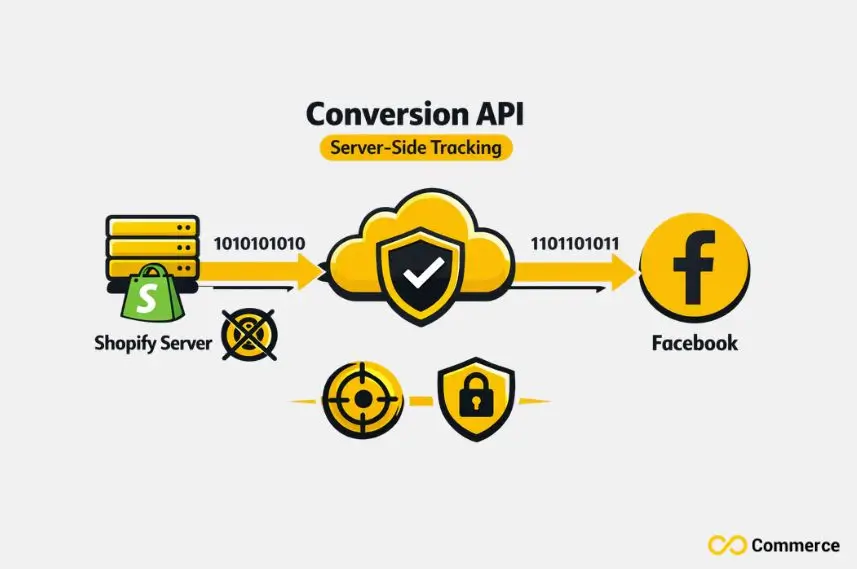
Embracing the Conversion API (CAPI) for Server-Side Tracking
The Conversions API represents the future of Facebook tracking. Unlike browser-based pixels, server-side tracking:
- Bypasses ad blockers and privacy tools completely.
- Provides more accurate data with reduced signal loss.
- Improves match rates for better audience building.
- Offers privacy-compliant tracking meeting GDPR requirements.
Shopify Plus merchants can use CAPI with Shopify Flow. They can also use third-party apps for server-side tracking.
Leveraging Google Tag Manager for Advanced Pixel Management
Google Tag Manager provides centralized control over all tracking implementations. Benefits include:
- Version control for tracking changes.
- Testing environments before deploying updates.
- Advanced triggering rules for complex setups.
- Multiple platform integration beyond just Facebook.
GTM requires technical expertise but offers unmatched flexibility for complex tracking requirements.
Exploring Third-Party Pixel Apps for Enhanced Control and Reliability
Several Shopify apps specialize in Facebook Pixel optimization:
- Elevar for advanced e-commerce tracking.
- TikTok & Facebook Pixels for multi-platform management.
- Pixel Your Site for enhanced pixel reliability.
These apps often provide adblock-proof tracking and simplified setup processes.
What Should You Monitor Regularly?
Maintaining pixel health requires ongoing attention and proactive monitoring practices.
Establishing a Routine for Monitoring with Facebook Events Manager
Create weekly monitoring habits:
- Review event volume trends for unexpected drops.
- Check conversion values match actual sales data.
- Monitor pixel health warnings in Business Settings.
- Compare Google Analytics data for consistency.
Early detection prevents small issues from becoming major tracking failures.
Testing Changes Before Deployment
Always test pixel modifications in development environments:
- Use Facebook’s Test Events tool for validation.
- Monitor pixel helper during testing phases.
- Verify event parameters contain expected data.
- Check mobile responsiveness across devices.
Thorough testing prevents live site tracking disruptions.
Staying Updated with Shopify and Meta Pixel Changes
Both platforms regularly update their tracking capabilities:
- Subscribe to Shopify Partner newsletters for platform updates.
- Monitor Meta’s developer documentation for API changes.
- Join Facebook Marketing API groups for community insights.
- Follow pixel-focused blogs for troubleshooting tips.
Staying informed helps you adapt quickly to platform changes affecting your tracking setup.
Understanding the Impact of Product Data on Ad Performance
Quality product data directly influences Facebook advertising success:
- Complete product catalogs improve Dynamic ad relevance.
- Accurate pricing information prevents customer confusion.
- High-quality product images increase click-through rates.
- Detailed product descriptions help Facebook’s algorithm understand your inventory.
Maintaining current product feeds enhances both tracking accuracy and ad campaign performance.
When Should You Seek Professional Help?
Some pixel problems require expert intervention beyond basic troubleshooting capabilities.
Identifying When Professional Assistance is Needed
Consider professional help when:
- Multiple troubleshooting attempts fail to resolve issues.
- Custom code modifications exceed your technical comfort.
- Enterprise-level tracking requirements need advanced implementation.
- Time constraints prevent thorough problem-solving.
Professional assistance often saves time and prevents costly mistakes.
Resources for Support
Several support channels provide expert assistance:
- Meta Marketing Partners offer certified expertise in Facebook advertising tools.
- Shopify Expert marketplace connects you with platform specialists.
- Facebook Marketing API community groups provide peer support.
- Shopify Community forums offer crowd-sourced solutions.
Choose support options matching your budget and technical requirements.
Empowering Your Shopify Store with a Flawless Facebook Pixel
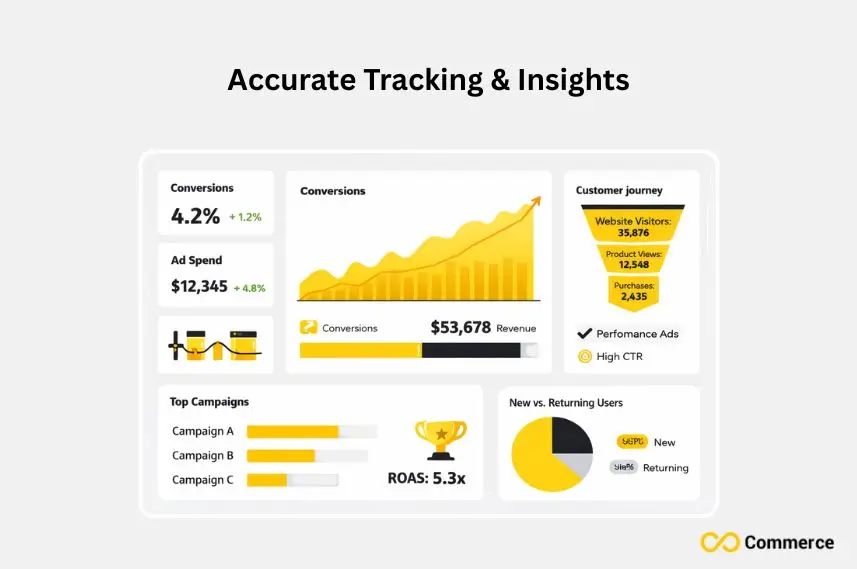
Boosting your Facebook Pixel Shopify integration makes your ads more effective and helps your business grow.
Recap of Key Troubleshooting Steps
Remember this systematic approach:
- Verify basic setup using Facebook Pixel Helper.
- Check Shopify Admin privacy and integration settings.
- Identify common problems like duplicate pixels or app conflicts.
- Implement advanced solutions like Conversion API for reliability.
- Maintain ongoing monitoring to prevent future issues.
Most pixel problems resolve with methodical troubleshooting and patience.
The Long-Term Benefits of a Well-Maintained Pixel
Proper pixel maintenance delivers:
- Accurate conversion tracking enabling better ROAS optimization.
- Effective retargeting campaigns bring customers back to complete purchases.
- Precise ad targeting reduces wasted ad spend on irrelevant audiences.
- Quality audience building for sustainable business growth.
- Enhanced ad campaign performance through machine learning optimization.
Investing in pixel health boosts your Facebook ads. This leads to business growth in your local market and beyond.
Final Thoughts
Facebook Pixel Shopify setup requires consistent monitoring and smart troubleshooting. Start with basic checks, then use advanced tools like the Conversions API or Google Tag Manager for better accuracy. Regular maintenance ensures reliable tracking, improved ad performance, and higher ROI from your Facebook campaigns.
FAQs
Your Pixel may not show due to an incorrect ID, duplicate installations, or app conflicts. Use Facebook Pixel Helper to test if it’s firing correctly and confirm your Pixel ID in Shopify admin.
To manually add Facebook Pixel Shopify, go to Online Store → Themes → Edit Code, open theme.liquid, and paste the Pixel base code before the </head> tag. Then test it using the Pixel Helper tool.
Use Facebook Events Manager or the Pixel Helper Chrome extension to confirm standard events are firing. Tools like Infinite Facebook TikTok Pixels can automate event testing and tracking.
Add the Facebook & Instagram Sales Channel from Shopify admin, choose “Maximum Data Sharing,” and connect your Pixel ID. For seamless integration, try Infinite Facebook TikTok Pixels.
The Meta Pixel helps Shopify stores track actions like purchases and add-to-cart events, allowing for smarter ad targeting and improved campaign performance.

