
 Amber Naz
Quick Summary
TikTok feed automation is the practice of syncing your Shopify product data to a TikTok catalog on a schedule. Prices, stock, titles and images stay current without manual uploads. In TikTok Ads Manager, this usually runs through a Data Feed Schedule that pulls a product file from a URL. This guide explains how an automated TikTok feed works, what a good TikTok feed tool should handle, how to set one up, and which mistakes to avoid.
Imagine you cut prices on forty products for a weekend sale and sell out of your bestseller by Saturday noon. If your TikTok catalog still shows last week’s prices and stock, shoppers tap an ad, land on a page that doesn’t match, and leave. Closing that gap between your store and your TikTok listings is what an automated TikTok feed is for.
This explainer is for Shopify merchants who want to understand how the process works, what to look for in a tool, and how to set it up. Where TikTok or Shopify documents something, we link to the source so you can verify it.
What Is TikTok Feed Automation?
A TikTok product feed is a structured file, usually CSV or XML, that lists your products and their attributes. TikTok describes a catalog as an Ads Manager asset that stores and manages your product information so it can be used to generate ads automatically.
In practice, automation means your Shopify data generates that file and TikTok collects it on a recurring schedule. Instead of exporting, editing and re-uploading a spreadsheet, you keep Shopify as the single source of truth and let the TikTok catalog follow it.
According to TikTok’s catalog guide, adding a product involves 9 required and 27 optional parameters. Ads Manager provides a downloadable template that lists them. Columns can change, so always check the current template. In general terms, a feed covers:
- Identity: a unique product ID and title
- Description: the product details shoppers see
- Commercial data: price, currency and availability
- Visuals: image links and, optionally, a video URL
- Destination: the link to the product page on your store
How TikTok Feed Automation Works Step by Step
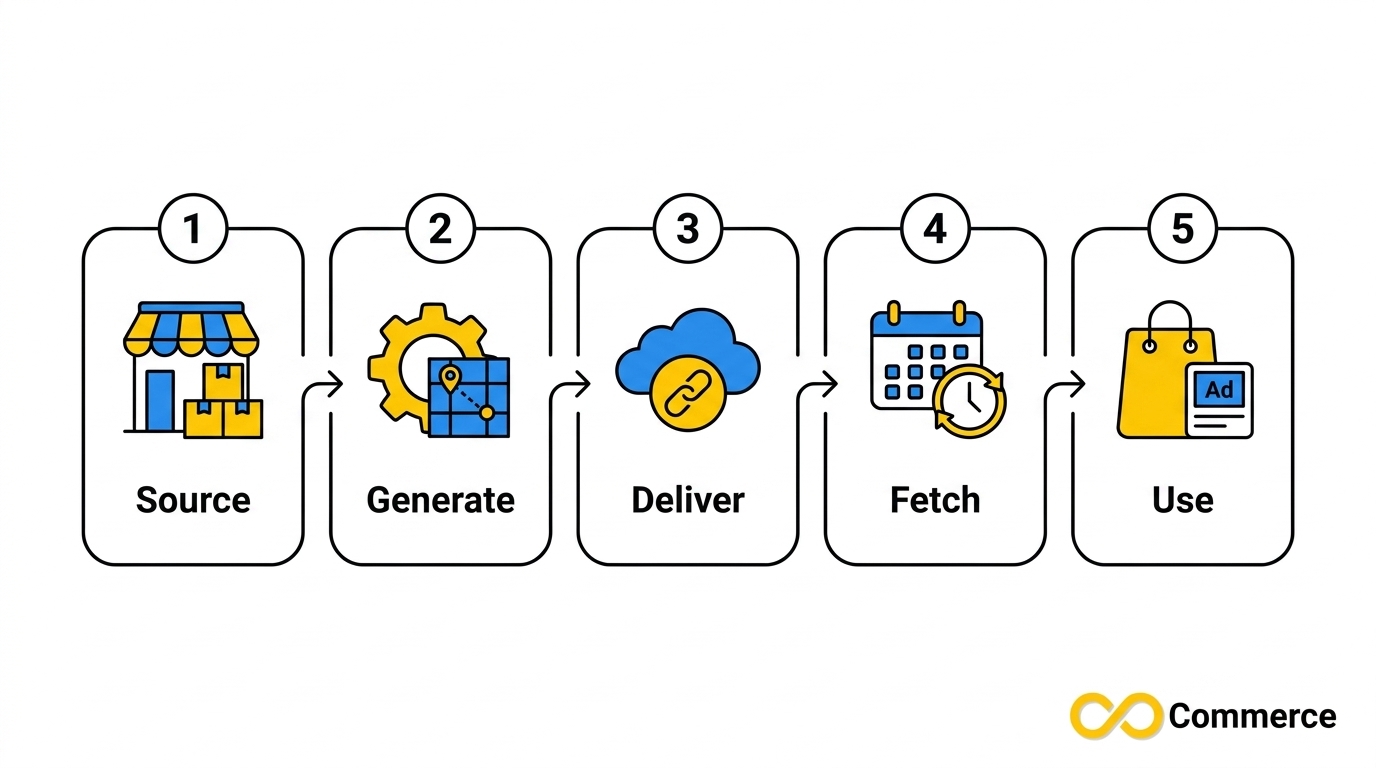
Most setups follow the same path:
- Source: Shopify holds your products, variants, prices and inventory.
- Generation: a tool maps Shopify fields to TikTok’s catalog template and applies formatting rules.
- Delivery: the feed is published at a URL, or sent through a direct integration, depending on the tool.
- Fetch: in Ads Manager, a Data Feed Schedule points at the file. You add a feed name and URL, add login details if the file is password protected, choose an upload frequency and an update method, then import.
- Use: the catalog feeds your product sets and catalog sales campaigns.
TikTok supports CSV, XML (RSS), XML (Atom), ZIP and GZ files. GZ files compressed with the tar command are not supported. The file size must be under 50GB and the catalog under 20 million products.
Why Manual Feed Updates Break Down on Shopify
Shopify stores change constantly. Inventory moves with every order, prices shift during promotions, variants sell out, new products launch and images get swapped. A manual process has to catch every one of those changes.
Take a hypothetical store with 300 products and four price changes a month. Each change means exporting, editing, checking the formatting and uploading again.
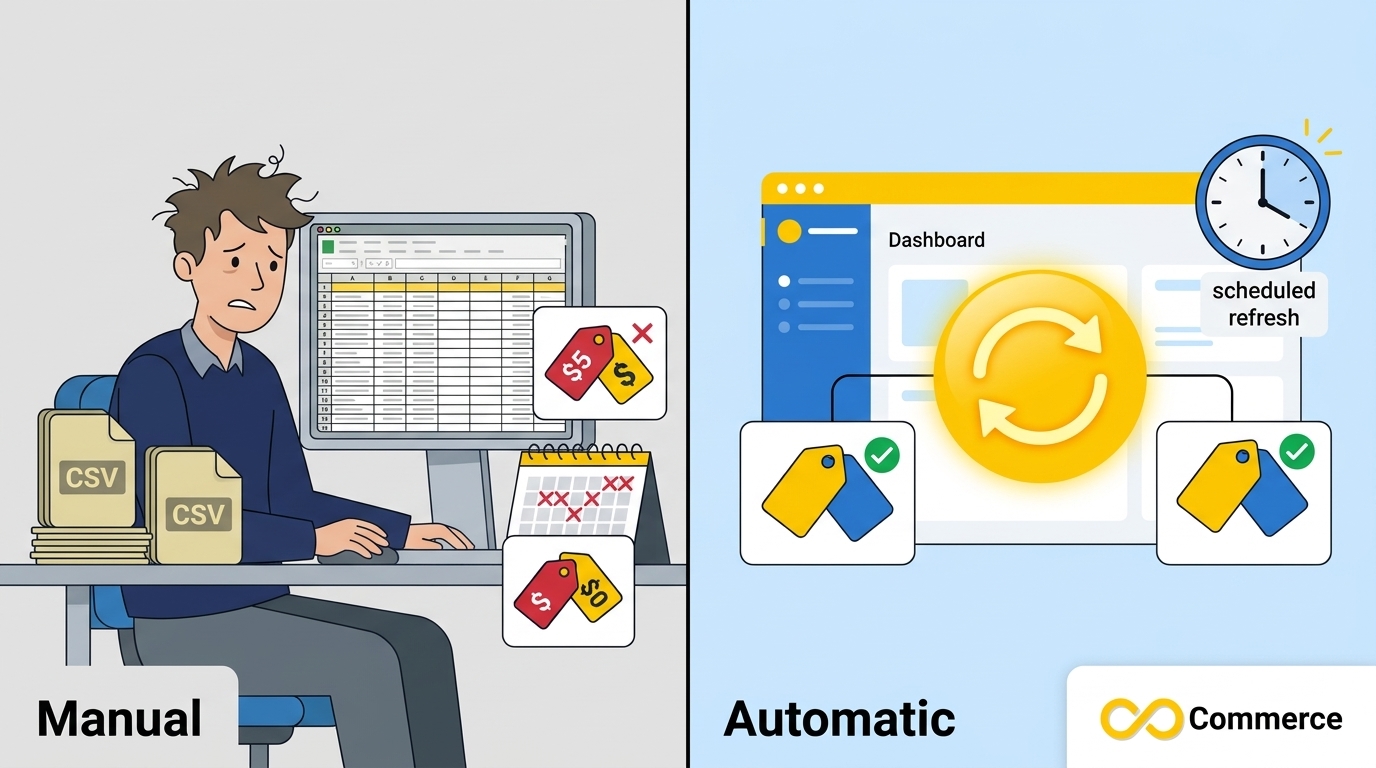
Three things typically go wrong:
- Stale data: ads show a price or stock status that doesn’t match your product page.
- Formatting slips: a wrong currency, a broken image link or a missing field. TikTok offers a “Check files” option for uploads, but you still have to remember to use it.
- Neglect: the upload gets skipped during busy periods, which is when prices change most.
Automatic feed updates remove the weakest link in that chain, which is remembering to do it.
Benefits of TikTok Feed Automation for Shopify Merchants
- Consistent data: price and availability stay aligned with your store.
- Time saved: no recurring export, edit and upload cycle.
- Fewer avoidable errors: formatting rules run the same way every time.
- Easier scaling: adding 50 new products doesn’t mean 50 new spreadsheet rows.
- Faster campaign prep: product sets and catalog sales campaigns depend on a ready catalog.
- One place to edit: your team changes data in Shopify, not in several tools.
Automation improves data hygiene. It does not guarantee ad performance, sales or rankings, because creative, targeting and offer still decide results.
TikTok Shop Channel vs. Catalog Feed: Which Do You Need?
Shopify merchants often confuse two things that sound similar. Shopify’s TikTok sales channel syncs catalog, inventory, fulfillment and orders between Shopify and TikTok Shop. A catalog feed in Ads Manager is the product data used to generate ads.
| TikTok sales channel (Shopify) | Catalog feed (Ads Manager) | |
| Main purpose | Sell on TikTok Shop | Power catalog-based ads |
| What it handles | Catalog, inventory, fulfillment, orders | Product data per TikTok’s template |
| Setup location | Shopify admin | TikTok Ads Manager |
| Key requirement | Products must meet TikTok’s guidelines for your region | Only available in launched markets with Video Shopping Ads (Catalog) |
Which one you need depends on your goals and your region. Check both TikTok’s and Shopify’s documentation for what’s available to you.
What to Look for in a TikTok Feed Tool
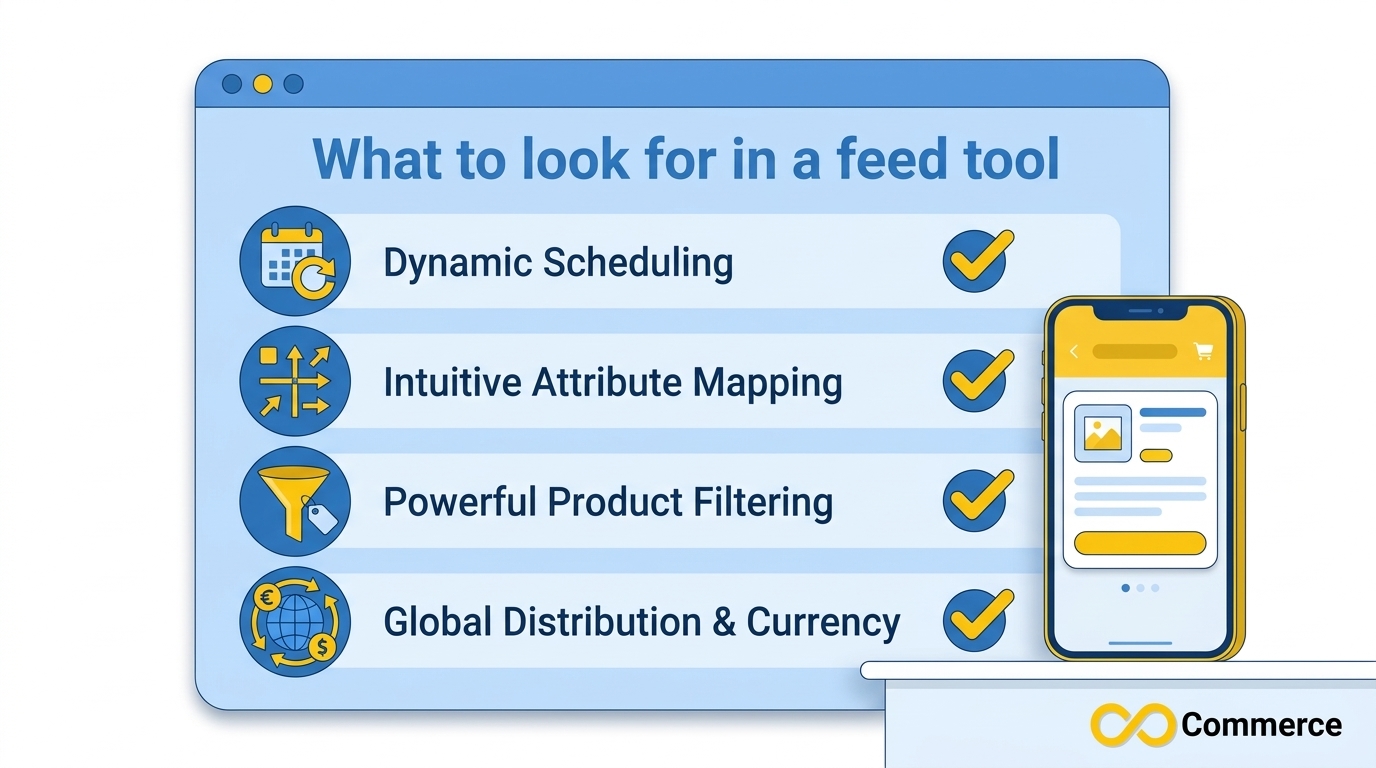
Good TikTok feed management comes down to a few capabilities.
Scheduling and Update Method
TikTok lets you choose an upload frequency and an update method when you create a Data Feed Schedule. A tool should generate a fresh file at least as often as TikTok fetches it, so the catalog never reads outdated data.
Field Mapping and Rules
TikTok’s catalog rules include Value Replacement, Set Default Value, Mapping, Change Capitalization and Regex Replace. A tool that applies similar cleanup before the feed leaves Shopify means fewer fixes inside Ads Manager.
Filters, Bulk Edits and Custom Labels
You rarely want every product in every campaign. TikTok lets you build product sets using filters or manual selection. A feed tool that supports filters, bulk edits and custom labels makes those groupings easier to maintain.
Multi-Currency and Language Support
A TikTok catalog has one default currency, which must match your listed products, and one targeting location. Multi-market sellers therefore need to plan their catalogs market by market, and a tool that handles currency and language helps.
Infinite Commerce builds Shopify apps for tracking and feeds, including a TikTok catalog app. Its product page lists automatic product sync, scheduled bulk operations, multi-currency and multi-language support, TikTok Pixel integration, and AI-powered product optimization suggestions. Plan limits and sync frequency vary, so confirm the current details on the Shopify App Store listing before you decide.
How to Set Up TikTok Feed Automation on Shopify
Before you start, make sure you have a TikTok Ads Manager account. Confirm that catalog features are available in your market, since TikTok notes they are only offered in launched markets with Video Shopping Ads (Catalog).
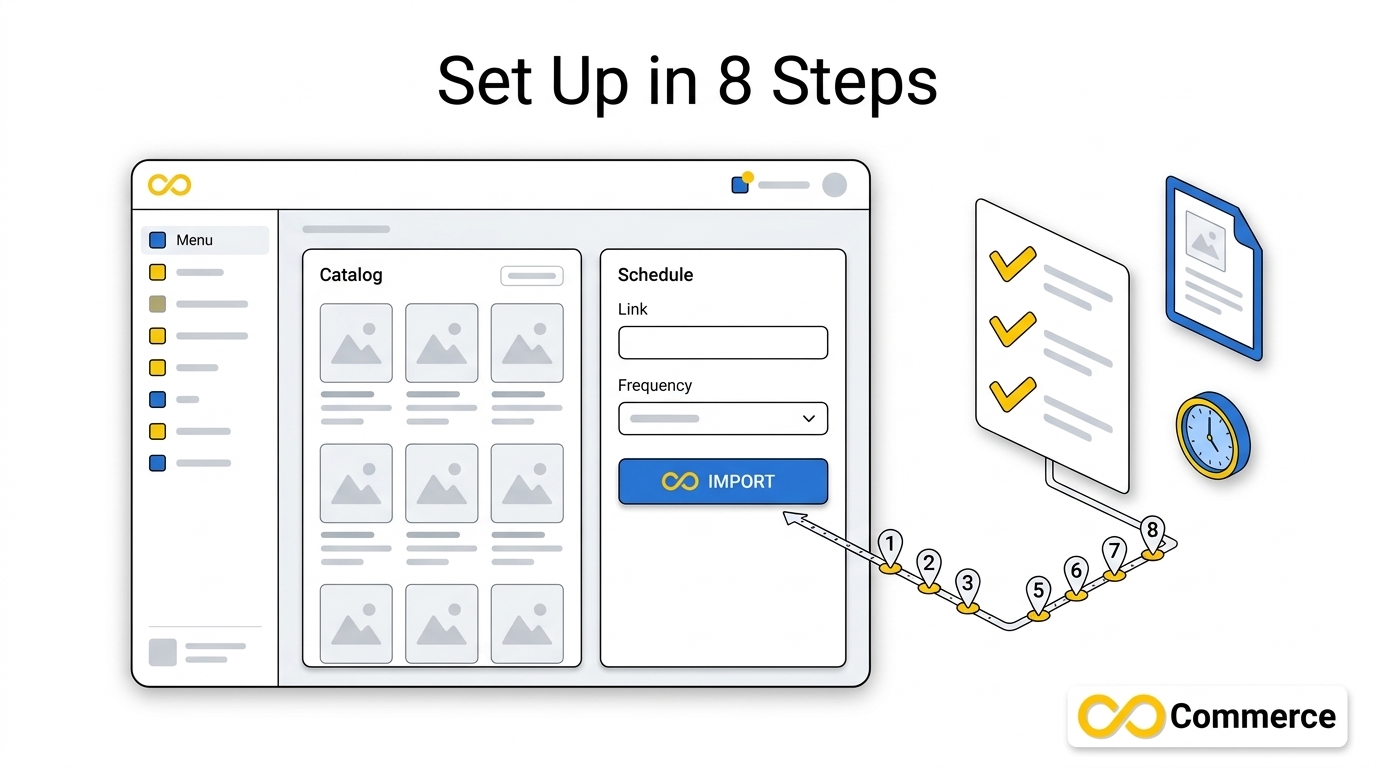
Step 1: Audit your Shopify data. Check titles, descriptions, images, prices, availability and product links. Clean data in means clean data out.
Step 2: Create your catalog. In Ads Manager, go to Assets, then Catalog, then Create. Enter a catalog name, select a default currency that matches your products, and choose a targeting location.
Step 3: Download the template. Open your catalog, then Manage, then Products, then Add Products, then Download Template. Use it as your reference for required fields.
Step 4: Generate your feed. Use your chosen TikTok feed tool to map Shopify fields to the template and produce the file or URL.
Step 5: Add a Data Feed Schedule. Choose Data Feed Schedule, then enter the feed name, URL and login details if needed. Select the upload frequency and update method, then click Import.
Step 6: Add catalog rules. Under Product Sources, open your source and go to Settings, then Add Rules. TikTok lets you apply rules now, on every future update, or both.
Step 7: Build product sets. Group products by shared characteristics so you can promote specific ones in a Catalog Sales campaign.
Step 8: Test. Change a price in Shopify, wait for the next scheduled fetch, and confirm the catalog updated.
Menu paths in TikTok’s guide were last updated in January 2026, so the interface may differ slightly when you follow along.
Common Mistakes That Break TikTok Feed Automation
- Currency mismatch: the catalog currency must match your product currency.
- Blocked or protected feed URLs: TikTok can’t fetch a file it can’t reach. Add login details if the file is password protected.
- Not understanding the update method: know how your chosen method treats existing products before you rely on it.
- Editing in the wrong place: if the feed overwrites data, manual edits in TikTok may not last. Make changes in Shopify instead.
- Skipping market checks: confirm catalog availability for your region first.
- Set and forget: automation still needs periodic review.
Best Practices for Automated TikTok Feed Management
- Edit at the source. Treat Shopify as the master record.
- Write for shoppers first. Clear titles and accurate descriptions help both people and catalog quality.
- Use strong, consistent images. Broken or low-quality image links cause problems at upload.
- Group with product sets. Separate bestsellers, sale items and new arrivals.
- Audit on a schedule. Review catalog diagnostics monthly and after big promotions.
- Document your rules. Note what each catalog rule does, so a teammate can understand it later.
- Test before big sales. Run a price and stock change check before Black Friday.
For more ecommerce guides, browse the Infinite Commerce blog.
Where Tracking Fits In: Feed and Pixel Work Together
A feed tells TikTok what you sell. A pixel tells you what shoppers do with it. Without tracking, you can’t judge whether your catalog is producing conversions. The Infinite Commerce Facebook and TikTok Pixel app covers the pixel side. If you’re new to the concept, start with this explainer on how tracking pixels work in e-commerce.
Conclusion
For a growing Shopify store, TikTok feed automation is mostly about trust: trust that the price in your ad matches the price on your page, and that the product shown is actually in stock. Set up the catalog correctly, pick a TikTok feed tool that fits your product count and markets, and review it regularly.
Ready to put your catalog on autopilot? Take a look at the Infinite TikTok Catalog Feed and see whether it fits your store.
FAQs
It generates your product file from Shopify data and lets TikTok fetch it on a schedule. Prices, stock and product details stay current without manual re-uploads.
TikTok’s Data Feed Schedule lets you select an upload frequency. Available options can change, so check Ads Manager. Your feed tool’s plan may also affect how often a fresh file is generated.
They serve different goals. The Shopify channel syncs catalog, inventory, fulfillment and orders for TikTok Shop. A catalog feed powers catalog-based ads. Which you need depends on how you sell and which markets you’re in.
CSV, XML (RSS), XML (Atom), ZIP and GZ, with a size limit under 50GB and fewer than 20 million products. Tar-compressed GZ files aren’t supported.
TikTok’s catalog guide points to a separate article for importing a catalog from Google Merchant Center. Review it to see whether that route fits your setup.
No. It keeps your data accurate and saves time. Results still depend on creative, targeting, pricing and demand.
