 Amber Naz
Quick Summary
A TikTok feed refresh is the moment your product data inside TikTok’s catalog is replaced or updated with a newer version of your product feed. TikTok does not watch your store live. It updates your catalog when a scheduled fetch runs, so the schedule you pick decides how fresh your prices, stock levels and product details are inside your ads.
- Most stores: a daily schedule is a sound default.
- Fast-moving stock or frequent price changes: use hourly.
- Stable catalogs: a weekly schedule can be enough.
- Timing matters as much as frequency: set TikTok’s fetch to run after your feed finishes generating.
- Always verify: check the upload log for your product source after every schedule change.
Picture an ad that promotes a jacket at the old price, or a product that sold out yesterday. Shoppers click, find a mismatch and leave. That wasted click is what a stale catalog costs you, and it is almost always a scheduling problem rather than a creative one. This guide explains how often TikTok updates your catalog, how the pieces fit together, and how to choose a schedule that matches the way your store actually behaves.
What Is a TikTok Feed Refresh?
Three terms get mixed up, so it helps to separate them.
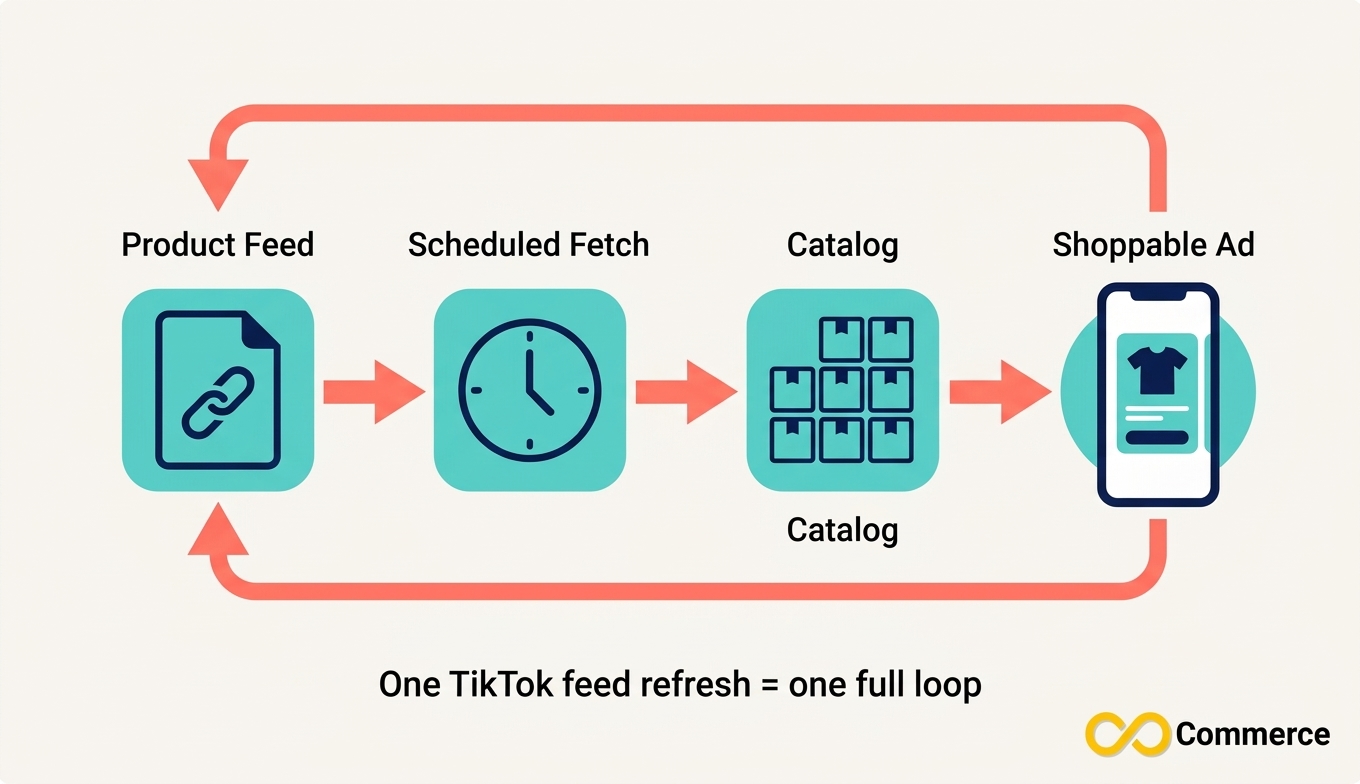
- Product feed: a file, usually CSV or XML, that lists your products with fields such as ID, title, price, availability and image link. It sits at a URL your feed tool or store app maintains.
- Catalog: according to TikTok’s help center, a catalog is an asset in TikTok Ads Manager that stores and manages information about your products, which you can then use to generate ads.
- Scheduled fetch: the Data Feed Schedule option, where TikTok automatically adds products from an online file according to a schedule you set.
Put them together and a refresh is simply one pass of that loop: your feed holds the latest data, TikTok fetches it, and the catalog is updated. The rest of this article is about controlling how often that loop runs and making sure each pass carries fresh information.
A quick clarification: TikTok also lets viewers reset their personal For You feed from their content preferences. That is a consumer setting and has nothing to do with product data. Everything below is about your product catalog.
How Often Does TikTok Update Your Catalog?
TikTok updates your catalog as often as your scheduled fetch is set to run. During Data Feed Schedule setup you choose an upload frequency and an update method. TikTok’s help documentation describes hourly and daily choices, and its Streaming Ads catalog guide lists Hourly, Daily, Weekly and Monthly. The exact options in your account can vary by catalog type and market, so confirm what your Ads Manager shows.
That is the short answer to “how often tiktok updates” product data: only when the schedule you set triggers a fetch, or when you upload or edit products yourself.
Hourly, daily, weekly and monthly: what each means
- Hourly: TikTok checks your feed URL several times a day. This suits stores where stock or prices move constantly.
- Daily: one fetch every 24 hours. For most Shopify stores this balances freshness with simplicity.
- Weekly: suited to catalogs that rarely change, such as a small curated range.
- Monthly: rarely useful for ecommerce ads. It fits reference-style catalogs more than shops with live stock.
What happens between fetches
Between two fetches, your catalog reflects the last data it received. If you change a price in Shopify at 10:00 and TikTok’s next fetch is at 03:00 the following morning, ads can show the old price for hours. This gap is normal and predictable once you understand the three clocks below.
The Three Clocks Behind Every TikTok Catalog Refresh
Most guides stop at “choose hourly or daily.” The part they skip is that a TikTok catalog refresh depends on three separate clocks, and the total delay is the sum of all three.
- Clock 1, your store: when you actually change a price, stock count or description.
- Clock 2, feed generation: when your feed tool or app rebuilds the feed file from store data. If it rebuilds once a day, the file can be up to a day behind your store.
- Clock 3, TikTok’s scheduled fetch: when TikTok picks up the file from your URL.
A worked example of stacked delays
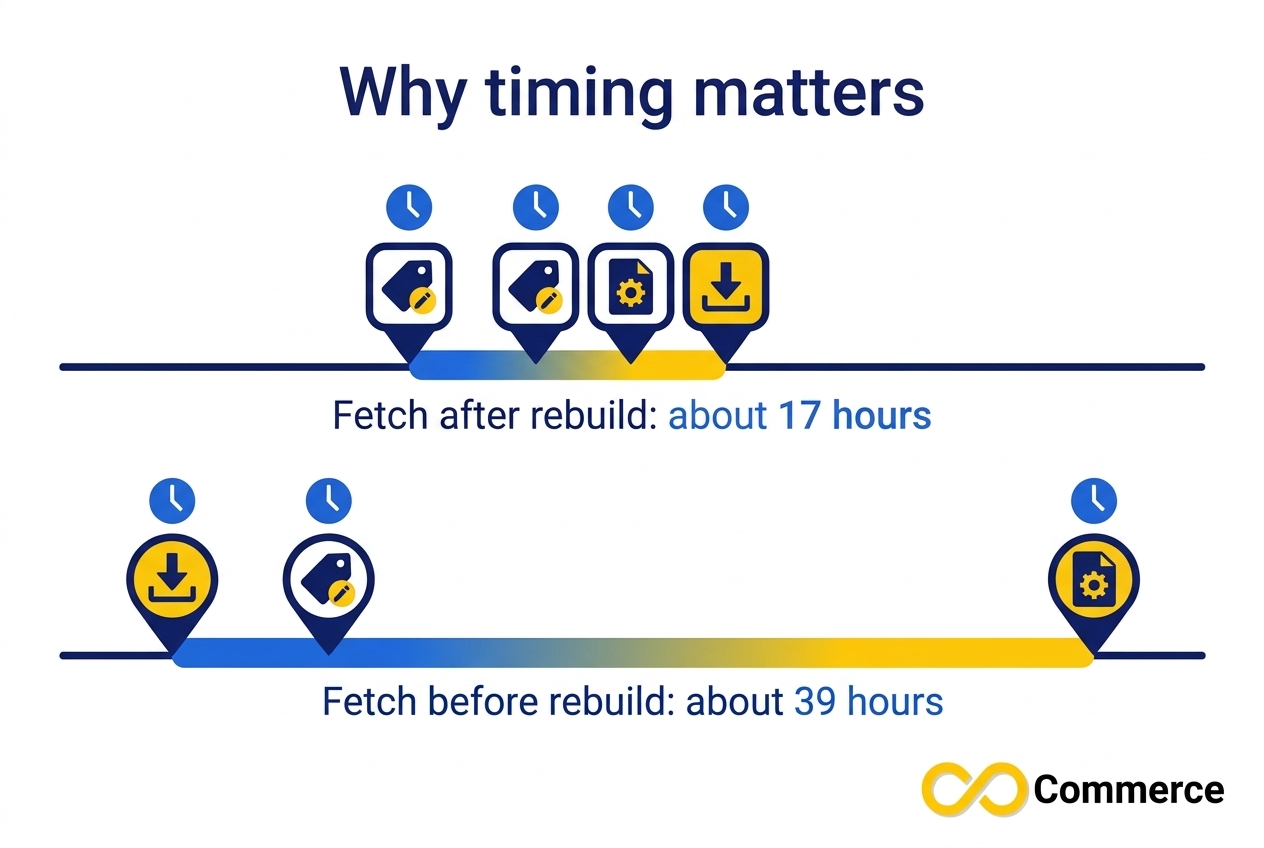
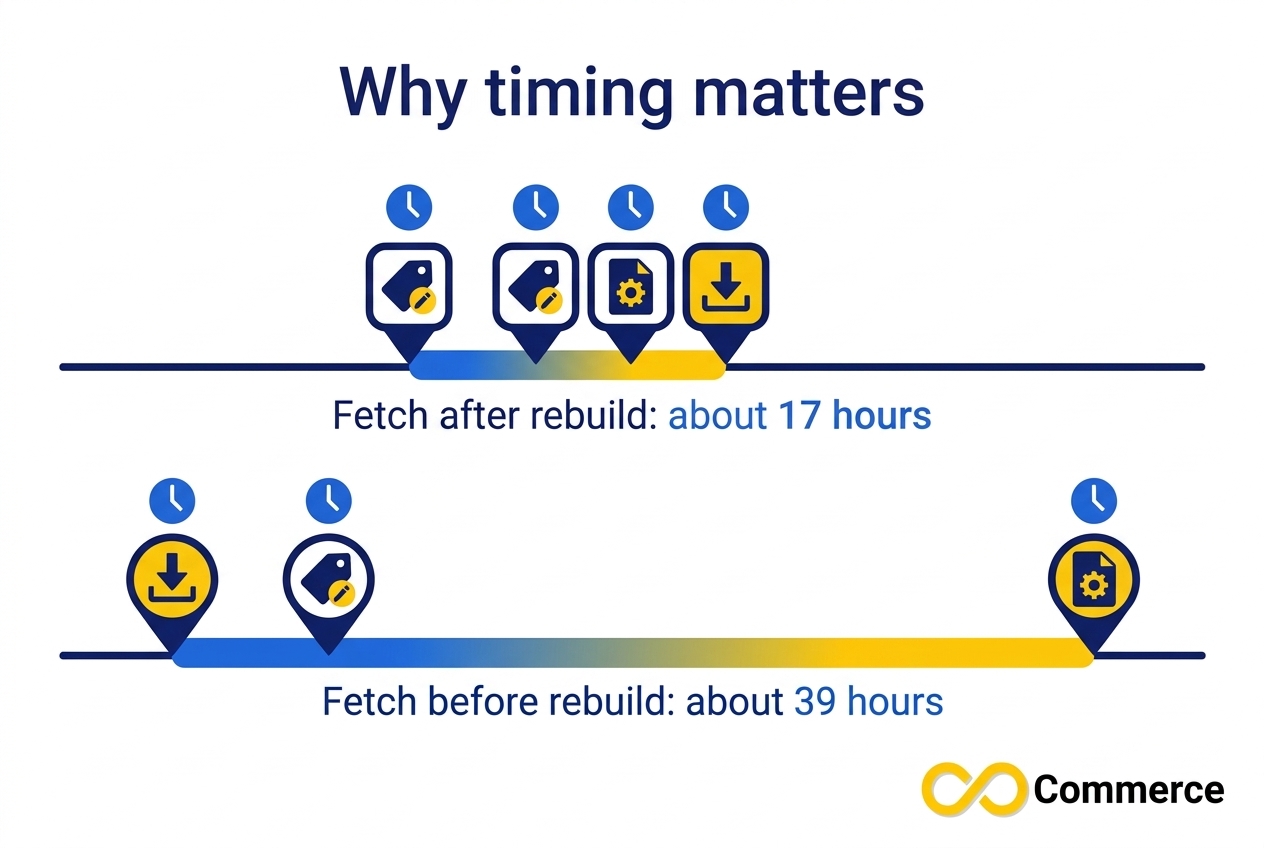
Suppose your feed rebuilds daily at 02:00 and you change a price at 10:00 on Tuesday.
- Fetch set for 03:00: the feed rebuilds at 02:00 Wednesday, TikTok fetches at 03:00 Wednesday, and the new price reaches the catalog about 17 hours after your edit.
- Fetch set for 01:00: TikTok fetches an hour before the feed rebuilds, so it grabs the old file. The new price arrives at 01:00 Thursday, about 39 hours after your edit.
The frequency is identical in both cases. Only the timing changed. The practical rule: schedule TikTok’s fetch shortly after your feed finishes generating, never before it. If you run hourly fetches, make sure your feed also regenerates at least hourly, or the extra fetches just download the same file repeatedly.
How to Choose Your TikTok Feed Refresh Schedule
There is no official TikTok rule that says “stores like yours must use this frequency.” The guidance below is practical advice built from how the pieces work, so treat it as a starting point and adjust with your own data. Ask four questions:
- How often do prices change? Daily or hourly changes call for daily or hourly refreshes.
- How quickly does stock run out? Limited drops and small inventories need faster updates than deep stock.
- Are you running catalog ads right now? Active campaigns make stale data costly. A paused catalog is less urgent.
- How often does your feed itself regenerate? Your TikTok schedule cannot be fresher than the feed behind it.
Recommended TikTok feed update frequency by store type
| Store type | Suggested schedule | Why |
| Fashion or beauty store with steady stock | Daily | Prices and variants change occasionally, not hourly |
| Limited drops, flash sales, low inventory | Hourly | Selling out or price changes happen fast |
| Dropshipping with supplier stock changes | Daily or hourly, matched to supplier sync | Your feed is only as fresh as supplier data |
| Small curated range, few changes | Weekly | Fewer changes mean fewer fetches needed |
| Seasonal catalog between seasons | Weekly, then daily near launch | Save effort when nothing is moving |
This table shows a sensible TikTok feed update frequency for common situations, but your own sales data should be the final judge.
Setting the TikTok Feed Refresh for Fast-Moving Stock
If products sell out quickly, an hourly schedule is the realistic choice. Pair it with a feed that rebuilds at least hourly, and keep the availability field accurate, since that is the field shoppers feel most when it is wrong. Review the upload log after a sale starts to confirm fetches are completing on time.
Stable catalogs and seasonal products
If your range barely changes, daily is already generous and weekly may be fine. Avoid the opposite error, though: a “set and forget” weekly schedule is risky the week you change prices. When you plan a promotion, move to daily a few days beforehand.
Matching your schedule to sale periods
Promotions are when the cost of stale data rises. Before a sale, raise your frequency, confirm your discount prices are in the feed, and set a reminder to return to your normal schedule afterwards.
How to Set Up a TikTok Scheduled Fetch
The steps below follow TikTok’s own catalog documentation. Menu labels can change, so use TikTok’s in-product help if a name differs slightly. TikTok also notes that catalogs are only available in launched markets with Video Shopping Ads (Catalog) capabilities.
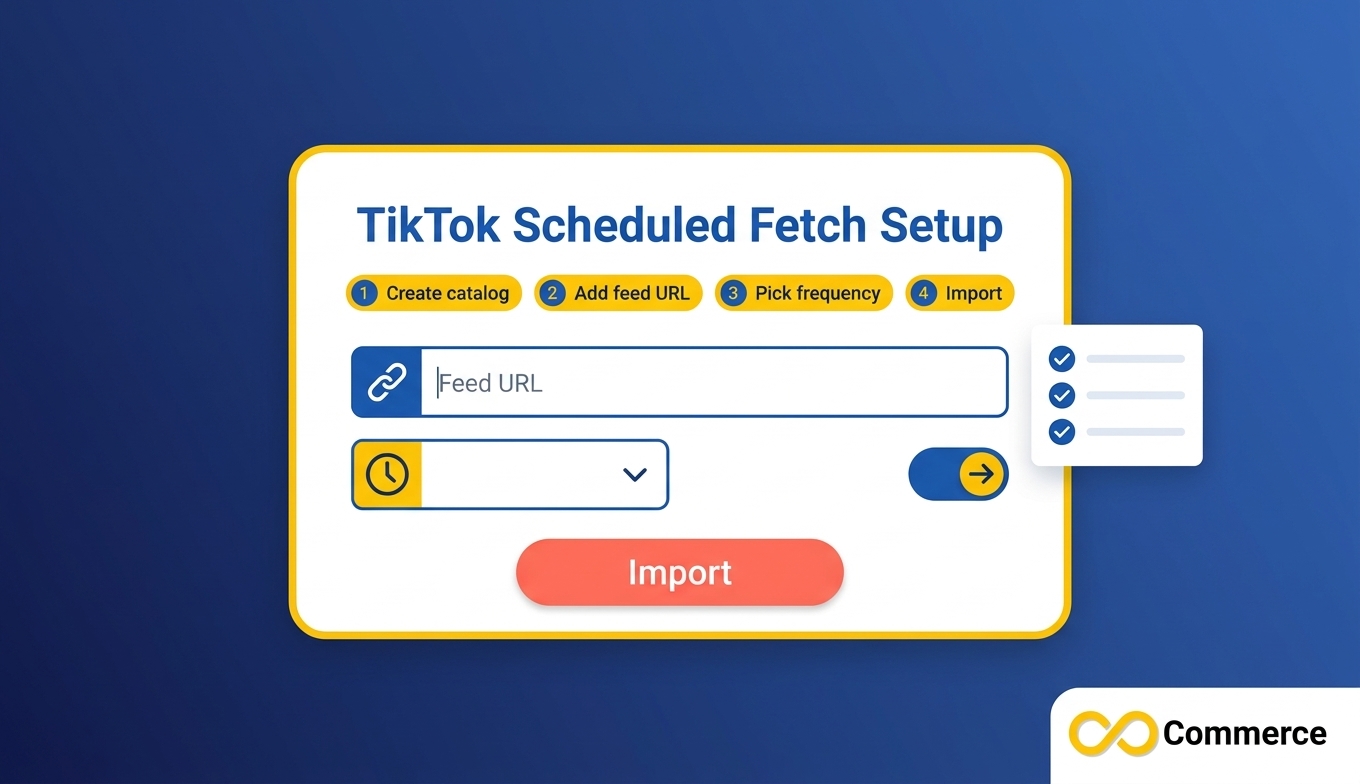
- Create a catalog. In TikTok Ads Manager, open Assets, choose Catalog, and click Create. Enter a catalog name, a default currency that matches your listed products, and a targeting location.
- Add products. Inside the catalog, choose Add Products and select Data Feed Schedule.
- Enter your feed details. Add a data feed name and your feed URL. If the URL is password protected, add login details.
- Pick the upload frequency and update method. This is your tiktok scheduled fetch frequency, so use the decision framework above.
- Click Import. TikTok pulls in your products.
- Check the result. Review the upload log before you rely on the catalog for campaigns.
TikTok lists the supported file formats as CSV, XML (RSS), XML (Atom), ZIP and GZ, with a file size under 50GB and fewer than 20 million products. If you already maintain a Google Merchant Center feed created with the Scheduled Fetch method, TikTok also offers a Google Merchant Center import as an alternative to its scheduled data feed.
Tip: keep the feed URL reachable
A scheduled fetch can only succeed if TikTok can reach the file. Keep the feed URL working over HTTPS, avoid putting it behind login pages or restrictive firewall rules, and test it in a browser before you save the schedule.
TikTok Feed Schedule Examples
These are illustrative setups, not TikTok requirements.
Example 1: A small Shopify store with 200 products. Prices change a few times a month and stock is deep. Feed rebuilds daily at 01:30, and the TikTok fetch is scheduled daily at 02:30. Simple, reliable and easy to monitor.
Example 2: A store running a weekend flash sale. Normally on a daily tiktok feed schedule, the owner switches to hourly on Thursday evening, confirms sale prices are in the feed, and returns to daily on Monday. Hourly fetches only help here because the feed also regenerates hourly.
Example 3: A dropshipping store tied to supplier stock. The supplier updates inventory twice a day. A daily fetch would miss the second update, so the store matches its schedule to the supplier’s cadence. Without that match, TikTok could advertise products the supplier has already sold out.
How to Check That Your Refresh Worked
A schedule is only a promise. The upload history shows what actually happened.
According to TikTok’s guide to managing catalogs, each product source has an Overview that shows the number of products it owns, an upload log with the upload history, and an upload schedule. The Settings area lets you create rules and choose an upload schedule.
Here is a simple weekly routine:
- Open the product source and check the most recent upload in the log.
- Compare product counts with your store. A big gap suggests products are missing or filtered out.
- Spot-check three products, comparing price and availability in the catalog against your live store.
- Review rules. TikTok lets you choose whether catalog rules apply only now, to every future update, or both, so confirm your rules still apply after each refresh.
One more detail from TikTok’s documentation: each product needs a unique SKU ID, even if products come from different data sources, and the SKU ID cannot be edited after a product is added. A stable, consistent ID in your feed is what lets later fetches update the right product instead of creating a duplicate.
How Infinite TikTok Catalog Feed Handles Refresh
If you sell on Shopify and want a feed that updates without manual work, the Infinite TikTok Catalog Feed app is built for this job. According to the app page, it syncs your Shopify catalog to TikTok, supports multi-currency and multi-language listings, and includes scheduled bulk operations and TikTok Pixel integration. Its plans list daily feed sync, and the page describes the app updating your TikTok catalog when store inventory changes. Check the app listing for the current sync options on each plan before you decide.
The benefit of an app-managed feed is that the feed always matches your store. Clock 2 in the earlier example, feed generation, is handled for you instead of becoming a script you maintain. That makes the schedule you choose in TikTok easier to reason about.
Keep tracking in step with your catalog
Fresh catalog data is only half of a catalog campaign. The other half is knowing what shoppers do after the click. Infinite Commerce also offers a Facebook and TikTok Pixel app for tracking, and it is worth checking in TikTok’s documentation that your tracking and catalog setup are configured to work together before you scale spend.
Planning Your TikTok Feed Update Frequency for Peak Season
Promotional periods put the most pressure on your refresh schedule. Prices drop, stock moves fast, and campaigns spend more per day. If you are preparing for Black Friday, add your TikTok catalog to your wider prep list. Our Shopify Black Friday checklist covers the store-side preparation, and your feed schedule is one more item on it. A simple peak-season plan:
- One week before: move from weekly or daily to the frequency you will need during the sale.
- A day before: load sale prices into your store and confirm they appear in your feed.
- During the sale: check the upload log at least once a day and spot-check high-traffic products.
- After the sale: restore regular prices, then return to your normal schedule.
Common TikTok Feed Refresh Mistakes to Avoid
- Scheduling the fetch before the feed rebuilds. This is the 39-hour trap from the worked example.
- Choosing hourly with a daily feed. TikTok keeps downloading the same file.
- Setting a schedule and never checking the log. A failing fetch can sit unnoticed for days.
- Ignoring availability. Price errors are visible, but stock errors cost you clicks and trust.
- Changing product IDs. Changing IDs can create duplicates instead of updates.
- Forgetting to move back from a promotion schedule. Extra fetches that serve no purpose add noise to monitoring.
For more practical Shopify marketing guides, browse the Infinite Commerce blog.
What to Do When Your Catalog Is Not Updating
If your catalog looks stale, work through these checks in order:
- Check the upload log. Look for the latest upload and any errors.
- Confirm the feed URL works. Open it in a browser. It should return a current file.
- Check feed generation. If your feed tool rebuilds the file on its own schedule, confirm that job is still running and that site caching is not serving an old copy.
- Compare timing. Make sure the fetch runs after the feed rebuild.
- Review file format and size. Confirm the file is one of the supported formats.
- Check the SKU ID. Make sure IDs are unique and consistent across fetches.
- Re-import if needed. If you urgently need fresh data, use TikTok’s manual upload options while you fix the schedule.
Conclusion
Good catalog freshness comes from three things working together: a feed that rebuilds on time, a TikTok fetch scheduled right after it, and a habit of checking the upload log. Start with daily, move to hourly when your stock or prices move fast, and relax to weekly only when your range is stable. Most importantly, match your schedule to the way your store behaves, not to a generic rule.
If you would rather not manage feed files by hand, explore the Shopify apps at Infinite Commerce, including the TikTok Catalog Feed app, and set up a catalog that stays in step with your store.
FAQs
TikTok updates your catalog when your scheduled fetch runs. You choose the upload frequency during Data Feed Schedule setup, with hourly and daily the most common choices. Between fetches, the catalog shows the last data it received.
Daily works for most stores. Choose hourly when prices or stock change quickly, and weekly when your catalog rarely changes. Make sure your feed regenerates at least as often as your TikTok schedule.
No. A scheduled fetch is periodic, so changes appear after the next fetch, not at the moment you edit a product. For the shortest delay, use a frequent schedule and a feed that regenerates just as often.
Raise your frequency a few days before the sale so new prices and stock levels are already flowing into the catalog. Confirm sale prices in the feed, check the upload log during the event, and return to your normal schedule afterwards.
The most common causes are a feed URL that TikTok cannot reach, a feed that has not regenerated, a fetch scheduled before the rebuild, or errors in the upload log. Work through the troubleshooting checklist above in order.
No. Refreshing a For You feed is a viewer setting that resets personal recommendations. A product feed refresh updates your catalog data in TikTok Ads Manager.
