 Amber Naz
Quick Summary
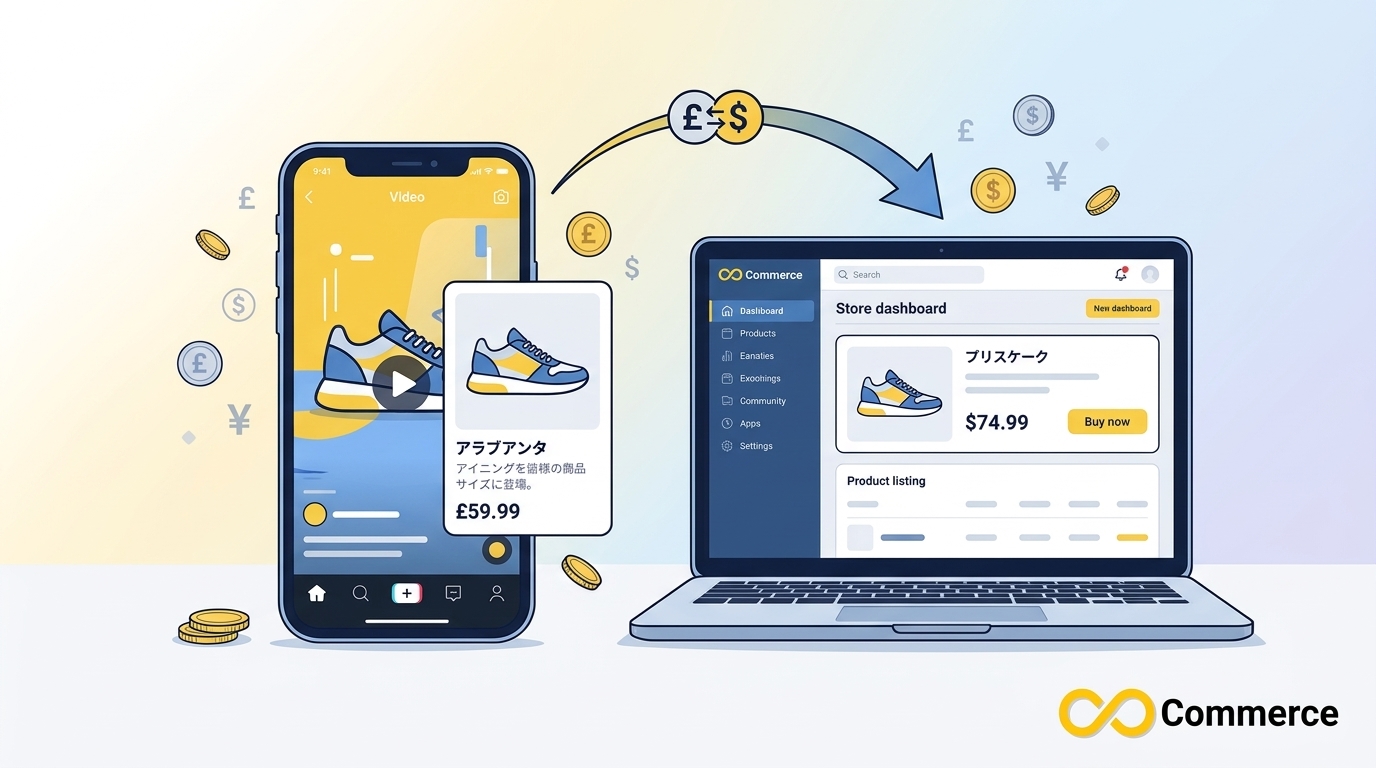
TikTok Shop currency is the currency used for a shop’s listings, checkout and payouts, and it follows the country or region where the shop is registered. Prices from Shopify have to reach TikTok in that same currency, or products can fail to sync or show the wrong price. In short:
- Compare your Shopify default currency with the currency of the TikTok Shop you are connecting.
- If they differ, price products through a Shopify market in the right currency, or set a fixed conversion rate in your sync tool.
- Selling in a TikTok local currency usually means connecting a shop for that region rather than flipping a switch on one shop.
- In catalog feeds, write prices as a number plus a three-letter ISO 4217 code, such as 19.99 USD.
- Recheck prices after every exchange-rate change, sale or sync.
This guide from Infinite Commerce is for Shopify merchants who sell, or plan to sell, on TikTok Shop. It explains how Shopify TikTok currency settings fit together, what to verify before you sync, and how to prevent price mismatches. TikTok Shop availability, fees and sync features change often, so confirm current details in your Seller Center and the Shopify TikTok app before you launch.
What Is TikTok Shop Currency and Why Does It Matter?
The currency of a TikTok Shop is the one shoppers see on product pages, pay in at checkout and find in their order records. It is set by the region where the shop is registered: a UK shop works in pounds (GBP) and a US shop in US dollars (USD). Integration provider AutoDS, for example, lists the selling currency for TikTok Shop stores in France, Spain, Ireland, Germany and Italy as fixed to euros. In practice, you match your Shopify pricing to the shop’s currency rather than choosing a currency freely.
That matters for four reasons:
- Price accuracy. TikTok’s catalog documentation warns that prices should match your landing page, and that mismatches can hurt ad impressions or conversions.
- Sync success. Sync tools may pause or reject products when currencies do not line up. AfterShip’s help center, for instance, says a store connected to a UK TikTok Shop that sells in GBP should support GBP.
- Margins. Converted prices drift as exchange rates move, which quietly changes your profit on every order.
- Customer trust. A price that changes between a TikTok video and checkout can cost you the sale.
Key terms at a glance
| Term | What it means |
| ISO 4217 | The international standard for three-letter currency codes such as USD, GBP and EUR |
| Shopify Markets | Shopify settings for selling to specific countries or regions with their own currency and pricing |
| Sync app | An app or channel that sends Shopify products, prices and inventory to TikTok |
| Catalog feed | A structured product file (CSV, TSV or XML) that powers TikTok ads |
How Currency Works Between Shopify and TikTok
Shopify and TikTok each keep their own currency settings. Your TikTok channel or sync app sits between them and decides which Shopify price travels to TikTok.
Shopify default currency and market currencies
A Shopify store has one default currency and can add others through Markets. According to AfterShip’s description, a market can cover several countries or regions, but each country or region can belong to only one market. You manage this under Settings > Markets in your Shopify admin. When a sync tool is pointed at a market, products are published to TikTok using that market’s currency and prices.
Where the two settings can disagree
Trouble starts when your Shopify default currency is, say, USD while your TikTok Shop is in the UK and sells in GBP. Some sync apps check this during onboarding. They compare the TikTok currency with your Shopify default currency, then with your active market currencies, and if nothing matches they ask you to set a conversion rate. AfterShip documents that flow in its currency matching guide. Your own tool may behave differently, so read its documentation.
TikTok Shop Multiple Currencies: Can One Shop Sell in Many?
Short answer: one TikTok Shop sells in one currency, the one tied to its region. So TikTok Shop multiple currencies usually means several shops, one per region, each connected to your Shopify store. TikTok’s catalog documentation follows a similar logic, stating that currency follows the catalog’s target country by default.

Sync tools are built around this model. AfterShip’s help center describes one Shopify store connected to two TikTok Shops, one in GBP and one in USD, with prices aligned for each. Other connectors, such as eBooster, advertise listing across 13 TikTok markets. Check any tool’s current listing for supported regions before you commit.
Expanding also involves more than currency. Third-party guides, including one from Dropified, note that each TikTok Shop region has its own Seller Center along with separate compliance, tax and fulfillment requirements. Confirm that you can register for the region first, then plan your pricing.
TikTok multi currency vs. your Shopify storefront
Shopify Markets can show visitors to your own website prices in their local currency. TikTok multi currency works differently: shoppers inside TikTok typically see the currency of the shop they are buying from. Price each product once per market, then compare your storefront and TikTok so both tell the same story.
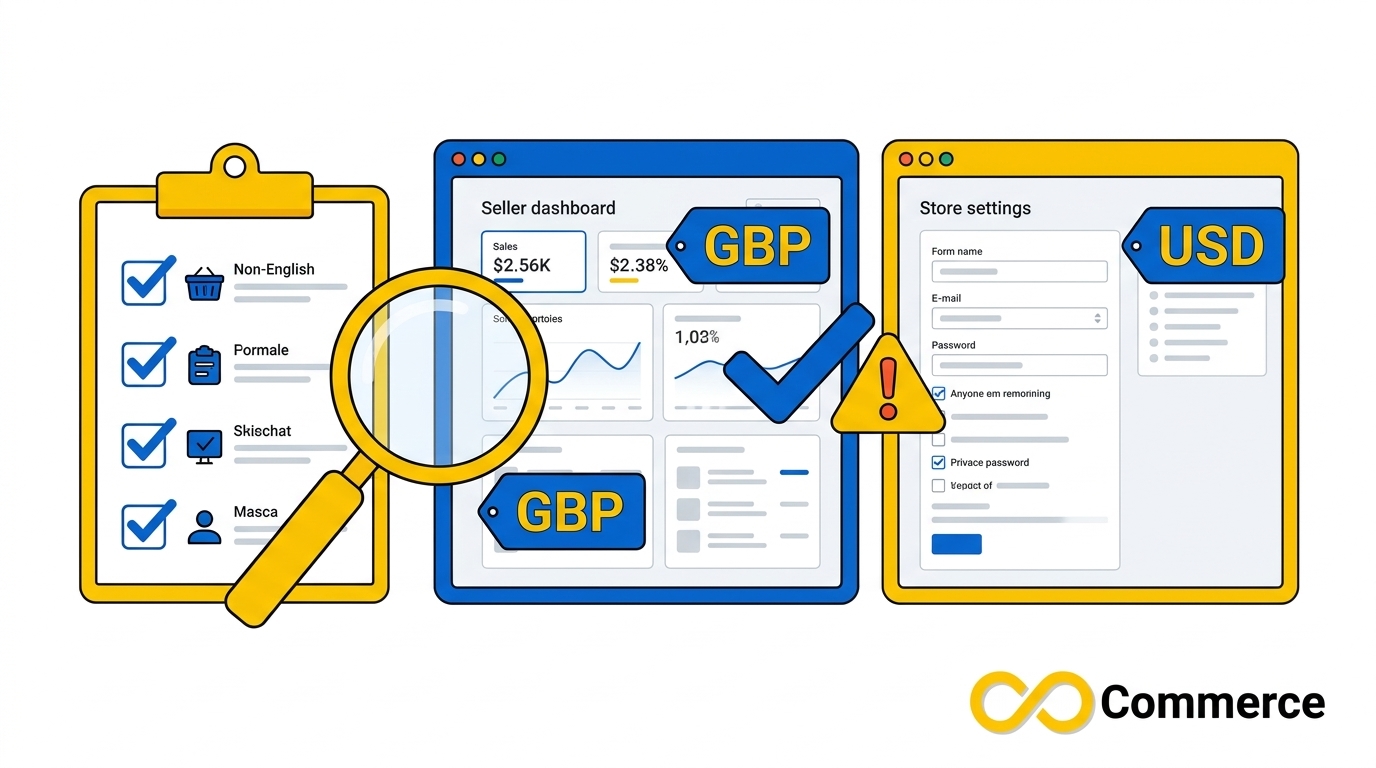
How to Check Your TikTok Shop Currency Before You Sync
Run this short audit before you connect products:
- Open Seller Center for the region you sell in and note the shop’s registered country and the currency used for prices and payouts.
- Open Shopify and go to Settings > Markets. List your default currency and the currency of every active market.
- Compare. If the TikTok currency equals your default currency or an active market currency, you can usually sync directly. If several markets share that currency, pick the correct one.
- Choose an alignment method from the next section if nothing matches.
- Test one product. Sync a single item and compare its Shopify and TikTok prices before you push the full catalog.
Menu labels change over time, so if a setting is not where you expect it, search the Shopify Help Center or your sync tool’s documentation.
Shopify TikTok Currency Setup: Three Ways to Align Prices
There are three common ways to line up your currency settings. Choose based on how much of your business sells in the target currency.
Match Your TikTok Shop Currency to a Shopify Market
This is best when you already sell, or want to sell, to that country with its own price list.
- In Shopify, create or activate a market for the target country and set its currency.
- Review the prices for that market, including any rounding rules you use.
- In your TikTok channel or sync app, select that market for the TikTok Shop.
- Sync a test product and compare prices.
With AfterShip, for example, a market price is read directly from Shopify and sent to TikTok without an extra exchange-rate calculation. That keeps pricing decisions in Shopify, where you control them.
Use a Fixed Conversion Rate
If no market fits, many sync tools let you enter a rate. In AfterShip’s example, a store in HKD connected to a GBP shop uses a rate of 0.1, which turns HKD 15.99 into about GBP 1.60. The rate is a number you set, so it does not follow the market unless you update it. It is the quickest way to match TikTok Shop currency without building a new Shopify market, but it needs regular review.
Change Your Store Currency (Only When It Makes Sense)
If nearly all your business sells in the TikTok region’s currency, changing your Shopify store currency can remove the mismatch. It affects your whole store, including prices and reporting, so treat it as a business decision rather than a quick fix. AfterShip says its feed picks up a changed store currency within about an hour.
| Method | Best for | Watch out for |
| Shopify market | Stores with real demand in that country | Needs market and price setup |
| Fixed conversion rate | Quick tests and small catalogs | Rate drifts; manual updates |
| Store currency change | Businesses that sell mainly in one currency | Affects the whole store |
Three Common Scenarios
Scenario 1: USD store adding a UK shop. Your Shopify default is USD and the new TikTok Shop sells in GBP. Create a UK market priced in GBP and select it in your sync tool, or start with a fixed rate while you test demand.
Scenario 2: GBP store selling in the US. Your default is GBP and your TikTok Shop is in the US. AfterShip gives this exact case as an example: connect a US market so prices appear in USD. This keeps your TikTok local currency pricing inside Shopify.
Scenario 3: One store, two TikTok Shops. You connect a GBP shop and a USD shop to the same Shopify store. Give each shop its own market or rate, check both after each sync, and track results separately so one region’s rate change does not hide in the other’s numbers.
How to Write TikTok Price Currency in a Catalog Feed
If you also run ads from a product catalog, currency lives in the feed too. TikTok’s catalog product parameters say the price field is the cost of the item and that currency follows the catalog’s target country by default. For sale_price, TikTok specifies a number followed by an ISO 4217 currency code, with a period as the decimal separator, such as 4.99 USD, and it repeats that prices should match your landing page. That documentation covers catalog ads and may differ from the product sync used by Shopify’s TikTok Shop channel, so check which one applies to you.
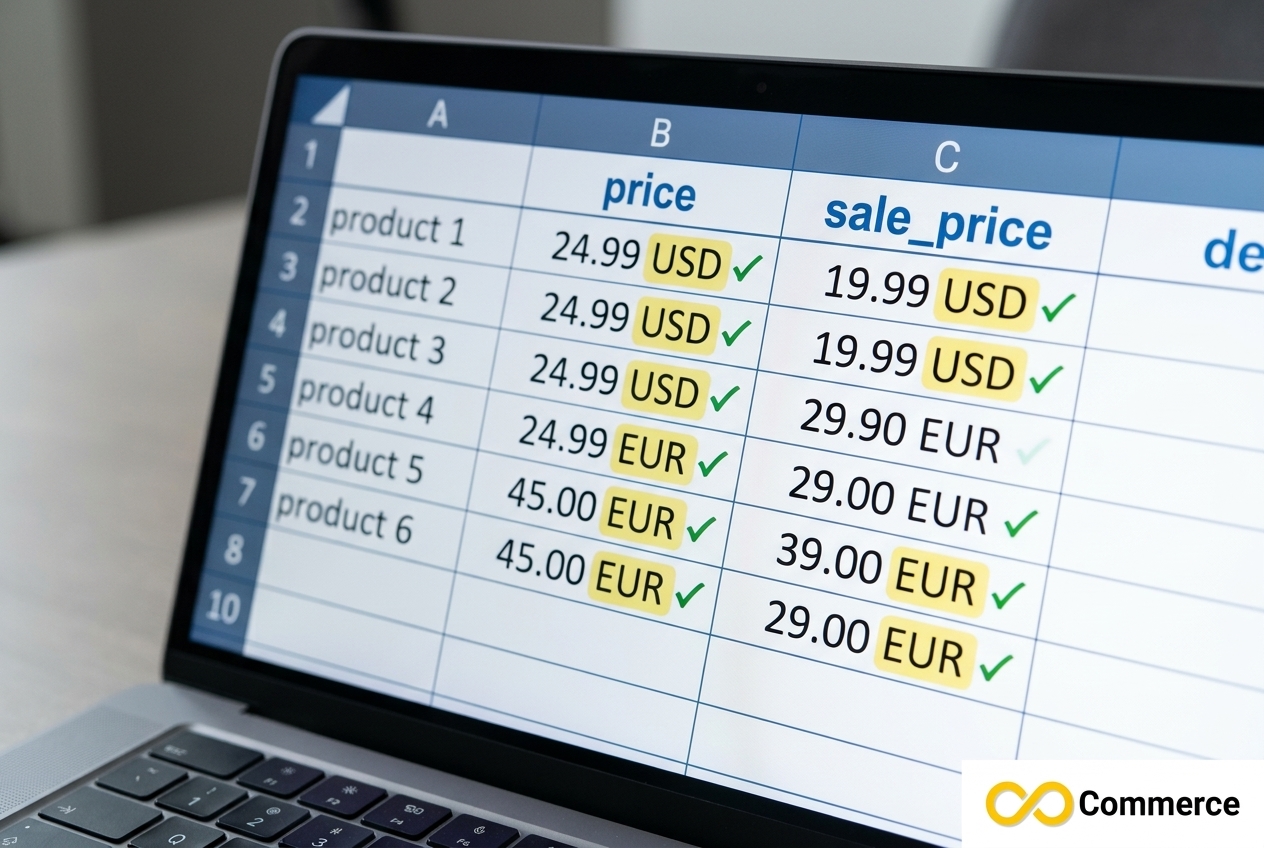
A clean TikTok price currency entry looks like this:
| Field | Example |
| price | 24.99 USD |
| sale_price | 19.99 USD |
Price formatting mistakes to avoid
- Using a symbol such as £ or € instead of a three-letter code.
- Using a comma as the decimal separator.
- Mixing currencies between price and sale_price.
- Leaving feed prices unchanged after an exchange-rate update.
These slips often appear as price or currency rejections. Our guide to TikTok catalog feed errors shows how to read Catalog Diagnostics and fix them.
Pricing in a TikTok Local Currency: Rates, Rounding and Margins
Converting a price is more than multiplying by a rate. Use this simple formula: base price × exchange rate, plus any buffer, then rounded to a local price point.
A worked example
Say a product costs 30.00 USD in your store and you need a GBP price. Assume an illustrative rate of 0.78 (this is not a live rate, so use a current one):
- 30.00 × 0.78 = 23.40 GBP
- Add a small buffer to absorb rate swings, for example 2 percent: about 23.87 GBP
- Round to a local price point such as 23.99 GBP
Then check the result against your margin after product cost, shipping and TikTok’s fees for that region. Fees differ by market, so use the figures shown in your Seller Center rather than a generic number.
How often to review rates
- Review weekly or monthly, depending on how volatile your currency pair is.
- Update prices before big sale events.
- Set a rule to revisit prices when rates move beyond a threshold you choose, such as 3 to 5 percent.
No setting guarantees margin, so track profit per order in each currency.
Troubleshooting Currency Mismatches
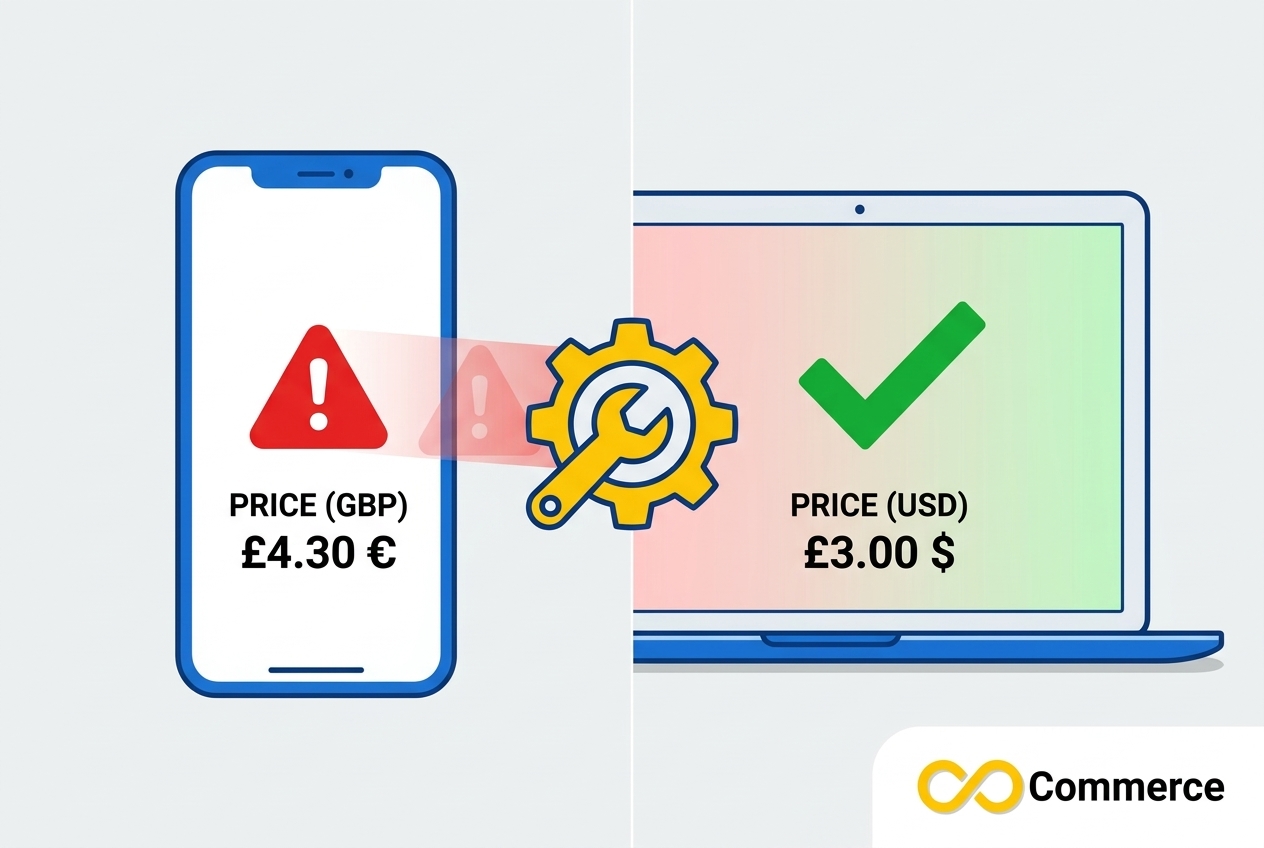
Common symptoms include products stuck on sync, prices on TikTok that differ from Shopify, and price rejections in Catalog Diagnostics.
How to Fix a TikTok Shop Currency Mismatch
- Confirm the shop’s currency in Seller Center and your Shopify default or market currency.
- Pick one method (market, fixed rate or store currency) and apply it consistently.
- Update the setting in your sync tool and wait for the next sync. AfterShip says currency changes sync within about an hour, and reinstalling its app triggers it immediately; other tools differ.
- Compare a test product in Shopify and on TikTok.
- Check feed prices for ISO 4217 codes and decimal points.
- If errors persist, read the item-level reason in Catalog Diagnostics or contact your sync tool’s support.
Tracking Sales Across Currencies
When you sell in more than one currency, reporting gets messy. TikTok purchase events generally include a value and a currency, so confirm that the currency sent matches the price shoppers saw. Our Facebook – TikTok Pixel app helps Shopify merchants set up Facebook and TikTok pixels. After any pixel setup, place a test order and check the event details in TikTok Events Manager. Keep a simple sheet that converts each market’s revenue into one reporting currency at a consistent rate, so you can compare markets fairly.
For more Shopify and TikTok walkthroughs, browse the Infinite Commerce blog.
Quick Currency Checklist Before You Launch
- Confirm the shop’s currency in Seller Center.
- Compare it with your Shopify default and market currencies.
- Choose one alignment method and use it consistently.
- Format every TikTok price currency in feeds with an ISO 4217 code.
- Test one product end to end.
- Schedule regular rate reviews.
Conclusion
Currency problems on TikTok are easy to prevent once you treat them as a setup step instead of an afterthought. Start by confirming which currency your TikTok Shop uses, compare it with Shopify, and pick one method to align them. If you plan TikTok Shop multiple currencies across several regions, give each shop its own market or rate and review prices on a schedule. The same discipline makes TikTok multi currency reporting far less painful, and it keeps your Shopify TikTok currency setup consistent as you grow.
Ready to keep your TikTok product data in better shape? Explore our TikTok Catalog Feed app and keep your catalog organized for TikTok ads.
FAQs
In most cases the currency is tied to the region where the shop is registered, so it is not a simple setting you can toggle. If you need another currency, you generally need a shop in a region that uses it. Confirm the options with TikTok Shop support or in Seller Center.
One shop sells in one currency. Reaching several currencies usually means connecting one shop per region to your Shopify store through a sync tool that supports multiple shops.
Compare the TikTok Shop currency with your Shopify default and market currencies. If they match, sync directly. If not, select a Shopify market priced in that currency or enter a fixed conversion rate, then test one product.
Not necessarily. It depends on the channel or sync app. Some read market prices directly from Shopify and others apply a rate you enter, so check your tool’s documentation.
Use a number followed by a three-letter ISO 4217 currency code, with a period as the decimal separator, for example 9.99 USD. Keep the price identical to the one on your landing page.
You can see sync failures, rejected items or prices that differ between Shopify and TikTok. Fix the currency setting first, then resync and test one product.
