 Amber Naz
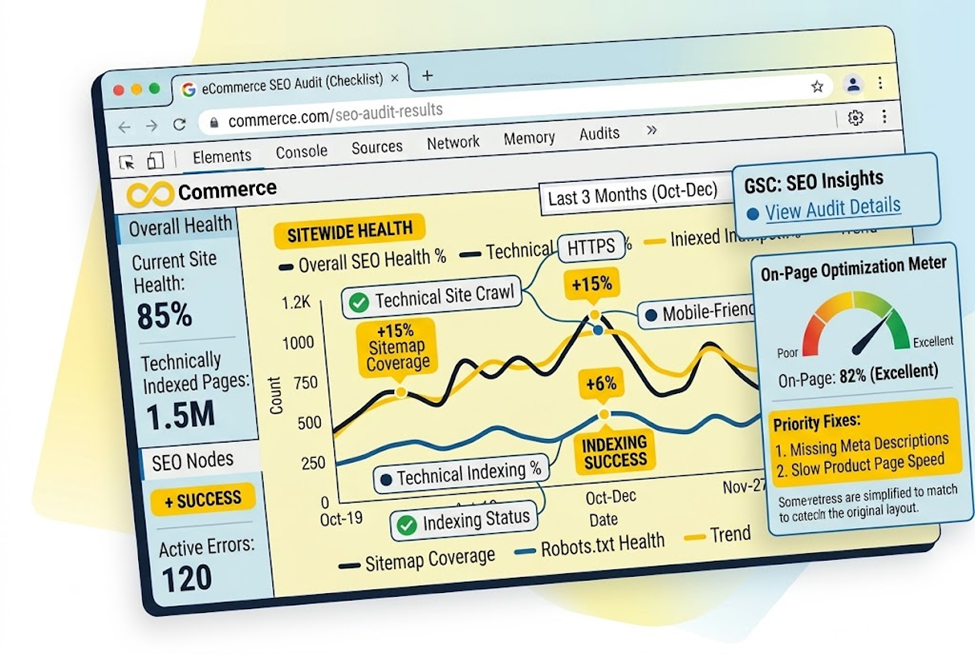
An ecommerce SEO audit is a structured review of your online store to find what’s stopping the right pages from being crawled, indexed, ranked and clicked. Do it well and you end up with a short, ranked list of fixes instead of a 200-row spreadsheet nobody acts on.
Most store audits fail because they’re either too technical to act on or too generic to catch how stores actually break: near-duplicate URLs, filters that explode into crawlable combinations, discontinued products, and apps that quietly slow every page.
This checklist has 12 steps, a way to prioritize findings, and a measurement plan. Where a rule comes from Google or Shopify, we say so, and we flag where a step is our own recommendation.
How to Use This Checklist
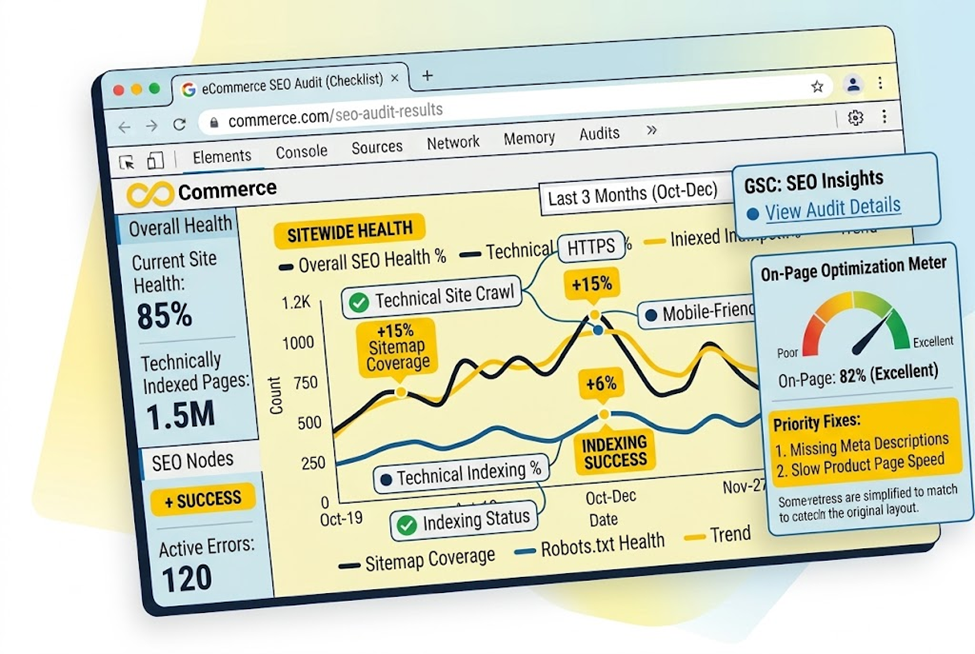
Work through the steps in order, because crawling and indexing problems make later fixes pointless. As you go, tag each finding with two scores:
- Impact: how many pages, products or revenue-driving URLs does it affect?
- Effort: can one person fix it in an hour, or does it need a developer?
Then sort findings into three buckets:
| Priority | Typical examples | When to act |
| Fix first | Key pages not indexed, important URLs blocked, broken checkout or tracking, large Core Web Vitals failures on top pages | Now |
| Fix next | Duplicate or thin collection pages, missing redirects, weak titles on top landing pages, missing product markup | This month |
| Optimize later | Alt text cleanup, content expansion, internal link polish | Ongoing |
This beats a flat checklist, because a store with 5,000 URLs always has hundreds of small issues, and only a handful move revenue.
Before You Start: Set a Baseline
You can’t prove an audit worked without a “before” picture. Spend 30 minutes on this:
- Verify your store in Google Search Console and submit your sitemap. Shopify generates the sitemap and robots.txt file for you, but Shopify’s own SEO guidance says you still need to add your domain and sitemap URL to Search Console yourself.
- Export your top pages and queries from the Search Console Performance report (clicks, impressions, CTR and average position).
- Record organic revenue and orders from your analytics for the last 90 days, so you can compare later.
- Copy your current robots.txt and the titles and descriptions of your top 20 landing pages.
- Note your Core Web Vitals for key templates using Search Console or PageSpeed Insights.
Keep this baseline in one sheet for Step 12.
Step 1: Check Crawling and Indexing
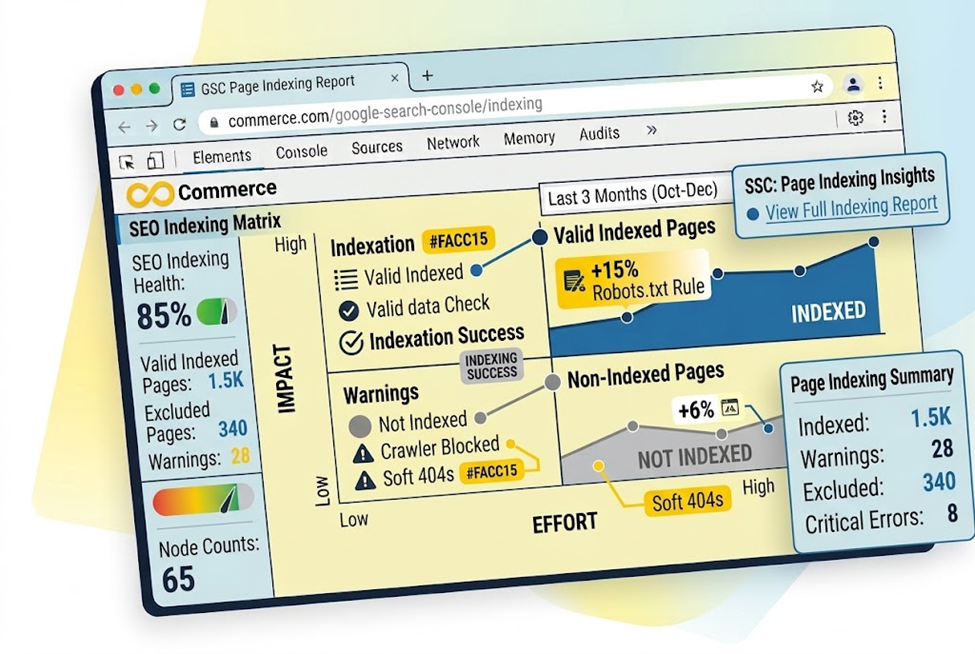
If Google can’t reach or index a page, nothing else about that page matters.
What to check:
- Page indexing report in Search Console. Google’s report shows how many URLs are indexed and why others aren’t. Start with the “Why pages aren’t indexed” table and focus on reasons whose source is your website, since those are usually fixable. Some exclusions are normal, such as duplicates or pages you intentionally blocked.
- Key statuses: “Crawled – currently not indexed” means Google fetched the page but hasn’t indexed it, and resubmitting isn’t necessary. “Discovered – currently not indexed” means Google knows the URL but hasn’t crawled it yet. “Duplicate without user-selected canonical” means Google chose a different canonical. That isn’t an error by itself, but if you disagree, declare a canonical explicitly or make the page more distinct.
- Your money pages. Use URL Inspection on top collections and best sellers to confirm they’re indexed.
- Sitemap health. Confirm it’s submitted and lists the URLs you want indexed.
- robots.txt. Shopify generates a default file that works for most stores. If you’ve customized it through a robots.txt.liquid template, Shopify recommends building on its built-in rule objects instead of writing plain rules, and saving a copy of your current file to compare against the template’s rendered output before publishing.
After you fix an issue, use Validate Fix in Search Console. Google says this recheck can take about two weeks.
Step 2: Audit Site Architecture and Internal Links
Google recommends building crawlable navigation: menus lead to category pages, categories to subcategories, and subcategories to product pages, so a crawler can reach every page by following links.
What to check:
- Can every product you want indexed be reached by links? Google says a search box alone isn’t enough, because Googlebot generally doesn’t submit searches on your site. If you can’t link to every page, a sitemap or Merchant Center feed helps.
- Use standard HTML links. Navigation built from regular anchor tags is crawlable. Click events on other elements may not be.
- Orphan products. Compare your product list against crawled URLs to find products with no internal links.
- Signal your priorities. Google weighs how many internal links point to a page, so link best sellers and key collections from the homepage, blog posts and newsletters.
- Descriptive anchor text beats “click here.”
Step 3: Review URLs, Canonicals and Duplicates
Stores generate duplicate URLs easily: variants, tracking parameters, collection paths and filters. Google’s ecommerce guidance says to:
- Give each product variant its own URL, and if a query parameter identifies the variant, point the canonical tag to the version without that parameter so Google can see how the variants relate.
- Add a self-referencing canonical to each indexable page.
- Use the same URL form consistently across internal links, canonical tags and sitemaps.
- Avoid linking to temporary parameters such as session IDs, tracking codes or timestamps.
- Remember that Google ignores everything after a # in a URL.
Shopify specifics: Shopify says it automatically adds canonical tags to help prevent duplicate content from appearing in search results. Don’t assume, though. View the page source of a product reached through a collection and confirm the canonical points to the URL you want ranking. Check the internal links in your theme as well, since links that consistently use the same URL form help.
Step 4: Handle Faceted Navigation and Pagination
Filters (color, size, price, brand) can create a huge number of URLs. Google says this wastes crawling on low-value filtered pages and can slow the discovery of new, useful ones.
Your two choices:
- Keep filtered URLs out of the index. Google says robots.txt rules that disallow filter parameters are the most reliable way to stop crawling, while keeping an unfiltered listing page. A canonical tag to the unfiltered page may reduce crawling over time, but it’s slower and less reliable. For filter and sort-only variations, Google’s pagination guidance also points to noindex tags or robots.txt rules.
- Let some filtered pages be indexed (for example, “red running shoes”). If so, use the standard & parameter separator, keep path-based filter order consistent, and return a 404 for combinations with no results, duplicate filters or nonexistent pagination pages.
Pagination rules from Google:
- Give every page in a series its own URL, such as ?page=2.
- Don’t point every page’s canonical at page one.
- Link pages in sequence with standard links.
- Use crawlable links behind “load more” and infinite scroll, since Google doesn’t click buttons.
- Google says it no longer uses rel=”next” and rel=”prev”, so don’t spend audit time on them.
Step 5: Fix Redirects and Error Pages
Products come and go, and every removal is a chance to lose traffic.
What to check:
- Discontinued or renamed products. Shopify’s SEO guidance says merchants should set up 301 redirects when moving or discontinuing products. Redirect to the closest relevant product or collection, not blindly to the homepage.
- Redirect chains. Link internally to the final URL instead of an old redirected one.
- Empty collections. Google suggests a noindex tag or a 404 status for empty categories.
- 404s with value. In Search Console, look for 404 URLs that still have links or traffic and redirect them.
- Out-of-stock products. Our recommendation, not a Google rule: keep the page live if the product is returning and link to alternatives. Redirect only when it’s gone for good.
Step 6: Test Page Speed and Core Web Vitals
Core Web Vitals are measured at the 75th percentile of page loads, split by mobile and desktop. The current good thresholds are:
| Metric | What it measures | Good |
| Largest Contentful Paint (LCP) | Loading | 2.5 seconds or less |
| Interaction to Next Paint (INP) | Interactivity | 200 milliseconds or less |
| Cumulative Layout Shift (CLS) | Visual stability | 0.1 or less |
INP replaced First Input Delay and became a stable Core Web Vital in 2024.
How to audit: Test your templates (home, collection, product, cart) on mobile first, comparing PageSpeed Insights lab results with Search Console field data. Then check the usual suspects (practical experience, not Google rules): oversized images, apps loading scripts on every page, sliders, chat widgets and third-party tags. Remove what you don’t use, and retest.
Step 7: Audit Titles, Meta Descriptions and Headings
Google’s SEO starter guide says every page should have a unique, clear title and a short, unique description, and that helpful, original content likely matters more than any other suggestion. Shopify adds some practical numbers:
- Titles: unique and descriptive, with the main keyword near the start, around 60 characters to avoid cutoff.
- Meta descriptions: a unique summary of around 160 characters.
- H1: Shopify generates each page’s main heading from the Title field, so check that your product and collection titles read well as headings.
- Alt text: describe what the image actually shows.
- Body copy: Shopify suggests at least 250 words of descriptive text for product and collection pages, and 500 for blog posts. Treat those numbers as a prompt to avoid thin pages, not as a ranking rule.
Remember: Search engines may rewrite your titles and descriptions. Shopify suggests viewing the page source to check your tags. If they match what you entered, the difference comes from the search engine. Changes can take days to weeks to show up, and you can request recrawling with the URL Inspection tool.
Quick win: In the Performance report, find pages with many impressions but a low click-through rate. A sharper title and description on those pages is often the cheapest improvement in the audit.
Step 8: Audit Product Pages and Structured Data
Product pages are where rankings turn into revenue, so audit them one template at a time.
Content checks:
- Unique descriptions. Avoid copying manufacturer text verbatim, as Shopify advises.
- Clear product details: price, availability, size, material, shipping and returns information shoppers expect.
- Images with descriptive alt text placed near the relevant details.
- Real reviews shown on the page.
- Internal links to related products and the parent collection.
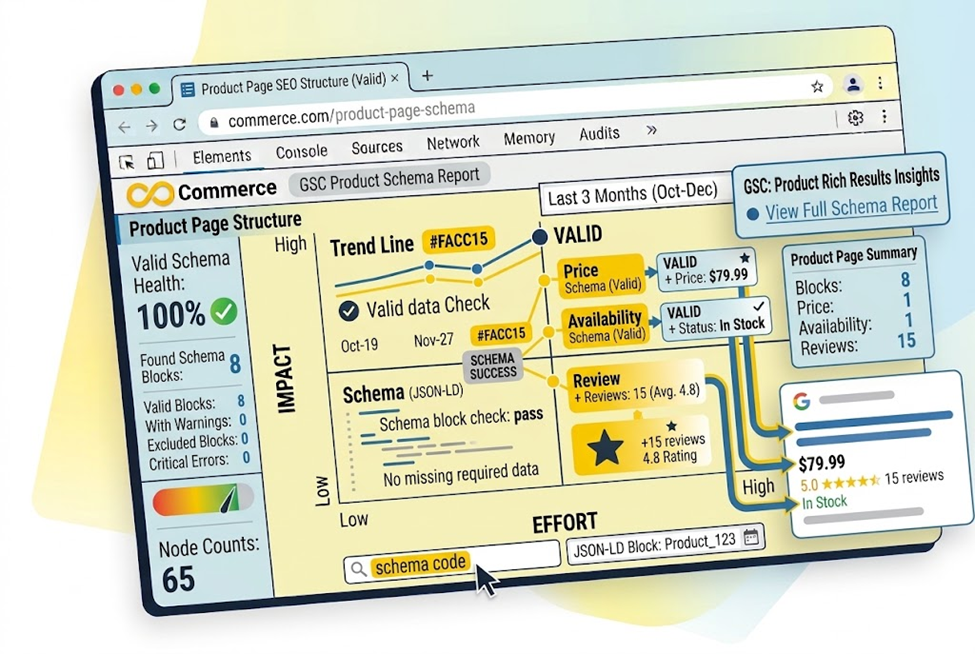
Structured data: Google separates “product snippets” (for pages where shoppers can’t buy directly) from “merchant listings” (for pages where you sell the product). Merchant listings support richer details such as shipping and return policies, and meeting their requirements also makes a page eligible for product snippets. Rich results can show ratings, availability, shipping costs and return information, but Google doesn’t guarantee they’ll appear.
Shopify says product schema is built into its themes. Verify it anyway: run a few top products through Google’s Rich Results Test, and make sure the price and availability in the markup match what’s on the page. Google also notes you can supply product data through page markup, a Merchant Center feed or both, and that using both helps Google verify your data.
Step 9: Audit Collection and Category Pages
For many stores, collection pages rank for the broad, high-value searches, so they deserve their own pass.
Checklist:
- One clear target keyword per collection. If two collections target the same phrase, merge or differentiate them to avoid keyword cannibalization.
- Useful intro copy that explains what’s in the collection and helps shoppers choose, without keyword stuffing.
- Crawlable pagination and filters following Step 4.
- Links to subcollections and top products.
- No thin or empty collections left indexable.
Step 10: Find Content Gaps and Check Search Intent
Product and collection pages serve shoppers who are ready to buy. Many searchers are earlier in the journey, comparing options or asking “which is best?” Gaps in that content cost you traffic and links.
How to find gaps:
- In Search Console’s Performance report, list queries where you get impressions but few clicks or low positions.
- Search your main keywords and note what ranks: product pages, guides, comparisons or videos. That shows the intent Google is serving.
- Map each important keyword to exactly one page, and note keywords with no matching page.
- Plan buying guides, comparisons and FAQs for the gaps, linked to the relevant collections and products.
Google’s ecommerce guidance says useful content that serves shoppers is the core of ecommerce SEO.
Step 11: Check How Visitors Behave on Your Top Organic Pages
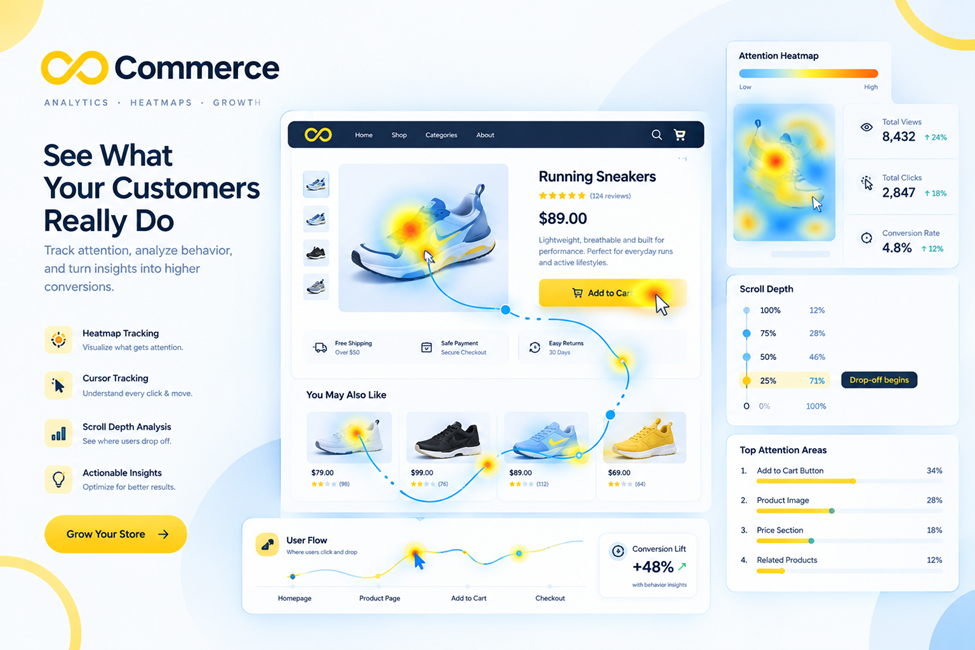
Rankings get people to your store. Behavior shows whether the page earns the sale. A page can rank well and still lose shoppers to a confusing layout, hidden size guide or a button that isn’t visible on mobile.
What to do:
- Pick your top 10 organic landing pages from the Performance report.
- Review heatmaps to see where visitors click and how far they scroll, and session recordings to watch where they hesitate or leave.
- Compare mobile and desktop separately.
- Note issues like content below the fold, dead clicks, hidden shipping information or missing trust signals, and feed them into your fix list.
Our Infinite Microsoft Clarity & Heatmap app connects Microsoft Clarity to your Shopify store and provides heatmaps, session replays and ecommerce event tracking for actions such as product views, add to cart, checkout start and purchase. That gives you behavior data for the exact pages your audit flags. (The page lists a 7-day trial; check current plans before installing.)
Step 12: Verify Your Tracking and Measure Results
An audit without measurement is guesswork. Before and after your fixes, confirm your data is trustworthy:
- Check your analytics events. Test that product views, add to cart, begin checkout and purchase fire once per action. Duplicate or missing events make organic performance look better or worse than it is.
- Check ad and organic data separately. If you run paid campaigns, accurate conversion tracking keeps paid sales from being mistaken for organic. Our guide to tracking pixels in ecommerce explains how conversion data fits together, and our Google Ads Tracking & GTM app tracks page views, add to cart, begin checkout and purchase events if you need help.
- Compare against your baseline. Look at clicks, impressions, CTR, average position, indexed pages, organic orders and organic revenue.
- Be patient and specific. Shopify notes metadata changes can take days to weeks to appear, and Validate Fix can take around two weeks. Judge results over weeks, record the date of each fix, and avoid changing too many things at once.
Your Printable Ecommerce SEO Audit Checklist
Use this as a quick scorecard:
Crawling and structure
- Sitemap submitted, robots.txt reviewed, key pages confirmed indexed
- Every important product reachable through standard internal links
URLs and duplicates
- Self-referencing canonicals; variants and parameters handled consistently
- Filter and sort URLs kept out of the index or returning 404s
- Paginated pages have unique URLs
Errors and speed
- Discontinued products redirected; redirect chains removed
- Empty collections noindexed or removed
- LCP, INP and CLS checked on mobile for main templates
On-page and products
- Unique titles and descriptions; low-CTR pages rewritten
- Product copy, alt text and markup checked
- One target keyword per collection
Content and measurement
- Content gaps mapped to new pages
- Heatmaps and recordings reviewed on top organic pages
- Analytics events tested and baseline saved
Conclusion: Audit, Prioritize, Measure
A good ecommerce SEO audit isn’t a long list of problems. It’s a ranked plan: make sure Google can crawl and index your important pages, clean up duplicates and dead ends, speed up your templates, sharpen titles and product content, fill content gaps, and confirm with real data that visitors convert.
Start with the baseline, tag every finding by impact and effort, and fix the first bucket before anything cosmetic. Don’t skip the last two steps: behavior data and trustworthy tracking turn a to-do list into revenue you can measure.
If you’d like help checking your store’s tracking or seeing how visitors behave on your top organic pages, try the Infinite Microsoft Clarity & Heatmap app or talk to the Infinite Commerce team.
FAQs
It’s a structured review of your online store’s technical health, on-page elements, content and tracking to find issues that limit organic traffic and sales, and to rank those issues by impact.
Not to start. Google Search Console, the Rich Results Test, PageSpeed Insights and your analytics cover most of this checklist.
Partly. Shopify generates the sitemap and robots.txt files, adds canonical tags, includes product schema in themes and enables SSL. You still need to submit your sitemap, edit titles, descriptions and alt text, monitor Search Console and set up redirects.
If you don’t want filtered pages in search, Google says disallowing the filter parameters in robots.txt is the most reliable method, while keeping one unfiltered listing page. If some filtered pages target real searches, keep those crawlable and follow Google’s URL rules.
Compare Search Console clicks, impressions, CTR and indexed pages, plus organic orders and revenue, against the baseline you saved before the audit. Give it weeks, and check that your analytics events are accurate.
