 Amber Naz
Most Shopify stores do not break in a dramatic way—they drift. Without routine Shopify maintenance services, an app update can nudge a button out of place, a deleted product leaves a dead link behind, a pixel quietly stops reporting purchases, and the homepage gets a little slower every time someone adds a banner. Nobody notices until sales dip or ad reports stop making sense.
Quick summary
Shopify maintenance is the routine upkeep that keeps your store fast, accurate, and working: checking speed, auditing apps, verifying tracking, fixing broken pages, testing checkout, and keeping a safe copy of your theme. Run the checks below once a month, keep a short log of what you find, and bring in professional help when the list outgrows the time or skills you have.
What are Shopify maintenance services?
Shopify maintenance services are ongoing support plans, offered by agencies and freelance experts, that keep an existing store healthy after launch. Shopify looks after the platform itself. Everything built on top of it is still yours to look after: your theme, your apps, your content, your tracking setup, and the links between your pages.
When you compare providers, their service pages describe similar building blocks:
- Theme and app updates, plus fixing conflicts between them
- Speed and uptime monitoring
- Bug fixes and small content or layout changes
- Security hygiene, such as reviewing who has access to the store
- Theme backups so changes can be rolled back
- A regular report on what was checked and changed
Most providers also list what is not included, usually large redesigns, new feature builds, paid app subscriptions, and ad management. Always ask where that line sits, because that is where surprise invoices come from.
One gap shows up often: tracking. Many maintenance checklists focus on code and speed and skip the question of whether your Meta, Google, and TikTok data is still accurate. If you spend money on ads, that belongs on the list, and it is covered below.
Why a monthly rhythm works
Monthly is a sensible default for most stores. It is frequent enough to catch a problem before it runs for a whole quarter, and infrequent enough to stay manageable. Stores that run heavy promotions, change products constantly, or install apps often may want a quick weekly look at tracking and checkout as well.
The goal is not perfection. The goal is to compare this month with last month, so a change you did not plan stands out.
The monthly Shopify maintenance checklist
1. Check speed and Core Web Vitals
Speed is the easiest thing to let slide, because every individual change looks harmless.
Google’s Core Web Vitals give you three numbers to track. According to web.dev’s Web Vitals guidance, a good experience means Largest Contentful Paint (loading) within 2.5 seconds, Interaction to Next Paint (responsiveness) of 200 milliseconds or less, and Cumulative Layout Shift (visual stability) of 0.1 or less. These are measured at the 75th percentile of real page loads, separately for mobile and desktop.
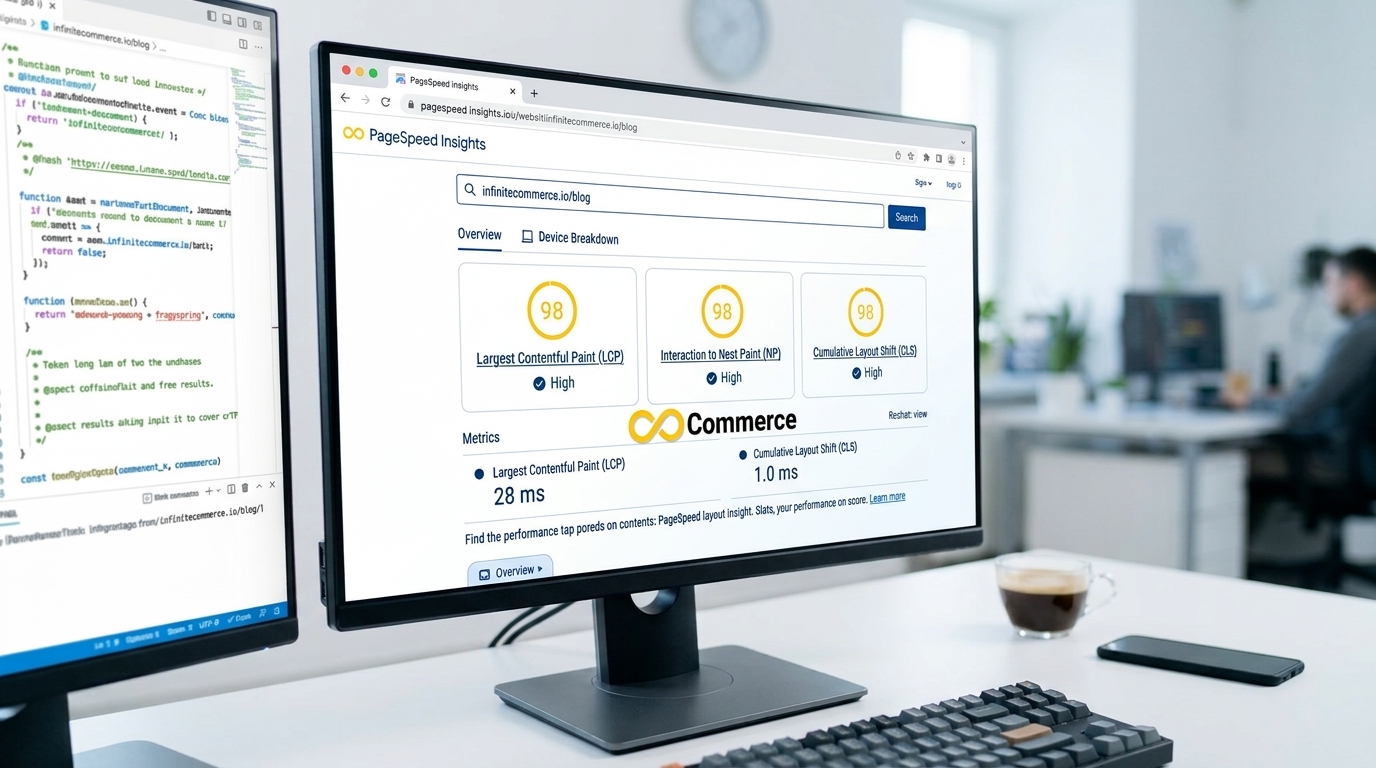
What to do each month:
- Run your homepage, your best-selling collection page, and your top product page through PageSpeed Insights.
- Open the Core Web Vitals report in Google Search Console to see how real visitors experience your pages.
- Write the three numbers in your log. A rising LCP or a new layout shift is your cue to look at what changed: a new app, a bigger hero image, a new popup.
- Test on a phone first. Most store problems show up on mobile before desktop.
2. Audit your apps
Every app is a trade-off between a feature and extra code running on your storefront.
- List every installed app and ask whether anyone used it this month. If not, remove it.
- Check what each remaining app is allowed to access in your store.
- After removing an app, look in your theme code for leftover snippets. Some apps can leave code behind after uninstalling, and that code can keep loading on every page.
- Note any app that updated recently, then re-test the pages it touches.
This is also the moment to catch two apps doing the same job, such as two review widgets or two popup tools.
3. Verify tracking and pixels
A store can look perfect and still lose money if tracking is broken. When purchase events stop reaching Meta or Google, ad platforms optimize on bad data, and your reports no longer match your orders.
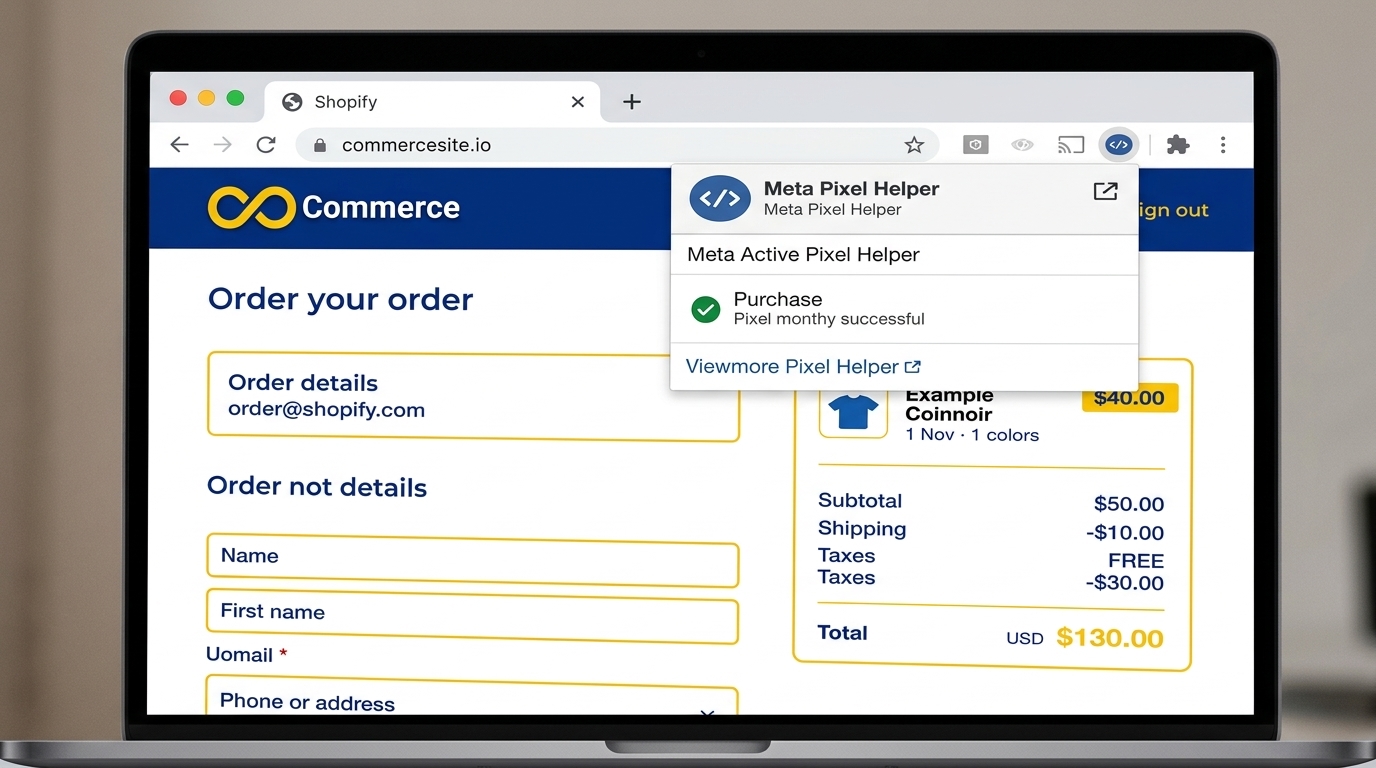
A quick monthly tracking check:
- Load your store with the Meta Pixel Helper extension and confirm the pixel fires on the homepage, product pages, add to cart, and checkout. Our Meta Pixel Helper guide shows how to read what it reports.
- In Meta Events Manager, confirm purchase events arrive with a value and currency attached.
- Look for duplicate pixels. Two installs of the same pixel, for example one from a sales channel and one pasted into the theme, can double-count events.
- Compare the order count in Shopify with the purchases your ad platforms report. They will never match exactly, but a sudden gap is worth investigating.
- Check your Google Ads and Bing conversion tags the same way if you run those channels.
If something is off, start with our step-by-step guide to fixing a Facebook Pixel that is not working on Shopify.
4. Find and fix broken pages
Broken links frustrate shoppers and waste the traffic you worked to earn.
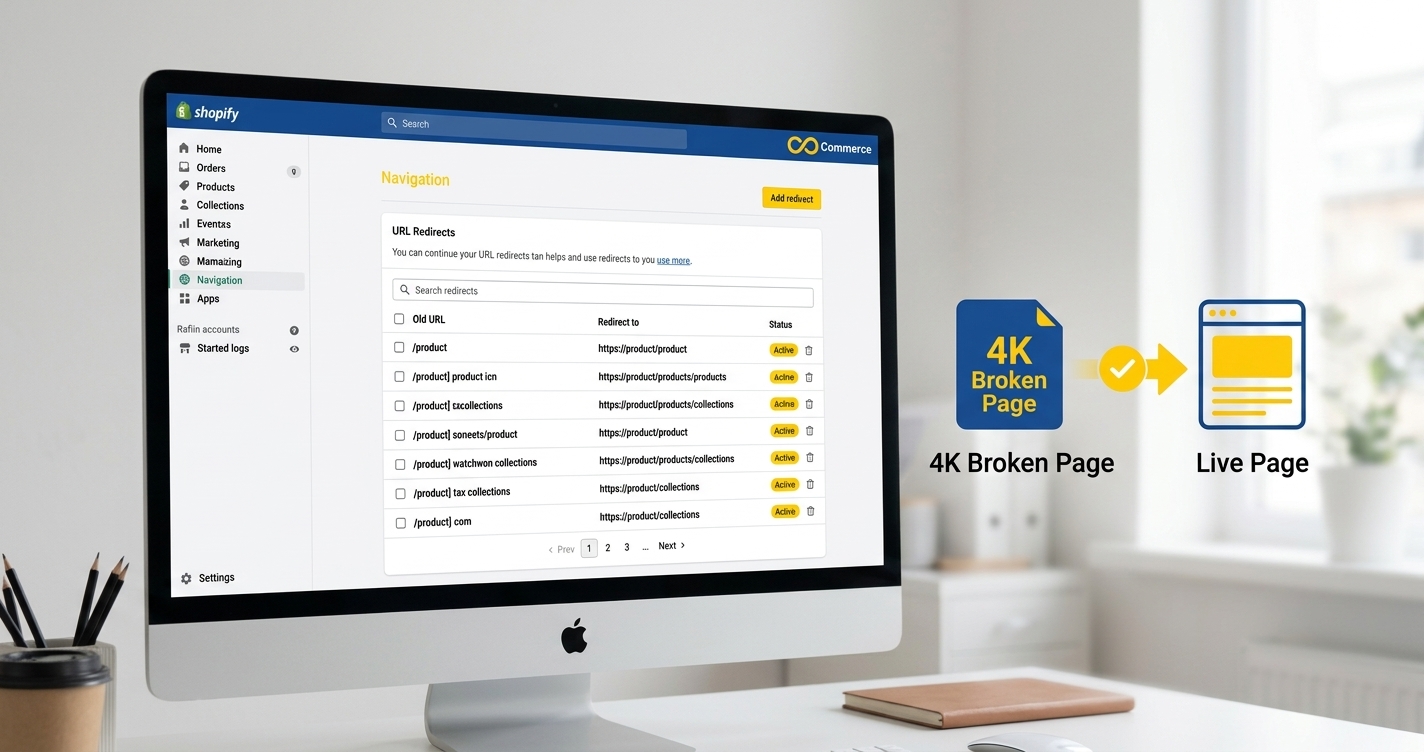
- In Google Search Console, open the Page indexing report and look for pages listed as not found (404). Google explains how to read it in its Page indexing report help.
- Click through your navigation menu and footer links.
- Review recently deleted or hidden products and collections. If shoppers or search engines still request those URLs, they hit a dead end.
When you find a dead URL, create a redirect to the closest relevant page. In your Shopify admin, go to Content, then Menus, then View URL Redirects. Per Shopify’s URL redirect documentation, you can only redirect from a URL that is actually broken, so a URL that still loads a valid page will not redirect.
Send visitors to something genuinely related, such as a similar product or the parent collection, rather than dumping everyone on the homepage.
5. Walk through the buying journey
Once a month, act like a customer on your phone:
- Land on a product page from a search result or ad.
- Choose a variant and add it to the cart.
- Apply a discount code.
- Proceed through checkout to the payment step.
- Confirm shipping options, taxes, and payment methods all appear as expected.
This short test catches problems no report will show you, such as a variant selector that stopped working after a theme edit.
6. Protect your theme and your data
Before any edit to your live theme, duplicate it. Shopify recommends making a backup copy before you customize a theme, so you can discard changes and start again. Shopify also sets a limit of 20 themes in your admin, so delete old copies you no longer need.

Keep in mind that a downloaded theme does not include your products, collections, pages, blog posts, or files. A theme backup is not a store backup. Export your product and customer data from the admin on a regular schedule as well.
7. Review content and catalog health
- Remove or update expired promotions, banners, and countdowns.
- Check that out-of-stock products are handled the way you intend.
- Re-read shipping, returns, and policy pages for anything that changed.
- Spot-check new product pages for missing images, missing alt text, and thin descriptions.
8. Tidy security and access
- Review your staff list and remove anyone who no longer needs access, including past freelancers and agencies.
- Make sure everyone who logs in uses two-step authentication.
- Reset any shared passwords that have been passed around.
This takes a few minutes and closes one of the most common ways stores get into trouble.
Monthly checklist at a glance
| Check | What to look at | Where |
| Speed | LCP, INP, CLS on key pages, mobile first | PageSpeed Insights, Search Console |
| Apps | Unused apps, leftover code, recent updates | Shopify admin, theme code |
| Tracking | Pixel firing, purchase values, duplicates | Pixel Helper, Events Manager |
| Broken pages | 404s, menu links, deleted products | Search Console, URL Redirects |
| Checkout | Cart to payment step on mobile | Your live store |
| Theme and data | Duplicate before edits, export data | Themes page, admin exports |
| Content | Expired offers, policies, product pages | Admin, storefront |
| Access | Staff accounts, two-step authentication | Settings, Users |
Keep a simple maintenance log
A log turns a one-off check into a trend. After each monthly pass, record:
- The date and who did the check
- Your three Core Web Vitals numbers for each key page
- Apps added, removed, or updated
- Tracking status: what fires and what does not
- Broken URLs found and redirects created
- Changes made to the theme
- Open issues and who owns them
A good maintenance provider should hand you something like this every month. If you are doing the work yourself, a shared spreadsheet is plenty.
DIY or hire Shopify maintenance services?
Doing it yourself works well for small catalogs, simple themes, and owners comfortable in the admin. Consider outside help when:
- You are editing theme code and are not confident doing it safely
- You run paid ads and cannot easily verify tracking
- You have a large catalog or frequent product changes
- Nobody on the team owns the checklist, so it never gets done
- You have seen an unexplained drop in speed, conversions, or reported purchases
If you do hire, ask these questions before you sign:
- What exactly is included each month, and what is billed separately?
- How quickly do you respond to an urgent problem?
- Do you check tracking and pixels, or only the theme and apps?
- Do you duplicate the theme before every change?
- What do I receive at the end of each month?
- Who has access to my store, and how is it removed when we finish?
Compare scope rather than price. Plans are priced in different ways, by monthly fee or by included hours, so a cheaper plan can simply cover less.
Common maintenance mistakes
- Editing the live theme without a copy. One bad change then becomes a live problem with no easy way back.
- Installing apps and never removing them. Unused apps still cost you speed and add to your access risk.
- Checking only on desktop. Many shoppers are on phones, so that is where to test first.
- Treating tracking as set-and-forget. Theme edits and app changes can break pixels without any visible error.
- Deleting products with no redirect. This creates dead ends for shoppers and for search engines.
Final thoughts
Shopify maintenance is not glamorous, but it protects everything you spend on marketing and design. Speed, apps, tracking, broken pages, checkout, backups, content, and access: work through the eight checks once a month, log what you find, and the small problems never get the chance to become expensive ones.
Tracking is the part most stores underestimate. If your ad data looks wrong, the cause is often a pixel or tag that silently stopped working, and fixing it is usually faster than owners expect.
FAQs
Typically theme and app updates, speed monitoring, bug fixes, small content changes, security checks, theme backups, and a monthly report. Scope varies between providers, so confirm what is and is not included, especially for tracking and larger projects.
A full check once a month suits most stores. If you run frequent promotions or install apps often, add a quick weekly check of checkout and tracking.
Shopify runs the platform, but the theme, apps, content, tracking, and links on your store are your responsibility. That upkeep is what a monthly checklist or a maintenance service covers.
It depends on the provider and the scope. Some charge a monthly fee and others sell blocks of hours. Ask for a written scope so you can compare plans fairly.
It can contribute to problems. Slow pages and unresolved 404 errors create a poor experience for visitors and show up in Search Console reports. Good maintenance reduces those issues, though no routine can guarantee a ranking.
No. According to Shopify, a downloaded theme does not include your products, collections, pages, blog posts, or files, so export your store data separately.
